How Foneo Works: Stable Diffusion Explained Simply for Photographers
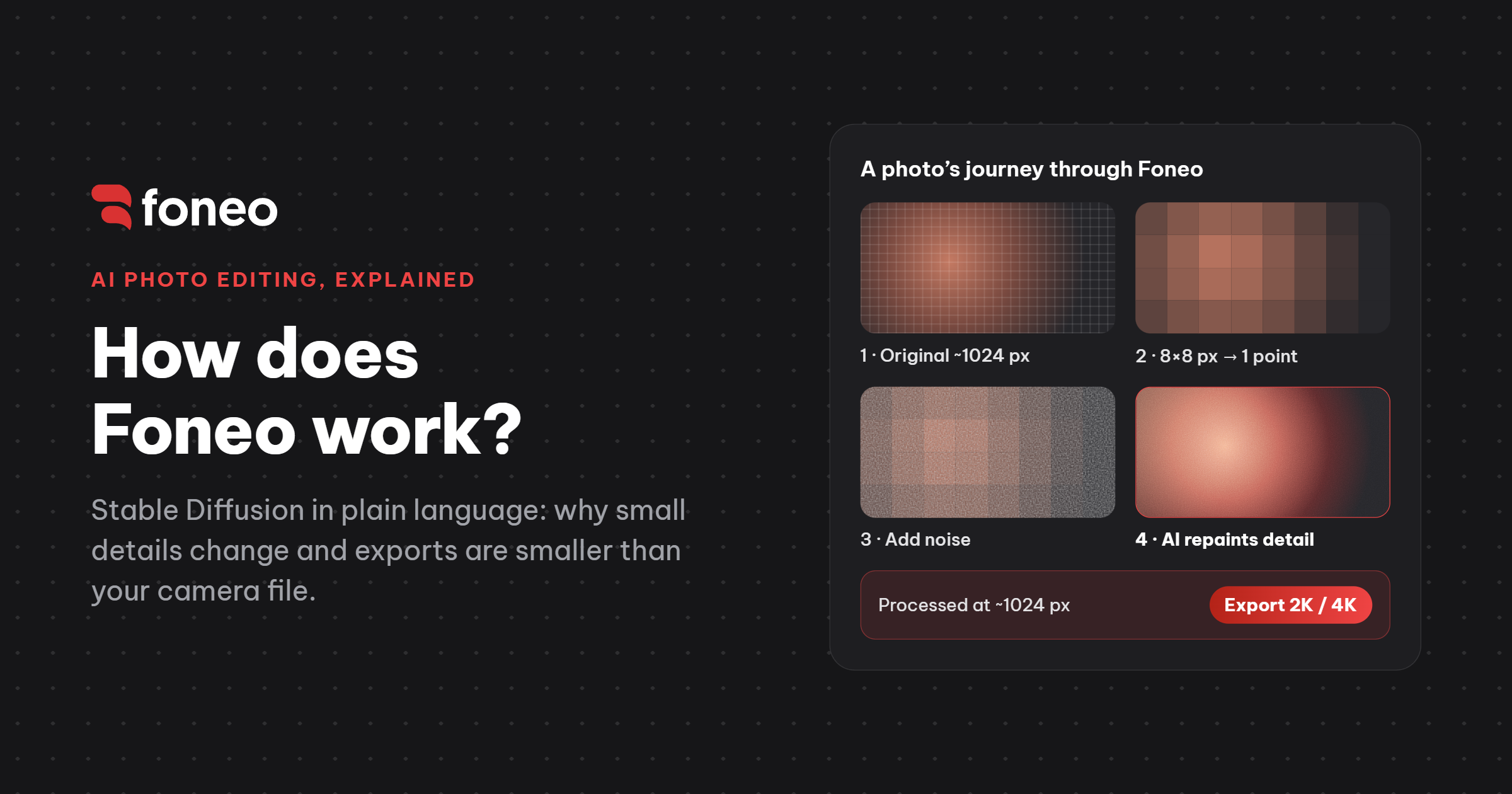
You run a portrait through Foneo and the result looks great at a glance. Then you zoom to 100%: the earrings have a different design, the lettering on the shirt is a little warped, and the exported file is smaller than the 24MP original from your camera.
That isn't a bug. It's how generative AI works. This article explains the mechanism with everyday comparisons, no math and no code. By the end you'll know why it happens, when to trust the AI, and how to bring back original detail when you need it.
AI doesn't "adjust" your photo, it "repaints" it
When you drag Exposure or Curves in Lightroom, the software changes the values of pixels that already exist. No new pixels are created.
Stable Diffusion works very differently. Think of a highly skilled painter who looks at your photo, understands the request ("add warm evening light"), and then repaints the image to match. The painting follows your photo's composition, lighting and faces, but the painter isn't copying pixel by pixel.
Stable Diffusion is a family of image-generation AI models trained on hundreds of millions to billions of images. That's how it learned what skin looks like, how light falls on fabric, and what color a sunset sky is. Every AI tool in Foneo runs on models from the Stable Diffusion family. Foneo's job is to pick the right model for each task and package it into a tool that's easy to use.
What happens to a photo inside Foneo: 5 steps
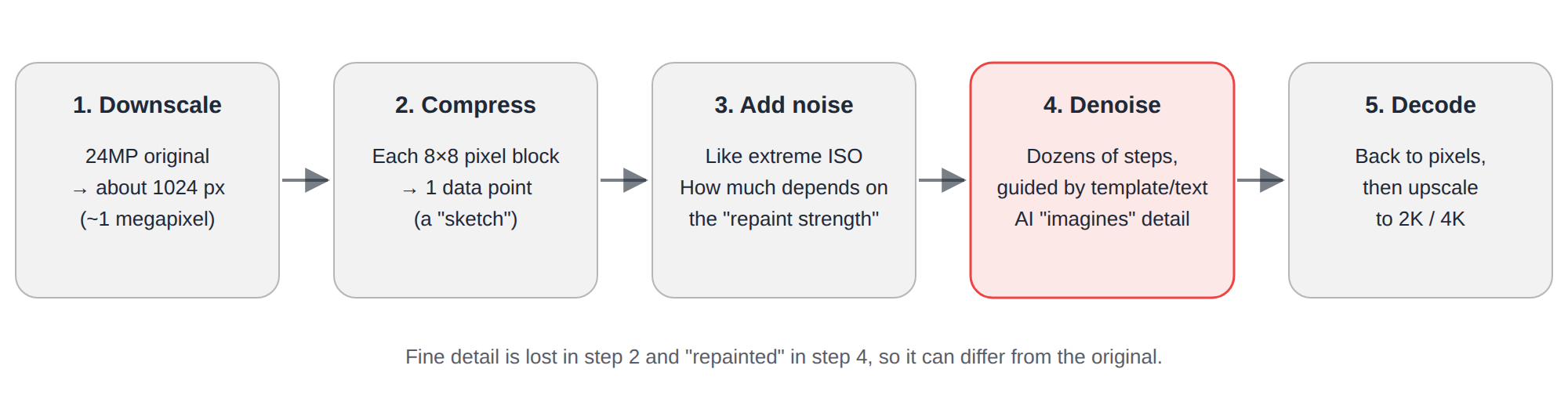
Step 1: Downscale to about 1024 px
Foneo brings the photo to a standard working resolution of about 1024 px, roughly 1 megapixel. That's the size the models were trained to paint best at. The section "Why is the result smaller than my camera file?" below explains why.
Step 2: Compress the photo into a "sketch"
Stable Diffusion doesn't paint directly on pixels. It first compresses the image into a more compact form called a latent: each 8×8 block of pixels (64 pixels) is packed into a single data point. A 1024×1024 image becomes a 128×128 "sketch".
Imagine describing a photo to someone over the phone. You'd say "a woman in a white dress, evening light from the left", not describe every strand of hair. The sketch keeps composition, color and light well, but anything smaller than an 8×8 block doesn't survive intact.
Step 3: Add noise to the sketch
Next, the model covers the sketch with random noise, like a photo shot at an extreme ISO. How much noise depends on the repaint strength (called denoise strength in Stable Diffusion): a little noise keeps the result close to the original, a lot of noise gives the AI more room to create, for example when replacing a background or an outfit.
Step 4: Remove the noise step by step, following guidance
This is where the actual painting happens. Over dozens of steps, the model gradually removes the noise. At each step it asks itself: "given this guidance, what should this image look like?" The guidance can be a template you picked, a description you typed, or a reference photo (as in Copy Pose).
This is the step where the AI "imagines" the details lost in step 2, based on what it learned from hundreds of millions of other images.
Step 5: Decode and upscale
The finished sketch is decoded back into a pixel image, then upscaled with AI on export: up to 4K on paid plans and 2K on the Free Plan.
Why do small details change compared to the original?
Putting the five steps together, there are four main reasons.
1. Fine detail is lost during compression
An 8×8 block of pixels becomes one data point. Fabric patterns, flyaway hair, small text, skin texture and jewelry details are the first things to go.
2. The AI "guesses" details based on what it has learned
When denoising, the AI repaints details so they look plausible, not so they are identical to your original. The earrings are still earrings, but the design may change. The shirt still has buttons, but the count may be off. It's like a painter doing a portrait: the face is a strong likeness, but the earrings are painted from memory.
3. The smaller the subject in the frame, the less the AI has to work with
If a face takes up about 100 px of the 1024 px working area, after compression it's only about 12×12 data points. With that little information, the AI can easily paint a face that is "close" rather than exactly that person. That's why group shots, distant subjects and small hands go wrong more often than close-up portraits.
4. Every run is a little different
The noise in step 3 is random (called the seed in Stable Diffusion). Different noise means a different painting. So running the same photo again gives a different result, and sometimes a better one.
The details most likely to go wrong
- Text and logos: the AI learns letter shapes as patterns; it doesn't "read" them, so small lettering warps or turns into odd characters.
- Hands and fingers: many joints, many poses, and often small in the frame.
- Jewelry and accessories: tiny, full of repeating detail and complex reflections.
- Eyes and facial identity: a shift of a few pixels is enough to look like someone else.
- Repeating patterns: stripes, tiles, mesh, curtains.
How to get original detail back in Foneo
- Export a PSD. The file contains the original image layer and the processed layer. Add a mask to bring back earrings, text or hands from the original and keep the AI result everywhere else.
- Use the dedicated tools: Enhance Face, Detail Enhance and Upscale are built to preserve detail better.
- Start from a high-quality original with the subject filling most of the frame; crop in on the important area before processing if needed.
- Run it 2–3 times and keep the best one. Foneo's paid plans don't charge per edit, so experiment freely.
Why is the result smaller than my camera file?
Today's cameras produce 24–60 megapixel files. Stable Diffusion works best at around 1 megapixel. There are three reasons the AI can't simply paint at your camera's full resolution.
1. The models were trained to paint at about 1 megapixel
Stable Diffusion learned from images around 1024 px. Forcing it to paint far larger in one pass is like asking a painter who works on letter-size paper to paint a whole mural without stepping back to see it. The typical result is broken composition: duplicated subjects (two heads, four arms), disconnected details, patchy color.
2. The computing cost grows very fast with size
Doubling each side of an image makes 4 times as many pixels, and the heaviest part of the model (the attention part, which lets it relate different areas of the image) can grow by up to about 16 times. A 24MP photo is about 23 times the 1-megapixel working area, so it needs far more GPU power and time. That cost would end up in your subscription price.
3. So the real-world pipeline is: downscale → process → upscale
Foneo processes at about 1024 px, then upscales the result with AI to 2K or 4K on export. This table puts those sizes in context:
Image sizes compared (3:2 aspect ratio)| Image | Size (px) | Megapixels |
|---|---|---|
| Foneo AI working area | about 1024 px | ~1 MP |
| 2K export (Free Plan) | ~2048 × 1365 | ~2.8 MP |
| 4K export (paid plans) | ~3840 × 2560 | ~9.8 MP |
| 24MP camera | 6000 × 4000 | 24 MP |
| 45MP camera | 8192 × 5464 | ~45 MP |
What is a 4K export good for?
A 4K image (about 3840 px on the long side) is plenty for social media, websites, online galleries and 4K screens. For print, it gives you a sharp 8.5 × 12.8 in print at 300 dpi, or about 12.8 × 19.2 in at 200 dpi.
If you need a larger file for big prints, open the PSD in Photoshop, place the AI layer over your full-resolution original, and keep the AI result only where something actually changed (lighting, background, removed objects). Everywhere else comes from the original, with your camera's full sharpness.
Why Foneo is simple and still gets good results
Everything above can be done by hand with Stable Diffusion, for example in ComfyUI. But to get a reliable result for one task, you have to make dozens of decisions yourself:
Doing it yourself with Stable Diffusion vs using Foneo| Task | DIY with Stable Diffusion / ComfyUI | With Foneo |
|---|---|---|
| Setup | Install ComfyUI, download multi-GB models, add custom nodes | Install the Foneo app and sign in |
| Hardware | A GPU with plenty of VRAM (usually 8 GB or more) or a rented GPU server | Not needed: processing runs on Foneo's servers |
| Choosing models | Pick checkpoints, LoRAs and ControlNets for each job | Foneo picks them for each tool |
| Settings | Tune sampler, steps, CFG, denoise and seed | Already tuned |
| Prompts | Write prompts and negative prompts | Built-in templates; text is optional |
| Workflow | Wire nodes, fix them when they break, update when new models ship | Pick a tool → drop in a photo → process |
| Cost | Your own GPU, or hourly server rental | Monthly/yearly plan, no per-edit fees |
Foneo doesn't build its own foundation AI model. Its value is the work in the middle: choosing the right Stable Diffusion model for each task, setting up the parameters, templates and pipeline in advance, and running it all on our servers. Every tool in Foneo is a thoroughly tested workflow, so results are consistent and predictable.
For you, it comes down to: pick a tool, drop in a photo, process. No prompts. No models. No nodes. Just edit. Foneo is a photo editing app, not an AI lab.
Tips for the best results
- Start with a sharp, well-exposed original; let the subject fill most of the frame.
- Need to keep faces accurate in a group shot? Crop in on that area before processing.
- Run it 2–3 times and keep the best result.
- Always check at 100% before delivering to a client, especially text, hands and jewelry.
- Use the PSD to bring back original detail wherever the AI didn't need to change anything.
Frequently asked questions
Why do I get a different result each time I process the same photo?
Each run, Stable Diffusion starts from different random noise. Different noise means a different result. Run it a few times and keep the best one.
Why does a face sometimes look slightly different from the real person?
When a face is small in the frame, very few data points are left after compression, so the AI has to repaint a lot of detail. Use photos where the face is large enough, crop in before processing, use the Enhance Face tool, or bring back the original face from the PSD.
Why do text and logos in my photo get distorted?
The AI learns letter shapes as patterns and can't read them, and small strokes are lost during compression. If text or a logo matters, bring that area back from the original layer in the PSD.
Does Foneo use my computer's graphics card?
No. Your photos are sent to Foneo's servers for processing, so your computer doesn't need to be powerful. In return, you need an internet connection to use Foneo.
Why does each photo take about 2 minutes?
Each photo goes through dozens of denoising steps, then gets upscaled to 2K or 4K, plus the time to upload and download. Longer plans get higher processing priority.
Is a 4K export big enough to print?
Yes, up to about 8.5 × 12.8 in at 300 dpi, or about 12.8 × 19.2 in at 200 dpi. For larger prints, combine the AI layer with your full-resolution original using the PSD.
Does Foneo store my photos or use them to train AI?
Foneo does not use your photos to train AI and does not store them permanently. Uploaded and processed images are kept on our servers temporarily, for up to about 48 hours, so we can deliver your results, and are then deleted automatically. See our Privacy Policy for details.
Does Foneo accept RAW files?
No. Foneo accepts standard raster image formats such as JPG and PNG. For RAW files, export a JPG or PNG from Lightroom or Capture One before bringing them into Foneo.
The bottom line
AI is great at "imagining": new light, new backgrounds, new detail. Your original is great at "accuracy": every strand of hair, every letter, your camera's full resolution. A good workflow uses both, and Foneo's PSD export is designed to do exactly that.
Browse the step-by-step feature guides on the Foneo blog, or download Foneo and try it free for 3 days.
Foneo · AI Photo Editing
Ready to try it on your own photos?
Download the Foneo app to edit photos with AI in just a few taps, or see the plan that fits your needs.