How to Use Copy Pose on Foneo AI Photo Editor
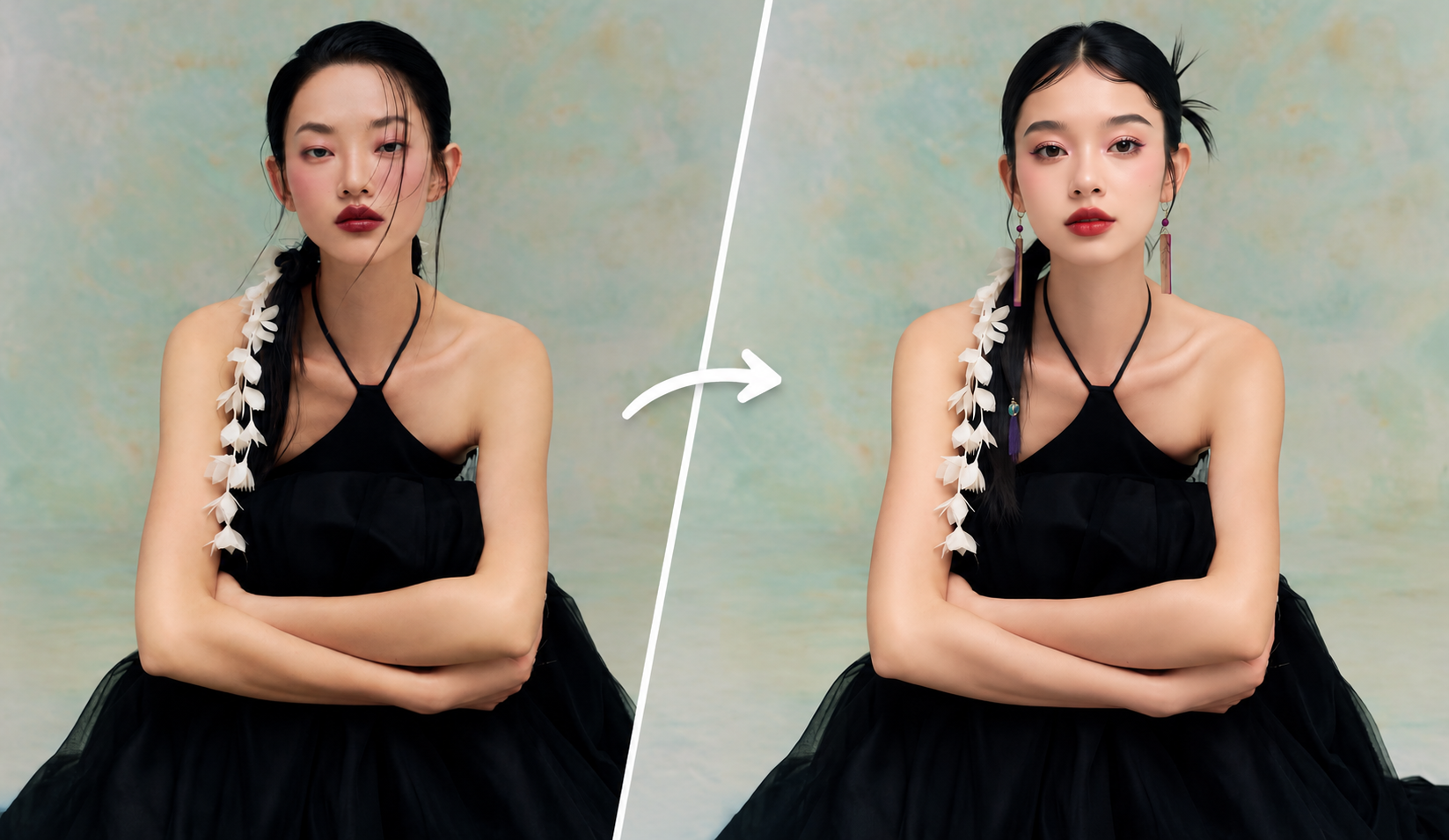
Want to try a pose, camera angle, or photo composition you like without having to arrange an actual photoshoot? Copy Pose on Foneo uses AI to apply your selected face to a reference photo while preserving the original pose, camera angle, and composition.
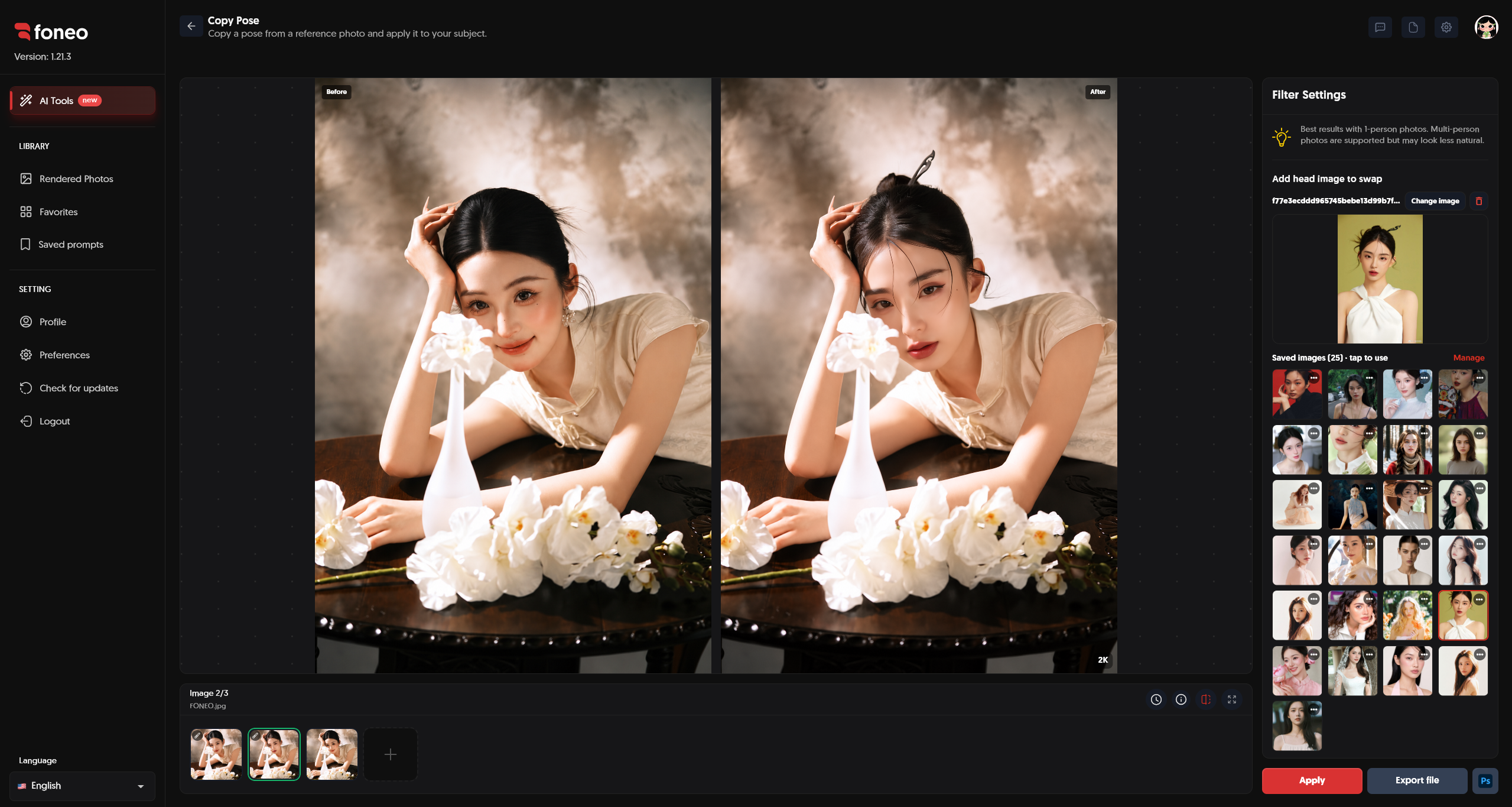
Simply upload the photo with the pose you want to recreate, add a photo containing the face you want to use, select the face, and click Apply. Foneo will generate a new image for you to preview. You can adjust your selection if needed and export the image once you are satisfied with the result.
Before & After
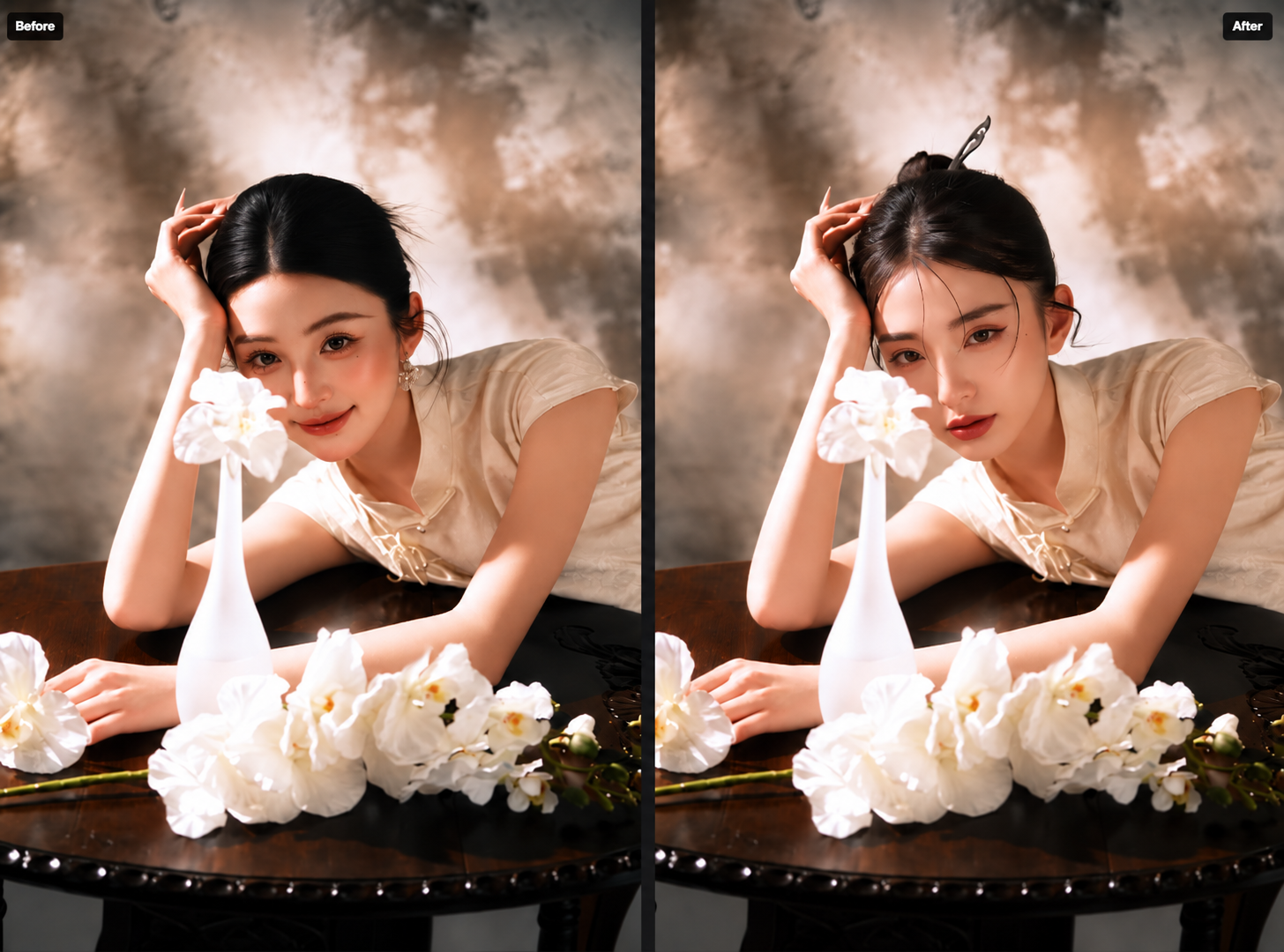
How to Use Copy Pose
To get started, upload the photo with the pose you want to recreate to Foneo and open Copy Pose.
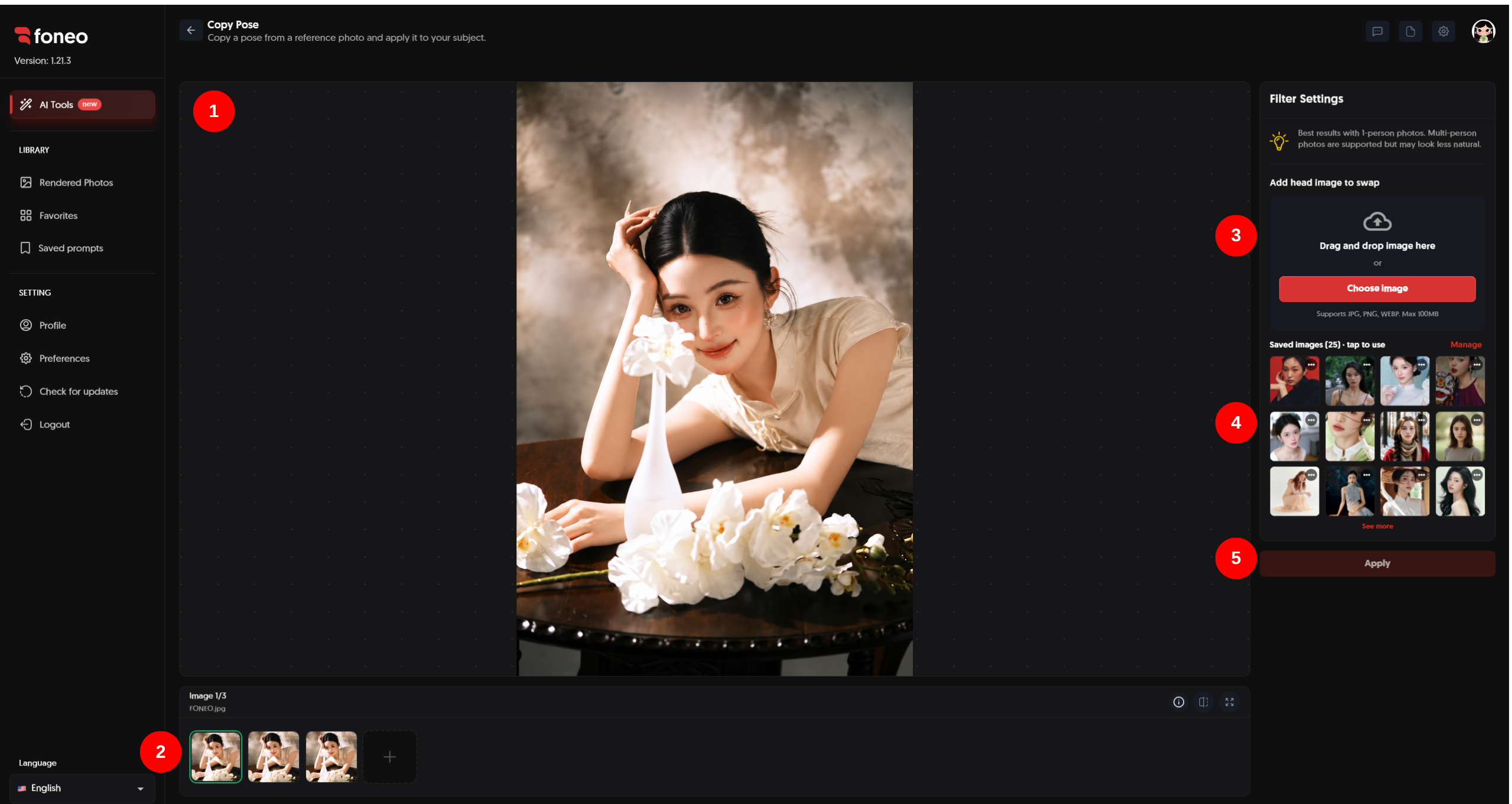
1Select the Main Photo
The main photo is the image containing the pose, camera angle, and composition you want to recreate. Once uploaded, it will appear in the preview area in the center of the screen.
Foneo uses this image to analyze the subject's pose, camera angle, composition, and position. Review the main photo before proceeding.
2Select the Photo You Want to Edit
Uploaded photos will appear as thumbnails below the preview area.
- Click a thumbnail to select the photo you want to edit.
- Click + or drag an image from your device's folder into the interface to add a new photo.
- You can upload multiple photos and select the one that best suits your needs.
Make sure you have selected the correct main photo before adding the image containing the face you want to use.
3Add a Photo Containing the Face You Want to Use
In the Filter Settings panel on the right side of the screen, find the Add Face Image section.
You can add photos in either of the following ways:
- Drag and drop an image directly into the upload area.
- Click Choose image to select an image from your device.
Foneo allows you to upload up to 20 images at a time. Added images will appear in the list below the upload area.
4Select the Face to Apply
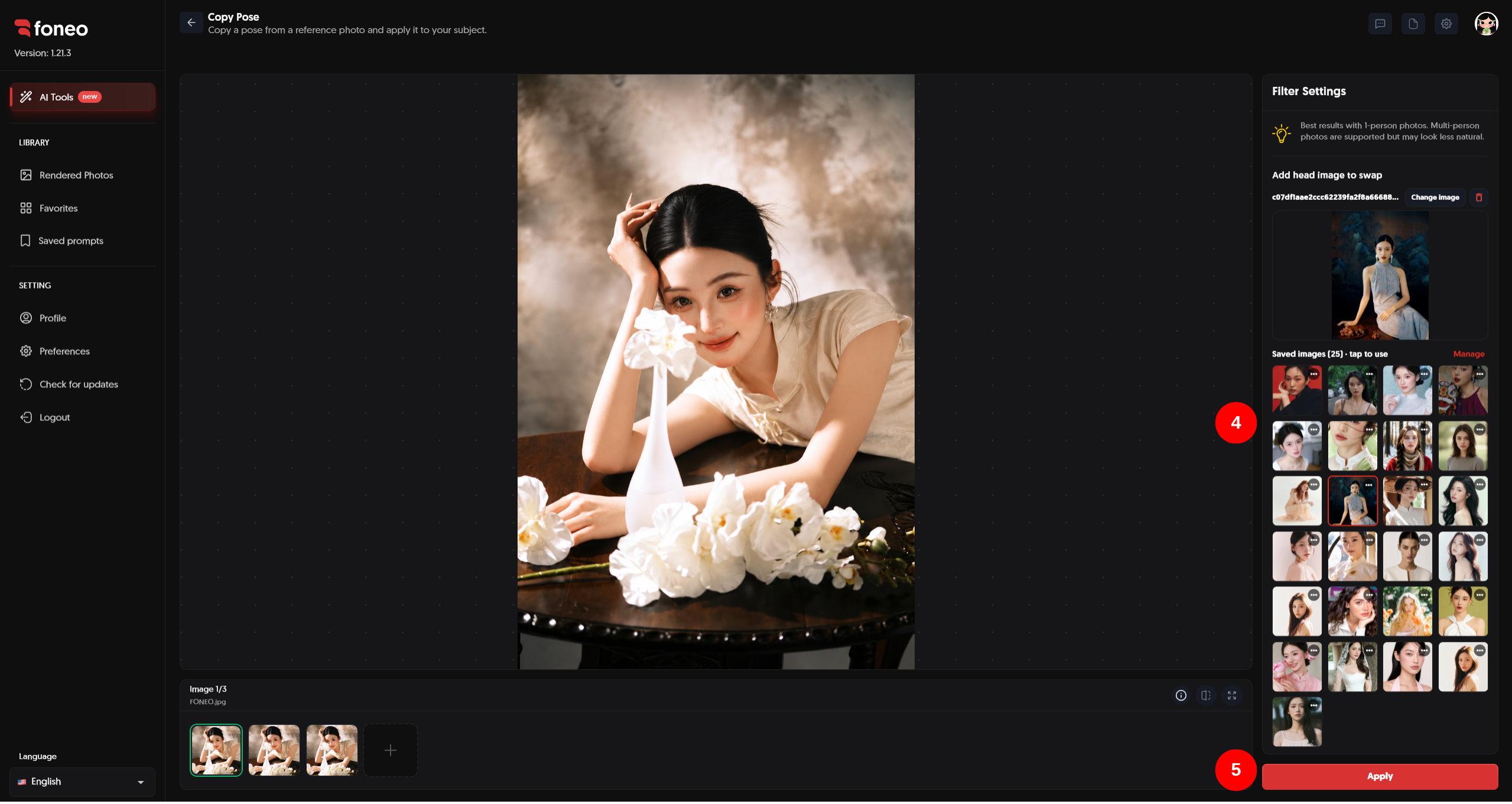
From the list of uploaded images, click the image containing the face you want to use for the subject in the main photo.
Foneo will combine the selected face with the pose and composition of the main photo to generate a new image.
Note: For better AI recognition, use a photo containing only one person, with a clear, well-lit face that is not obscured. If the reference photo contains multiple people, Foneo may select the wrong face.
5Apply
After selecting the face, click Apply to let Foneo start processing the image.
Foneo will analyze the main photo and the selected face image to generate a new image. Processing time may vary depending on image quality and complexity.
Once processing is complete, you can review the result in the preview area. Foneo supports two ways to compare Before and After images:
- Drag the slider to see the differences between the original and processed images.
- Use the split-screen view to compare both versions side by side.
6Export the Image
Once you are satisfied with the result, click Export file to export the image and choose the quality that best suits your needs.
If you want to continue with more advanced editing, click Ps to open the image in Photoshop.
How to Evaluate the Result After Processing
Before exporting, carefully review the following aspects:
- Face: Does the face match your selected reference? Do the facial features look natural, or are there any distortions?
- Pose and Camera Angle: Does the pose, sitting angle, or standing angle match the main photo?
- Proportions: Are the face and body proportions balanced?
- Lighting: Does the lighting on the face blend naturally with the overall image?
- Details: Do the hair, facial contours, and surrounding details look natural?
- Image Quality: Is the image clear, without blurring, distortion, or unusual details?
If the result is not satisfactory, try selecting a different face or using a clearer main photo, then click Apply to process the image again.
Tips for Natural-Looking Results with Copy Pose
1Use a Clear Main Photo
Choose a main photo with good resolution, a clearly recognizable subject, and a face that is not heavily obscured. A clear image helps Foneo better analyze the pose, camera angle, and composition.
Note: It is recommended to use a main photo containing only one person. Currently, Foneo does not support manually selecting which person to replace when the main photo contains two or more people. In this case, AI may automatically select a face to replace.
2Choose a High-Quality Face Photo
The photo used as the face reference should meet the following criteria:
- The face and hair details are clear.
- The face is well-lit and not too dark.
- The face is not obscured by hair, a mask, or other objects.
- The face is not distorted or excessively blurry.
A clear reference photo helps AI recognize the face more accurately.
3Choose a Face Photo with a Suitable Viewing Angle
For more natural results, choose a face photo with a viewing angle that is similar to or compatible with the main photo. A front-facing photo often helps AI recognize the facial features more completely. However, you should also consider the face angle and lighting direction in the main photo.
4Add Multiple Photos to Choose From
Foneo allows you to upload up to 20 images at a time. You can prepare several face photos and then select the most suitable one in the Filter Settings panel.
This is useful when you want to compare different reference photos before choosing the final result.
5Pay Attention to Lighting Conditions
If the main photo uses natural lighting but the reference face photo has very different lighting, the result may look less harmonious. Choose photos with relatively similar lighting conditions to help the applied face blend naturally into the overall image.
6Review the Result Before Exporting
After clicking Apply, carefully check the face, proportions, face angle, and overall harmony between the subject and the background. If the result is not satisfactory, select another face and click Apply again before exporting.
When Should You Use Copy Pose?
Copy Pose can be useful in various situations, such as:
- Trying your face with a reference pose before an actual photoshoot.
- Creating portrait photos based on an existing composition.
- Exploring different poses for fashion photography.
- Trying different photography styles without arranging an actual photoshoot.
- Preparing visual references for a personal photo collection.
- Testing multiple faces with the same pose.
Frequently Asked Questions
What is Copy Pose on Foneo used for?
Copy Pose uses a main photo and a reference face photo to generate a new image while preserving the pose, camera angle, and composition of the main photo.
Can I use this feature with photos containing multiple people?
Foneo works best with main photos containing only one person. If the photo contains multiple people, AI may automatically select a face to replace. You cannot manually specify which person should be replaced at this time.
Can I use a full-body photo?
Yes. You can use full-body photos, but make sure the image is clear, the subject is recognizable, and the face is not heavily obscured.
Can I choose a different face photo if I am not satisfied with the result?
Yes. You can select another face photo from the uploaded image list and click Apply to generate a new result.
Should the reference photo contain multiple people?
No. If the reference photo contains multiple people, Foneo may automatically select a face to apply, which could lead to an unexpected result. For the best outcome, use a photo containing only one person with a clearly visible face.
Can I process the image again if the result is not satisfactory?
Yes. Select another face from the uploaded image list, then click Apply to process the image again. For more natural results, choose a clear face photo with a viewing angle that works well with the main photo.
Related Articles
- How to Use Light Effects on the Foneo AI Photo Editing App
- How to Use Portrait Effects on the Foneo AI Photo Editing App
- How to Use Old Photo Restoration & Colorization on the Foneo AI Photo Editing App
- How to Use Surface Transform on the Foneo AI Photo Editing App
- How to Use ID Photo on the Foneo AI Photo Editing App
- How to Use Glasses Reflection Removal on the Foneo AI Photo Editing App
- How to Use Home & Architecture Enhancement on the Foneo AI Photo Editing App
Foneo · AI Photo Editing
Ready to try it on your own photos?
Download the Foneo app to edit photos with AI in just a few taps, or see the plan that fits your needs.