How to Use Copy Pose on Foneo AI Photo Editor
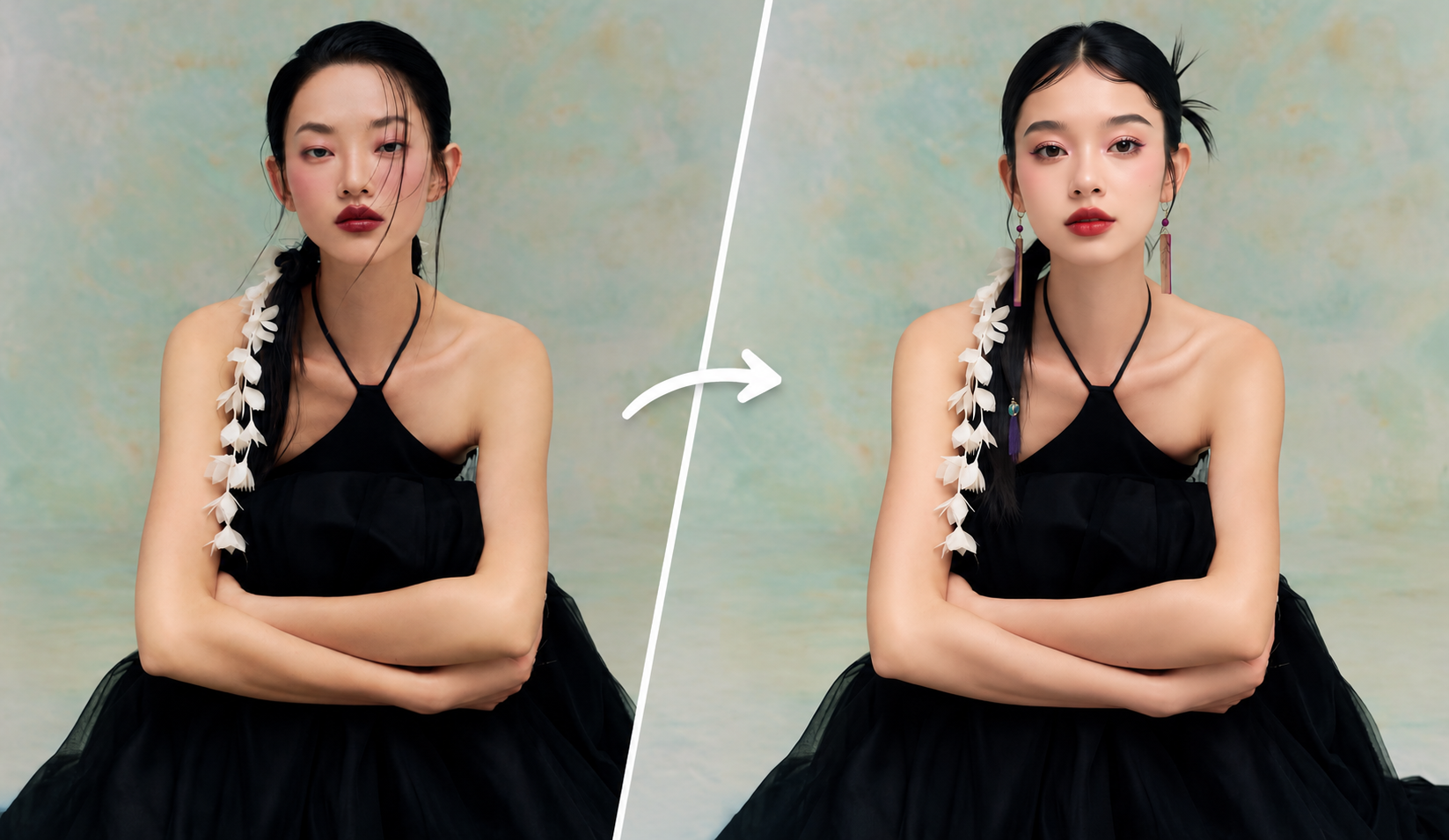
Do you want to create a new image with a similar pose, composition, and camera angle to a reference photo, but use a different person's face? The Copy Pose feature on Foneo helps you do this with AI in just a few simple steps.
With this feature, you can upload the photo you want to edit, then add one or more photos containing the face you want to use. Foneo uses the main image to preserve the pose, camera angle, and composition, while applying the selected face to the subject in the image.
This feature is especially useful when you want to try different poses or photography styles without having to recreate the entire photo shoot.
Before & After
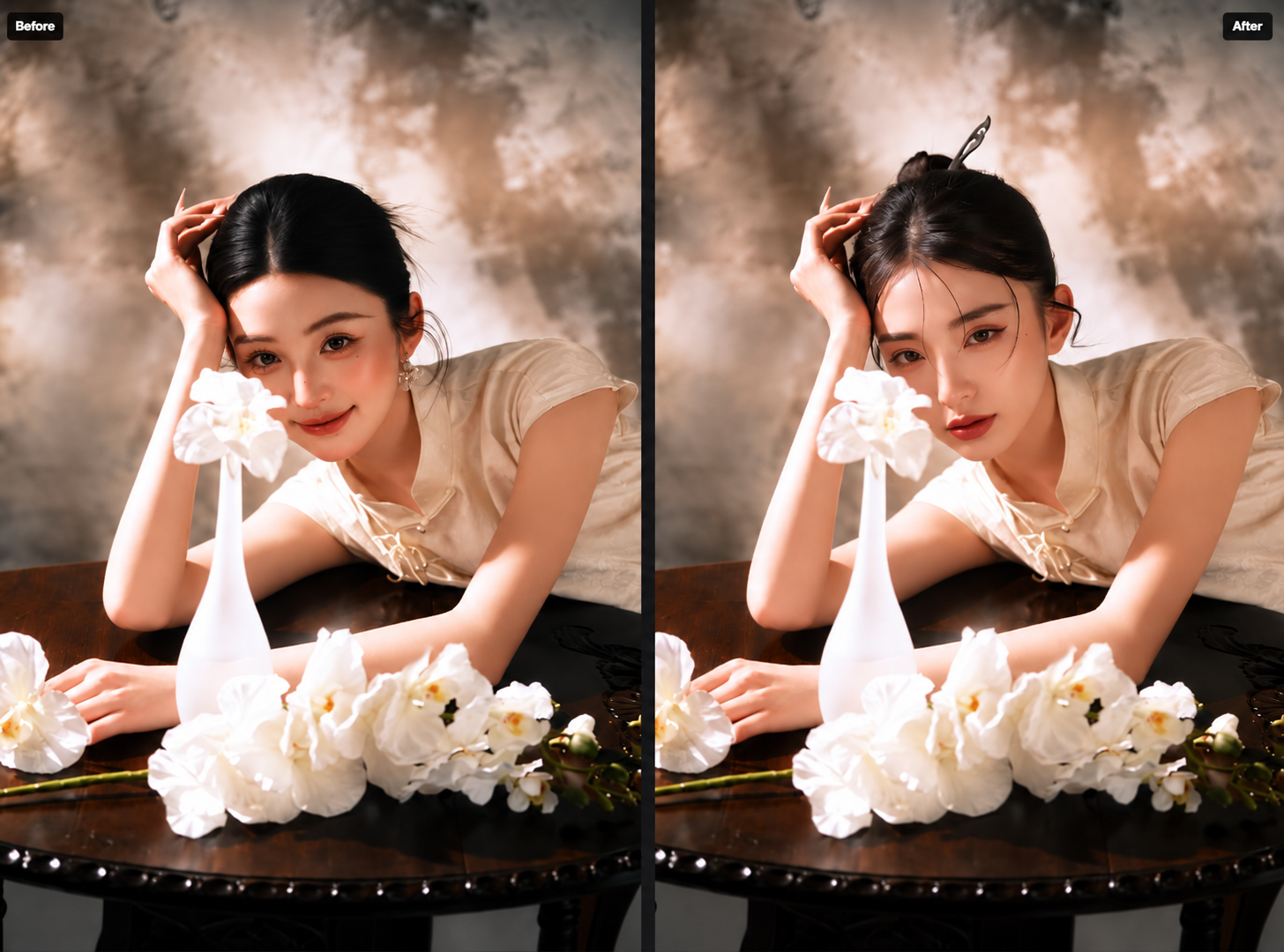
How to Use Copy Pose
To get started, upload the photo you want to edit to Foneo and open the Copy Pose feature.
1. Preview the Image
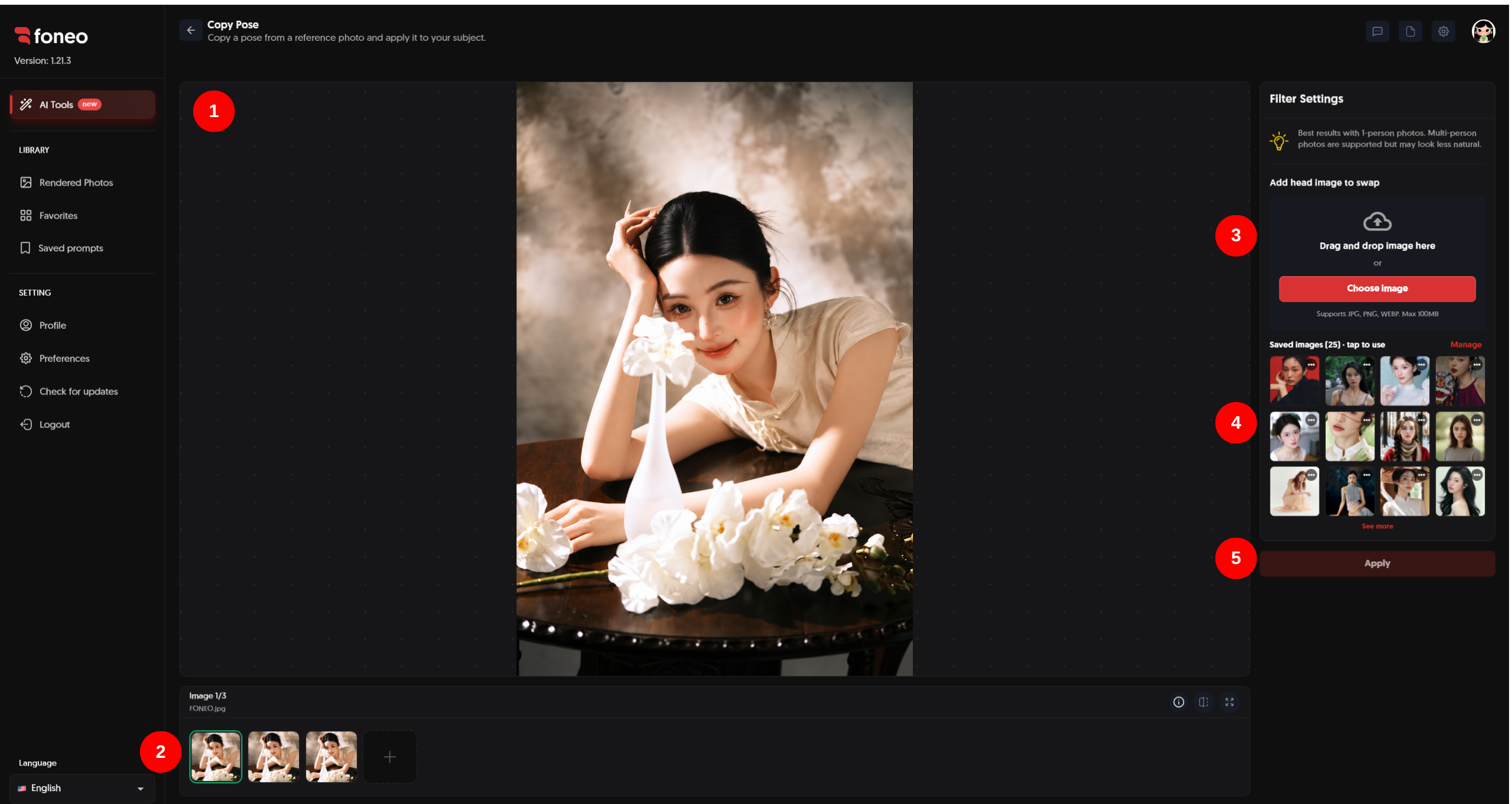
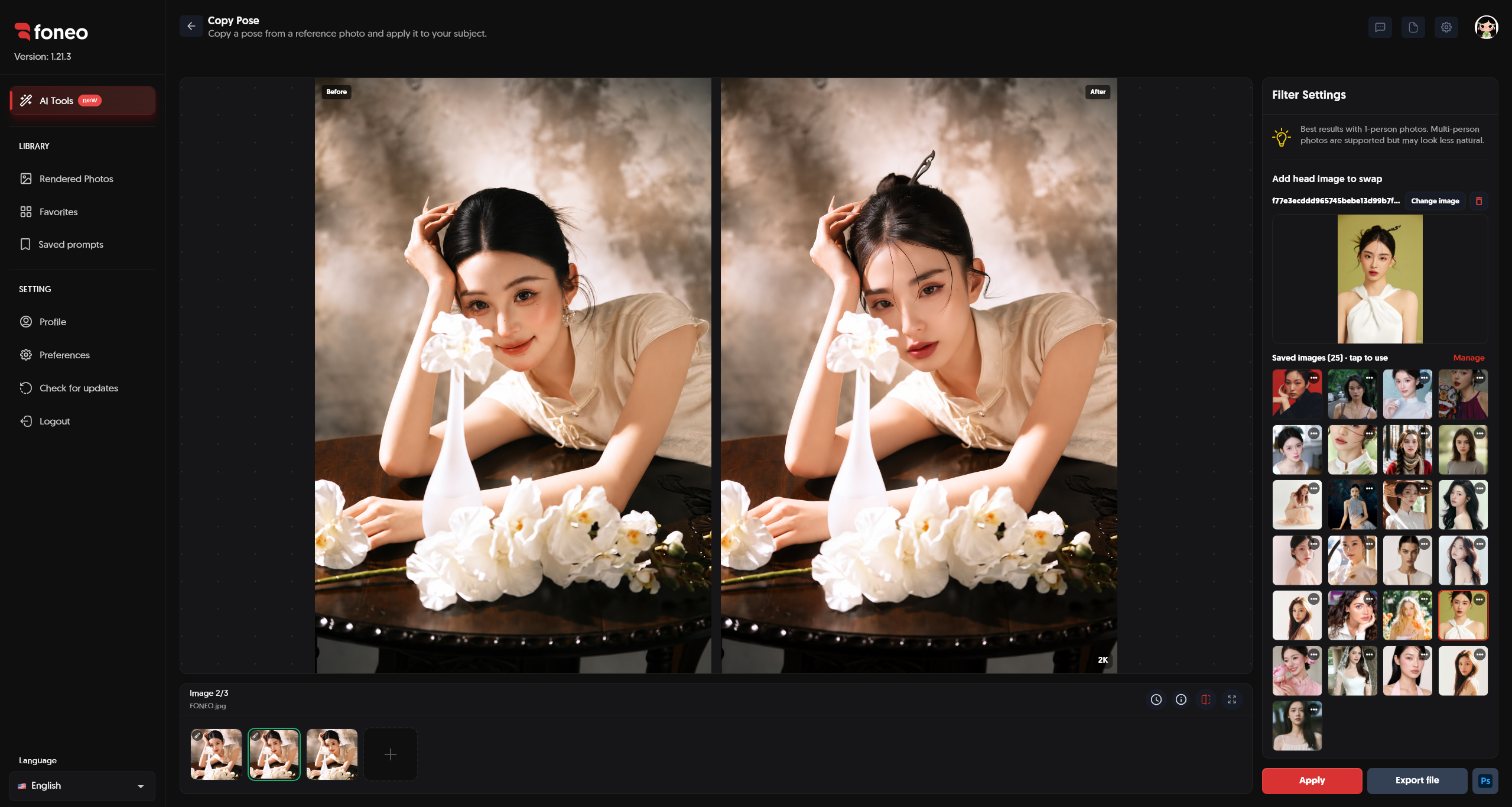
After uploading an image, it will be displayed in the preview area in the center of the screen.
This is the main image where you want to apply the pose. Foneo uses this image to analyze the subject's pose, camera angle, composition, and position.
You can review the image before proceeding to the next steps.
2. Select the Image to Edit
Uploaded images are displayed as thumbnails below the preview area.
- Click a thumbnail to select the image you want to edit.
- Click + to add a new image.
- You can upload multiple images according to your needs.
Make sure you select the correct image to use as the main image before adding images containing the face you want to use.
3. Add Images Containing the Face You Want to Use
In the Filter Settings panel on the right side of the screen, you will find the Add head image to swap section.
Here, you can:
- Drag and drop images directly into the upload area.
- Click Choose Image to upload images from your device.
- Add one or multiple images containing faces.
- Upload up to 20 images at a time by dragging or adding them.
The uploaded images will appear in the image list below the upload area.
4. Select the Face to Apply
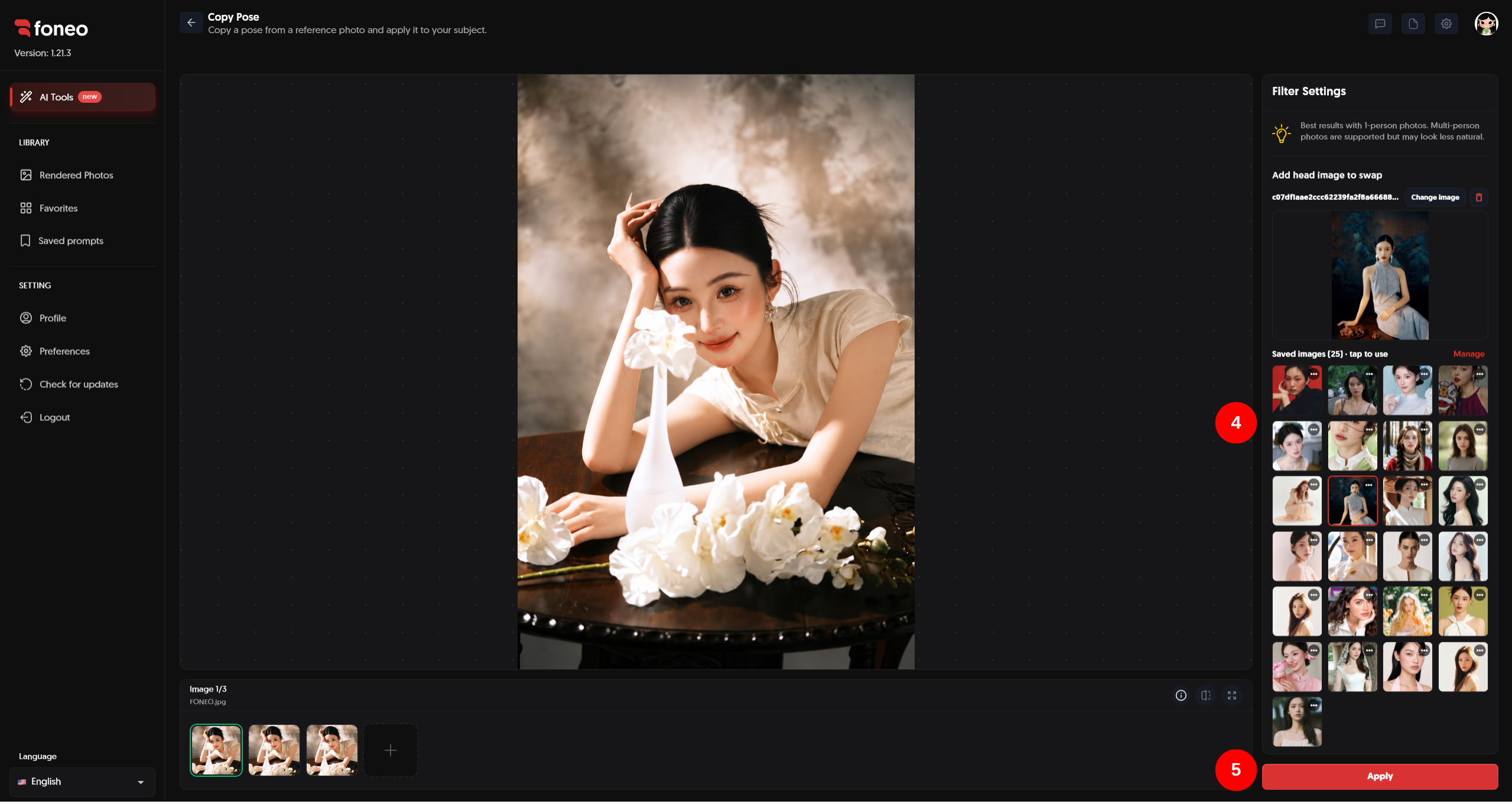
After adding the images, the faces detected in those images will be available for selection.
Click the face you want to use to apply it to the subject in the main image.
You can add multiple images to have more face options to choose from.
Foneo will combine the selected face with the pose and composition of the main image to create a new image.
Note: For better results, use images with clear, well-lit faces that are not covered or obstructed, so the AI can detect the face more accurately.
5. Apply
After selecting the face you want to use, click Apply to start processing the image.
Foneo will analyze the main image and the selected face, then generate a new image based on these elements.
Processing time may vary depending on the number of images and the complexity of the image.
Once processing is complete, you can review the result directly in the preview area.
6. Export the Image
Once Foneo has finished processing and you are satisfied with the result, click Export file to save the image to your device.
If you want to continue editing in Photoshop, you can use the Ps button to open the image and continue making adjustments.
How to Evaluate the Result
After applying Copy Pose, review the image carefully before exporting the file.
Here are some key elements to check:
- Face: Has the correct face been applied in the correct position?
- Pose: Does the body pose and position remain natural?
- Camera angle: Does the face angle match the camera angle of the main image?
- Proportion: Are the face and body proportions balanced?
- Lighting: Does the lighting on the face blend naturally with the environment of the main image?
- Details: Do the hair, facial edges, and surrounding details look natural?
If the result is not suitable, try selecting a different face or using a clearer reference image, then click Apply to process the image again.
Tips for Creating Natural Results with Copy Pose
1. Use a Clear Main Image
Use an image with a clear subject, good resolution, and minimal obstruction.
The clearer the main image is, the easier it is for Foneo to analyze the subject's pose, camera angle, and composition.
2. Choose a High-Quality Face Image
The image used for selecting the face should have:
- A clear face.
- Good lighting.
- No significant obstruction from hair, masks, or other objects.
- An easily recognizable face angle.
- No excessive blur or distortion.
This helps Foneo detect and apply the face more accurately.
3. Choose a Face with a Similar Angle
For more natural results, choose a face image with a viewing angle that is relatively similar to the main image.
For example:
- Main image facing forward → prioritize a forward-facing reference face.
- Main image slightly turned to the left → prioritize a face with a similar angle.
- Main image photographed from the side → choose a reference face with a corresponding angle.
4. Add Multiple Images for More Options
Foneo allows you to add up to 20 images at a time.
You can prepare multiple face images and then select the most suitable face directly from the Filter Settings panel.
This is especially useful when you want to try different reference images before creating the final result.
5. Prefer Images with Similar Lighting
If the main image has natural lighting while the face reference has significantly different lighting, the final result may require closer inspection.
Whenever possible, choose a face image with relatively similar lighting conditions so that the applied face blends more naturally with the overall image.
6. Check the Result Before Exporting
After clicking Apply, carefully check the face, proportions, face angle, and how naturally the subject blends with the background.
If the result is not suitable, select another face and click Apply again before exporting the image.
When Should You Use Copy Pose?
The Copy Pose feature can be used in a variety of situations, such as:
- Trying a different face with an existing pose.
- Creating portraits based on a reference composition.
- Creating fashion images with different poses.
- Exploring different photography styles without recreating the entire photo shoot.
- Creating visual references for personal photo collections.
- Testing multiple faces with the same photography style.
Frequently Asked Questions
What is Copy Pose used for on Foneo?
The Copy Pose feature helps apply a selected face to the subject in the main image while using the main image as a reference for the pose, camera angle, and composition.
How many images do I need to use this feature?
You need at least one main image that you want to edit and additional images containing the face you want to use.
You can add multiple face images to have more options to choose from.
Can I add multiple face images at once?
Yes. Foneo supports dragging or adding up to 20 images at a time.
After uploading them, you can select the face you want to use from the list of uploaded images.
Can I select a face from different images?
Yes. You can add multiple images containing faces and then select the face that is most suitable for the main image.
What should the face image look like for better results?
Use an image with a clear, well-lit face that is not obstructed and has a viewing angle that is suitable for the main image.
A high-quality image helps Foneo detect the face more accurately.
Do I need to enter a Prompt when using Copy Pose?
No. The Copy Pose feature does not require a Prompt.
Simply select the main image, add images containing the face you want to use, select a face, and click Apply.
Can I use multiple faces in the same generation?
You can add multiple images containing faces and select the face that best matches the main image before clicking Apply.
Can I continue editing the image after it is generated?
Yes. After processing, you can click Export file to save the image or use the Ps button to continue editing in Photoshop.
What should I do if the result is not suitable?
You can select a different face from the uploaded images and click Apply to process the image again.
For more natural results, use a clear face image with a viewing angle that is similar to the main image.
Related Articles
Foneo · AI Photo Editing
Ready to try it on your own photos?
Download the Foneo app to edit photos with AI in just a few taps, or see the plan that fits your needs.