How to Use Portrait Effects on the Foneo AI Photo Editing App
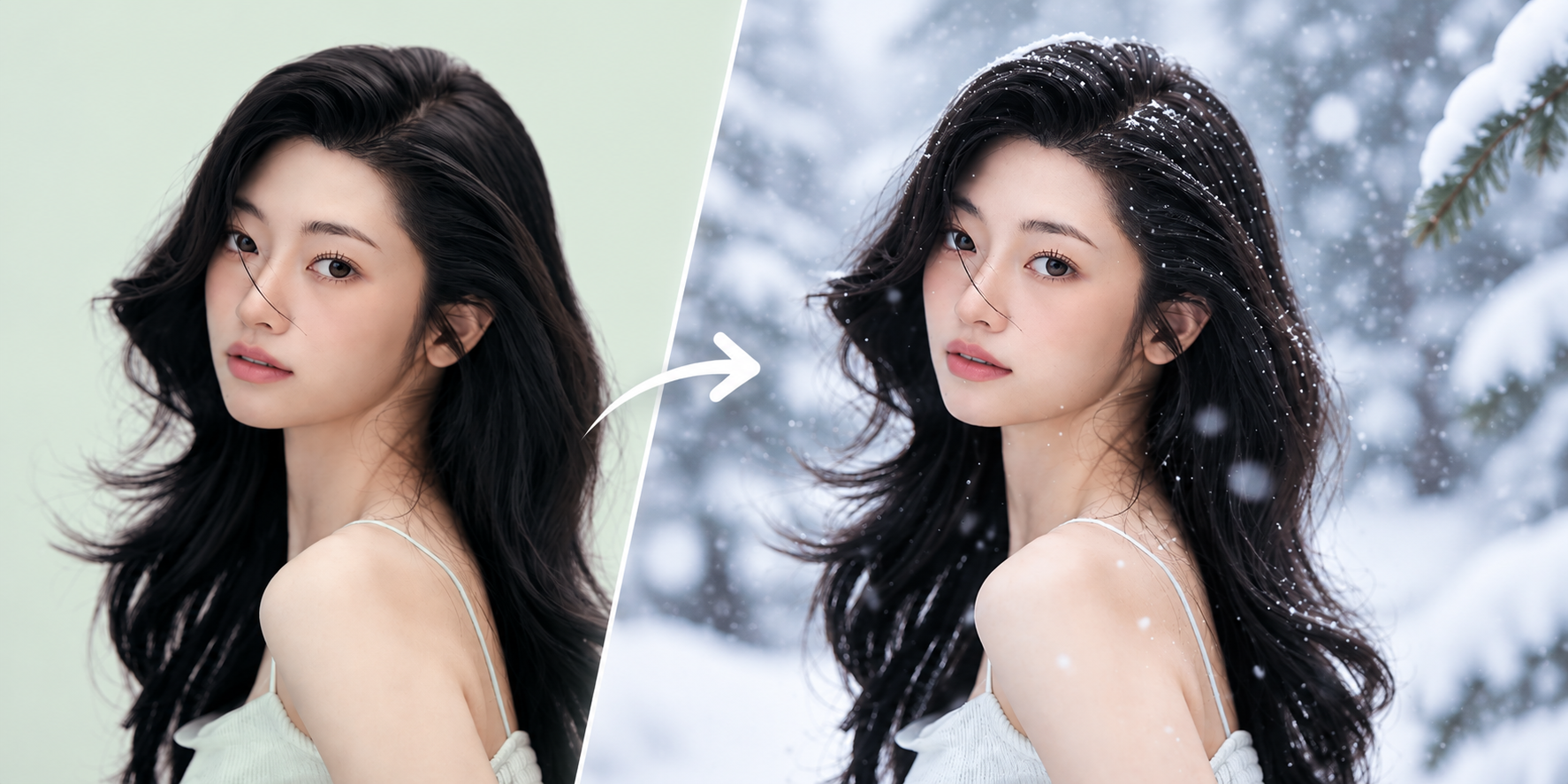
Portrait Effects can make photos more eye-catching, add depth, and create a style that fits different scenes. With Portrait Effects on Foneo, you can transform the environment, lighting, and atmosphere of portrait photos with AI in just a few simple steps.
Foneo provides built-in Templates and custom Prompts, allowing you to easily create different styles for portrait photos without complicated editing steps.
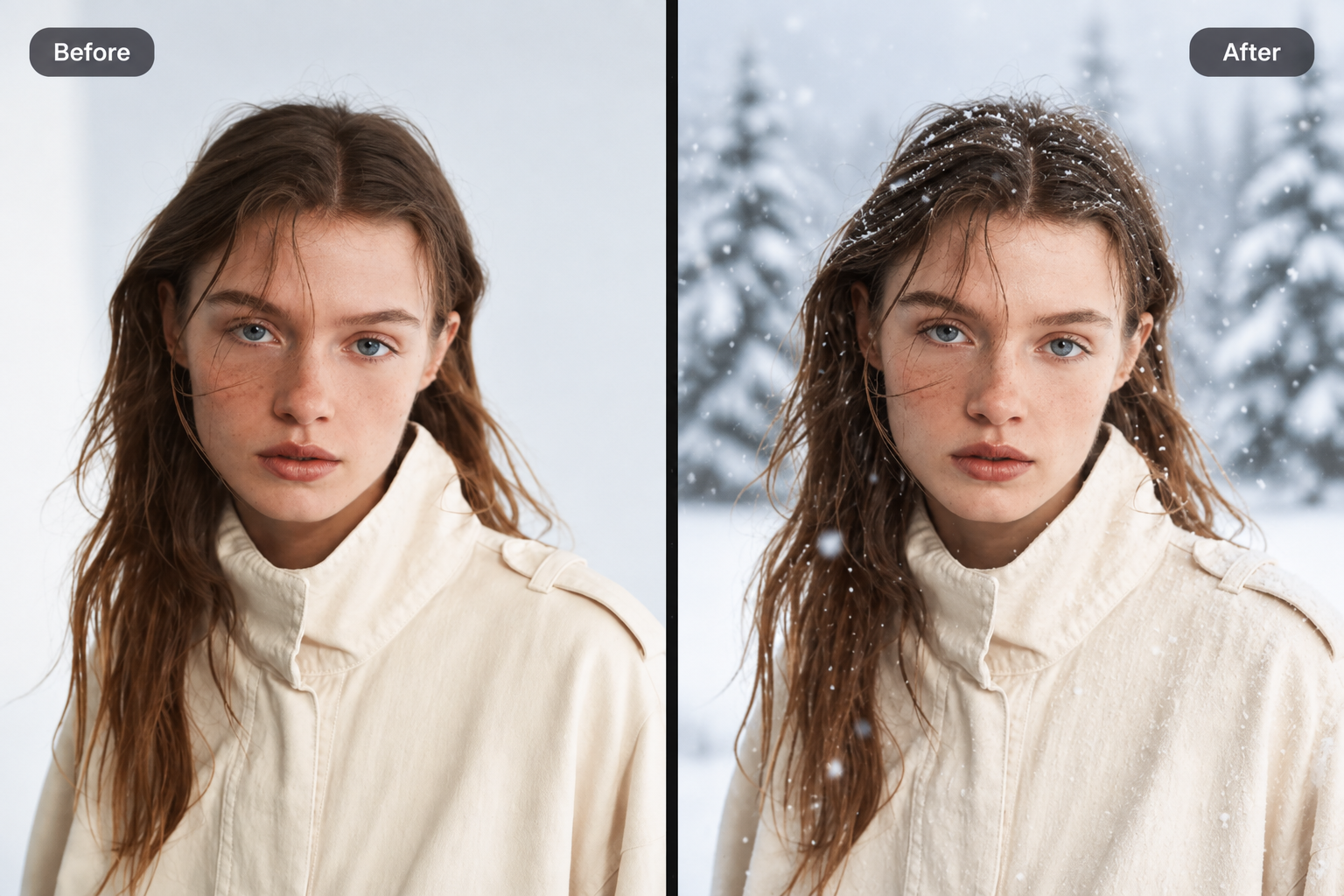
Before & After
How to Use Portrait Effects
To get started, upload the portrait photo you want to edit to Foneo and open Portrait Effects.
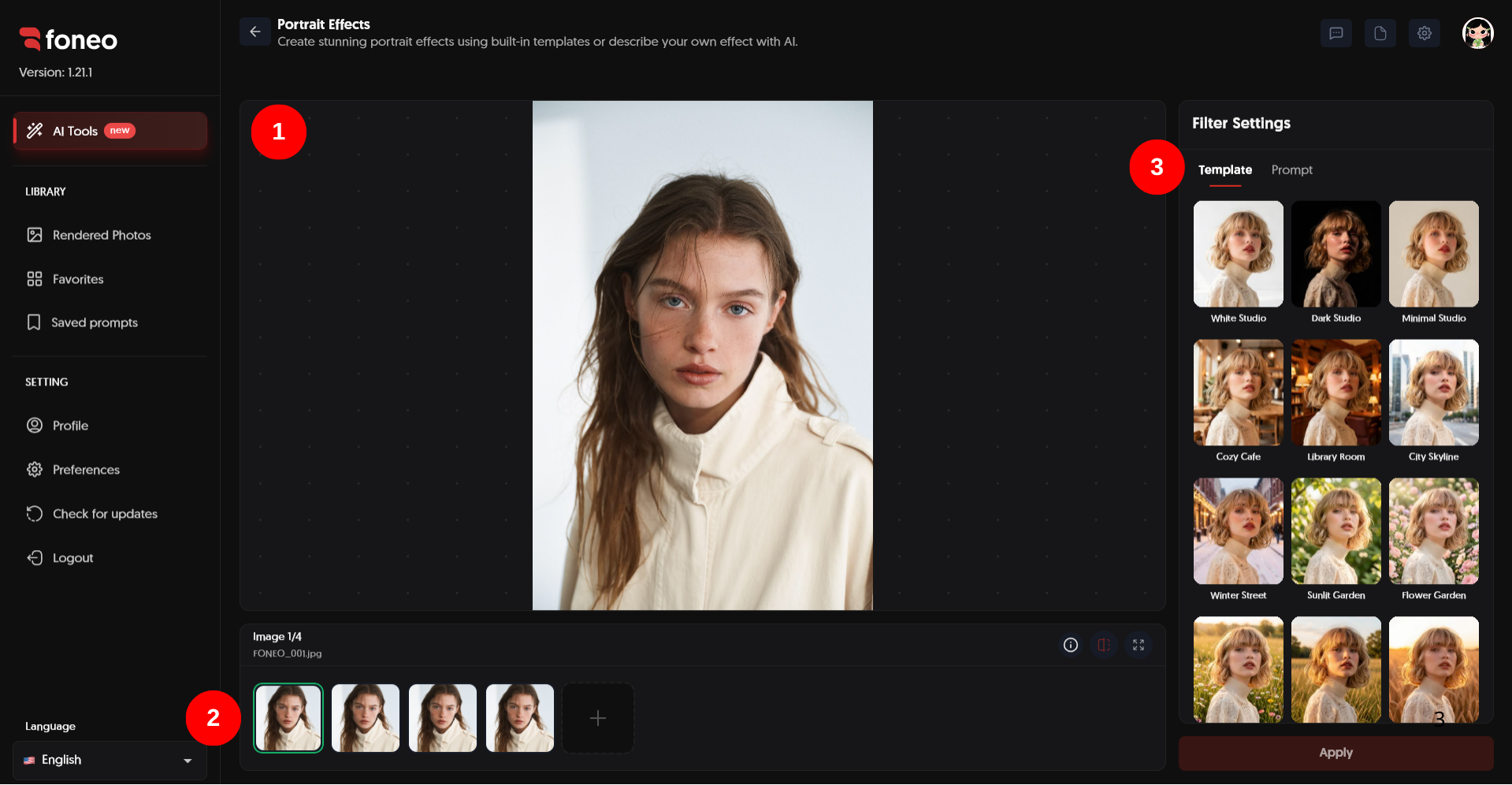
1. Preview Your Photo
After uploading a photo, it will be displayed in the preview area in the center of the screen.
This is where you can check the original image and view the result after Foneo finishes processing.
After applying an effect, Foneo displays the Before and After images so you can easily compare the changes.
2. Select the Photo to Edit
Uploaded photos are displayed as thumbnails below the preview area.
- Click a thumbnail to select the photo you want to edit.
- Click + to add a new photo.
- When working with multiple photos, you can select each photo individually and apply the desired effect.
3. Choose a Portrait Effects Template
In Filter Settings, select the Template tab.
Here, Foneo provides a variety of built-in portrait effect Templates with different styles and scenes.
Simply choose a Template that matches the style you want. Foneo will use the original image to generate the effect with AI.
You do not need to manually configure multiple settings, making it easy to try different styles on the same photo.
4. Create an Effect with a Prompt
In addition to built-in Templates, you can describe the portrait effect you want using a Prompt.
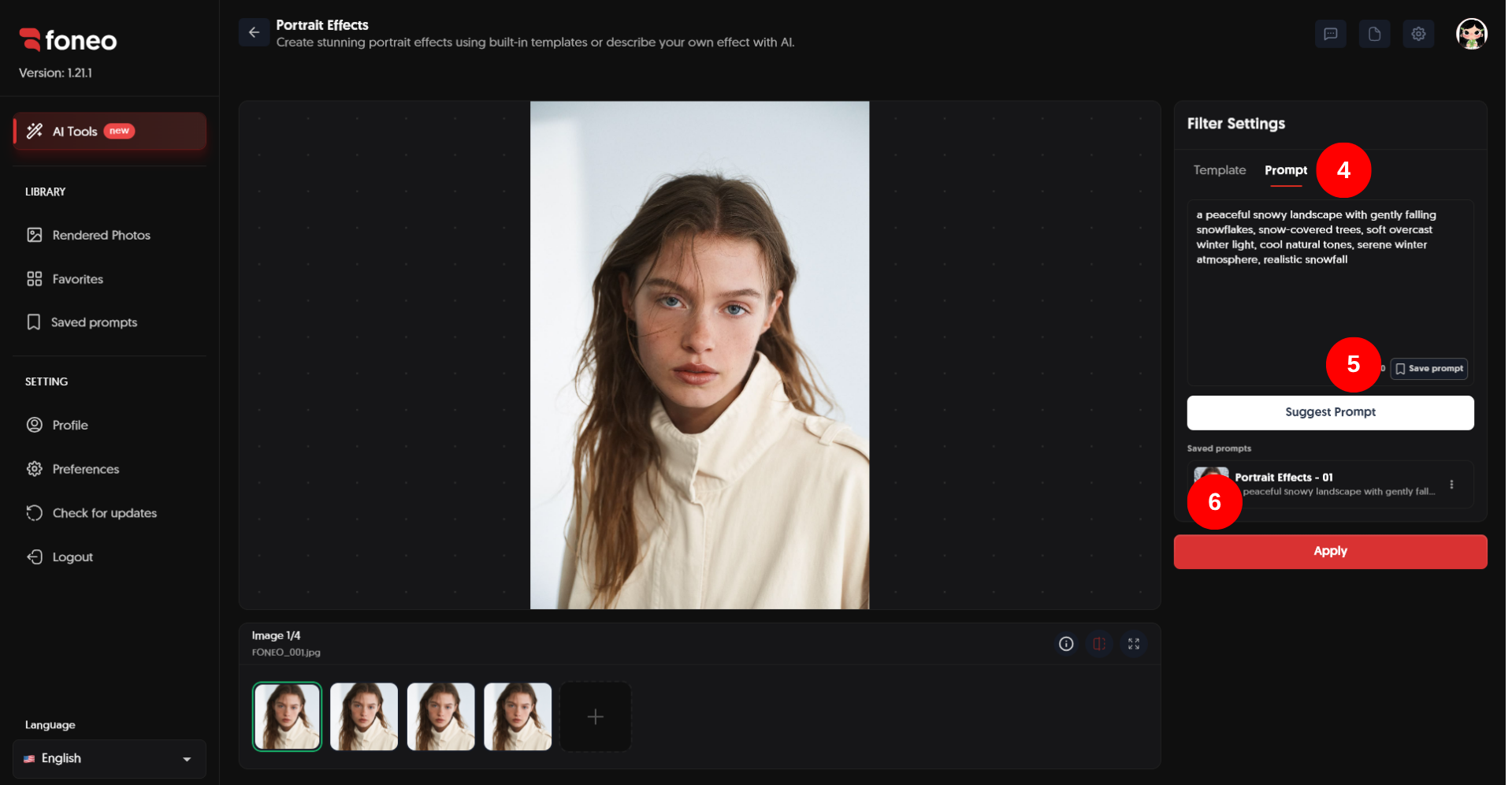
Switch to the Prompt tab and enter a description of the style or scene you want to create.
You can describe elements such as:
- The background or environment surrounding the subject.
- The time of day or season.
- Overall lighting and colors.
- The mood and atmosphere of the photo.
- The desired visual style.
- Environmental details that complement the subject.
Example Prompt:
Replace the background with a snowy landscape during golden hour. Add warm sunset light reflecting on the snow, gentle snowfall, cinematic sun rays, and a cozy winter atmosphere.
If you do not have an idea yet, click Suggest Prompt to get Prompt suggestions from Foneo.
5. Save a Prompt for Later Use
After creating a Prompt that works well, you can click Save prompt to save it.
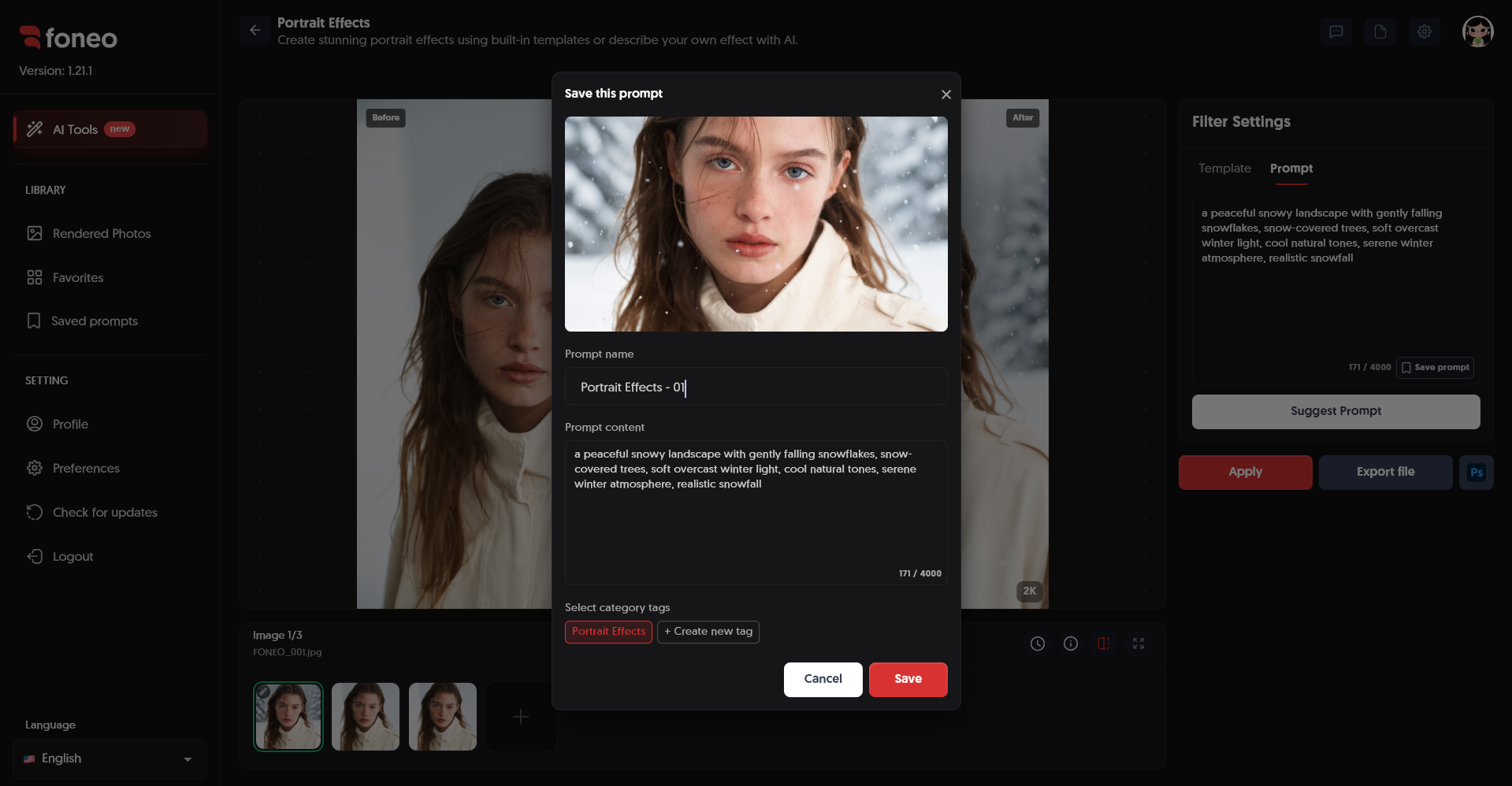
When saving a Prompt, Foneo allows you to enter a Prompt name, review or edit the Prompt content, and select a category tag for easier organization.
After clicking Save, the Prompt will be added to your saved prompts.
You can reuse saved Prompts for future edits without having to enter the content again.
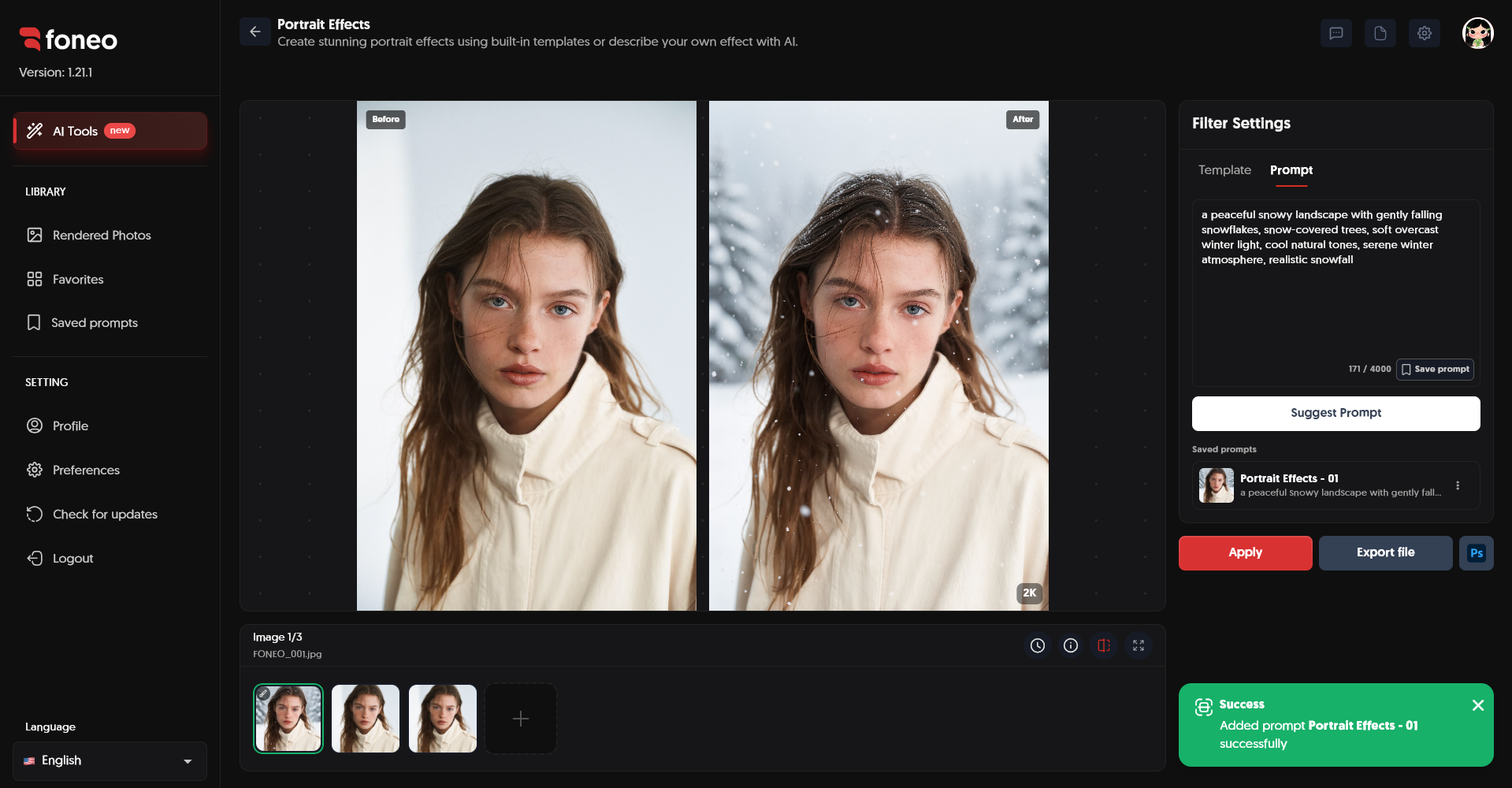
6. Apply the Effect
After selecting a Template or completing your Prompt, click Apply to start processing the image with AI.
Wait for the processing to finish and check the result in the preview area.
If the effect is not quite right, you can:
- Choose another Template.
- Adjust the Prompt.
- Try a different style or scene.
- Click Apply to process the image again.
You can try different options to find the effect that best matches your original photo.
7. Review the Result Before Exporting
After Foneo finishes processing, use the preview area to compare the Before and After images.
Check whether the background, lighting, and overall appearance work well with the subject.
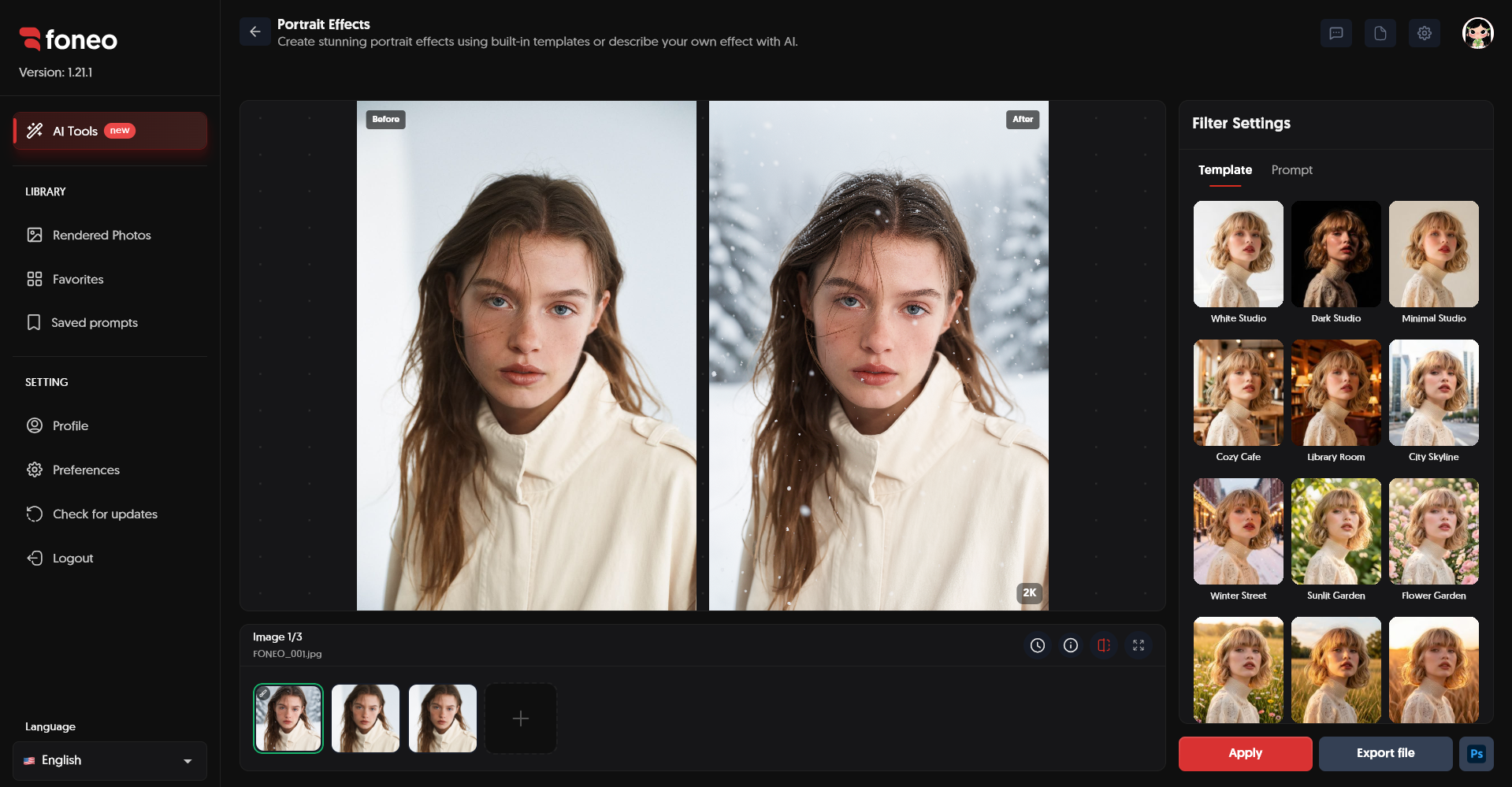
If the result does not match your expectations, return to Template or Prompt to adjust the effect and process the image again.
8. Export the Image
Once you are satisfied with the result, click Export file to export the image.
If you want to continue editing in Photoshop, you can use the Ps button to open the image and continue with further editing.
How to Evaluate the Result
After applying a Portrait Effect, check the differences between the original and processed images.
Pay attention to:
- Subject: Does the subject remain natural and fit well within the new environment?
- Background: Does the new environment match the subject's pose and composition?
- Lighting: Does the lighting on the subject blend naturally with the new environment?
- Colors: Does the overall color tone match the style you want?
- Details: Do the facial features, hair, clothing, and body details remain natural?
- Overall appearance: Does the effect create a harmonious and convincing image?
If the result is not quite right, try another Template or adjust the Prompt to describe your desired result more clearly.
Tips for Creating Natural and Stunning Portrait Effects
1. Use a Clear Portrait Photo
Use a high-quality photo with a clear face and subject. Avoid images that are too dark or noisy.
A clear subject helps Foneo better recognize the composition and details of the image, resulting in a more suitable effect.
2. Choose a Template That Matches Your Photo
Choose a Template based on the background, clothing, lighting, and style of the original photo.
For example, a portrait with soft and simple clothing may work well with natural scenes or soft lighting. For fashion photos, you can try styles with more distinctive lighting and backgrounds.
3. Write a Specific Prompt
When using a Prompt, describe important elements such as background, lighting, colors, weather, and atmosphere.
For example, instead of simply writing:
Snowy background.
You can provide a more specific description:
Replace the background with a snowy landscape during golden hour. Add warm sunset light, gentle snowfall and a cozy cinematic atmosphere.
The clearer your description, the easier it is to control the style of the generated result.
4. Keep Your Prompt Concise but Complete
You do not need to write an overly long Prompt. Focus on the key changes you want to make.
A simple Prompt structure such as:
Background + lighting + colors + atmosphere + style
can help you create and adjust Prompts more easily.
5. Save Frequently Used Prompts
If you frequently use a particular style or scene, click Save prompt to save it.
You can give the Prompt an easy-to-recognize name and add a category to make it easier to find and reuse later.
6. Try Different Effects Before Choosing the Final Result
You do not have to use the first result immediately.
Try several Templates or adjust the Prompt to compare different styles. Then choose the result that best fits your intended use.
7. No Reference Image Required
Portrait Effects does not require a Reference image.
Simply upload the photo you want to edit to Foneo, then choose a Template or enter a Prompt. Foneo will use the original image to generate the effect based on your selection.
Frequently Asked Questions
What is Portrait Effects used for on Foneo?
Portrait Effects helps create and transform the style, background, lighting, and atmosphere of portrait photos with AI, making images more eye-catching and suitable for different visual styles.
Do I need a Prompt to use Portrait Effects?
No. You can directly choose from the available Templates.
If you want to create an effect based on your own idea, switch to the Prompt tab and enter your desired description.
Can I create my own Portrait Effect?
Yes. You can use a Prompt to describe the background, lighting, colors, weather, atmosphere, and visual style you want.
What is Suggest Prompt used for?
Suggest Prompt provides Prompt suggestions when you do not have an idea yet or want inspiration for describing a Portrait Effect.
Can I save a Prompt for later use?
Yes. After creating a Prompt that works well, click Save prompt to save and reuse it for future edits.
You can give the Prompt a name, edit its content, and select a category tag to make it easier to organize.
Does Portrait Effects require a Reference image?
No. You only need to upload the photo you want to edit to Foneo. No additional Reference image is required.
Can I use multiple photos with Portrait Effects?
Yes. You can add multiple photos to the thumbnail area using the + button and then select each photo individually for editing.
Can I edit the image after applying the effect?
Yes. After processing, you can export the image using Export file or use the Ps button to continue editing in Photoshop.
Related Articles
Foneo · AI Photo Editing
Ready to try it on your own photos?
Download the Foneo app to edit photos with AI in just a few taps, or see the plan that fits your needs.