How to Use the Product Enhancer Feature in Foneo AI Photo Editor

Clear, clean, and polished product images help highlight your products and create a professional impression when used on websites, social media, or sales channels.
With the Product Enhancer feature on Foneo, you can use AI to improve product images and make them look cleaner and more refined.
The feature supports image enhancement through Prompts and built-in editing options, while also allowing you to save Prompts for reuse in future editing sessions. Văn bản đã dán (1)
Before & After

How to Use Product Enhancer
To get started, upload the product image you want to enhance to Foneo and open the Product Enhancer feature. Văn bản đã dán (1)
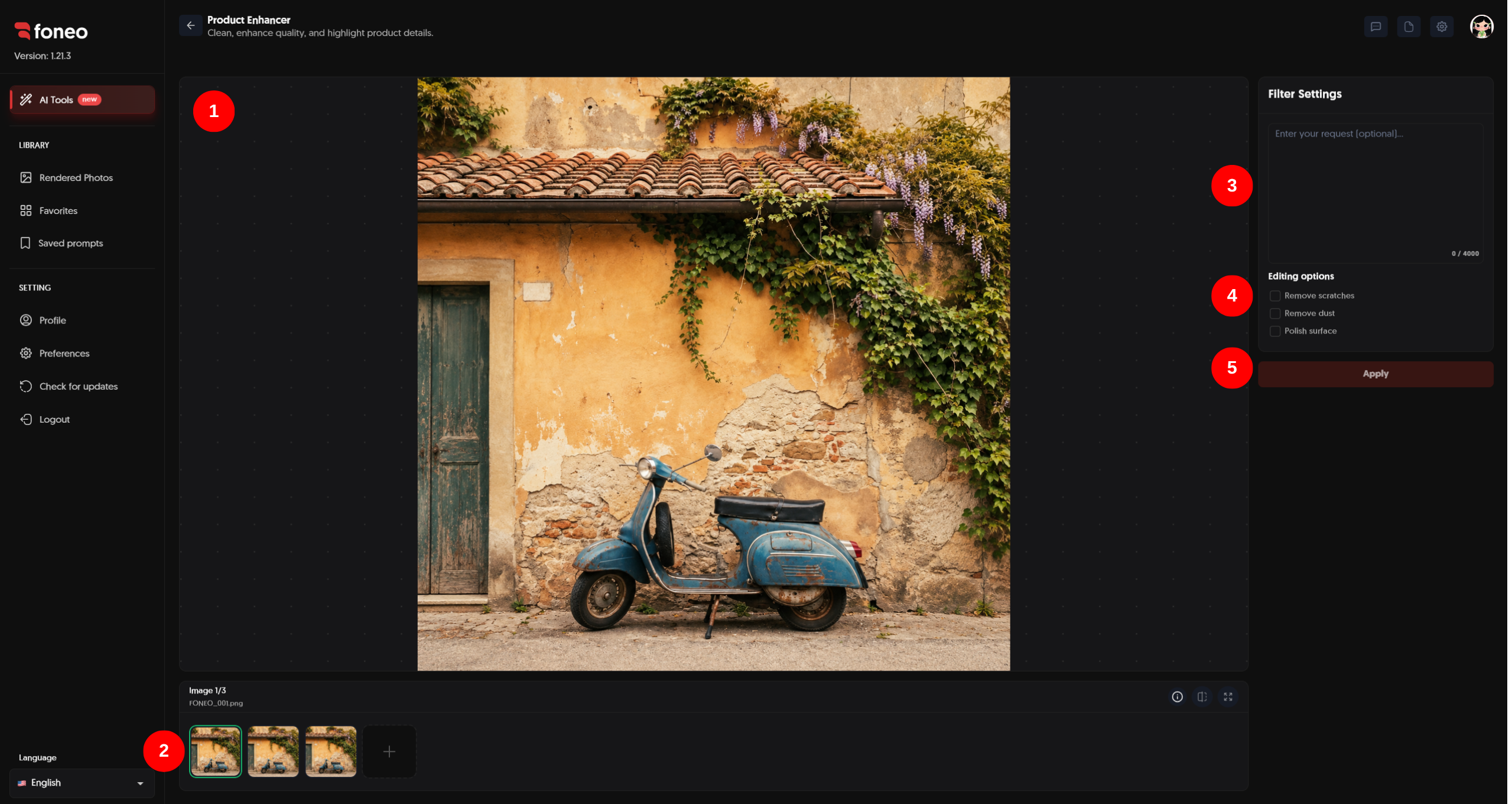
1. Add a Product Image
First, upload the product image you want to edit to Foneo.
The uploaded image will appear in the preview area in the center of the screen. You can review the image before starting the enhancement process. Văn bản đã dán (1)
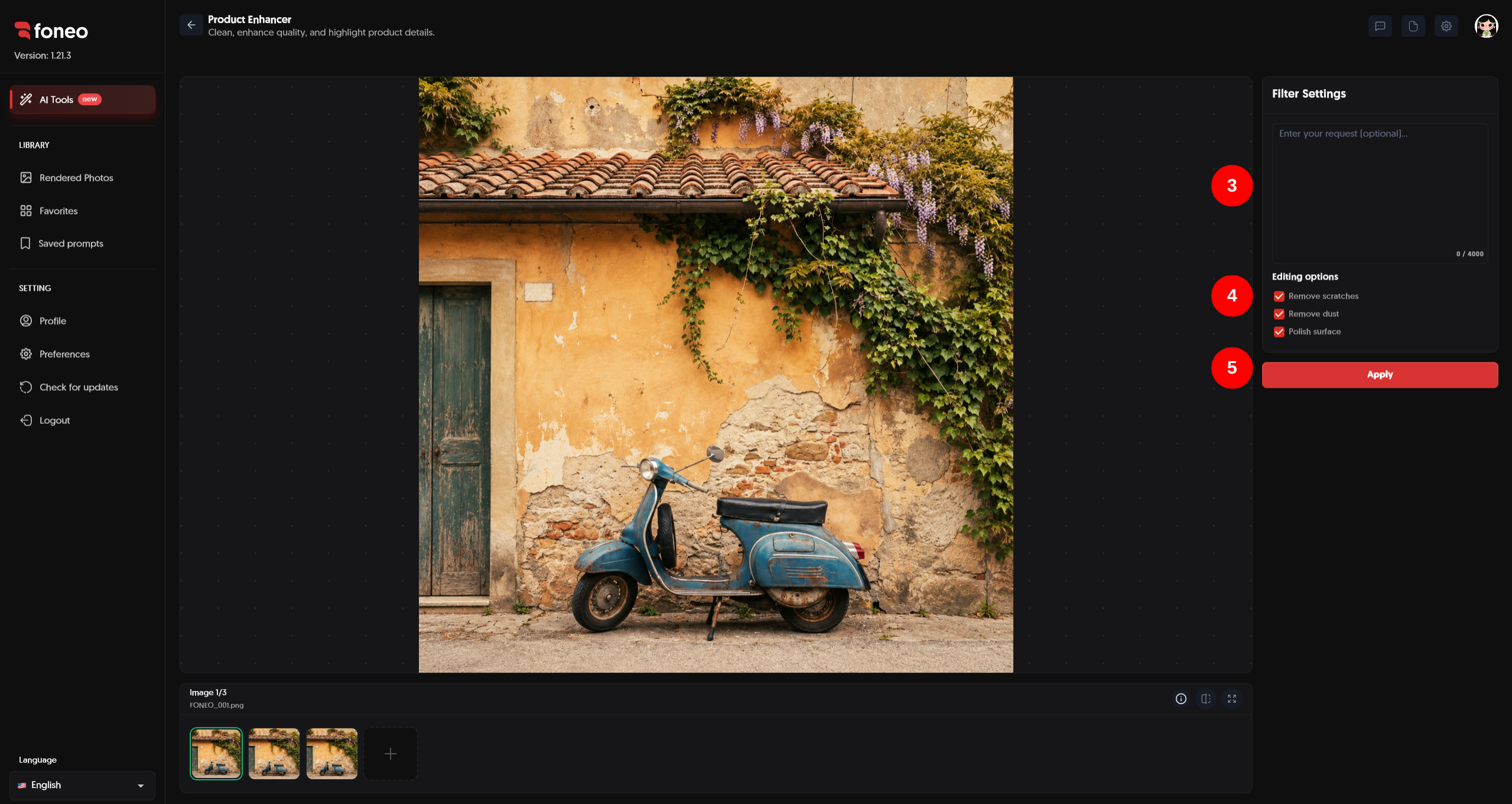
2. Select the Image to Enhance
Uploaded images will be displayed as thumbnails below the preview area.
- Click a thumbnail to select the image you want to enhance.
- Click + to add a new image.
- Review the selected image before processing.
After selecting an image, go to Filter Settings to configure your enhancement requirements. Văn bản đã dán (1)
3. Enter a Prompt if Needed
In Filter Settings, you can enter a Prompt to describe a specific editing requirement.
A Prompt is optional.
You can use a Prompt when you want the AI to perform a specific request beyond the available editing options.
Examples:
Remove rust from the product surface.Remove scratches and make the surface cleaner.Polish the product surface and make it look smoother.Remove dust and make the product look clean.Remove rust and polish the metal surface.
A Prompt can be used independently or combined with Editing options. Văn bản đã dán (1)
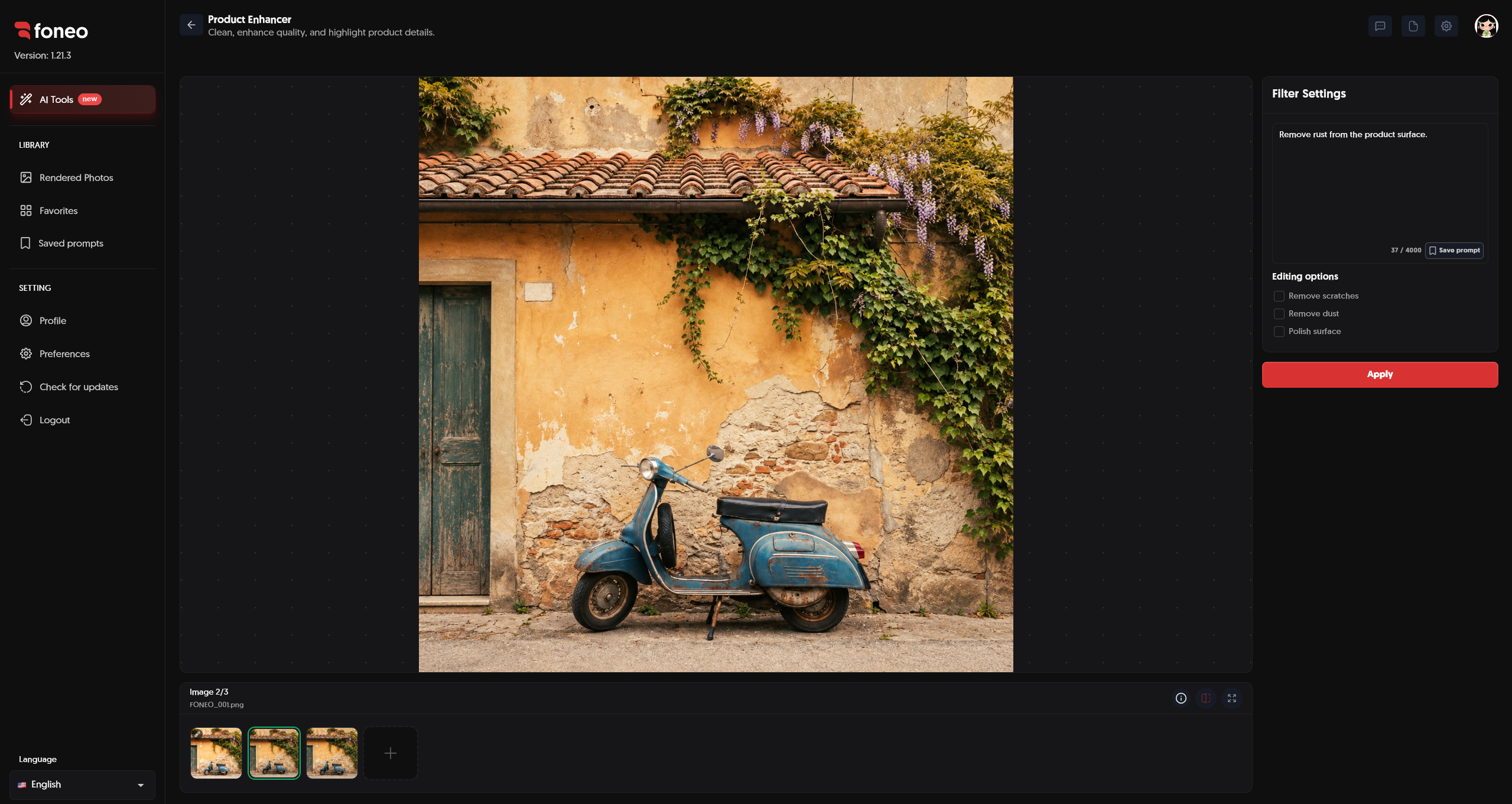
4. Choose Editing Options
Under Editing options, Foneo provides three options:
- Remove scratches: Removes scratches from the product surface.
- Remove dust: Removes dust, dirt, and unwanted dust particles.
- Polish surface: Polishes and improves the product surface.
You can choose:
- 1 option if you only need one type of enhancement.
- 2 options if you want to combine two effects.
- All 3 options if you want to enhance multiple aspects of the product. Văn bản đã dán (1)
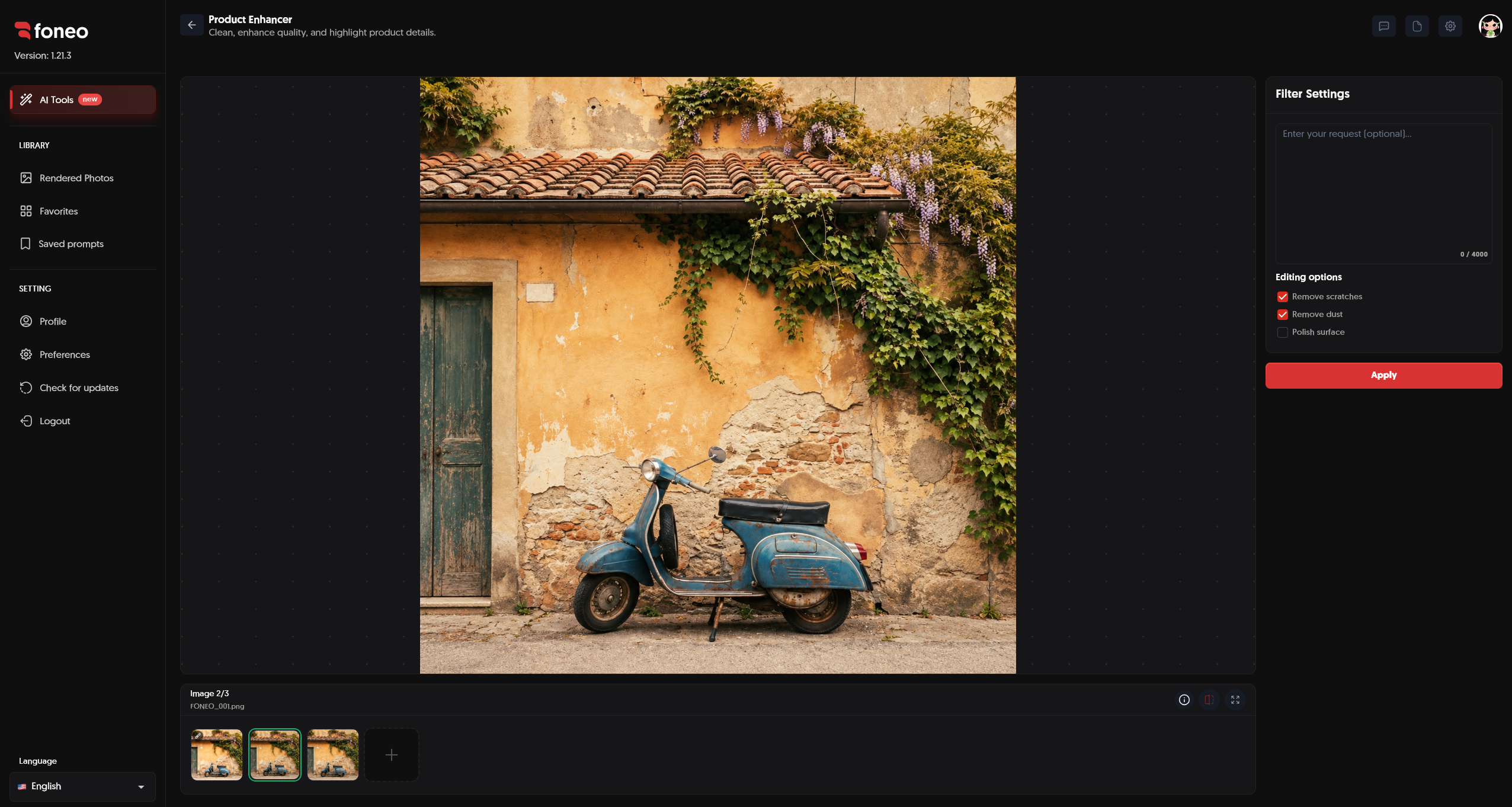
5. Click Apply to Start Processing
After selecting an image, you can use a Prompt, Editing options, or a combination of both to define your editing requirements.
There are three ways to use Product Enhancer:
Method 1: Use only a Prompt
You can enter a Prompt describing your editing request and click Apply without selecting any Editing options.
Method 2: Use only Editing options
You can leave the Prompt empty and select at least 1 option under Editing options, then click Apply.
Method 3: Combine a Prompt and Editing options
You can enter a Prompt and select one or more editing options to provide more detailed instructions.
Important: Before clicking Apply, you must have at least one of the following:
- Enter a Prompt; or
- Select at least 1 option under Editing options.
You cannot leave both the Prompt and Editing options empty.
After clicking Apply, AI will use the product image and your selected requirements to enhance the image. Văn bản đã dán (1)
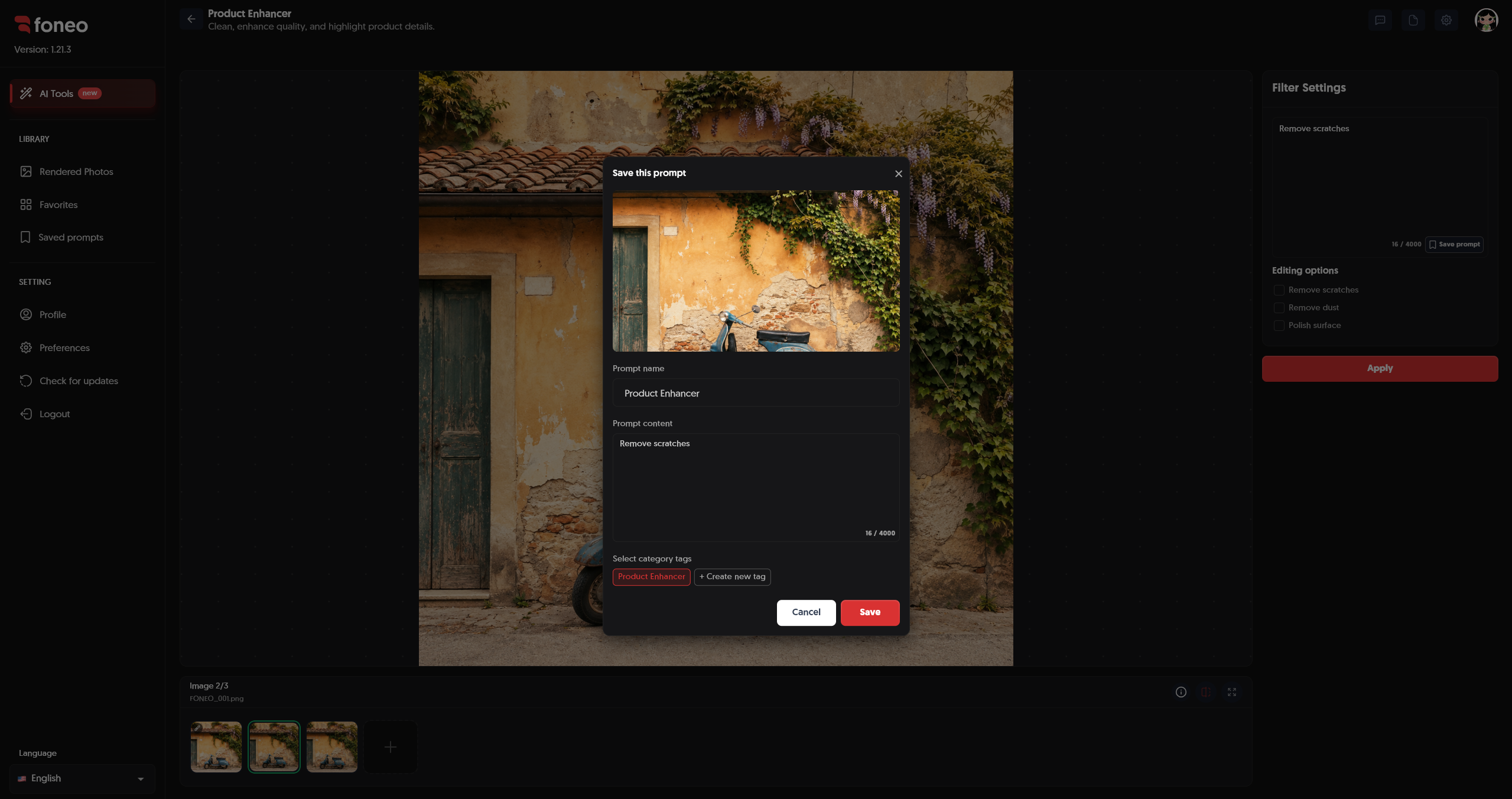
6. Save a Prompt for Future Use
If you frequently use the same editing instruction, Foneo allows you to save the Prompt so you can reuse it in future editing sessions.
After entering a Prompt, click Save prompt next to the Prompt input area.
A Save this prompt window will appear. Here, you can:
- Preview the image associated with the Prompt.
- Enter a Prompt name for easy identification.
- Review or edit the Prompt content.
- Select a category tag for the Prompt.
- Click Save to save the Prompt. Văn bản đã dán (1)
After saving successfully, the Prompt will appear in Saved prompts.
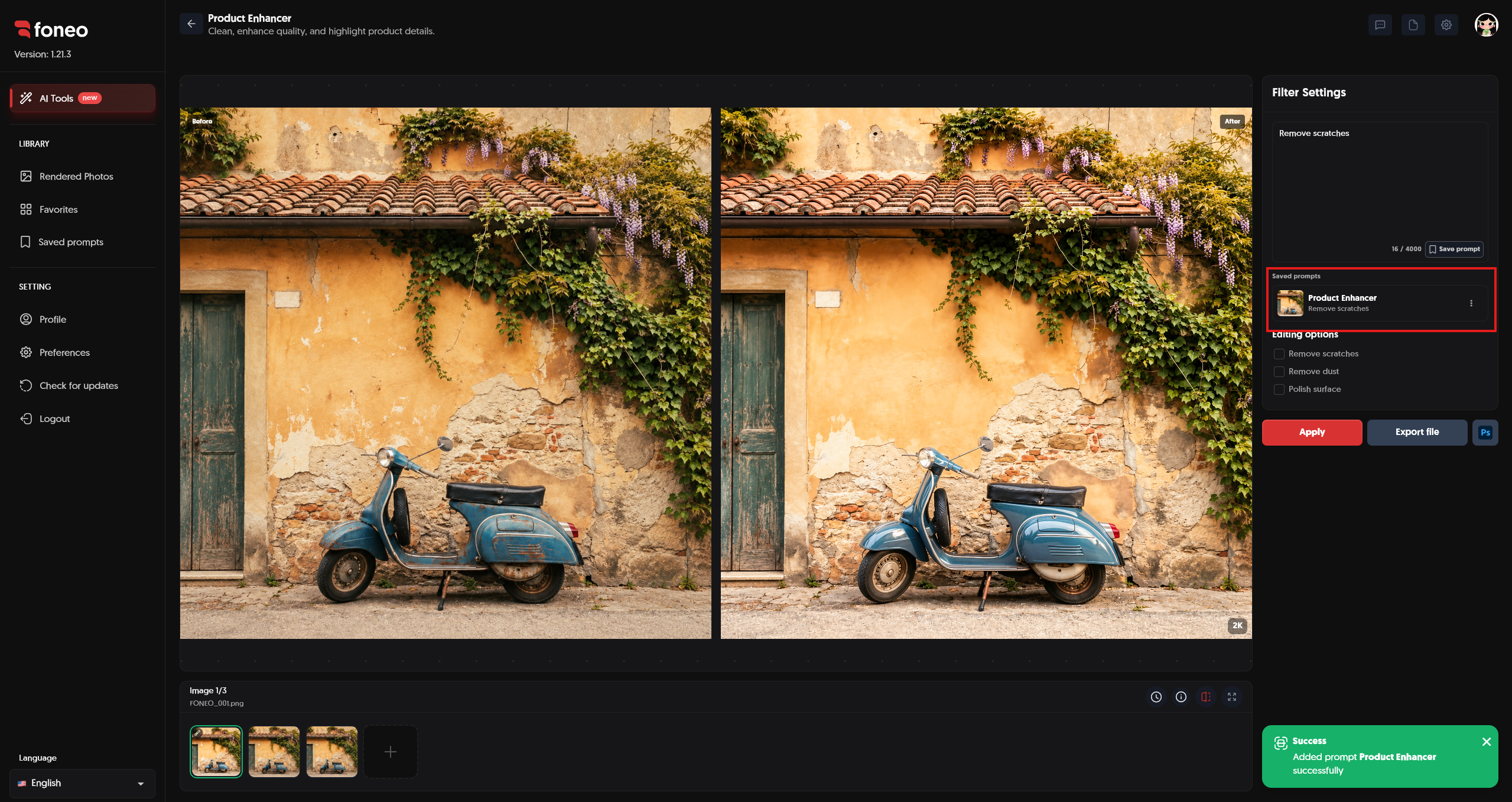
For future editing sessions, you can select a saved Prompt instead of entering the same instructions again.
This is especially useful when you frequently perform tasks such as:
- Removing scratches.
- Removing dust.
- Polishing surfaces.
- Removing rust.
- Cleaning a specific type of product. Văn bản đã dán (1)
7. Check the Result
Once processing is complete, the result will be displayed in the preview area.
You can use the Before & After view to compare the original and enhanced images.
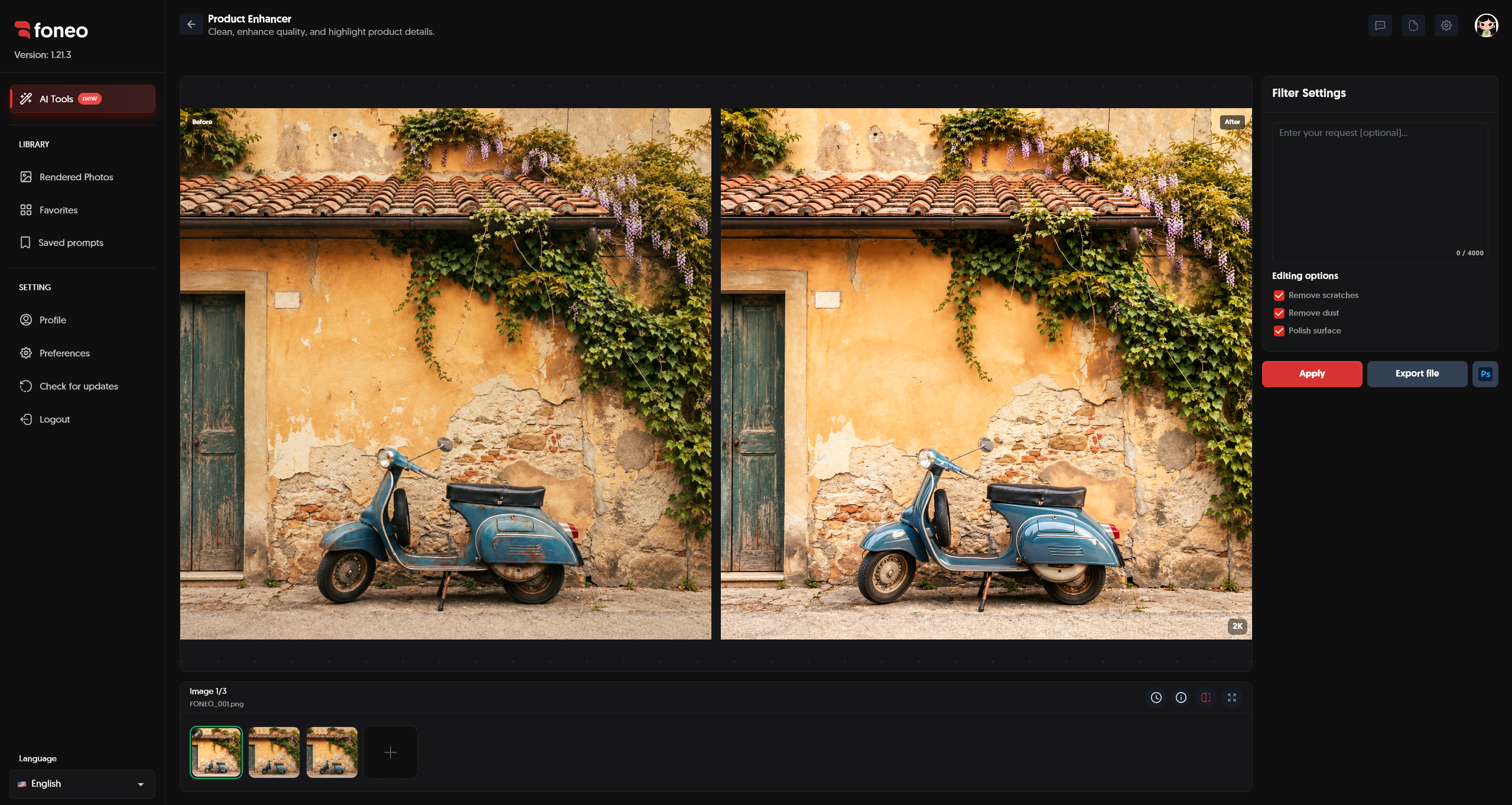
When reviewing the result, pay attention to:
- Scratches: Have the scratches been properly removed?
- Dust: Does the product surface look cleaner?
- Surface: Does the surface look naturally enhanced?
- Product details: Have important product details been preserved?
- Overall appearance: Does the edited image look natural and consistent with the original product?
If the result looks good, you can proceed to export the image. Văn bản đã dán (1)
8. Export the Image
Once you are satisfied with the result, click Export file to save the image to your device.
If you want to continue editing in Photoshop, click Ps to open the image and continue with additional edits. Văn bản đã dán (1)
How to Combine Prompts and Editing Options
Depending on your needs, you can use a Prompt, Editing options, or both together. Văn bản đã dán (1)
Use Only a Prompt
If your editing request can be described directly through a Prompt, you can simply enter the Prompt and click Apply.
For example:
Remove rust from the product surface and keep the original product details.
You do not need to select any Editing options.
Use Only Editing Options
If your editing needs are covered by the available options, you do not need to enter a Prompt.
Simply select at least one of the following:
- Remove scratches
- Remove dust
- Polish surface
Then click Apply. Văn bản đã dán (1)
Combine a Prompt and Editing Options
You can also enter a Prompt and select one or more editing options at the same time.
For example:
Remove rust from the product surface and make it look clean and polished while preserving the original product details.
You can then select Remove dust or Polish surface depending on your needs. Văn bản đã dán (1)
How to Write Effective Prompts
Prompts help you describe specific editing requirements that may not be fully covered by the available editing options. Văn bản đã dán (1)
Remove Rust
Remove rust from the product surface and keep the original product details.
Remove Dust and Dirt
Remove dust and dirt from the product while preserving the original details.
Polish the Surface
Polish the product surface and make it look clean and smooth.
Combine Multiple Requirements
Remove rust and scratches, clean the surface, and make the product look polished while preserving its original shape and details.
You can also save frequently used Prompts so they can be easily reused in future editing sessions. Văn bản đã dán (1)
How to Use Saved Prompts
If you have previously saved a Prompt, you can reuse it from the Saved prompts section in Filter Settings.
Saved Prompts help you:
- Avoid entering the same instructions repeatedly.
- Easily reuse frequently used editing requests.
- Save time when processing multiple product images.
- Organize Prompts based on different editing needs.
When you select a saved Prompt, you can use it for the current editing session and continue combining it with Editing options if needed. Văn bản đã dán (1)
Tips for Better Results
1. Use Clear Product Images
Use images with good resolution and make sure the product is clearly visible.
The clearer the input image, the more information AI has to analyze and process. Văn bản đã dán (1)
2. Choose the Right Editing Options
Choose the options that match the actual issues in your image:
- Scratches → Remove scratches
- Dust or dirt → Remove dust
- Improve the surface → Polish surface
- Multiple issues → Combine multiple options.
3. Use a Prompt for Specific Requirements
If your editing requirement is not fully covered by the available options, you can enter an additional Prompt.
For example, if you want to remove rust, describe the requirement directly in the Prompt.
4. Save Frequently Used Prompts
If you frequently perform the same type of editing, use Save prompt to save the Prompt.
You can reuse the saved Prompt in future editing sessions without entering it again. Văn bản đã dán (1)
5. Combine Multiple Options
You can select 1, 2, or all 3 options in the same editing session.
You can also combine the options with a Prompt to provide more detailed instructions. Văn bản đã dán (1)
6. Check Before & After Before Exporting
After AI finishes processing, review the result before exporting the image.
Pay particular attention to important product details to make sure the product maintains its original shape and key characteristics. Văn bản đã dán (1)
What Is Product Enhancer Suitable For?
The Product Enhancer feature is suitable for various use cases, including:
- Cleaning up product images.
- Removing scratches from products.
- Removing dust and dirt.
- Polishing product surfaces.
- Improving product images before publishing them.
- Preparing cleaner product images for websites and e-commerce.
- Processing products with surfaces that are prone to scratches or dust.
- Using Prompts for specific editing requests such as removing rust.
- Saving frequently used Prompts to save time during future editing sessions. Văn bản đã dán (1)
Frequently Asked Questions
What is Product Enhancer used for on Foneo?
The Product Enhancer feature uses AI to improve product images and helps address issues such as scratches, dust, and product surfaces.
Is entering a Prompt required?
No. A Prompt is optional.
You can use only the options under Editing options, or use a Prompt when you want to describe a specific editing requirement.
Do I have to select an Editing option?
No.
You can use only a Prompt without selecting any Editing options.
However, if you do not enter a Prompt, you must select at least 1 option under Editing options.
Can I enter only a Prompt and click Apply?
Yes.
You can enter a Prompt and click Apply without selecting any Editing options.
Can I use Editing options without entering a Prompt?
Yes.
Simply select at least 1 option under Editing options and click Apply.
Can I leave both the Prompt and Editing options empty?
No.
Before clicking Apply, you must have at least one of the following:
- Enter a Prompt; or
- Select at least 1 option under Editing options.
Can I select all 3 editing options at the same time?
Yes.
You can select Remove scratches, Remove dust, and Polish surface in the same editing session.
Can I select only one editing option?
Yes.
You can select only one option if that is all you need.
For example, select Remove scratches to focus specifically on removing scratches.
Can I select 2 editing options at the same time?
Yes.
You can combine any 2 of the 3 available options.
Can I use a Prompt to remove rust?
Yes.
You can enter a specific request in the Prompt, such as:
Remove rust from the product surface.
Can I save a Prompt for future use?
Yes.
After entering a Prompt, click Save prompt to save it. The saved Prompt can be reused in future editing sessions.
Can I name a saved Prompt?
Yes.
When you click Save prompt, Foneo displays the Save this prompt window. You can enter a Prompt name, review the Prompt content, and select a category tag before clicking Save.
Can I use a saved Prompt in future editing sessions?
Yes.
Saved Prompts will appear in the Saved prompts section. You can select a saved Prompt whenever you want to reuse it for future editing sessions.
What does Remove scratches do?
Remove scratches helps AI process and remove scratches from the product surface.
What does Remove dust do?
Remove dust helps remove dust, dirt, and unwanted dust particles from the product image.
What does Polish surface do?
Polish surface helps improve and polish the product surface, making the product look cleaner and more refined.
Can I view Before & After after processing?
Yes.
After Foneo finishes processing, you can use the preview area to review and compare the original and enhanced images.
Can I continue editing after enhancing the image?
Yes.
You can click Export file to export the image or use the Ps button to continue editing in Photoshop.
Related Articles
- How to Use the Portrait Effects Feature on the Foneo AI Photo Editing App
- How to Use the Shoot Style Copy Feature on the Foneo AI Photo Editing App
- How to Use the Face Enhancement Feature on the Foneo AI Photo Editing App
- How to Use the Photo Restoration & Colorization Feature on the Foneo AI Photo Editing App
- How to Use the ID Photo Feature on the Foneo AI Photo Editing App
Foneo · AI Photo Editing
Ready to try it on your own photos?
Download the Foneo app to edit photos with AI in just a few taps, or see the plan that fits your needs.