Make ID Photos from Any Portrait with AI
Turn an everyday portrait into a clean ID photo with AI. Choose an outfit, background colour and aspect ratio, and keep the person's real facial features.
ID photos have strict requirements: a clear face, a plain background, tidy clothing and a standard frame. Getting there usually means a trip to a studio, or a lot of retouching to clean up a photo taken somewhere else.
ID Photo in Foneo turns an existing portrait into a clean ID-style photo with AI. It can change the outfit, set a uniform background and frame the photo at a standard ratio, while keeping the person's real features.
What you can control
- Outfit. Choose from ready-made templates with different clothing styles, or describe the outfit you want in a prompt.
- Keep original outfit. Turn this on to keep the clothes from the original photo instead.
- Background colour. Pick a preset colour or enter any colour code, for example white
#FFFFFF. - Aspect ratio. Choose 1:1, 2:3 or 3:4 to suit how the photo will be used.
- Remove glasses. Turn this on when the person wears glasses but the ID photo should be taken without them.
- Keep facial features. Preserve natural identifying marks such as moles, scars, freckles and birthmarks.
All of these options are optional. You can use the defaults and adjust only what you need.
How it works
- Open a portrait in Foneo and choose ID Photo.
- Pick an outfit template, or write a prompt describing the outfit.
- Set the aspect ratio, background colour and any extra options.
- Click Apply, check the result, then export it or open it in Photoshop.
If the result is not right, change the template, prompt or options and apply again.
Tips for a usable ID photo
- Start with a clear, well-lit photo where the face is visible and not covered.
- Use a natural, front-facing angle. The closer the original is to a standard ID pose, the better the result.
- Turn on Keep facial features when the person has marks that must stay for identification.
- Check the official rules for the document you need. Size, background colour and other requirements differ between countries and organisations, so confirm them before printing or submitting.
Who it is for
Photo studios that offer ID photo services, HR and admin teams preparing staff photos, schools and organisations collecting member photos, and anyone who needs a clean ID-style photo without booking a studio session.
Frequently asked questions
Can I keep my own clothes?
Yes. Turn on Keep original outfit. Template selection is then hidden, but you can still use a prompt and the other options.
Which background colours can I use?
Any colour. Choose a preset or enter a custom colour code.
Which sizes are available?
You can choose a 1:1, 2:3 or 3:4 aspect ratio. Check the exact size required by the document you are applying for before printing.
Will it change the person's face?
The tool aims to keep the person recognisable. Turn on Keep facial features to preserve identifying marks, and always compare the result with the original.
Ready-made styles
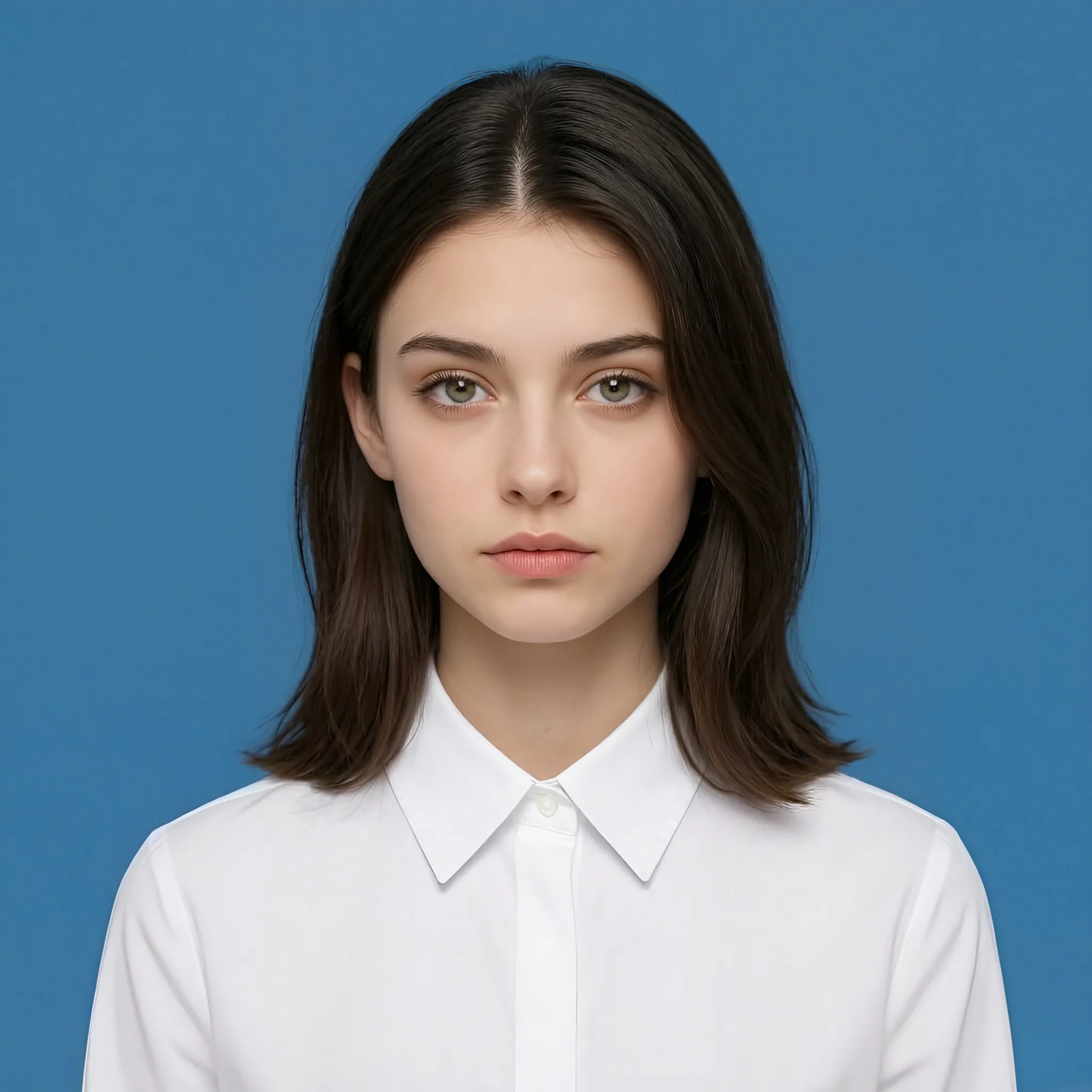 White Shirt
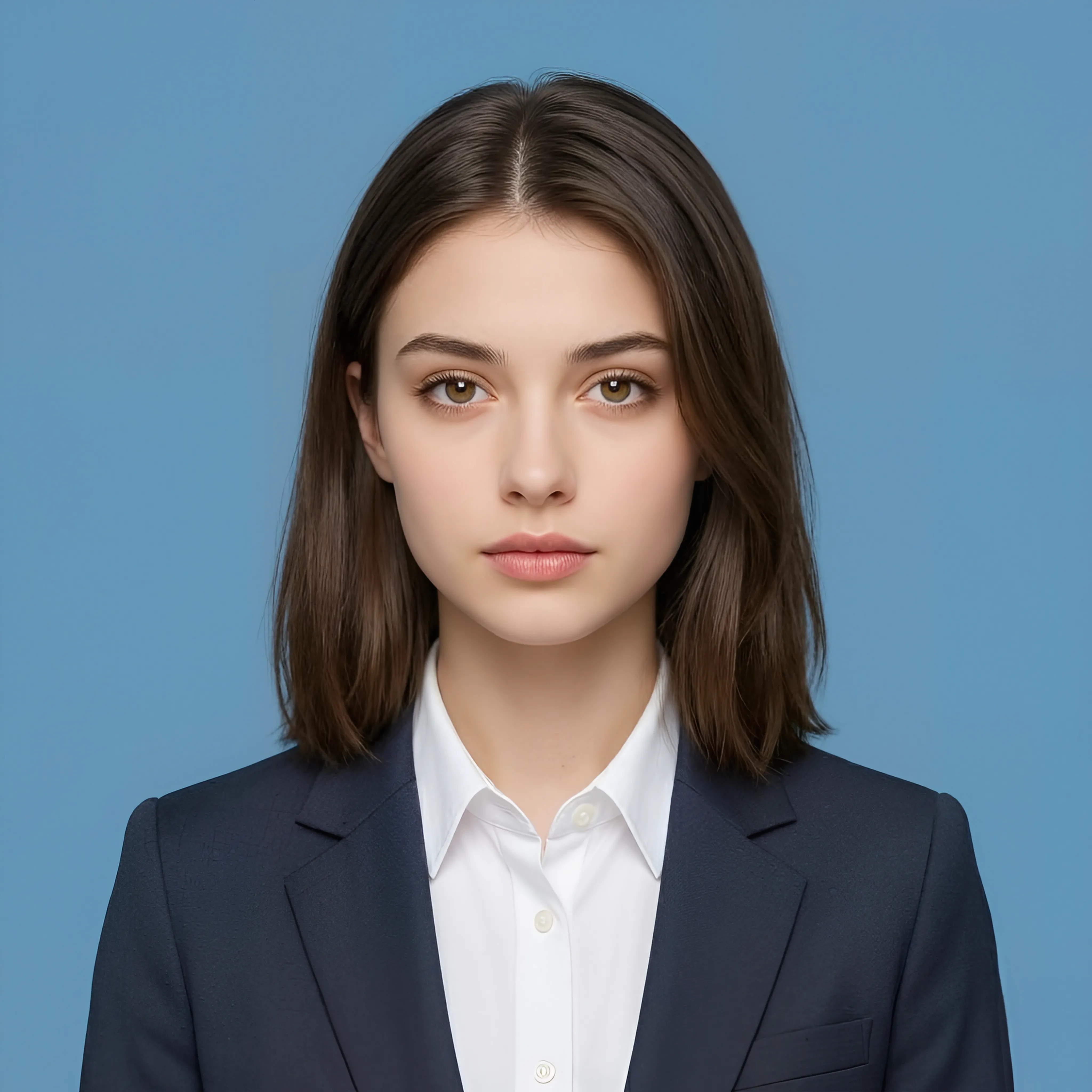 Dark Suit
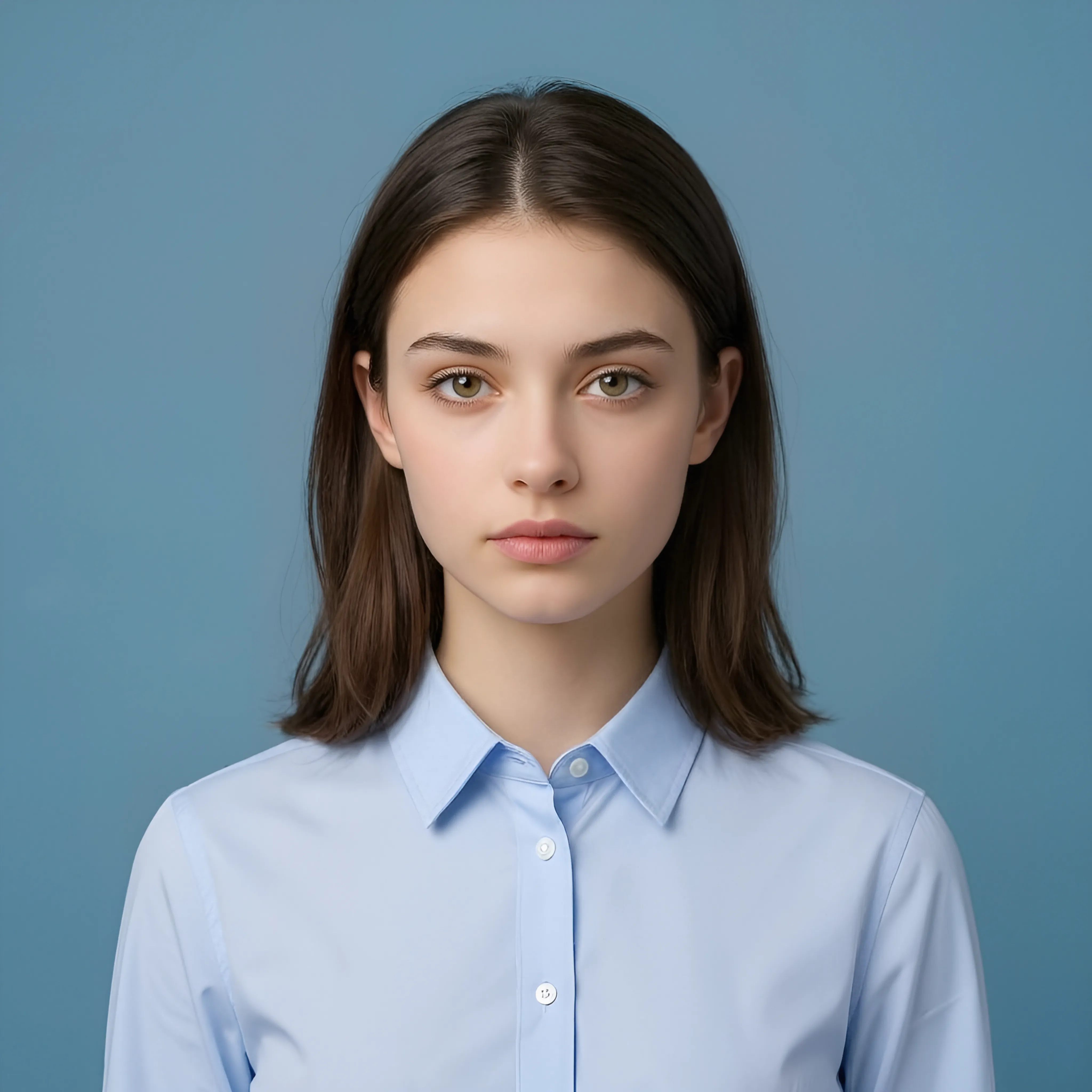 Formal Shirt
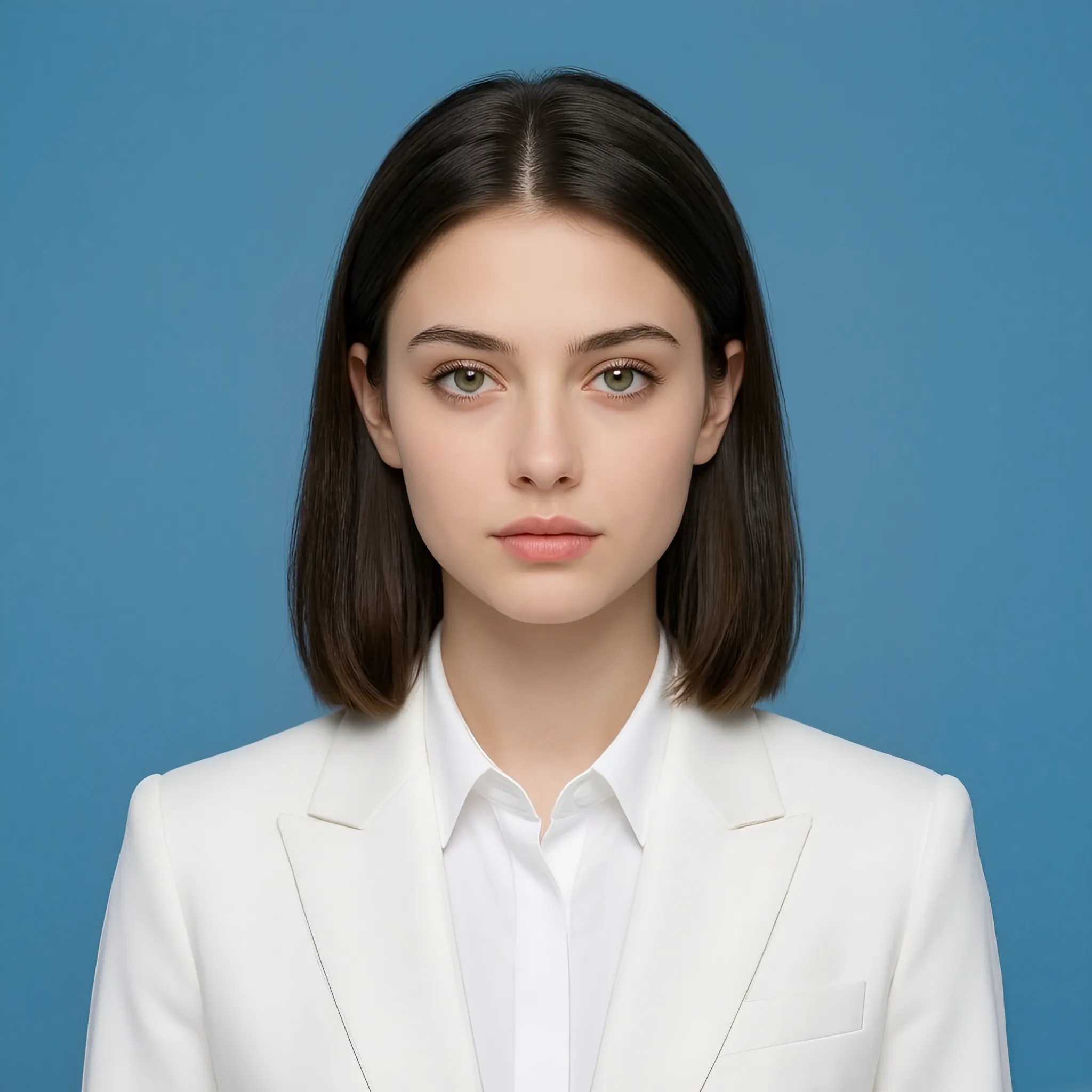 White Suit
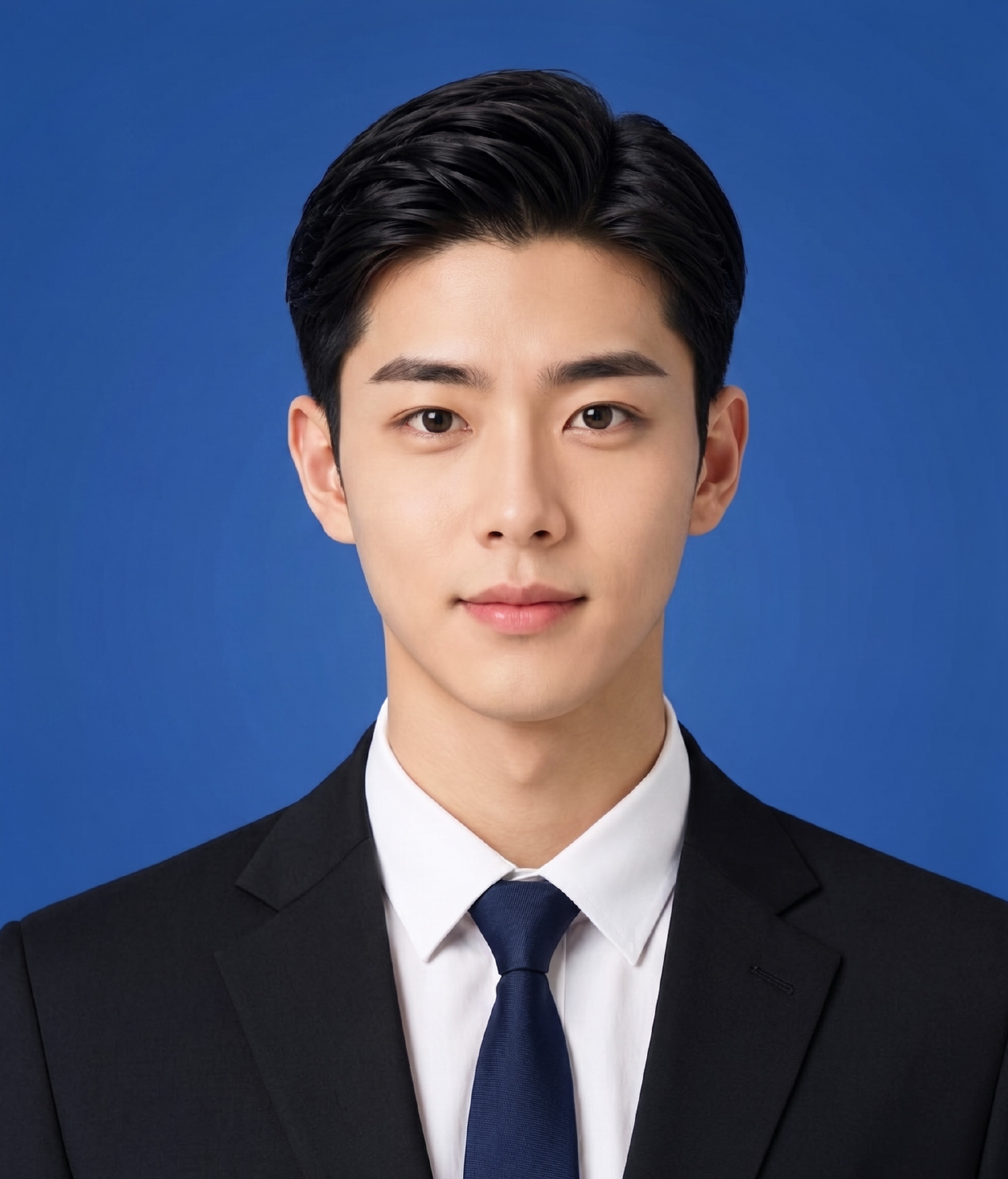 Black Suit with Tie
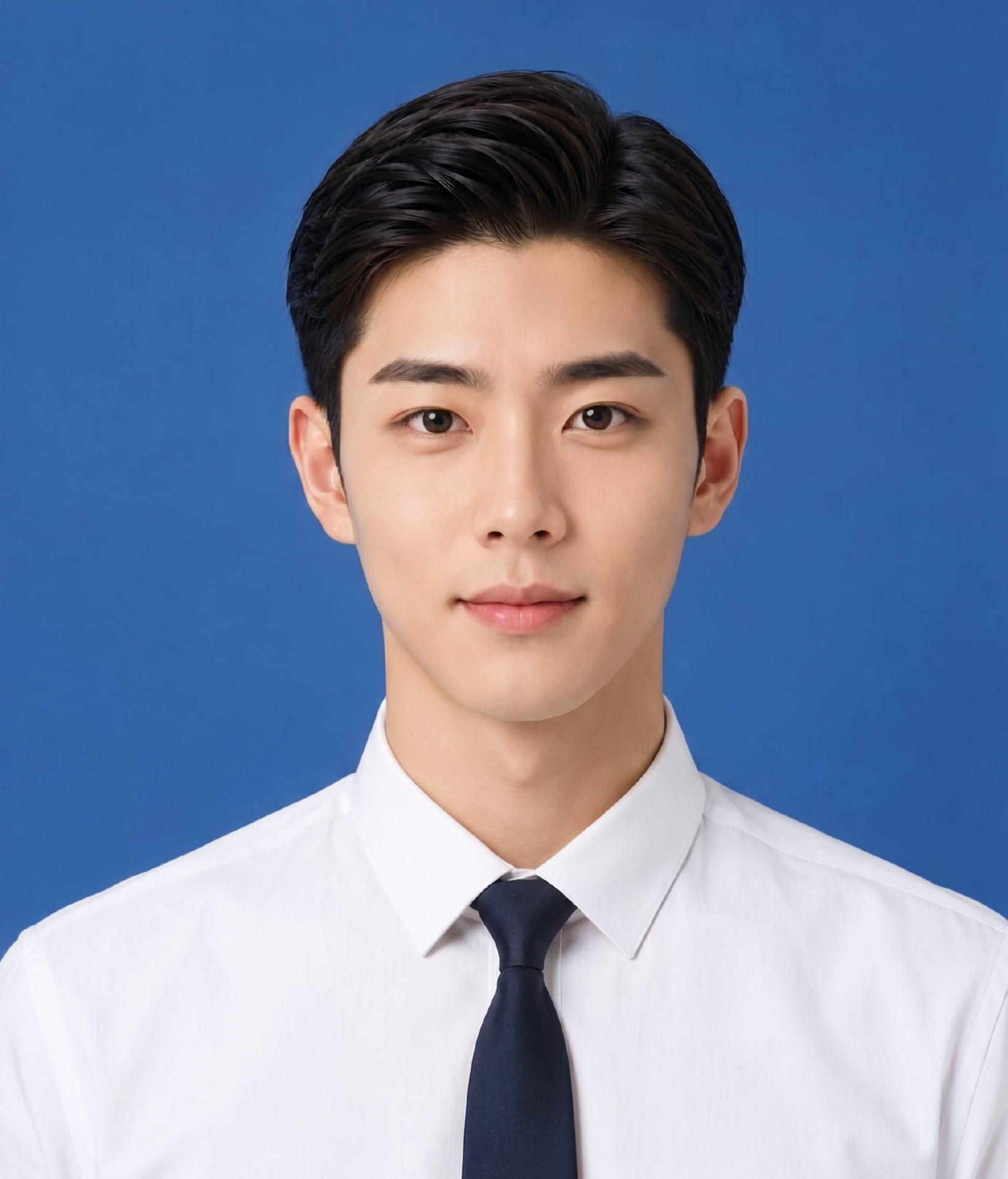 White Shirt with Tie
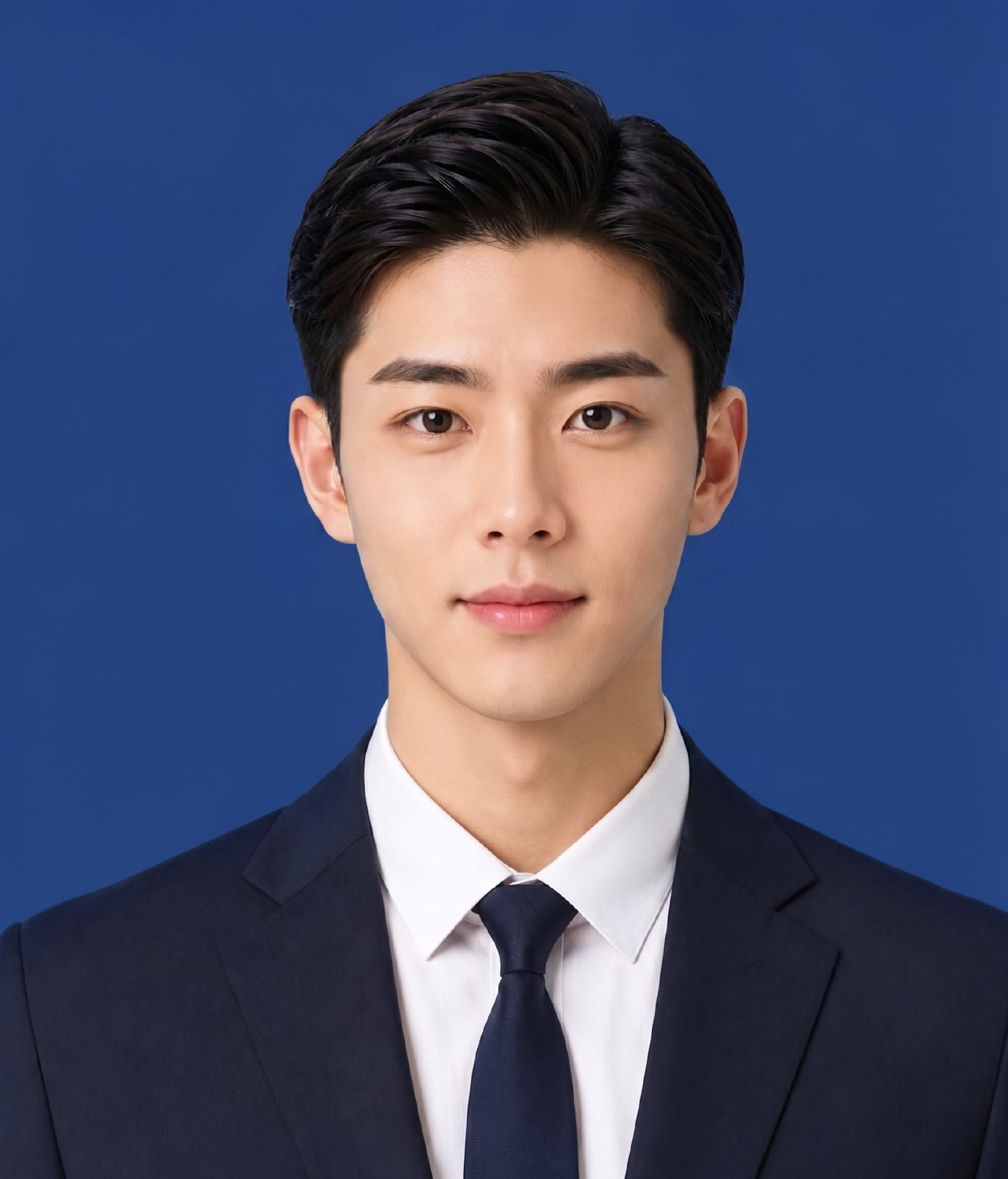 Navy Suit