Relight Photos with AI
Relight portraits, fashion and product photos with AI. Pick a ready-made lighting style or describe the light you want. No studio reshoot needed.
Light decides how a photo feels. When a shoot happens in flat daylight, under a grey sky or in a dim room, the subject often looks dull and the image loses depth. Fixing that by hand means painting light and shadow layer by layer in Photoshop, and that takes time for every single photo.
Lighting Effects in Foneo adds or reshapes the light in an existing photo with AI. You choose a lighting style and Foneo rebuilds the highlights, shadows and mood around your subject, while keeping the person, the pose and the composition you shot.
What you can do with AI relighting
- Rescue flat portraits. Add directional window light or soft studio light to a portrait taken in dull conditions.
- Change the mood of a scene. Turn a neutral outdoor shot into warm golden sunlight, or give an indoor shot a calmer, softer feel.
- Make fashion shots stand out. Use directional light to separate the model from the background and bring out the texture of clothing.
- Light products evenly. Use soft lighting that highlights a product while keeping its details readable.
Two ways to set the light
Ready-made styles. Foneo includes a library of lighting templates, such as window light and other indoor and outdoor looks. Pick the one that matches the context of your photo and apply it. This is the fastest route and needs no writing at all.
Describe the light yourself. If you have a specific look in mind, write a short prompt: where the light comes from, its colour, how soft or strong it is, and the atmosphere you want. If you are not sure what to write, Foneo can suggest a prompt for you, and you can save prompts that work well to reuse them on the next shoot.
A No light rays option lets you decide whether visible light beams appear. Turn it on when you want the light to look soft and natural rather than dramatic.
You only need the photo you want to edit. There is no reference image to prepare.
How it works
- Open your photo in Foneo and choose Lighting Effects.
- Pick a lighting style, or write a prompt describing the light.
- Click Apply, compare the before and after, then export the result or send it to Photoshop to keep editing.
If the first result is not quite right, try another style, adjust the prompt or toggle No light rays, and apply again.
Tips for natural-looking light
- Start from a clear photo. A sharp image with a well-defined subject and little noise gives the AI more to work with.
- Match the light to the scene. Window light or diffused light suits indoor photos, warm sunlight suits outdoor photos, and soft light suits products.
- Keep prompts short and specific. Light source, direction, colour and softness matter more than long descriptions.
- Check the result closely. Look at whether the light direction makes sense, whether highlights and shadows sit naturally on the subject, and whether the contrast looks believable.
Who it is for
Portrait and wedding photographers who need to save sessions shot in poor light, retouchers who want a faster alternative to painting light by hand, fashion and product photographers, and content creators who want a stronger mood without reshooting.
Frequently asked questions
Do I need to write a prompt?
No. You can apply one of the ready-made lighting styles directly. Prompts are only for when you want a custom look.
Will relighting change the person in the photo?
Lighting Effects focuses on light, shadow and atmosphere. As with any AI edit, compare the before and after and check faces and fine details before you deliver the photo.
Can I keep editing after relighting?
Yes. Export the result as a file, or open it in Photoshop with one click to continue your usual retouching.
Can I try it before installing anything?
Yes. You can try Lighting Effects in your browser, and the desktop app for Windows and macOS comes with a free trial.
Ready-made styles
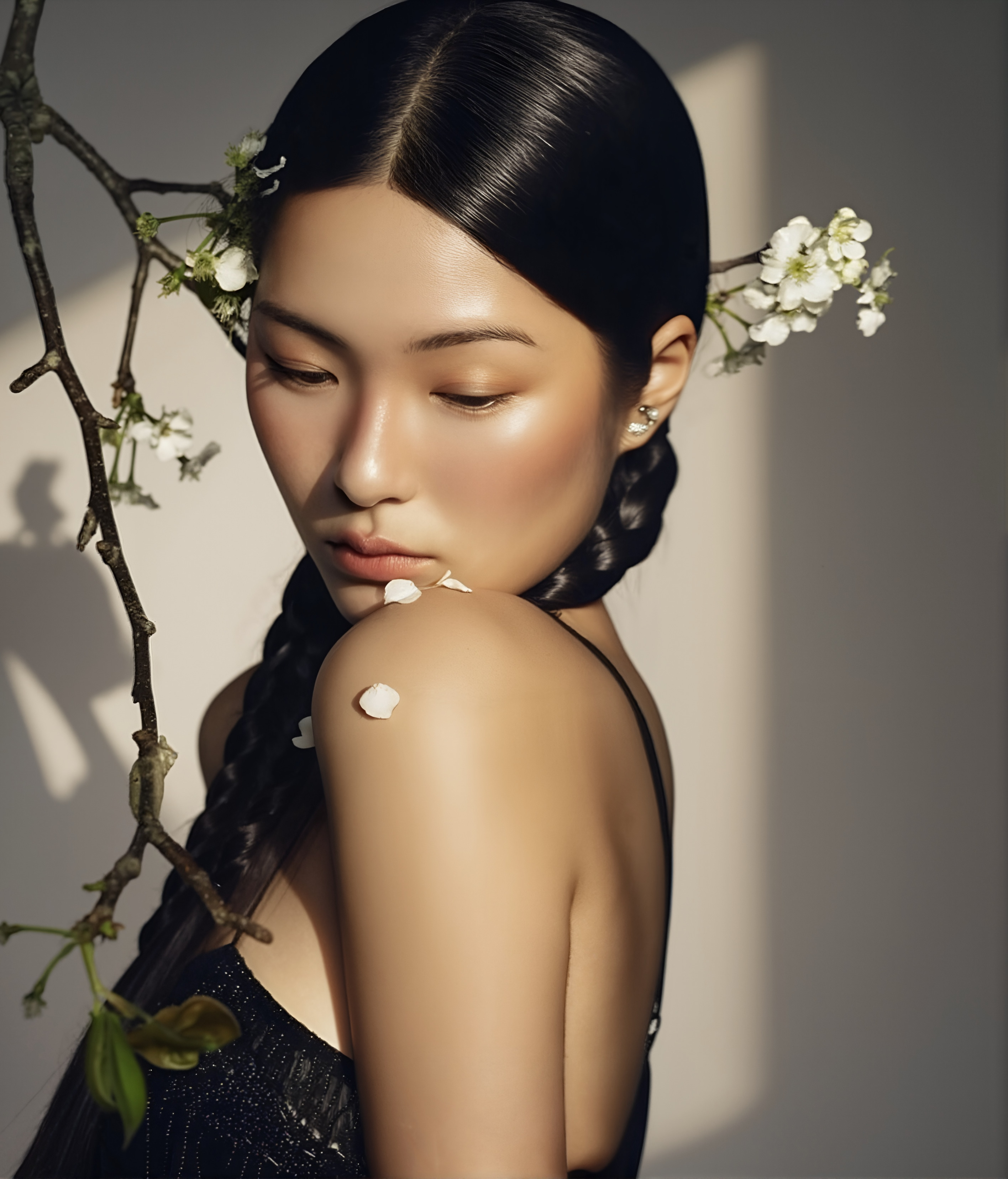 Window Bright Light
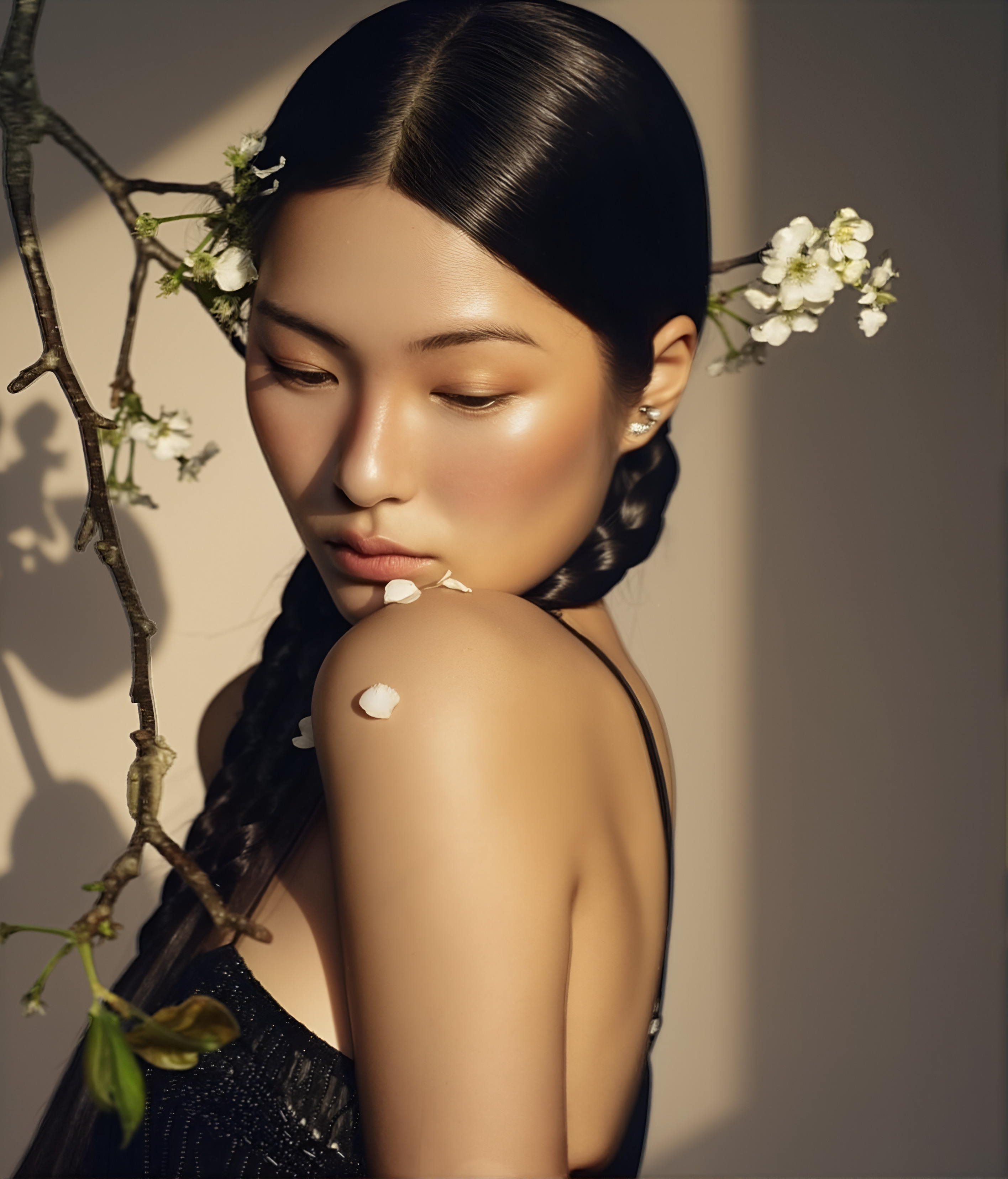 Window Warm Light
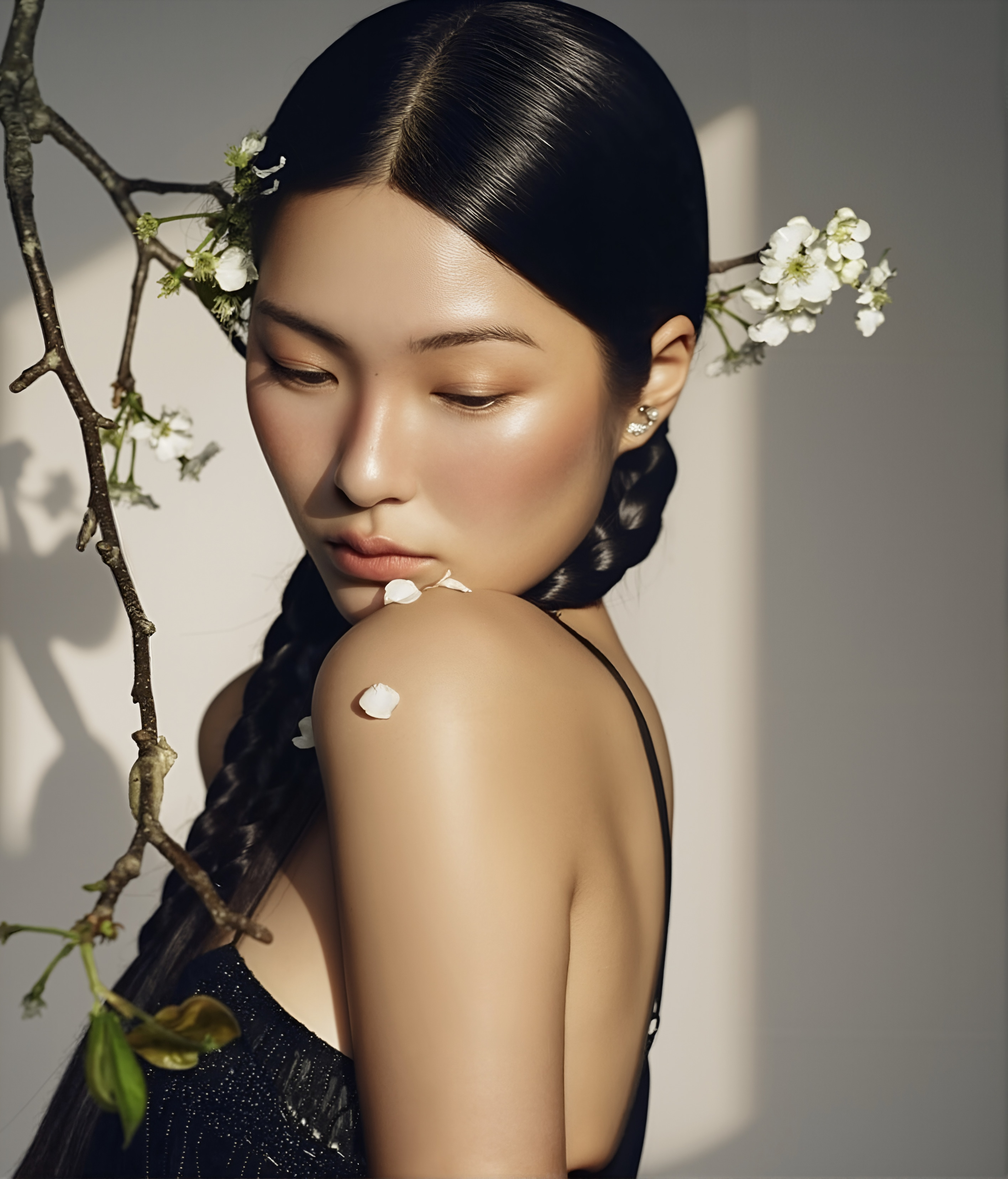 Bright Light
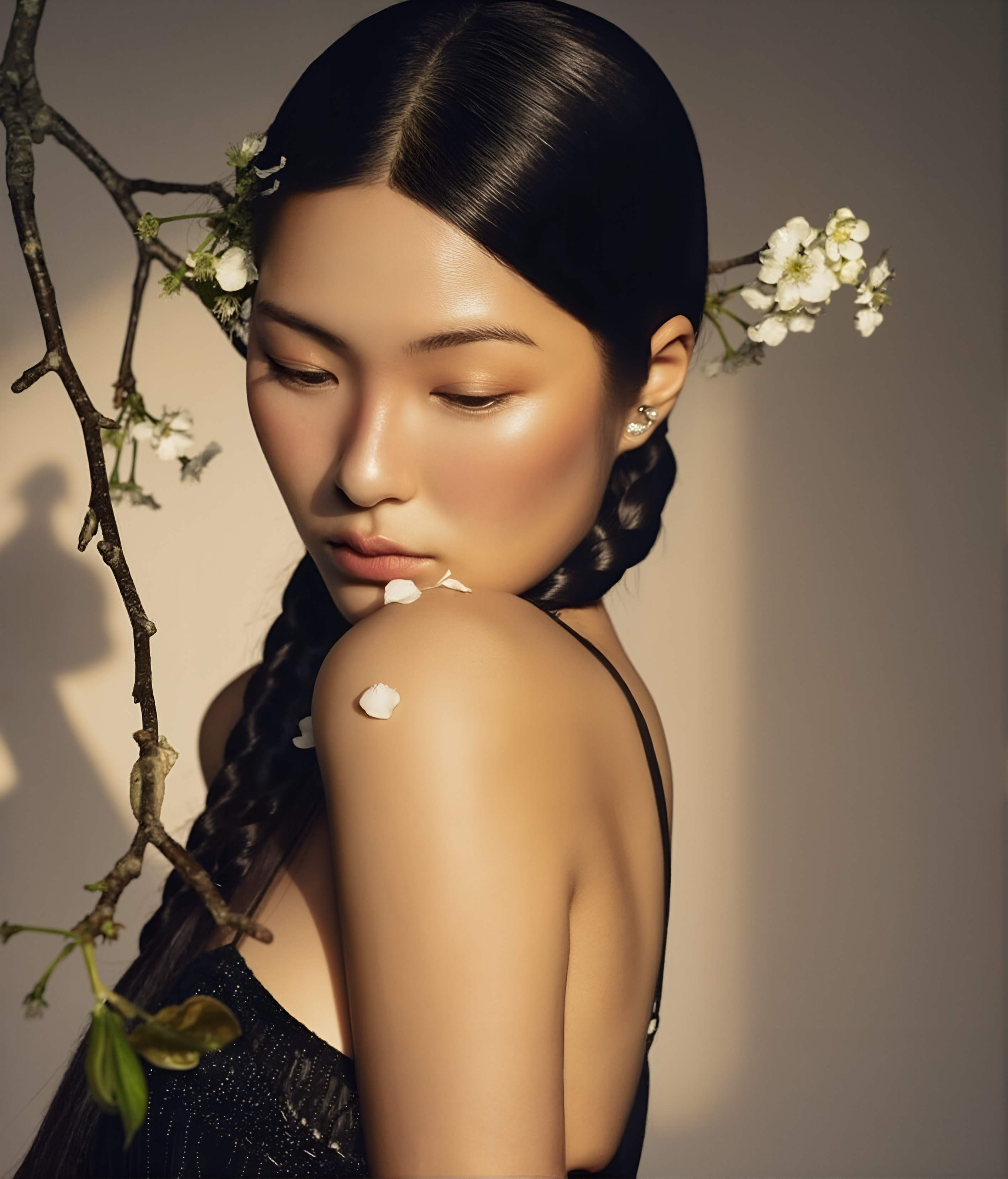 Warm Light
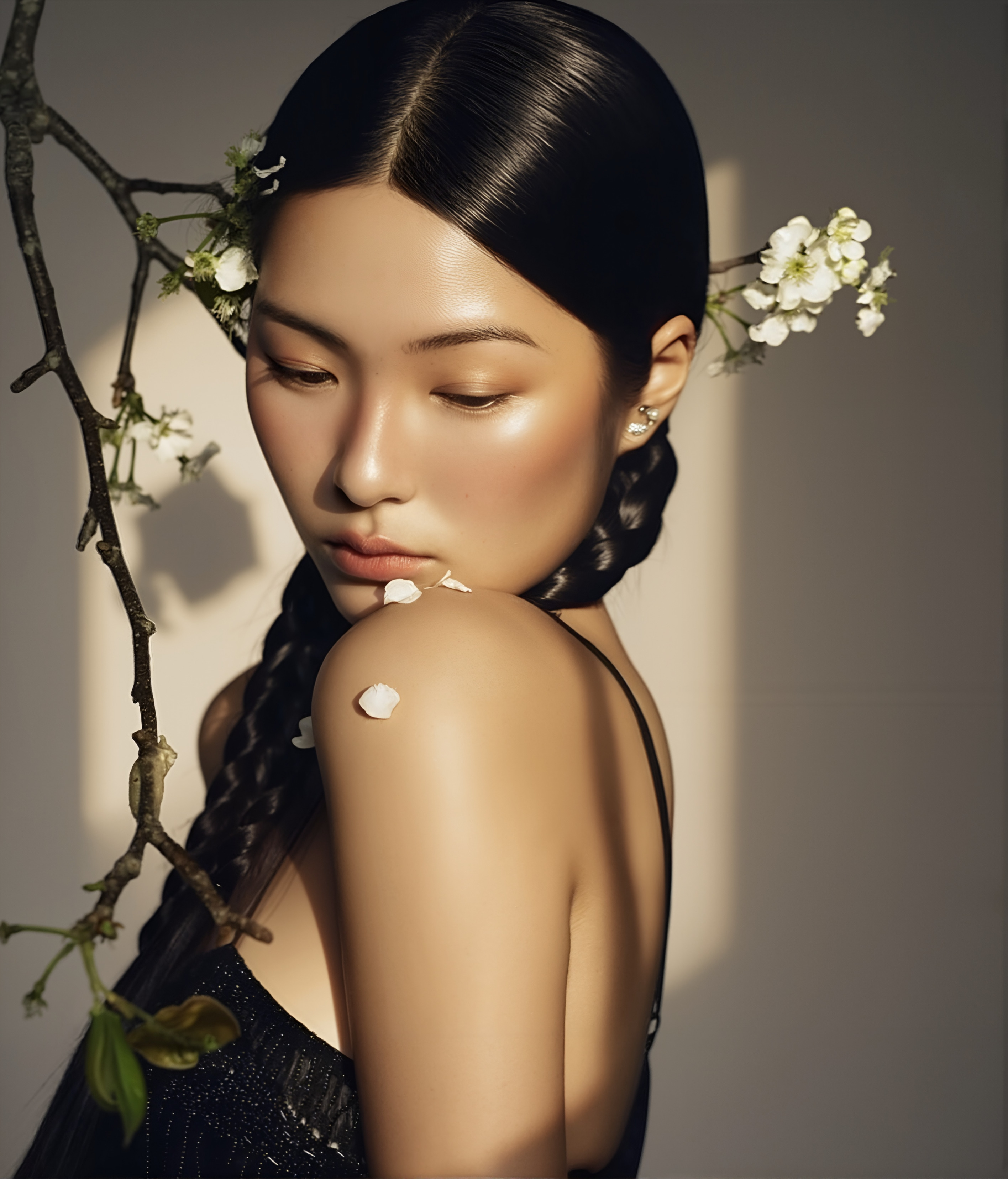 Harsh Sunlight
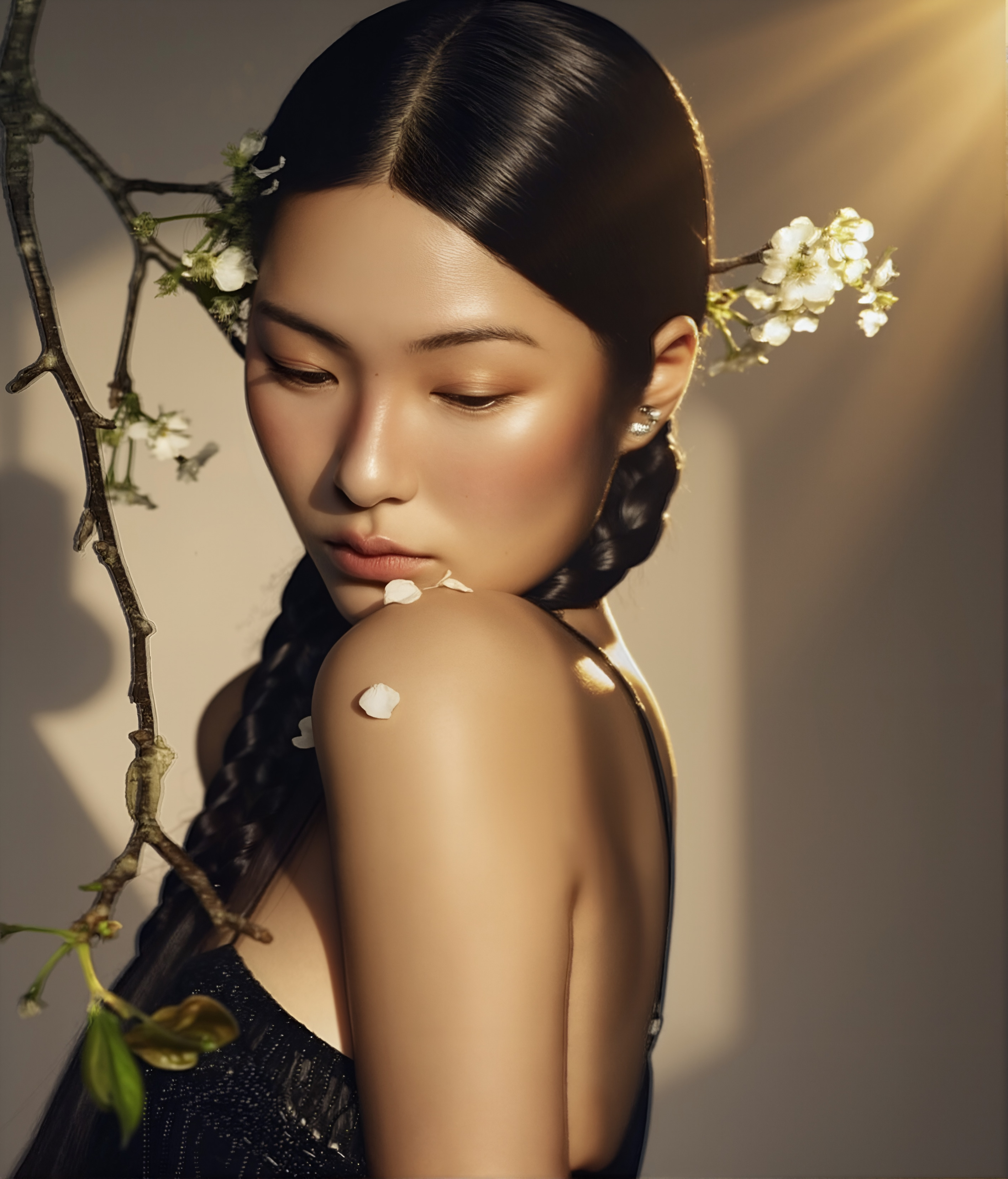 Golden Light
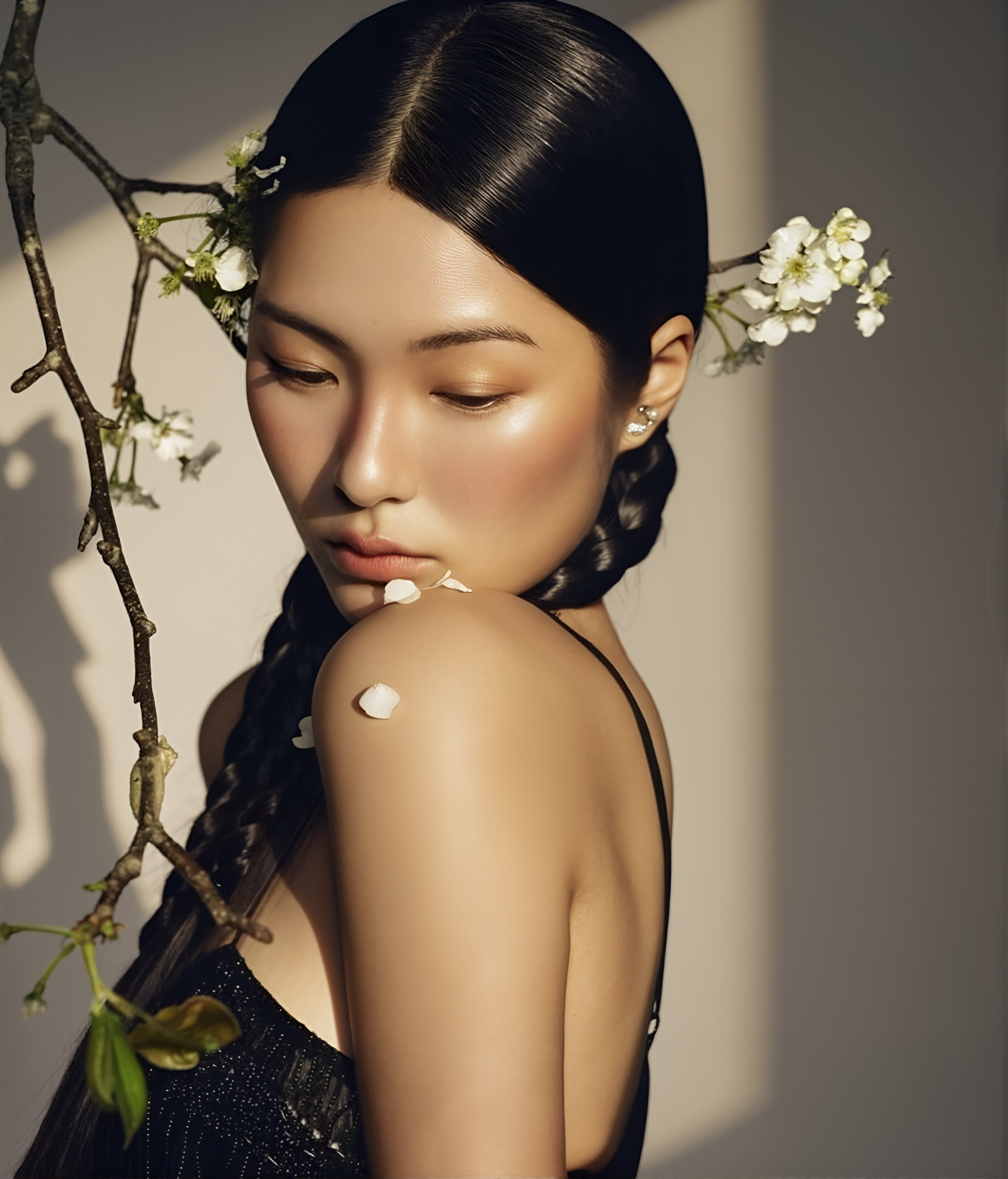 Glowing Flare
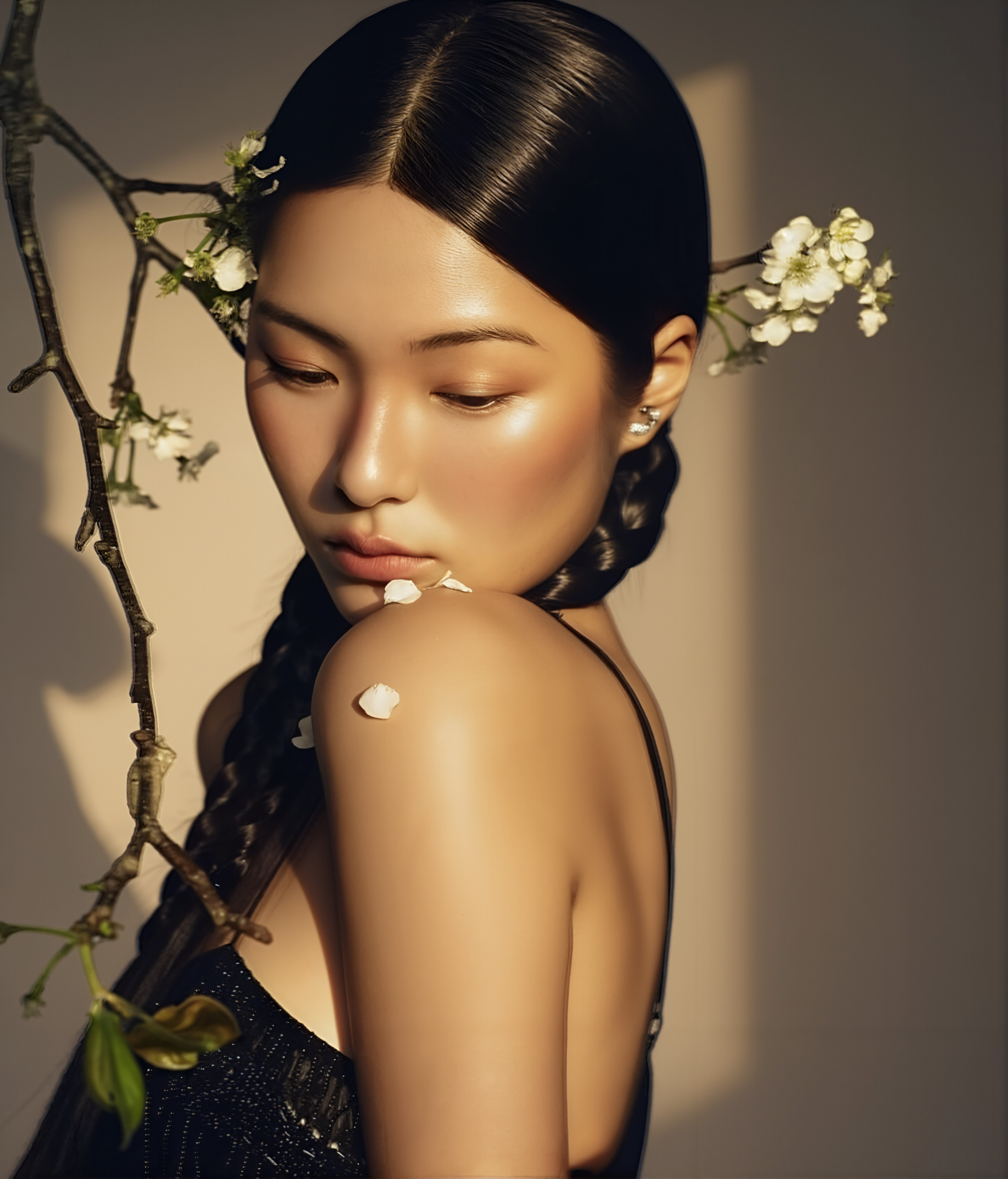 Sunset Flare