Change Photo Backgrounds with AI
Replace the background of portraits, fashion and product photos with AI. Use a ready-made background, upload your own image or describe a new scene.
A good subject can be let down by the wrong background: a cluttered room, a busy street, a plain wall that does not match the brand. Cutting the subject out by hand and blending it into a new scene takes careful masking, colour matching and lighting work.
Background Replace in Foneo separates the subject from the background with AI and places it in a new scene. You decide what to keep, then choose where the subject should be.
Three ways to set the new background
- Ready-made backgrounds. Pick from a library of background templates. This is the fastest option when you want to try several looks.
- Your own image. Upload a background you already have (JPG, PNG or WEBP), such as a brand set, a location photo or a studio backdrop.
- A described scene. Write a prompt describing the setting, colours, lighting and style you want. Foneo can suggest prompts, and you can save the ones you like for later.
You decide what stays
Before replacing the background, you can mark exactly what to keep. Brush over the person, the clothing or the product with Keep, fix any mistakes with Erase, or start again with Clear mask. This gives you control over tricky areas such as hair, accessories and product edges.
How it works
- Open your photo in Foneo and choose Background Replace.
- Mark the subject you want to keep.
- Choose a background template, upload your own image or write a prompt.
- Click Apply, compare the before and after, then export the result.
Tips for a believable result
- Mark the whole subject. Pay attention to hair, clothing edges, accessories and anything close to the background.
- Match the background to the subject. The new scene should suit the subject's colours, lighting and style.
- Check the edges and the light. Look at hair, clothing and product outlines, and make sure the light on the subject fits the new background.
- Adjust and apply again if part of the subject is missing or the background does not fit.
Who it is for
Portrait and fashion photographers who want different scenes from one shoot, e-commerce sellers who need consistent product backgrounds, studios producing marketing images, and content creators who want new looks without a new location.
Frequently asked questions
Can I use my own background image?
Yes. Upload a JPG, PNG or WEBP image and use it as the new background.
Do I have to write a prompt?
No. You can choose a ready-made background or upload your own image. Prompts are optional.
How do I stop the AI from cutting off hair or product edges?
Use Keep to mark the full subject, including fine edges, and use Erase to remove anything you did not mean to include.
Does it work for product photos?
Yes. Mark the product with Keep and choose a suitable background. For product-specific backdrops, Foneo also has a separate Product Background tool.
Ready-made styles
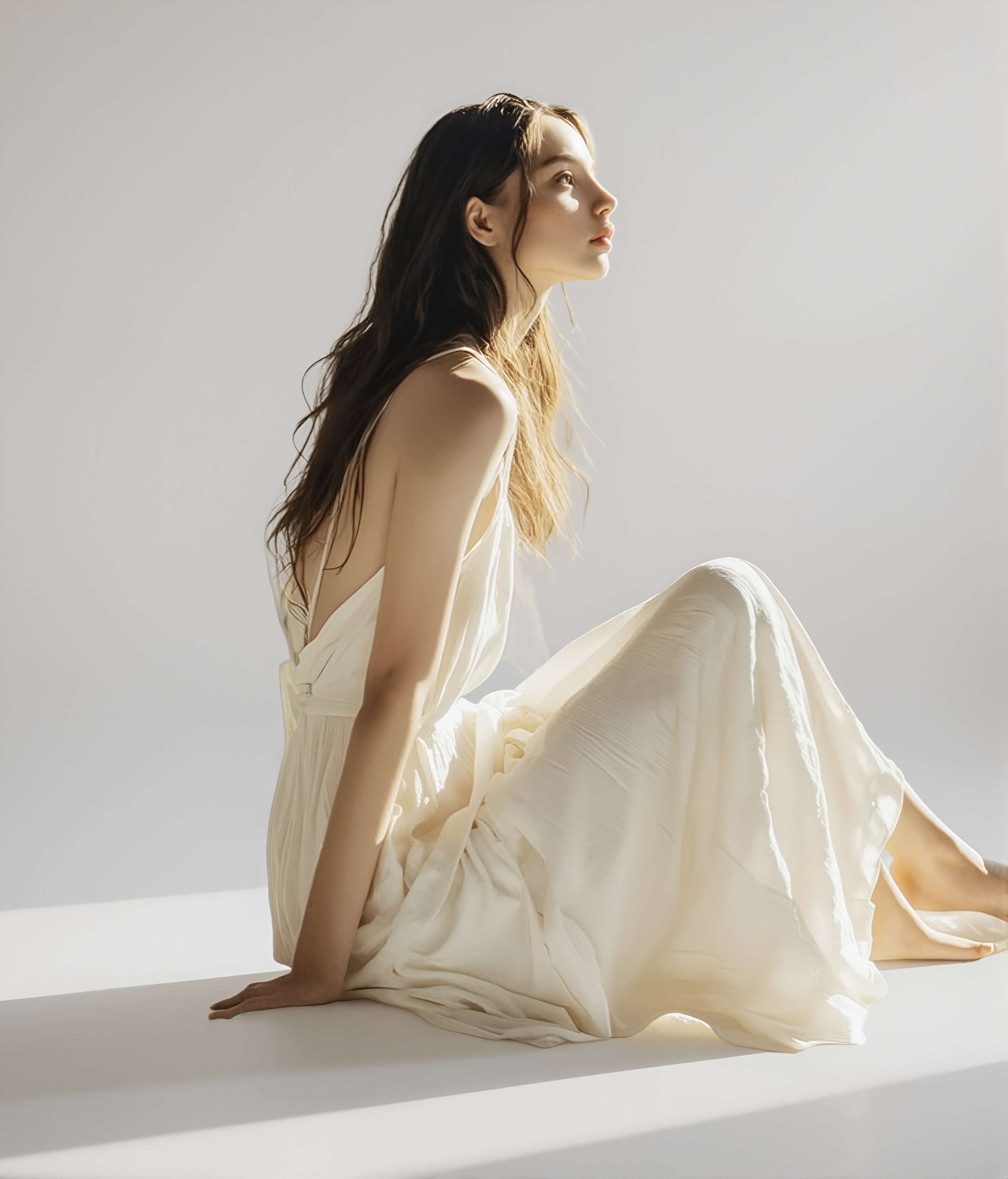 Minimal White
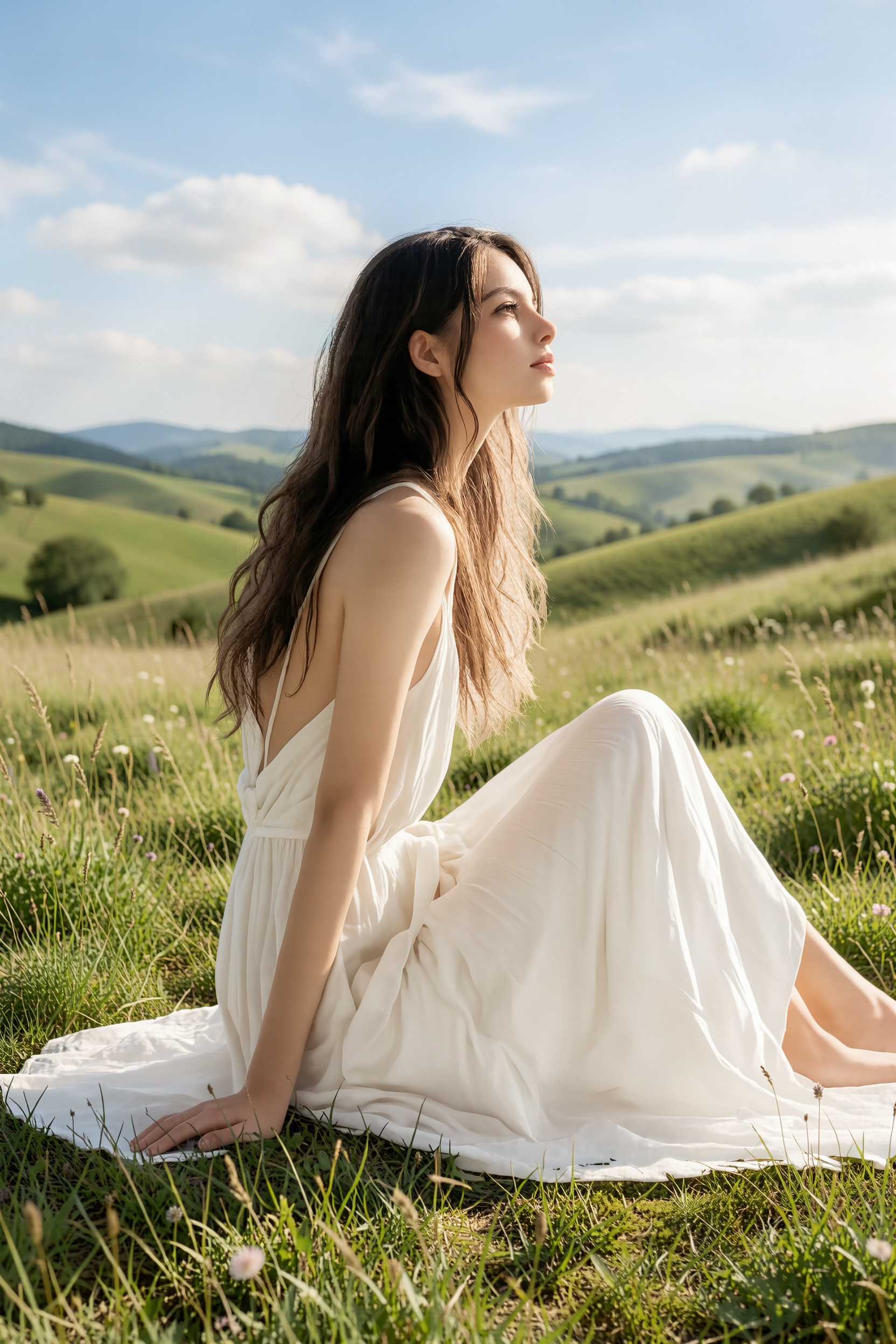 Green Hills
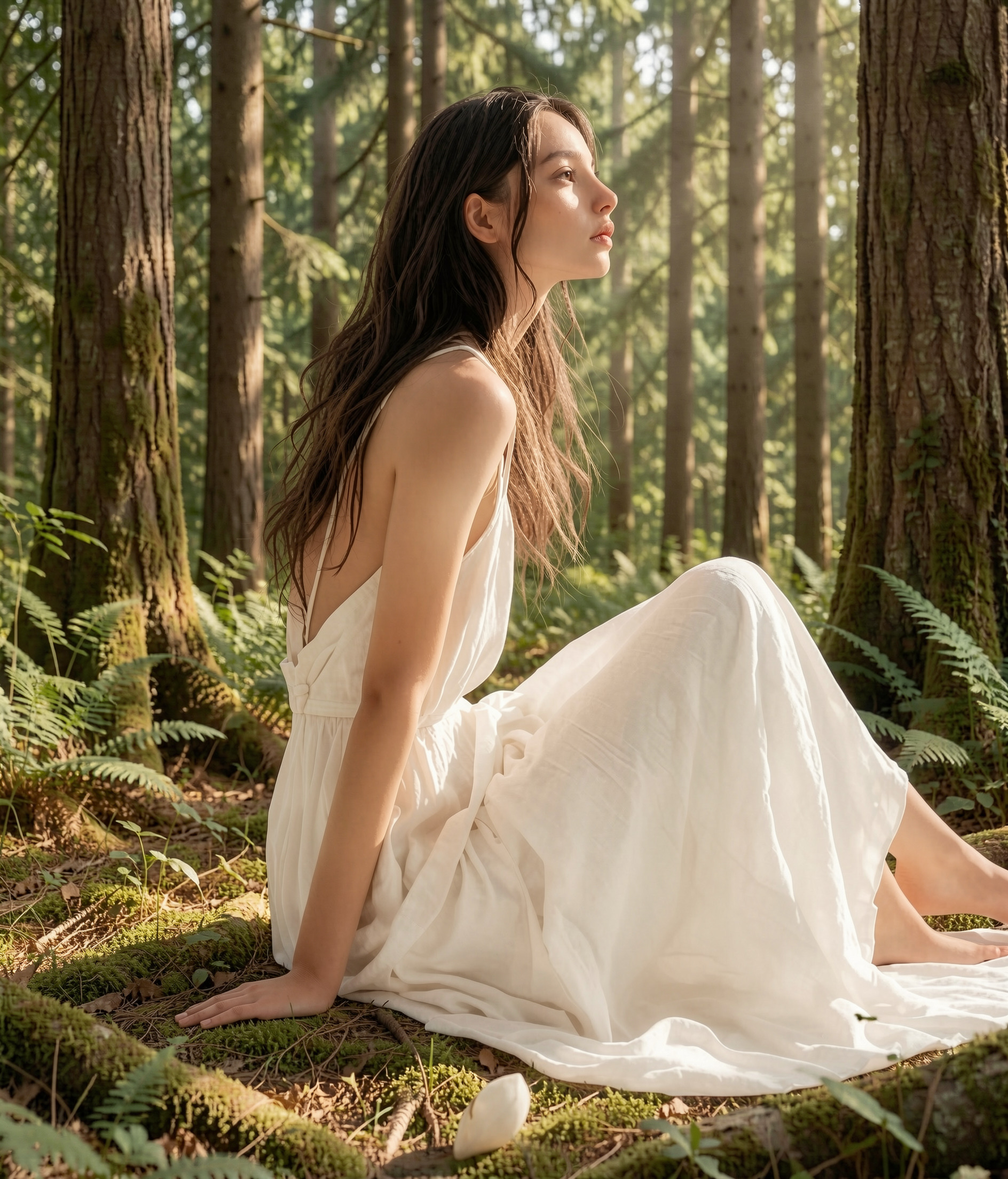 Green Forest
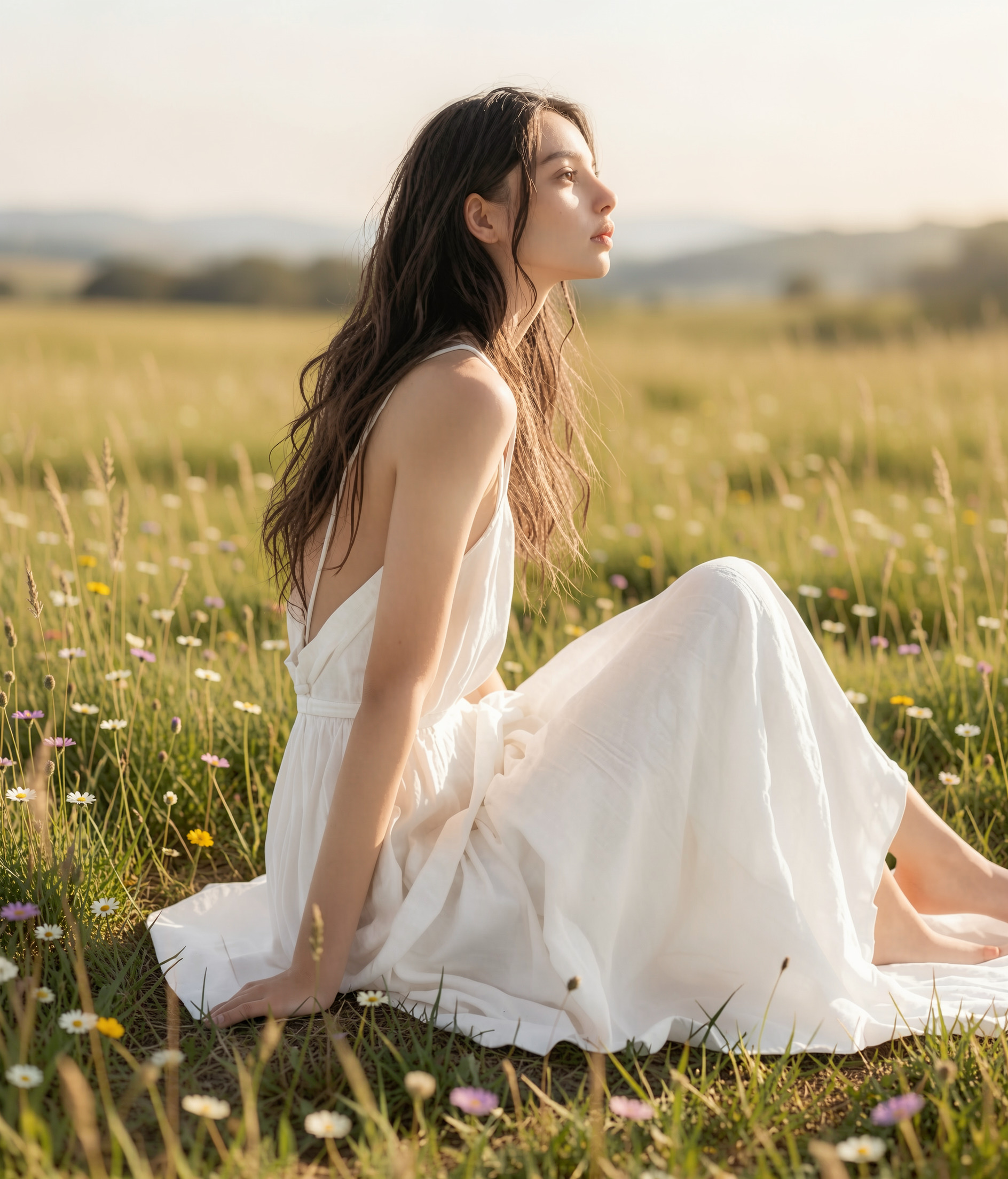 Wildflower Field
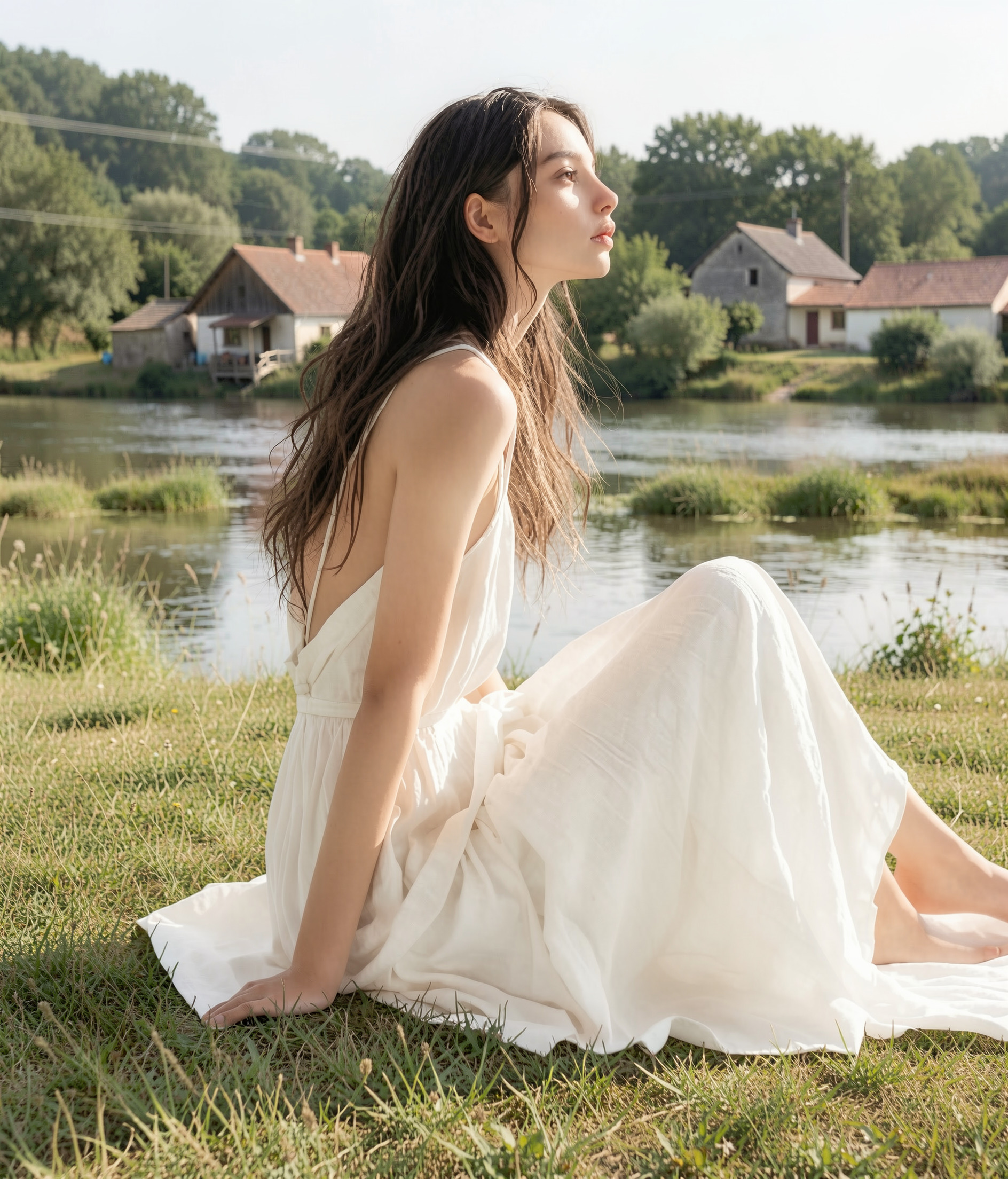 Riverside Village
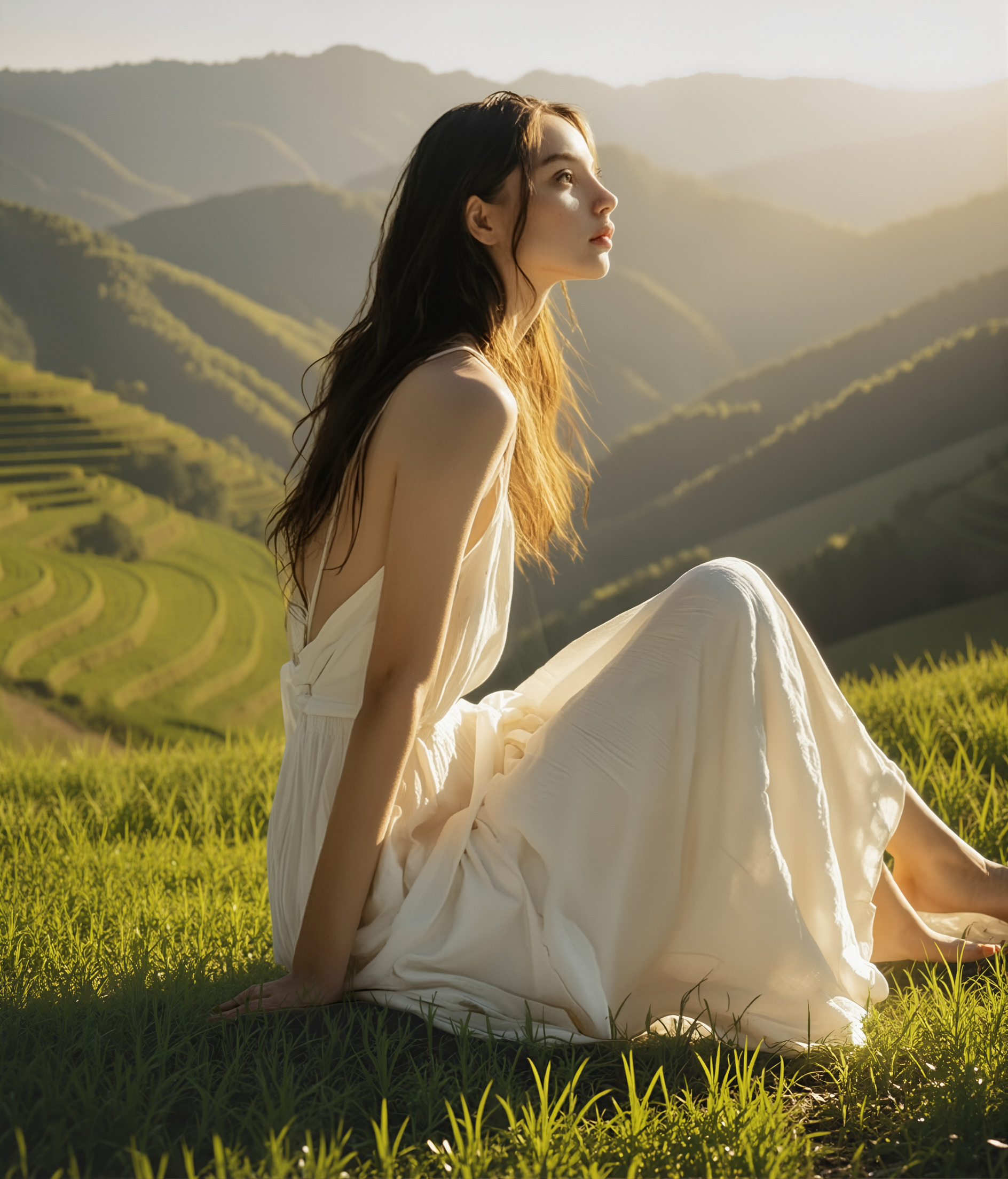 Rice Terraces
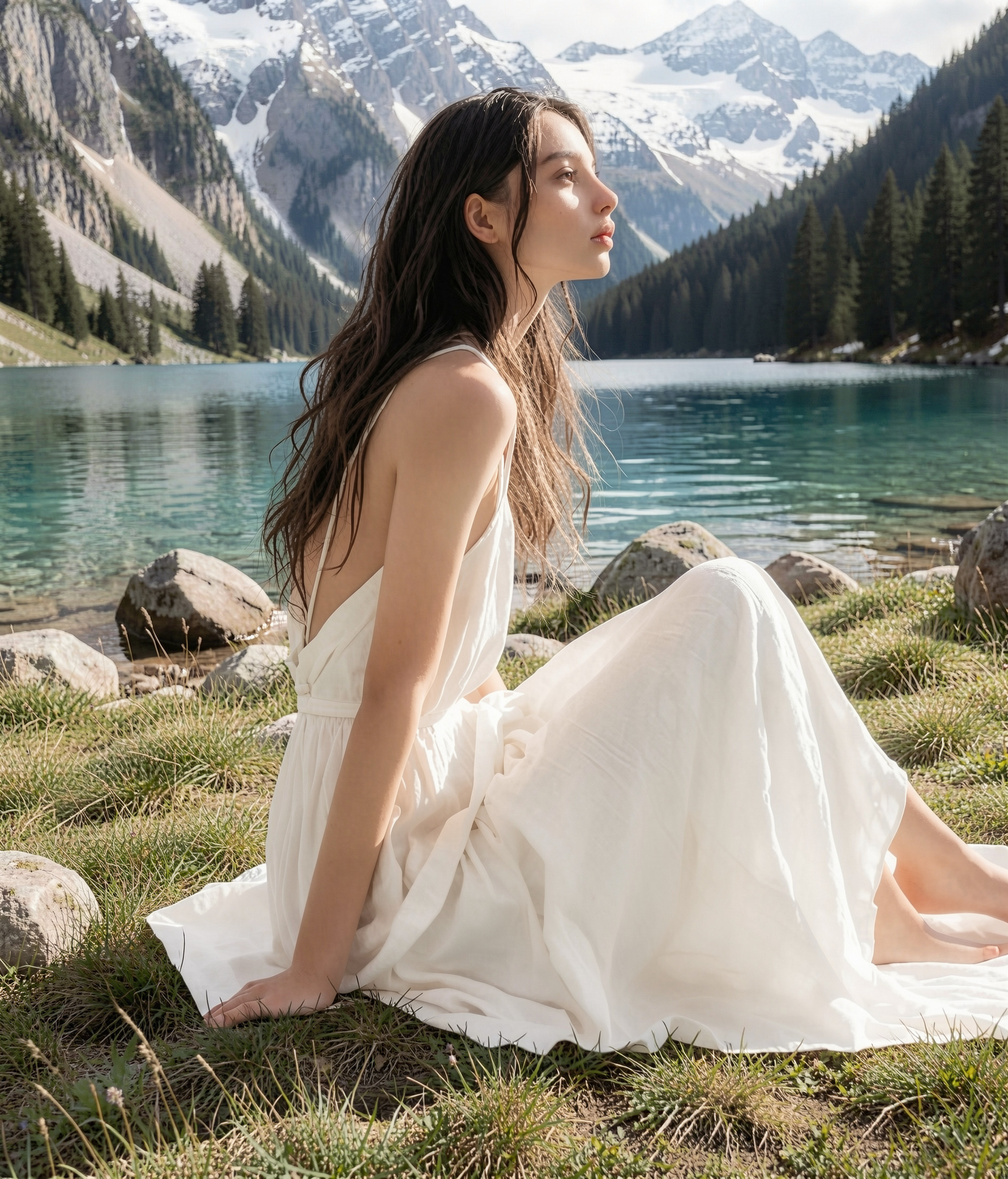 Alpine Lake
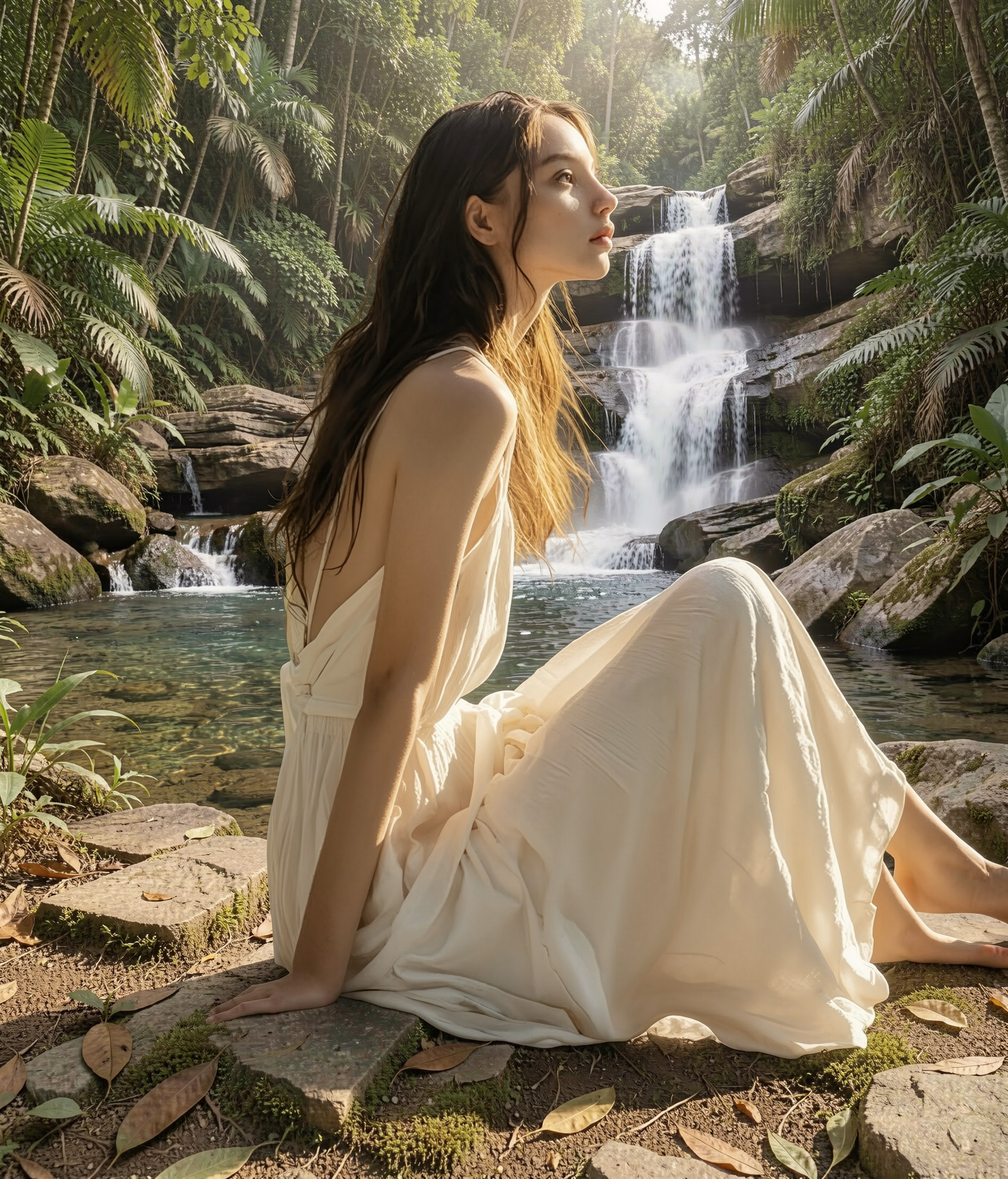 Jungle Waterfall