How to Use Background Replace on the Foneo AI Photo Editing App
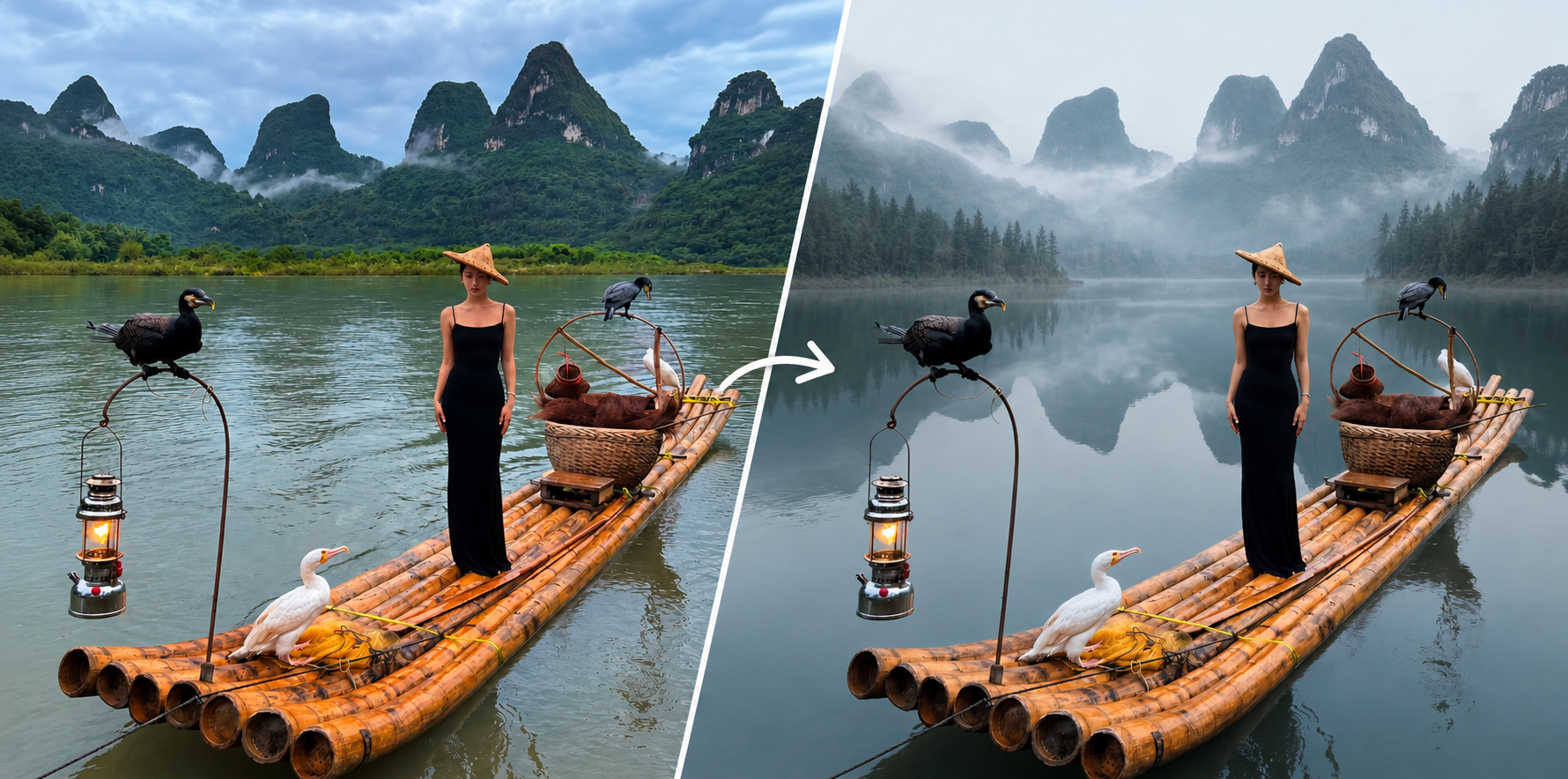
The Background Replace feature on Foneo uses AI to automatically separate the subject from the background and replace the image background. You can choose a ready-made Template, upload your own background image, or enter a Prompt to create a scene based on your ideas.
Foneo also allows you to manually mark the subjects or objects you want to keep before replacing the background, giving you greater control over which areas remain in the image.
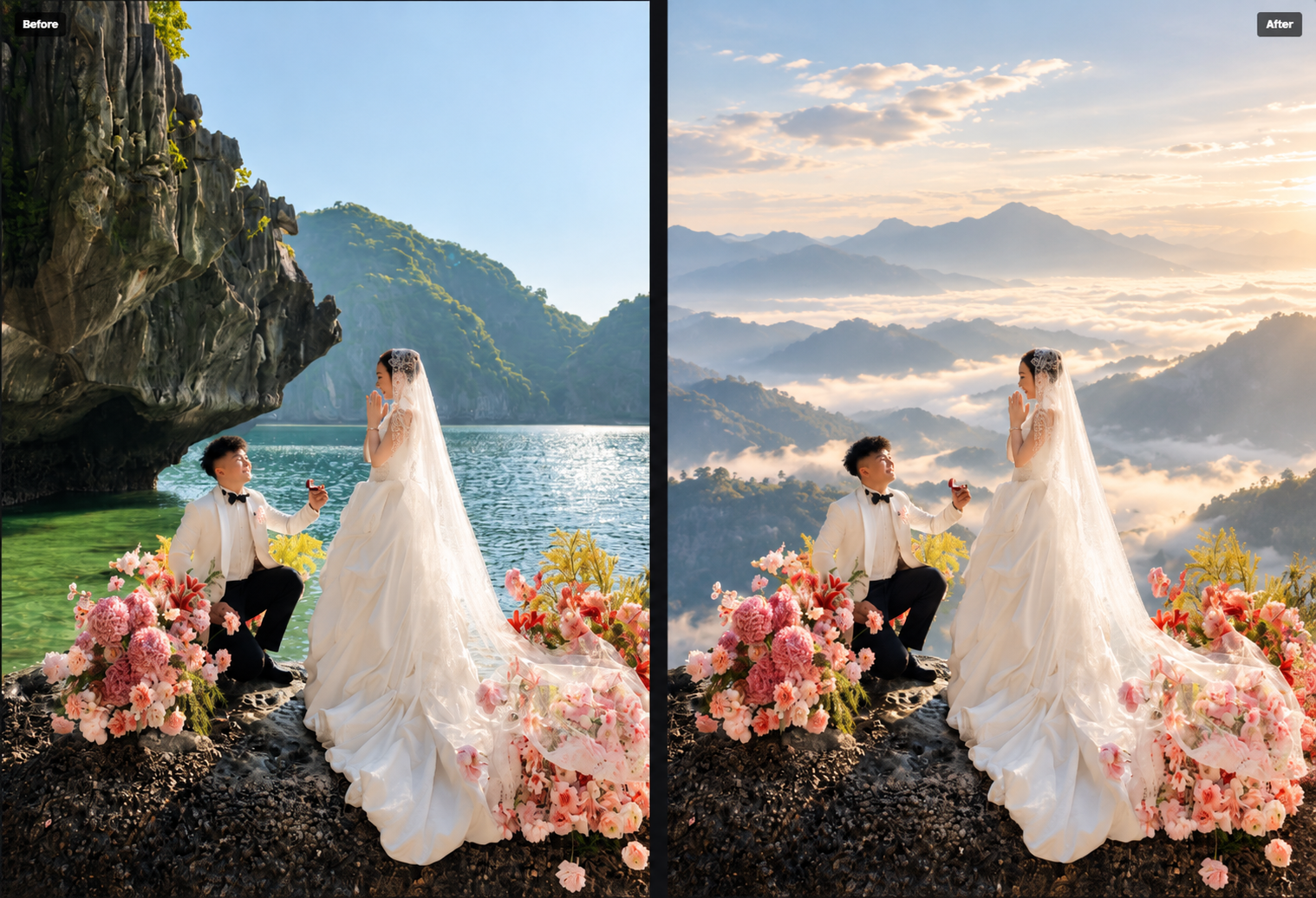
Before & After
See the before-and-after results of using Background Replace on Foneo.
How to Use Background Replace
To get started, upload the image you want to edit to Foneo and open the Background Replace feature.
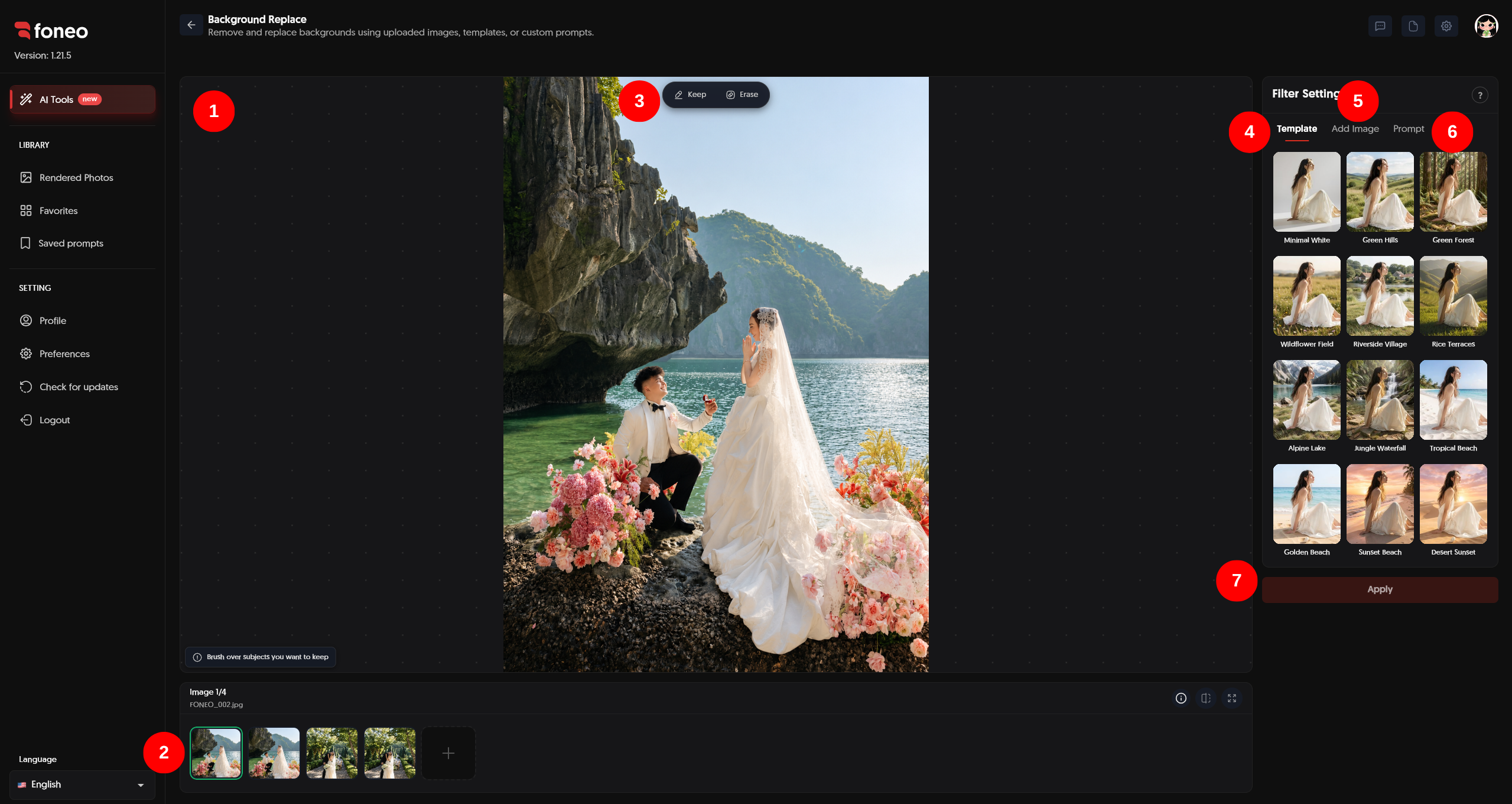
1. Preview Your Image
After uploading your image to Foneo, it will appear in the preview area in the center of the screen.
Review the image to identify the main subject and the current background. This will help you determine which objects you want to keep before replacing the background.
2. Select the Image You Want to Edit
Uploaded images appear as thumbnails below the preview area.
- Click a thumbnail to select the image whose background you want to replace.
- Click + to add a new image.
- Check the selected image before proceeding with the edit.
After selecting an image, you can mark the subject you want to keep and configure the background in Filter Settings.
3. Select the Subject or Object You Want to Keep
Before replacing the background, you can use the marking tools on the image to identify the subjects or objects you want to preserve in the final result.
Foneo provides two modes on the toolbar above the image: Keep and Erase.
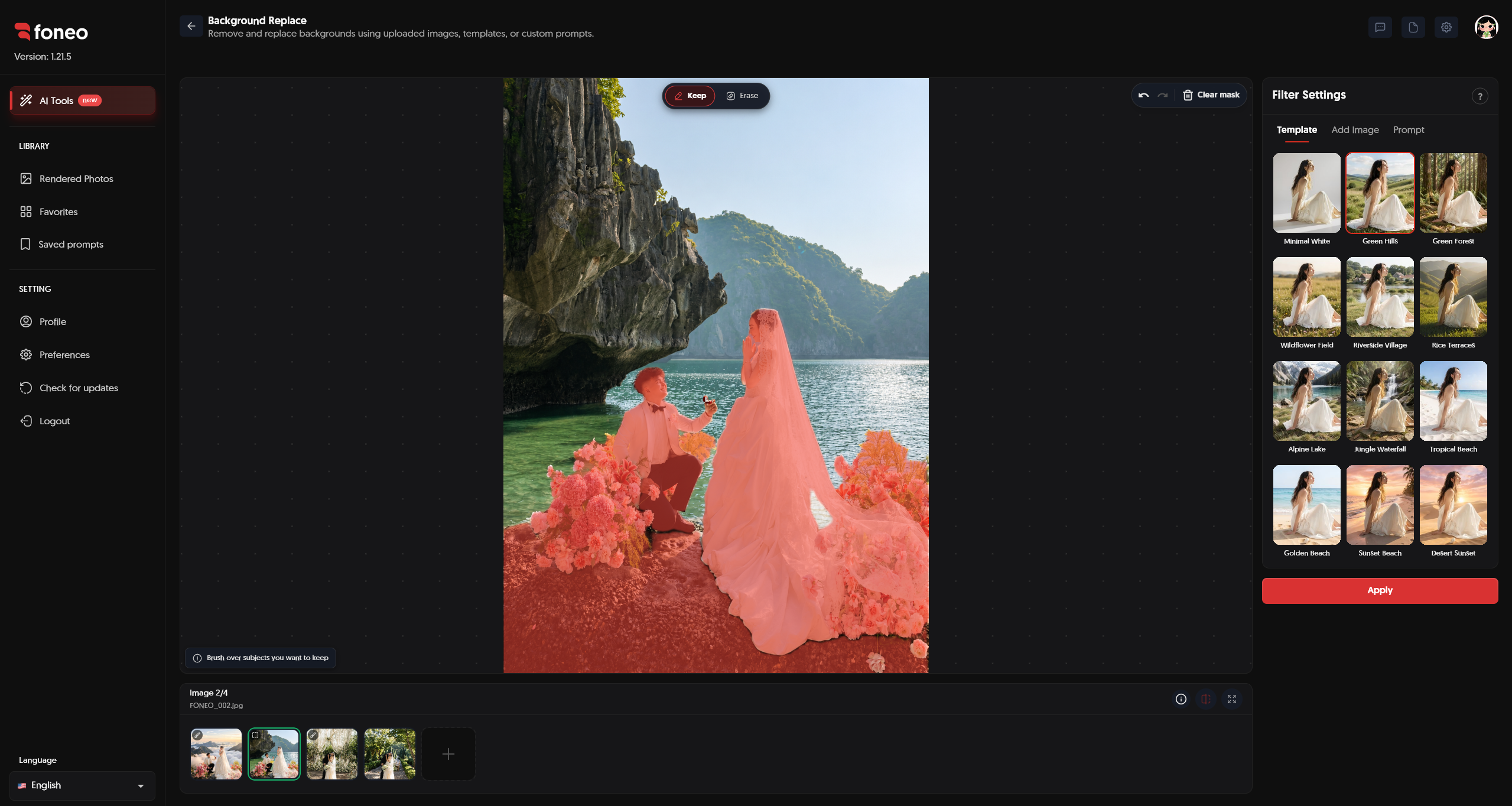
Image filename: background-replace-keep-erase.png
How to use the tools:
- Select Keep.
- Brush over the subject or object you want to preserve, such as a model, clothing, or a product.
- Check the marked area. The selected region will appear with a red overlay.
- If you mark the wrong area, select Erase and brush over the parts you want to remove from the selection.
- To start over, use Clear mask to remove the current markings.
You can also use the undo and redo buttons to adjust your markings when needed.
Note: Make sure to mark the entire subject you want to preserve, including important details such as hair, clothing, accessories, or parts of a product. Carefully check the edges to avoid accidentally including the background or leaving out parts of the subject.
4. Choose a Template
In Filter Settings, switch to the Template tab to browse the available backgrounds in the library.
Click a suitable Template to select the background you want. You can try different Templates to find one that matches your subject, colors, and image style.
This method is ideal when you want to replace a background quickly without preparing a separate background image or writing a Prompt.
5. Use Add Image to Upload a Custom Background
If you already have a background image in mind, use Add Image to upload it to Foneo.
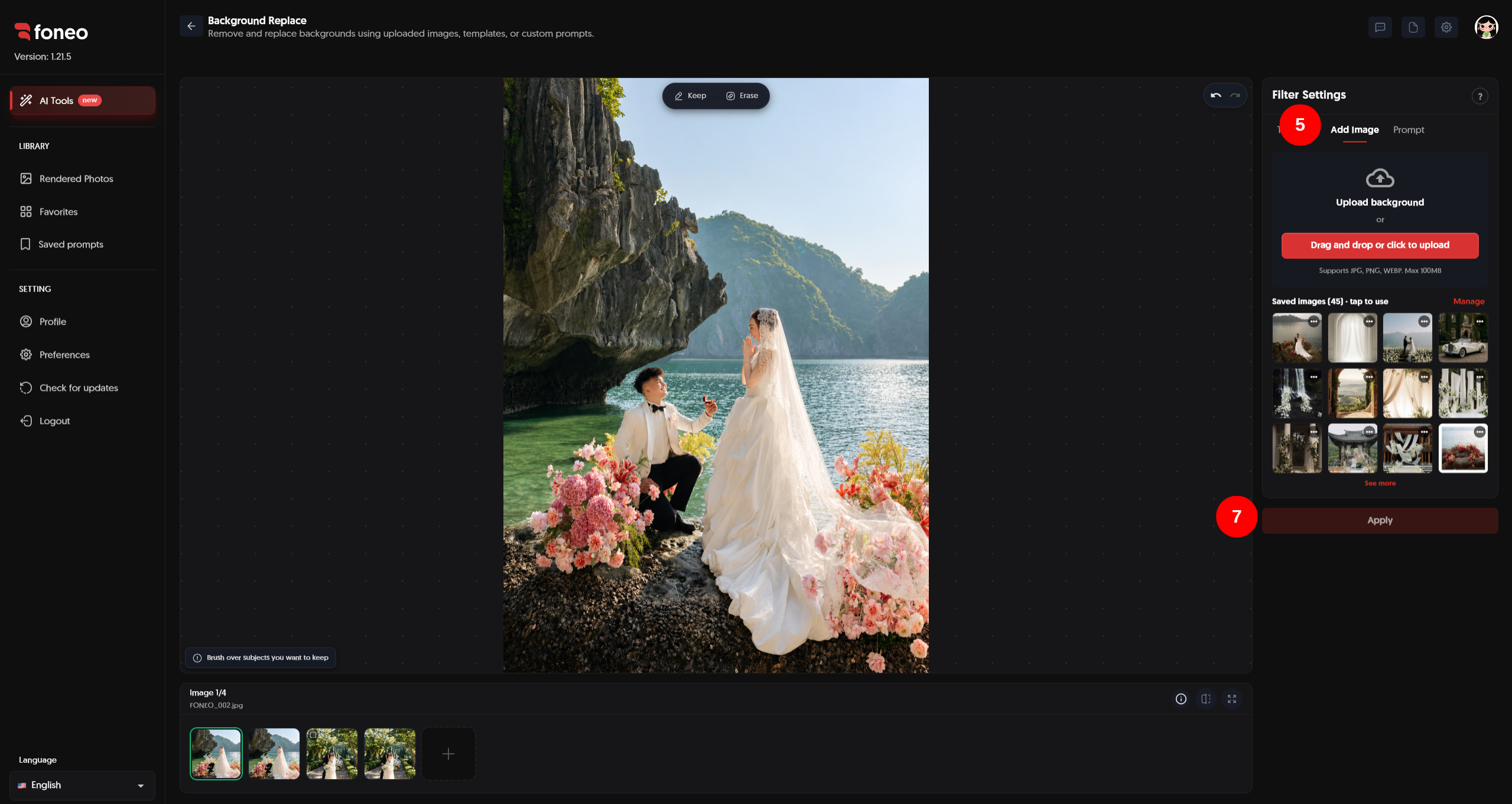
How to do it:
- Open the Add Image tab in Filter Settings.
- Click the upload area or drag and drop your background image into it.
- Select the image you want to use as the background.
- Check the selected background in the settings panel.
Foneo supports JPG, PNG, and WEBP image formats. According to the current interface, the maximum upload size is 100 MB per image.
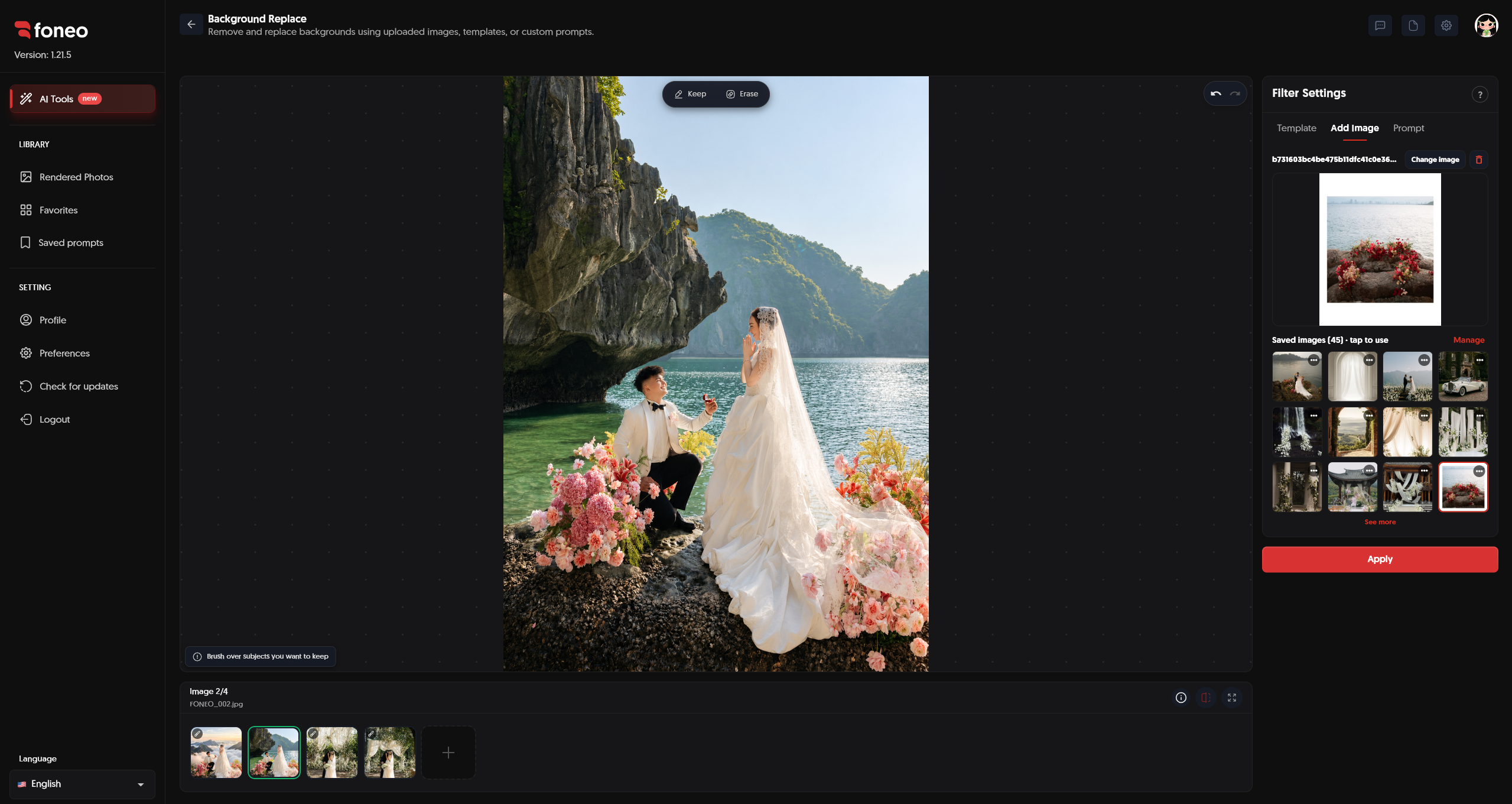
To replace the selected background, click Change image and choose another image.
You can also reuse images from Saved images, if available.
6. Enter and Save a Prompt
If you want to create a background based on your own ideas, switch to the Prompt tab in Filter Settings and enter your description.
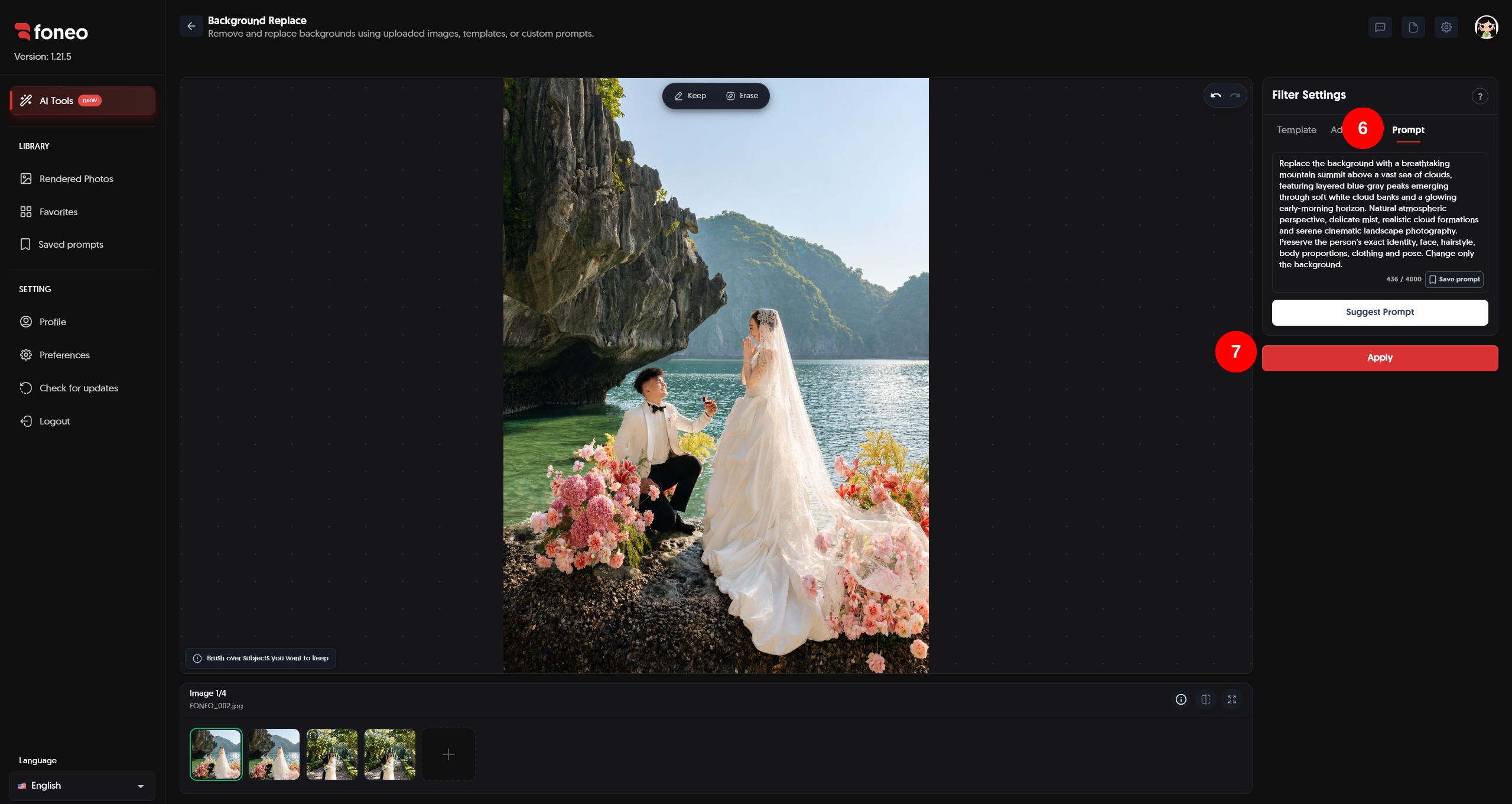
You can describe elements such as:
- Setting or landscape: Mountains, forests, beaches, studios, or architectural spaces.
- Dominant colors: Warm, cool, or neutral tones, or specific colors.
- Lighting and atmosphere: Natural light, sunset, mist, or a cinematic atmosphere.
- Depth and visual style: Realistic, minimalist, or artistic styles.
- Desired details: Objects and elements you want to appear in the background.
Example Prompt:
A cinematic landscape with dramatic mountains, layered storm clouds, atmospheric haze, and rich moody tones. Preserve the original subject's identity, hairstyle, body proportions, clothing, and pose. Change only the background.
After entering your Prompt, use Suggest Prompt to get description suggestions or refine the Prompt to match your ideas.
If you want to reuse a Prompt in future edits, click Save prompt to save it.
Your saved Prompts will be available in Saved prompts for future editing sessions.
7. Click Apply to Replace the Background
After marking the subject you want to keep and configuring the background using Template, Add Image, or Prompt, review your settings.
Then click Apply to start processing the image.
The AI uses the original image, the marked subject area, and the selected or described background to generate the new result.
8. Review the Result
Once processing is complete, check the image in the preview area and compare the Before and After versions.
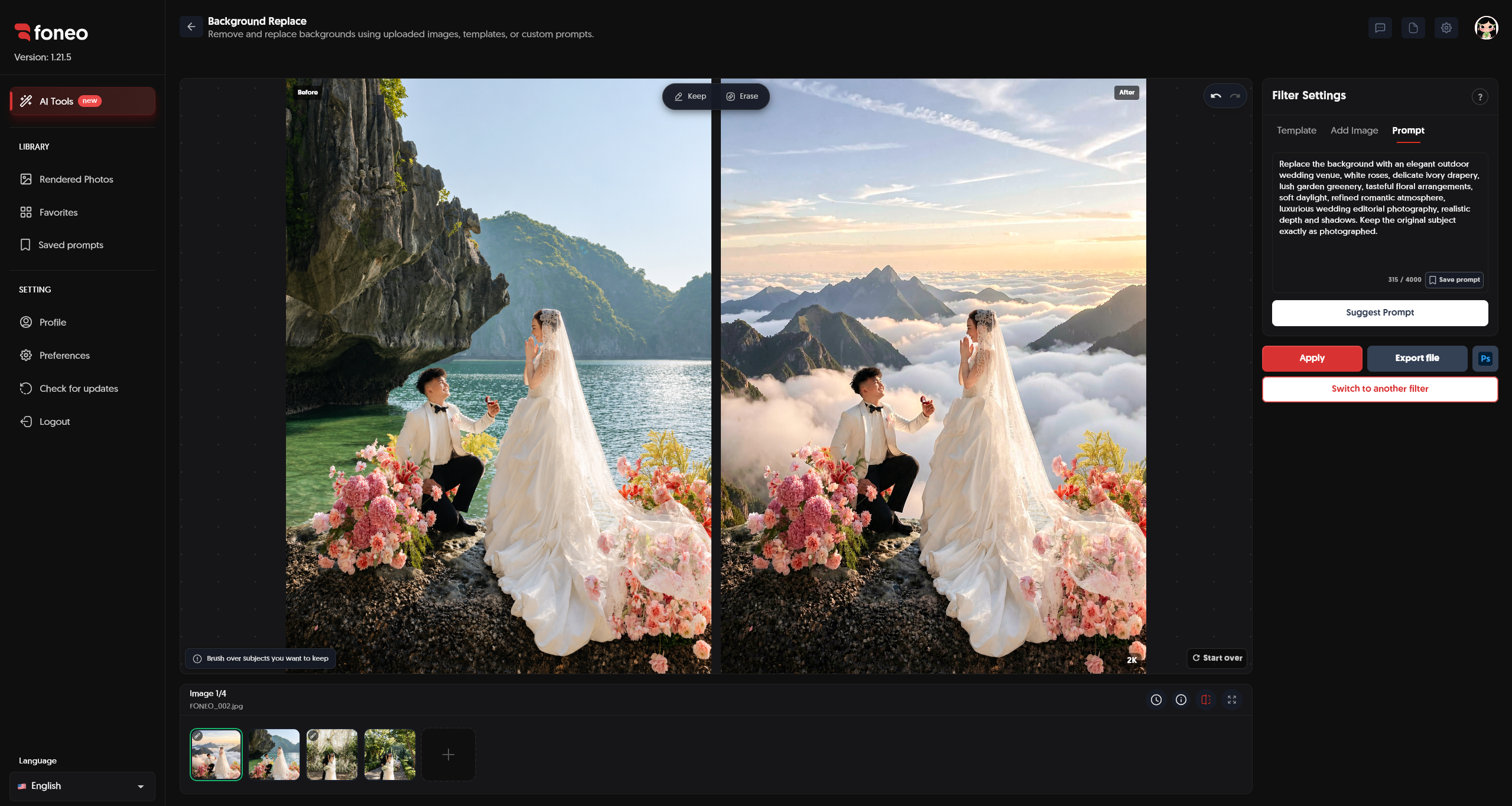
Pay attention to the following details:
- Subject: Has the person, product, or object been preserved completely?
- Subject edges: Do details such as hair, clothing, accessories, and product outlines look natural?
- Background: Does the new background suit the subject?
- Lighting: Does the lighting between the subject and the background look harmonious?
- Overall appearance: Does the image look natural and suit its intended purpose?
If parts of the subject are missing or the background is unsuitable, adjust the marked area or change the settings and process the image again.
9. Export Your Image
Once you are satisfied with the result, click Export file to export the image to your device.
If you want to continue editing in Photoshop, you can use the Ps button if this option is available in the export workflow of your current app version.
How to Choose the Right Background Replacement Method
Depending on your needs, you can choose one of three methods in Filter Settings.
Use Template
Choose Template when you want to replace the background quickly using an available option.
This method is suitable when you do not have a custom background image and want to experiment with different scenes.
Use Add Image
Choose Add Image when you already have a background image you want to use.
This method is ideal when you want direct control over the specific background in your image.
Use Prompt
Choose Prompt when you want to describe a background based on your own ideas.
You can describe the desired scenery, colors, lighting, and visual style. Suggest Prompt provides description suggestions, while Save prompt lets you save Prompts for future use.
Tips for Better Background Replacement Results
1. Mark the Entire Subject You Want to Keep
Before replacing the background, use Keep to mark the entire subject you want to preserve.
Pay special attention to hair, clothing, accessories, small details, and areas close to the background.
2. Use Erase to Correct Mistakes
If your markings extend into the background or include areas you do not want to preserve, select Erase to remove the unwanted parts from the selection.
If you need to clear all markings and start again, use Clear mask.
3. Choose a Background That Matches the Subject
The new background should complement the subject's colors, lighting, and overall style.
For example:
- Portraits: Studio backgrounds or subtle landscapes.
- Wedding photos: Romantic scenery, natural settings, or architectural backgrounds.
- Fashion photos: Studio or lifestyle backgrounds.
- Product photos: Clean backgrounds that complement the product's colors and materials.
4. Write Clear Prompts
When using Prompt, describe the setting, colors, lighting, and visual style as clearly as possible.
You can also include instructions to preserve the subject, clothing, and pose to clarify which elements should remain unchanged.
5. Check the Subject Edges Before Exporting
After processing, carefully inspect the edges around the subject, especially hair, veils, clothing, and other complex details.
If the result is not satisfactory, adjust the marked area and try processing the image again.
When Should You Use Background Replace?
The Background Replace feature is suitable for a variety of purposes, including:
- Replacing backgrounds in portrait photos.
- Changing the setting of wedding photos.
- Creating new backgrounds for fashion photos.
- Replacing backgrounds in product photography.
- Creating images for websites and social media.
- Using custom backgrounds through Add Image.
- Creating backgrounds from your own ideas with Prompt.
- Preserving one or more selected objects in an image using the marking tools.
Frequently Asked Questions
What is Background Replace used for on Foneo?
Background Replace uses AI to change an image's background. You can choose an existing Template, upload a custom background, or enter a Prompt to create a background based on your ideas.
What are Keep and Erase used for?
Keep marks the subjects or objects you want to preserve. Erase removes incorrectly marked areas or parts you do not want included in the selection.
Can I keep a person or product while replacing the background?
Yes. Use Keep to brush over the person, product, or object you want to preserve before replacing the background.
What does Clear mask do?
Clear mask removes the current markings so you can select the subject again from scratch.
Can I use my own background image?
Yes. Open the Add Image tab to upload a custom background image for the photo you are editing.
Is a Prompt required to replace the background?
No. You can choose Template or use Add Image to set the background without entering a Prompt.
What is Suggest Prompt used for?
Suggest Prompt provides description suggestions to help you create a background based on your own ideas.
Can I save a Prompt for future use?
Yes. Click Save prompt to save a Prompt and reuse it in future editing sessions.
What should I do if part of the subject disappears after replacing the background?
Check the marked area before processing. Use Keep to add any missing parts of the subject and Erase to correct incorrectly marked areas. Then click Apply again.
Related Articles
- How to Use Product Background on the Foneo AI Photo Editing App
- How to Use Portrait Effects on the Foneo AI Photo Editing App
- How to Use Surface Change on the Foneo AI Photo Editing App
- How to Use Lighting Effects on the Foneo AI Photo Editing App
- How to Use Prompt-Based Editing on the Foneo AI Photo Editing App
Foneo · AI Photo Editing
Ready to try it on your own photos?
Download the Foneo app to edit photos with AI in just a few taps, or see the plan that fits your needs.