How to Use Architecture Enhancer on the Foneo AI Photo Editing App
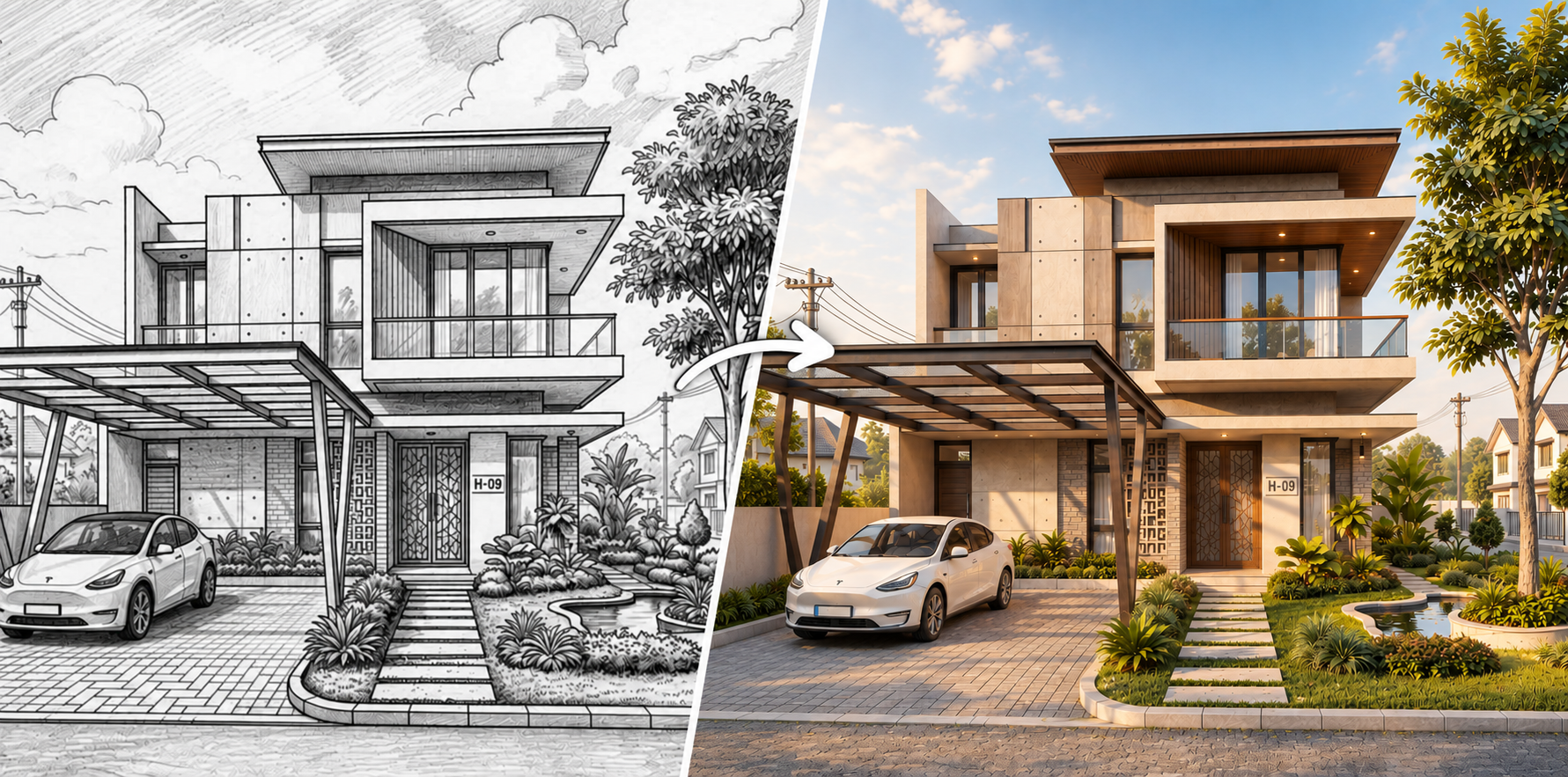
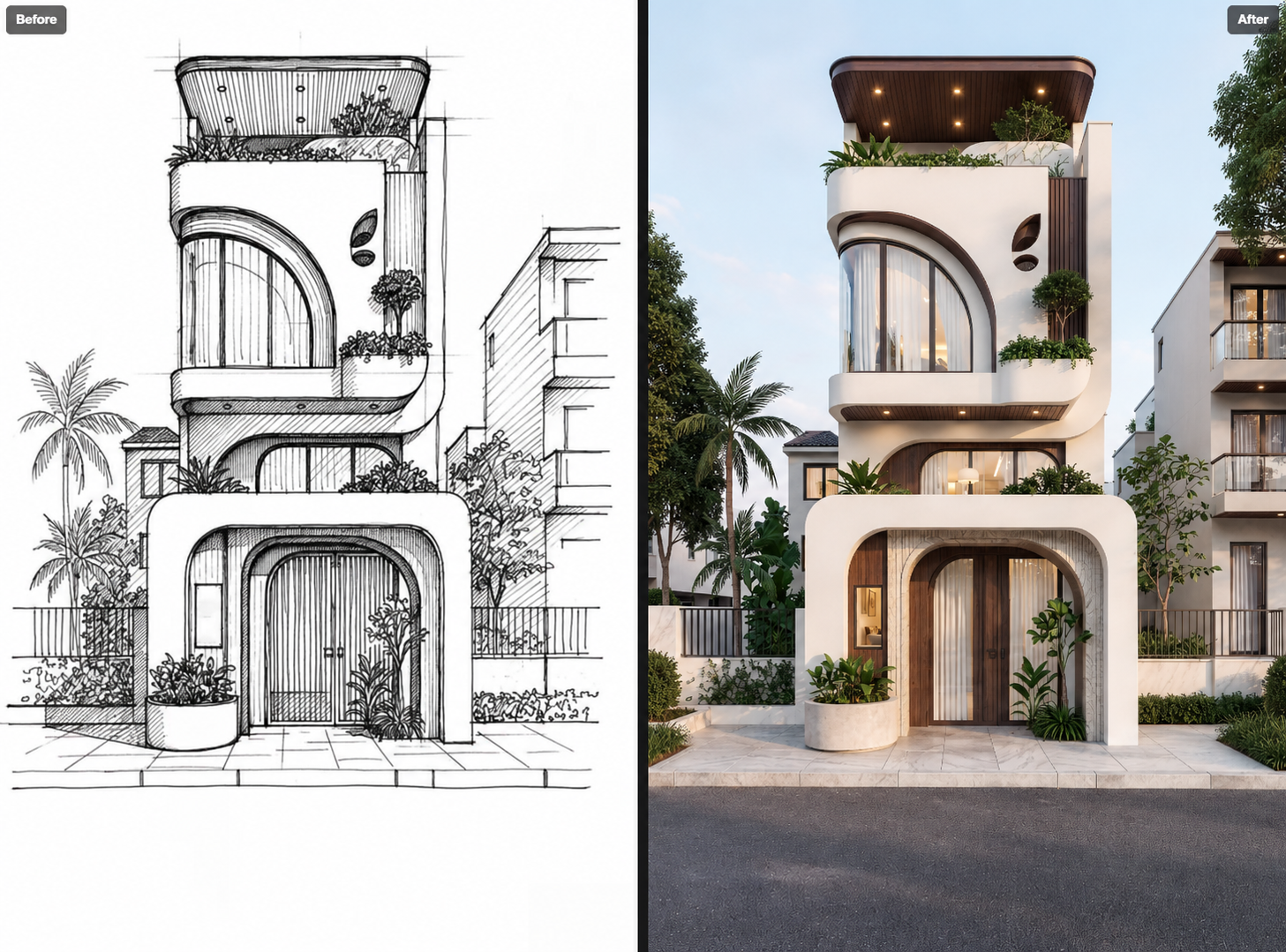
Architectural and interior images need clear layouts, materials, lighting, and design styles to create a strong visual impression. With the Architecture Enhancer feature on Foneo, you can enhance images of homes, buildings, interiors, or architectural sketches with AI according to your desired style.
Foneo allows you to use a Prompt to describe the desired style, materials, colors, and space. You can also save frequently used Prompts for convenient reuse in future edits.
Before & After
How to Use Architecture Enhancer
After uploading an image to Foneo and opening Architecture Enhancer, follow the steps below.
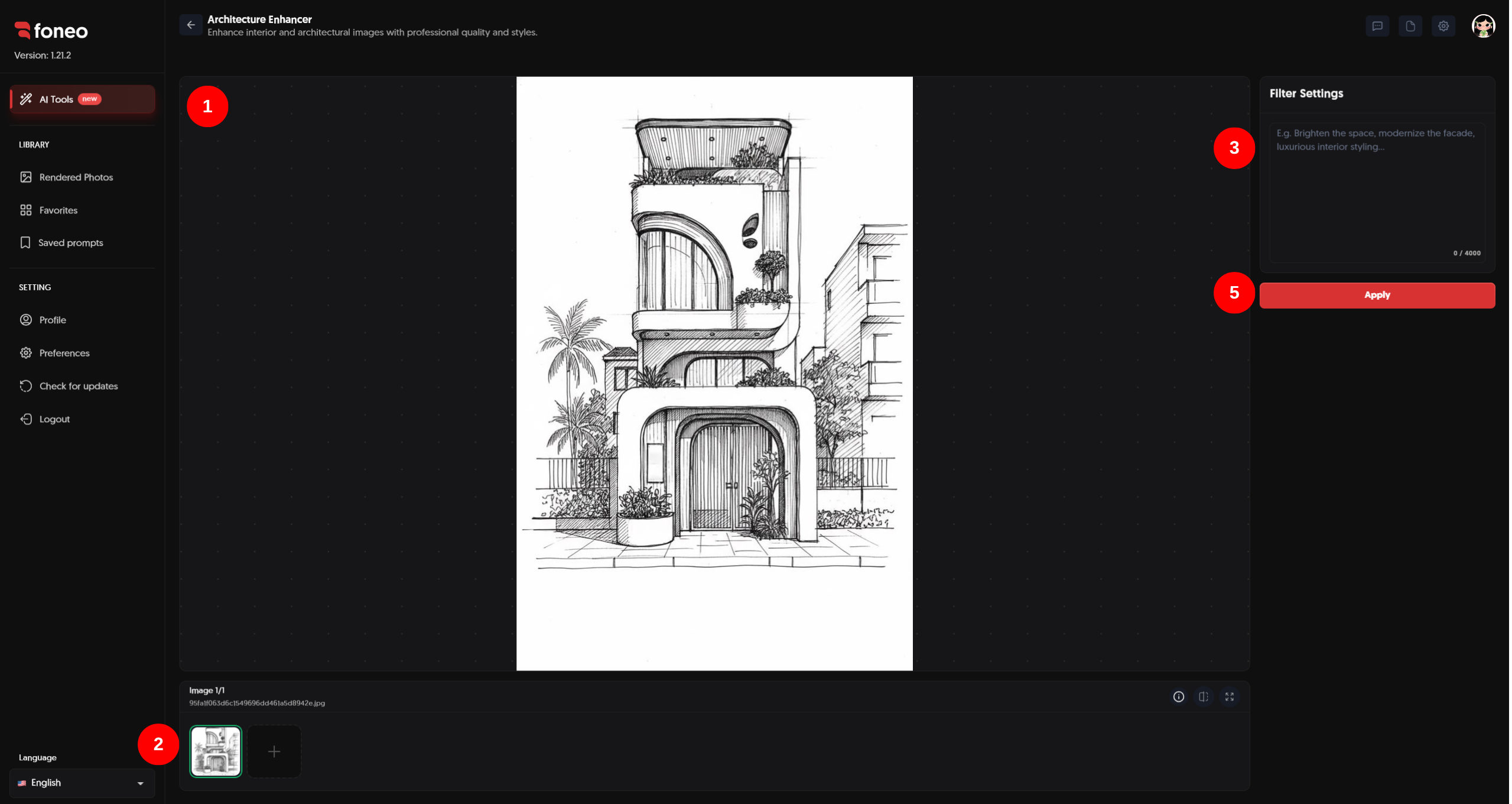
1. Preview Your Image
After uploading an image, it will be displayed in the preview area in the center of the screen.
You can check the overall image before processing it with AI.
For the best results, use an image with:
- A clear architectural layout.
- Relatively complete architectural lines and structures.
- Minimal blur or distortion.
- Clearly recognizable interior or exterior spaces.
The clearer the input image, the more information AI has to analyze and enhance the architectural details appropriately.
2. Select an Image
Uploaded images will be displayed in the image area at the bottom of the screen.
You can:
- Select the thumbnail of the image you want to process.
- Click + to add a new image.
- Select individual images to preview and edit them.
After selecting an image, you can continue setting your desired content in Filter Settings.
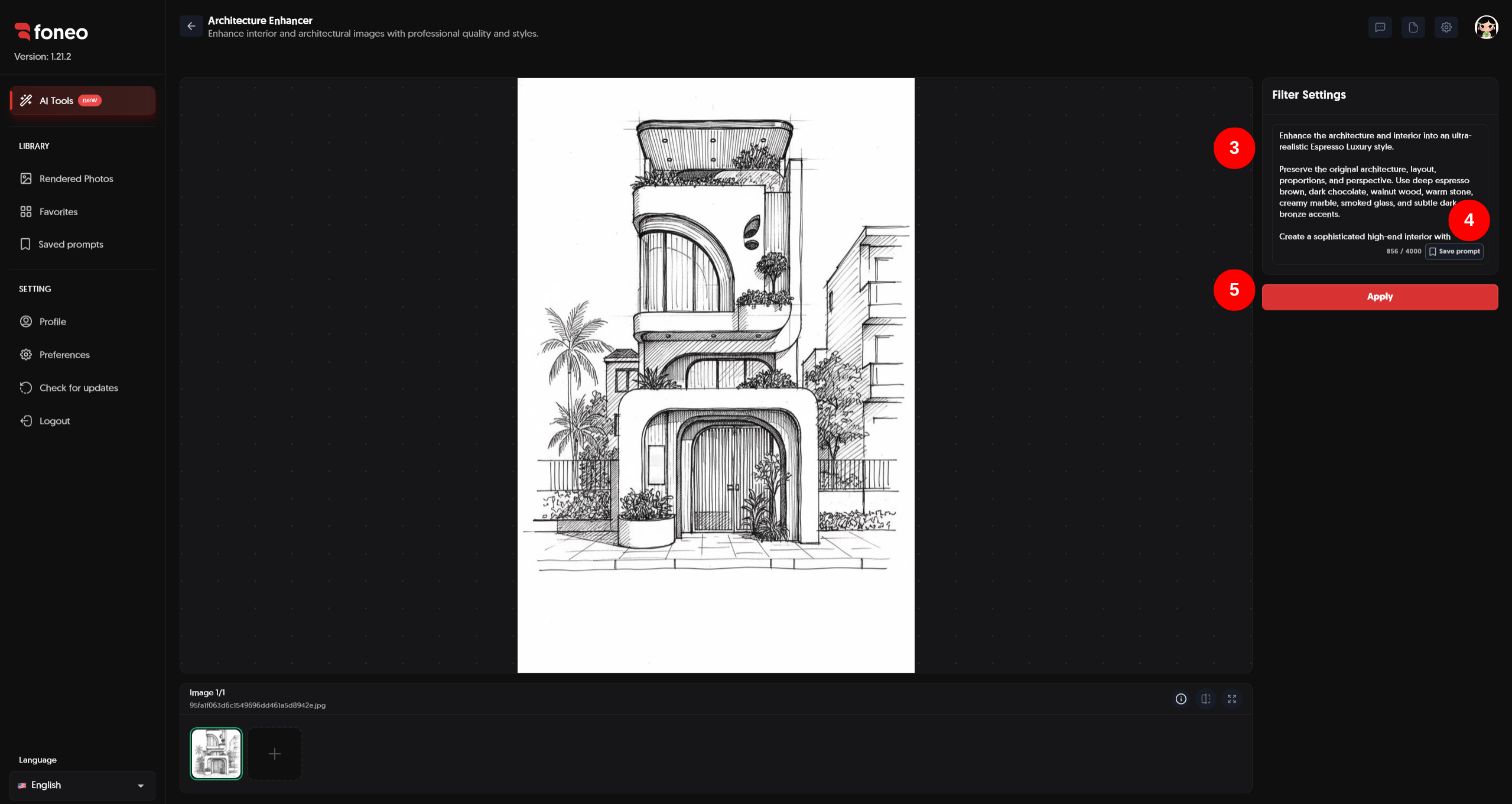
3. Enter a Prompt to Describe the Architectural Style
In Filter Settings, enter your description in the Prompt section to guide AI in enhancing the image.
You can describe elements such as:
- Architectural style.
- Main colors.
- Materials.
- Lighting.
- Interior design.
- Surrounding landscape.
- Luxury or modern level.
- Overall atmosphere of the image.
For example:
Enhance the architecture and interior into an ultra-realistic Espresso Luxury style. Preserve the original architecture, layout, proportions, perspective, composition, and all existing objects exactly as they are. Use deep espresso brown, dark chocolate, walnut wood, warm stone, creamy marble, smoked glass, and subtle dark bronze accents.
It is recommended to make your Prompt specific while ensuring that it remains suitable for the actual structure of the image.
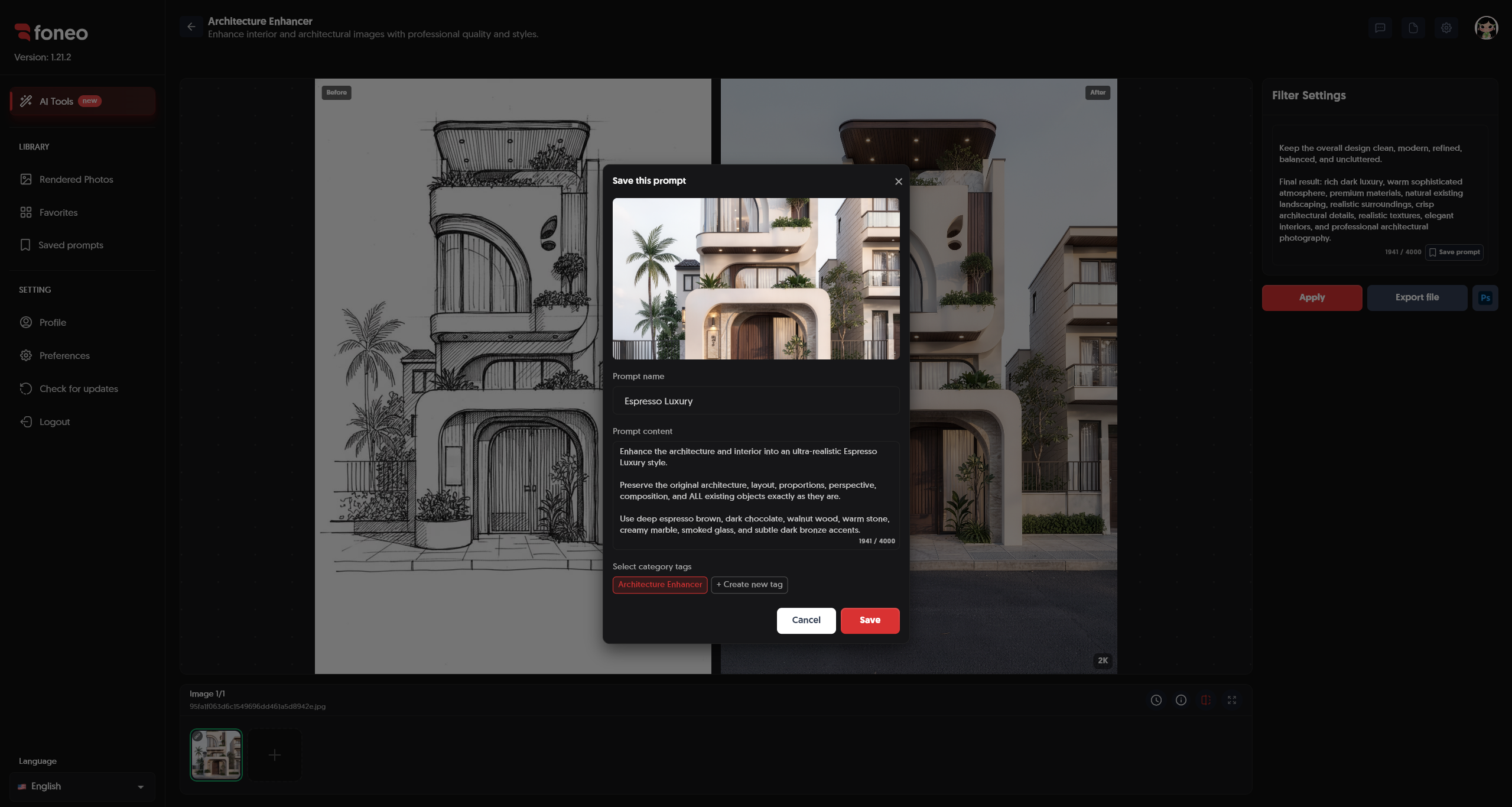
4. Save a Prompt for Later Use
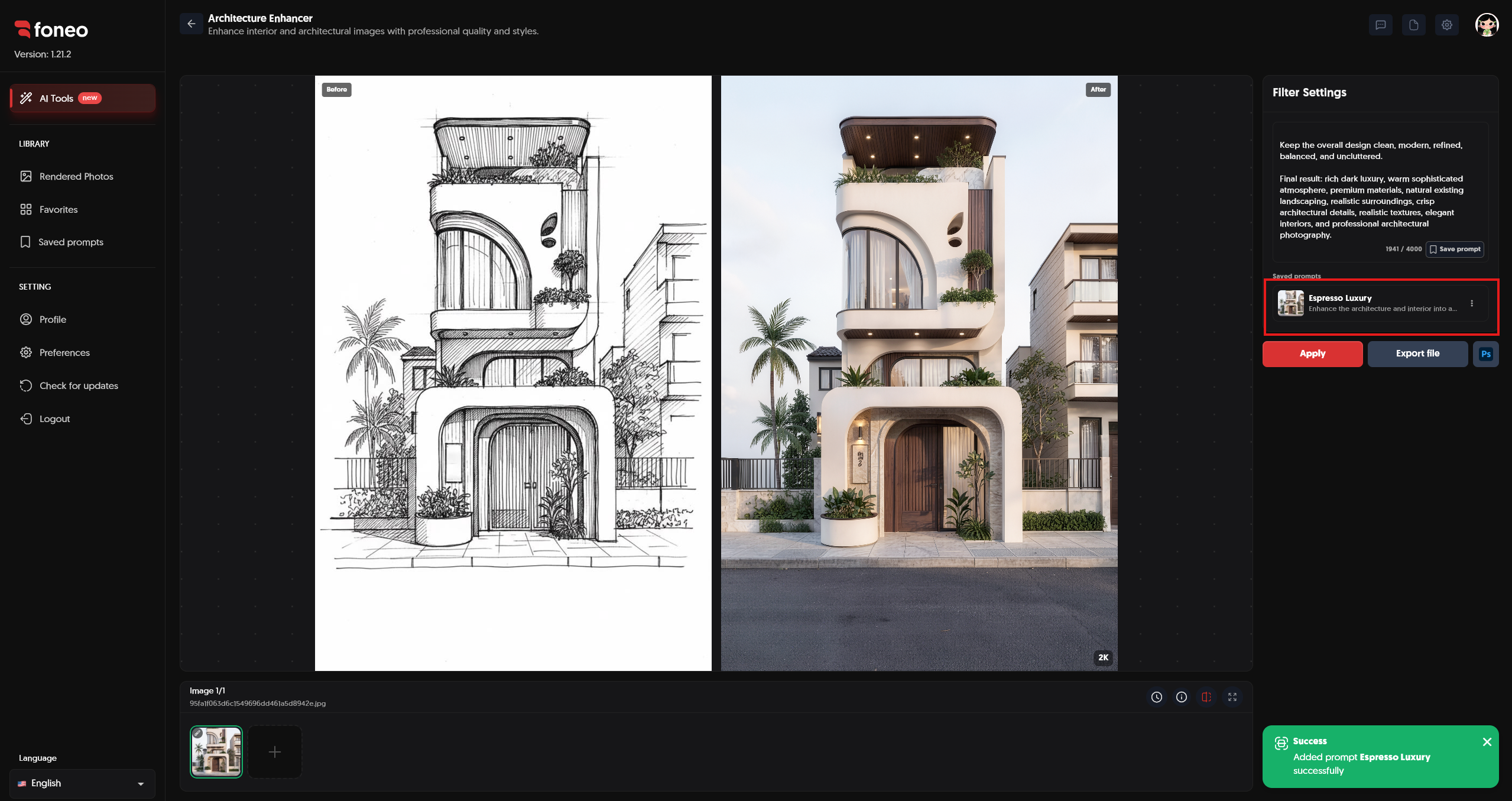
If you want to reuse a Prompt for future edits, you can use Save prompt.
After saving, the Prompt will appear in Saved prompts.
You can save Prompts that match architectural or interior styles you frequently use, making it easier to apply them to other images.
5. Apply
After completing your Prompt, click Apply to start processing the image with AI.
Foneo will analyze the input image and enhance it based on the Prompt.
While processing, the system may display a processing status.
Once processing is complete, the result will be displayed in the preview area.
6. Review the Result Before Exporting
After processing is complete, review the image before exporting it.
You should check:
- The layout and proportions of the building.
- Architectural lines and details.
- Windows, doors, and structural elements.
- Materials and surfaces.
- Lighting and shadows.
- Interior elements and objects in the space.
- Plants and surrounding landscape.
- The overall visual style.
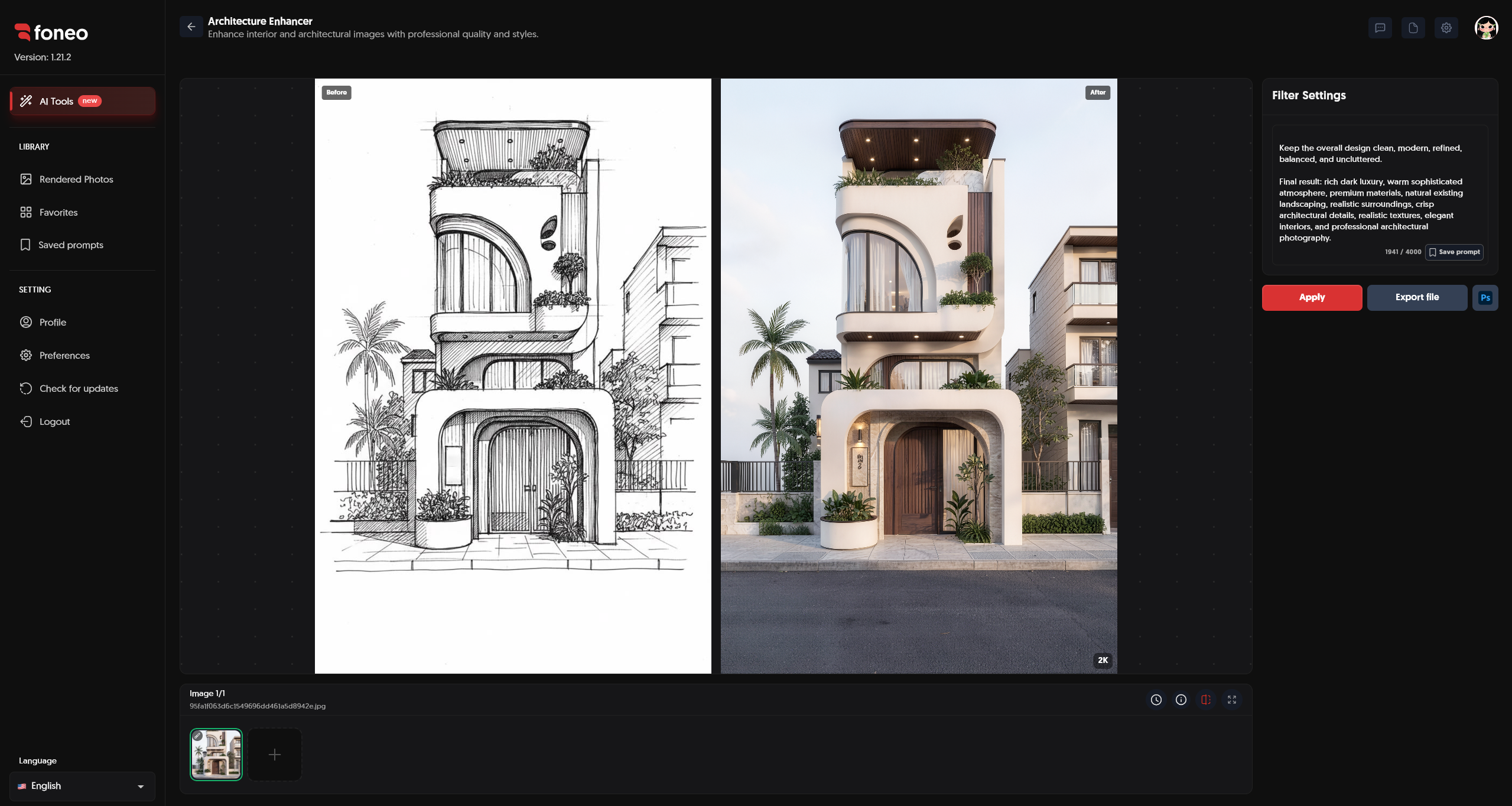
If the result does not match your expectations, you can adjust the Prompt and click Apply to process the image again.
7. Export file / Ps
Once you are satisfied with the result, click Export file to export the processed image.
You can also click Ps if you want to continue editing the image in Photoshop.
Before exporting, check:
- The overall architecture.
- Material details.
- Lighting and colors.
- Interior details.
- The natural appearance of the image.
- The layout and proportions of the building.
How to Evaluate the Result After Processing
After Foneo completes the processing, you should review the image both at the overall level and when zoomed in.
- Layout: The processed building should retain the original layout and main structure.
- Proportions and perspective: Architectural lines, proportions, and perspective should remain natural.
- Materials: Surfaces such as wood, stone, glass, metal, or concrete should have textures that match the described style.
- Lighting: Lighting and shadows should fit the space and avoid an overly artificial appearance.
- Interior: Objects in the space should be clearly represented and visually harmonious with the overall design.
- Landscape: Plants, gardens, and exterior elements should remain consistent with the composition.
- Overall appearance: The processed image should look more refined while preserving the main structure and characteristics of the original image.
Tips for Creating Natural-Looking Architectural Images
1. Use an Image with a Clear Layout
Use an image with a clear camera angle, minimal obstruction, and architectural lines that can still be easily recognized.
This gives AI more information to analyze the structure and enhance the image.
2. Clearly Describe the Desired Style
In the Prompt, clearly describe the style you want to create.
You can combine:
- Architectural style.
- Colors.
- Materials.
- Lighting.
- Interior design.
- Landscape.
- Overall atmosphere.
For example, instead of simply writing:
Luxury house
You can provide more details about the materials, colors, lighting, and desired luxury style.
3. Preserve the Architectural Structure When Needed
If you want to enhance the image while keeping the original design, clearly state in the Prompt that the following elements should be preserved:
- Architecture.
- Layout.
- Proportions.
- Perspective.
- Composition.
- Existing objects.
This helps guide AI to focus on enhancing the image quality instead of completely changing the building.
4. Choose Materials That Match the Style
When you want to change the atmosphere of a space, you can describe specific materials such as wood, stone, marble, glass, metal, or concrete.
Choose materials that are consistent with the overall architectural style to achieve a more natural result.
5. Describe Lighting Specifically
Lighting has a significant impact on how architecture and interiors are perceived.
You can describe:
- Warm lighting.
- Natural daylight.
- Soft light.
- Dramatic lighting.
- Warm ambient lighting.
Describing the lighting specifically can help create more depth and make the image better match the desired style.
6. Use Saved Prompts
If you frequently use the same style, save the Prompt using Save prompt.
Saved Prompts will appear in Saved prompts, allowing you to easily reuse them for future edits.
7. Check the Image Carefully Before Exporting
Before clicking Export file, review the entire image.
Pay particular attention to:
- Architectural lines.
- Doors and windows.
- Materials.
- Interior elements.
- Plants.
- Lighting.
- Perspective.
If any area does not look right, you can adjust the Prompt and click Apply to process the image again.
Frequently Asked Questions
What is Architecture Enhancer used for?
Architecture Enhancer uses AI to enhance architectural and interior images based on the style described in the Prompt.
The feature can be used for images of homes, buildings, interior spaces, exterior spaces, or architectural sketches.
Do I need to use a Prompt when editing?
Yes. You can enter a description in the Prompt section to guide the style, materials, lighting, and other elements you want in the image.
Can I change the architectural style using a Prompt?
Yes. You can describe the desired architectural or interior style in the Prompt, such as a modern, luxurious, or other style that matches your needs.
Can I save a Prompt for later use?
Yes. You can use Save prompt to save a Prompt.
After saving, the Prompt will appear in Saved prompts for convenient reuse.
Can I process multiple images?
You can upload multiple images to the image area at the bottom and select individual images to preview and process.
Can I process an image again if the result is not suitable?
Yes.
You can adjust the Prompt and click Apply to process the image again.
Can I continue editing the image after processing?
Yes.
After processing is complete, you can click Export file to export the image or click Ps to continue editing in Photoshop.
Related Articles
- How to Use Portrait Effects on the Foneo AI Photo Editing App
- How to Use Lighting Effects on the Foneo AI Photo Editing App
- How to Use Weather Effects on the Foneo AI Photo Editing App
- How to Use Upscale on the Foneo AI Photo Editing App
- How to Use Surface Transform on the Foneo AI Photo Editing App
Foneo · AI Photo Editing
Ready to try it on your own photos?
Download the Foneo app to edit photos with AI in just a few taps, or see the plan that fits your needs.