How to Use Face Retouch on the Foneo AI Photo Editing App
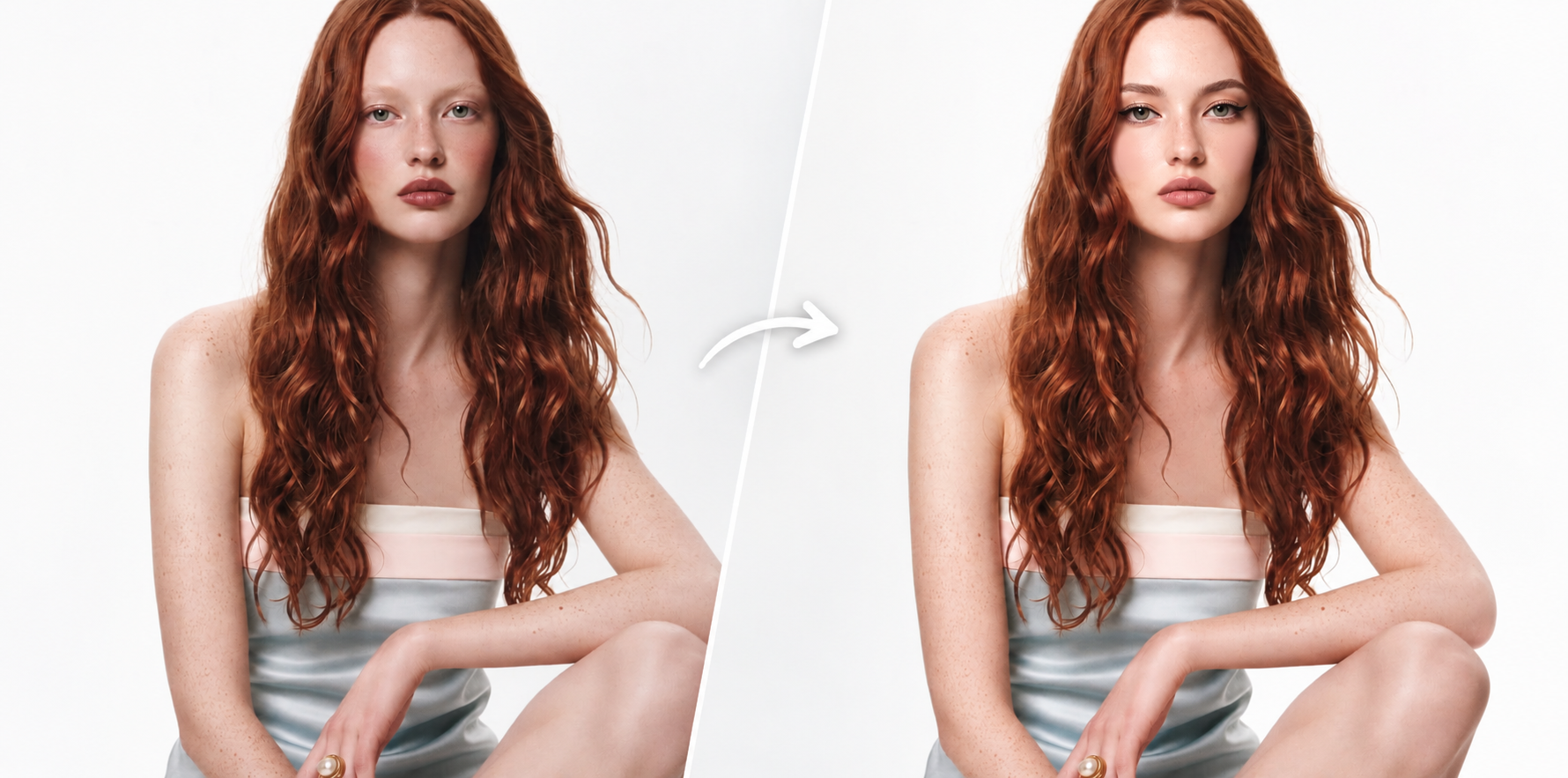
The Face Retouch feature on Foneo uses AI to enhance facial appearance through makeup and beauty adjustments. You can choose ready-made templates or enter a custom Prompt to describe your preferred look, from natural everyday makeup to more glamorous styles for photoshoots.
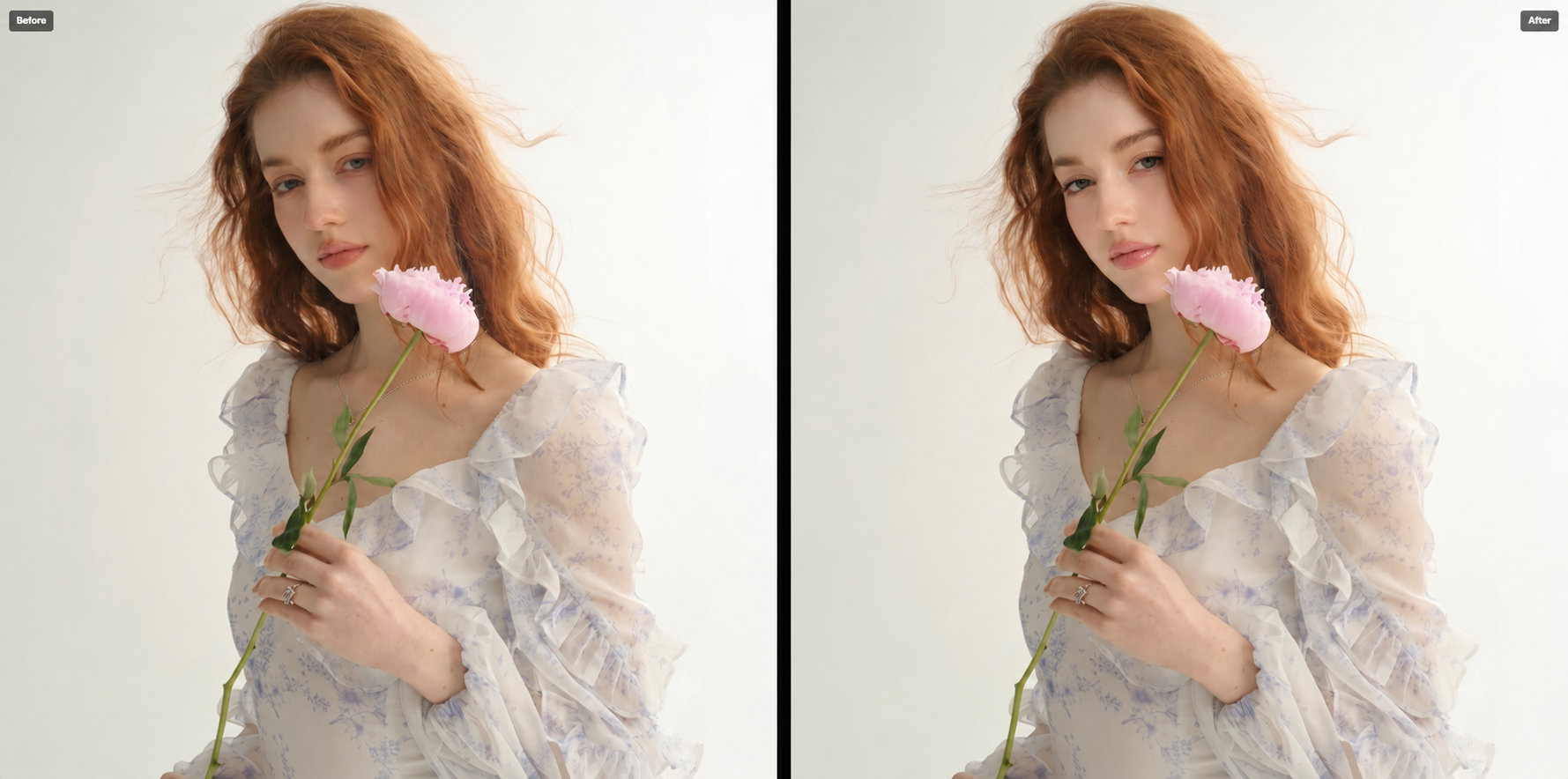
Before & After
Compare the image before and after using Face Retouch on Foneo AI.
How to Use Face Retouch
1. Preview the Image
After adding an image to Face Retouch, it will appear in the preview area in the center of the screen.
Check the image to ensure the face is clear, well-lit, and suitable for the beauty adjustments you want to make.
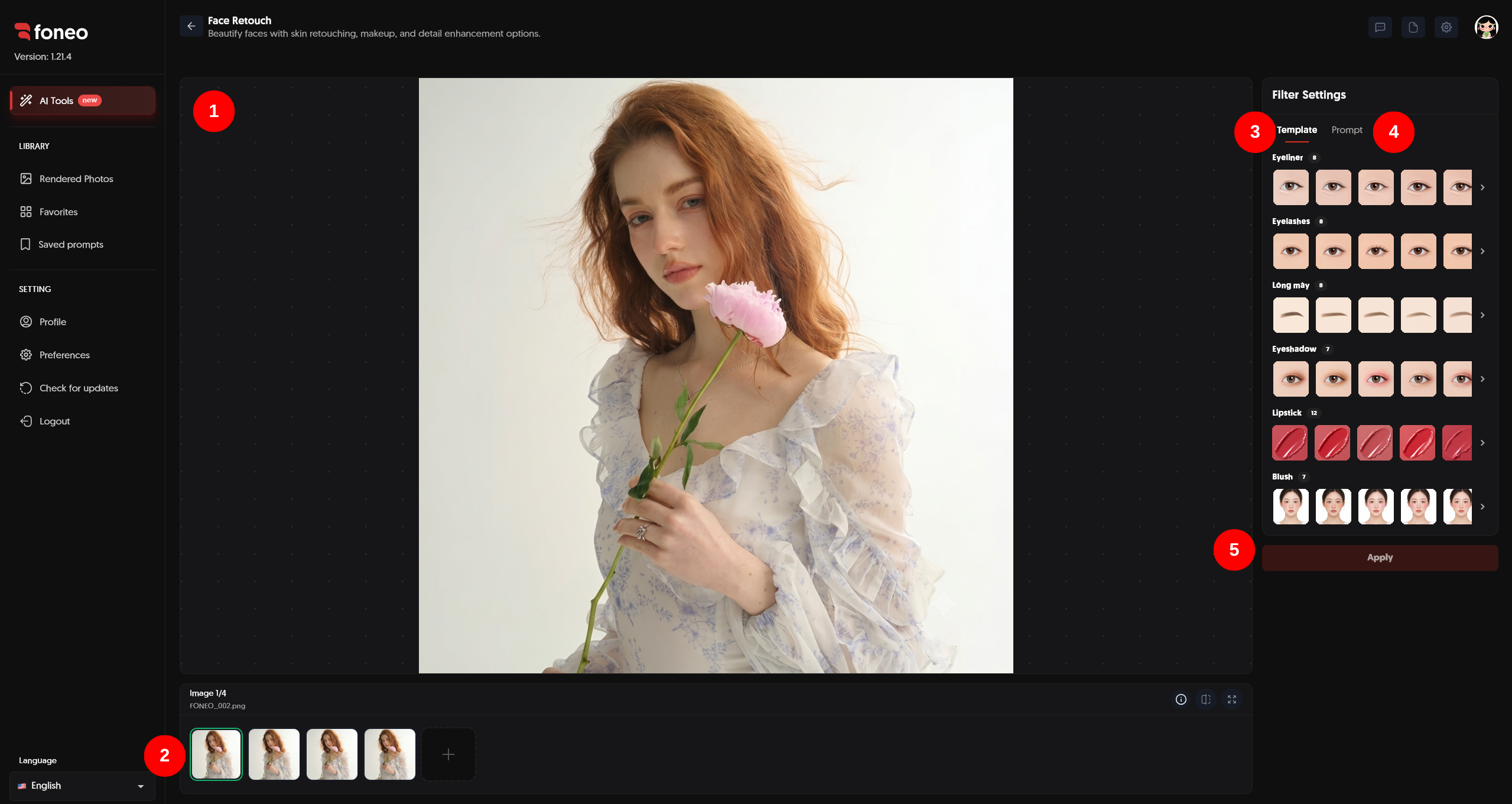
2. Select the Image to Edit
The images you have added will appear below the preview area. Click the thumbnail of the image you want to edit.
If you want to retouch multiple images, click + to add more images and select each image to configure the desired adjustments.
3. Choose a Template
In Filter Settings, select the Template tab to use the available beauty and makeup templates.
The options are organized into categories such as:
- Eyeliner: Adjust the eyeliner style.
- Eyelashes: Change the eyelash style.
- Eyebrows: Adjust the eyebrow style.
- Eyeshadow: Choose an eyeshadow style.
- Lipstick: Change the lipstick color and finish.
- Blush: Add blush to the cheeks.
You can select options from one or multiple categories according to your needs.
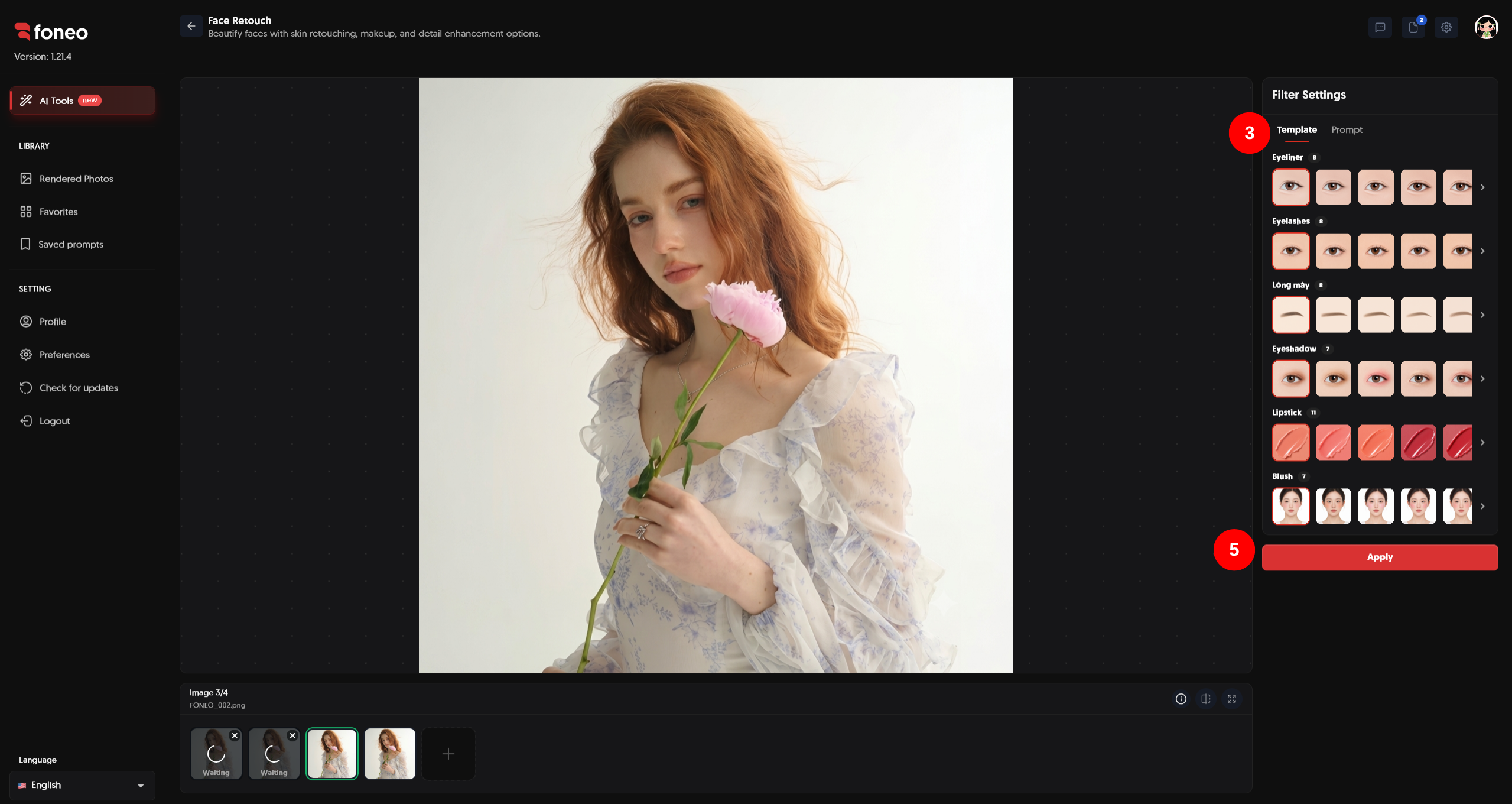
Note: You only need to select at least one Template option to click Apply. You do not need to select options from every category. For example, if you only want to change the eyelashes, select one option under Eyelashes and then click Apply.
4. Enter a Prompt (Optional)
If you want more control over the beauty adjustments, switch to the Prompt tab and enter a description of your preferred look.
Your Prompt should specify the makeup style, colors, intensity, and desired effects to help the AI understand your requirements.
Example Prompt:
Apply a soft natural eyeliner with an ultra-thin lash line, subtle definition, delicate taper, and seamless blending. Add lightweight Korean-style eyelashes with soft curls and fine individual strands. Use natural eyebrows, soft neutral eyeshadow, a nude pink lipstick, and a gentle peach blush. Keep the makeup elegant and natural while preserving the person's facial identity.
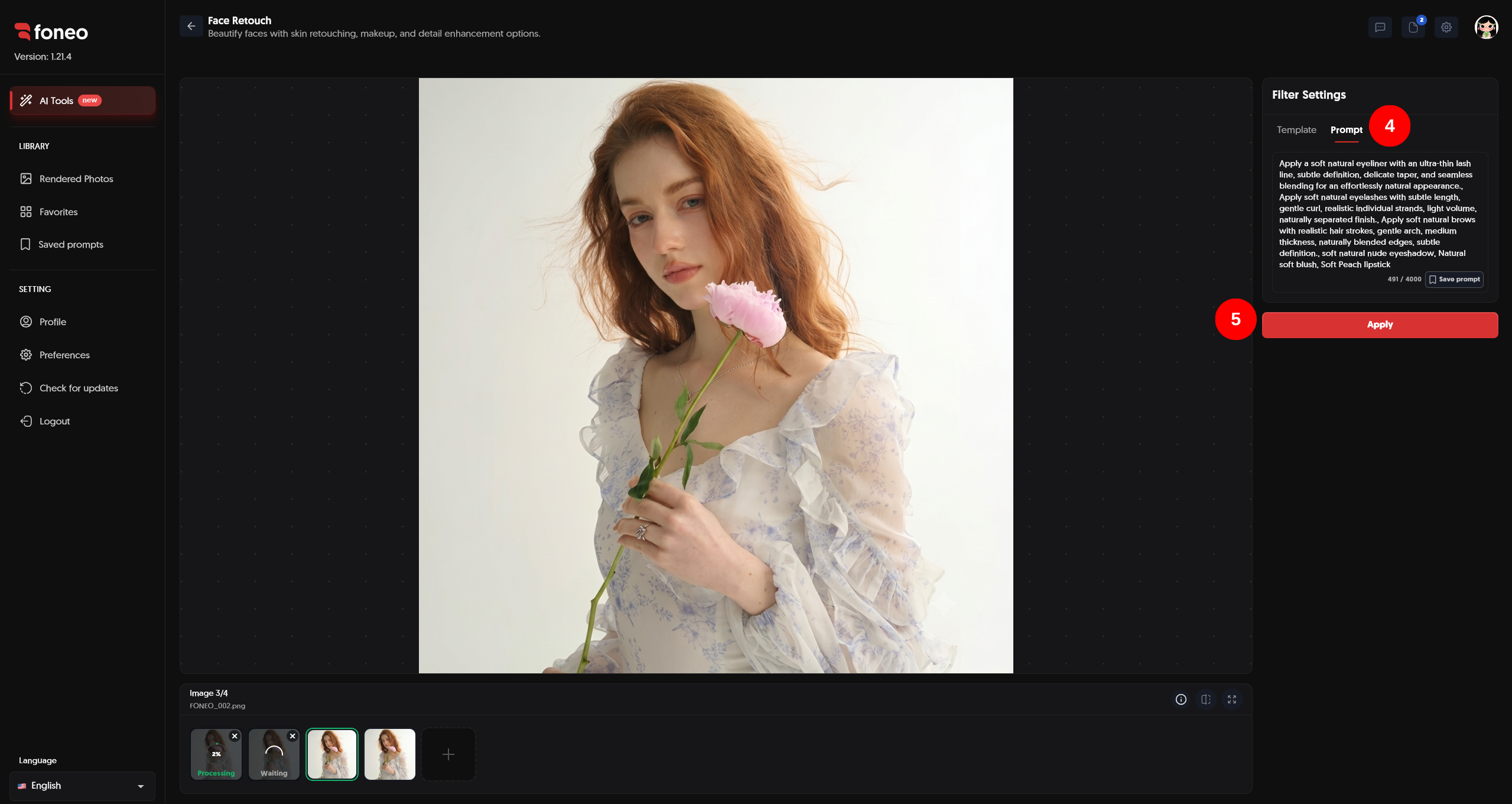
After entering your Prompt, click Save prompt if you want to save it for future use. Enter a Prompt name and select a suitable category tag.
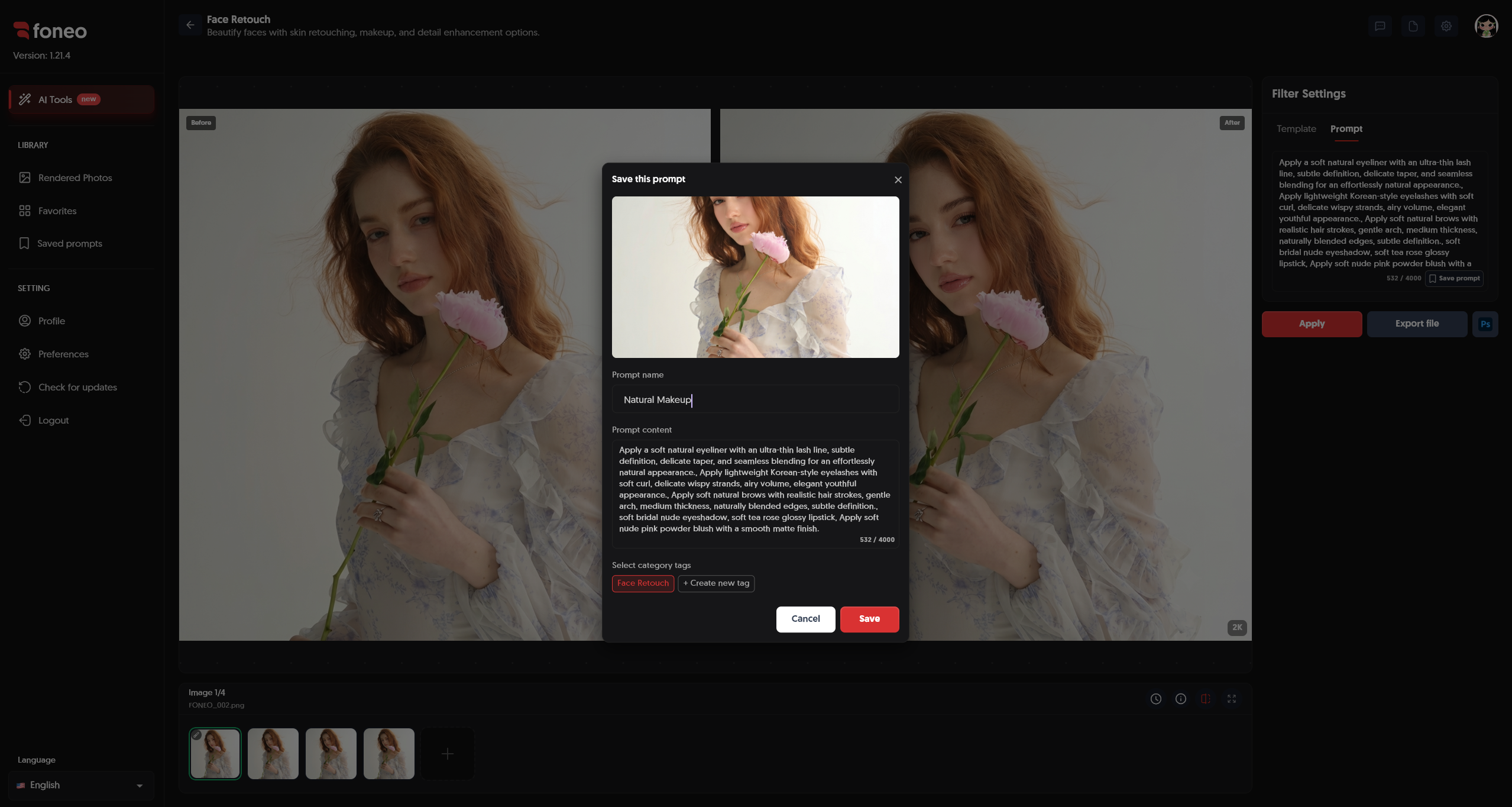
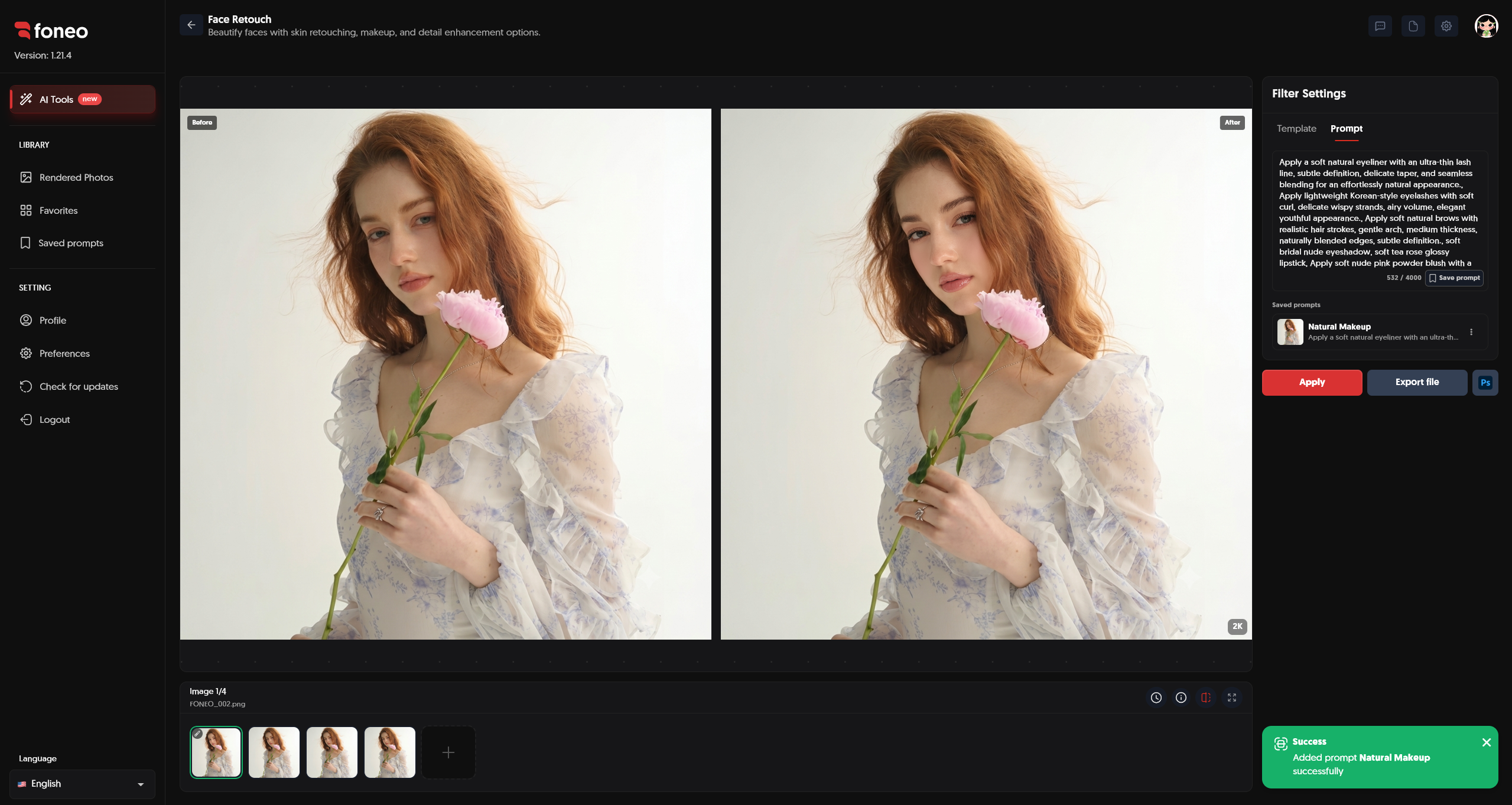
Note: Using a Prompt is optional. You do not need to enter a Prompt if you have already selected a Template, and vice versa.
5. Click Apply
After selecting at least one option under Template or entering a Prompt, click Apply to start AI processing.
You can use any of the following methods:
- Select one or more Template options and click Apply.
- Enter a Prompt and click Apply.
- Combine Template options with a Prompt to describe your desired beauty style.
You do not need to select options from every Template category, and using both Templates and a Prompt is not mandatory.
How to Evaluate the Results
After the AI finishes processing, review the image in the preview area and compare the Before and After versions.
Pay attention to the following aspects:
- Facial features: Ensure the person's recognizable facial characteristics are preserved.
- Makeup colors: Check whether the colors complement the skin tone and desired style.
- Natural appearance: Make sure the eyelashes, eyeliner, eyeshadow, lipstick, and blush look harmonious.
- Image details: Check the eye, lip, and skin areas for any unusual artifacts.
If you are not satisfied with the result, adjust the Template options or revise the Prompt and try again.
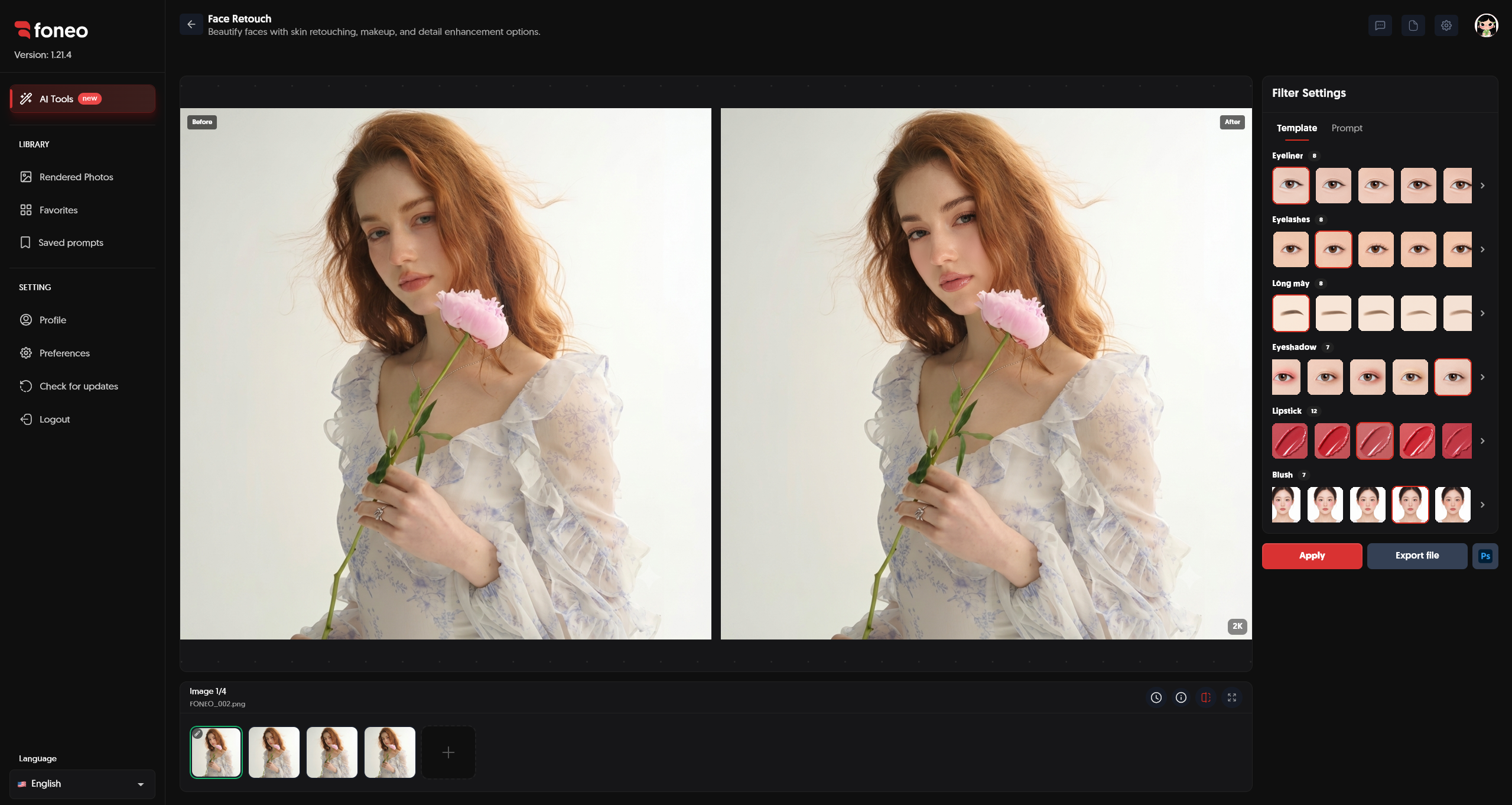
Export the Retouched Image
Once you are satisfied with the result, you can choose:
- Export file: Export the processed image to your device.
- Ps: Continue editing the image in Photoshop.
Review the final result before exporting.
Tips for Better Face Retouch Results
- Choose a clear image: Use a well-lit, high-resolution image with a clearly visible face.
- Start with one adjustment: If you only want to change one detail, select the corresponding Template category instead of applying too many effects.
- Combine options when needed: You can combine multiple makeup categories to create a more complete look.
- Write specific Prompts: Describe the desired colors, style, and makeup intensity clearly.
- Save frequently used Prompts: Use Save prompt to reuse a preferred makeup style more easily.
- Compare Before & After: Review the overall result to ensure the makeup looks natural and suits the original image.
Frequently Asked Questions
What is Face Retouch used for on Foneo?
Face Retouch uses AI to adjust makeup and facial beauty details through ready-made Templates or custom Prompts.
Do I need to select options from every Template category?
No. You only need to select at least one option from any Template category. For example, select one eyelash style under Eyelashes and then click Apply.
Do I have to enter a Prompt?
No. You can use Templates alone. Prompts are optional and are intended for users who want to describe their preferred beauty style in greater detail.
Can I combine multiple Template categories?
Yes. You can select options from multiple categories to create your desired makeup style. However, selecting multiple categories is not required to process an image.
Can I save a Prompt for future use?
Yes. Click Save prompt, enter a Prompt name, and select a suitable category tag to save it.
What should I do if the result is not what I expected?
Try changing the Template options, adjusting the Prompt, or combining different options. Then click Apply again and review the updated result.
Can I export the image after retouching?
Yes. After reviewing the result, click Export file to export the image or select Ps to continue editing in Photoshop.
Related Articles
Foneo · AI Photo Editing
Ready to try it on your own photos?
Download the Foneo app to edit photos with AI in just a few taps, or see the plan that fits your needs.