How to Use Makeup AI on the Foneo AI Photo Editing App
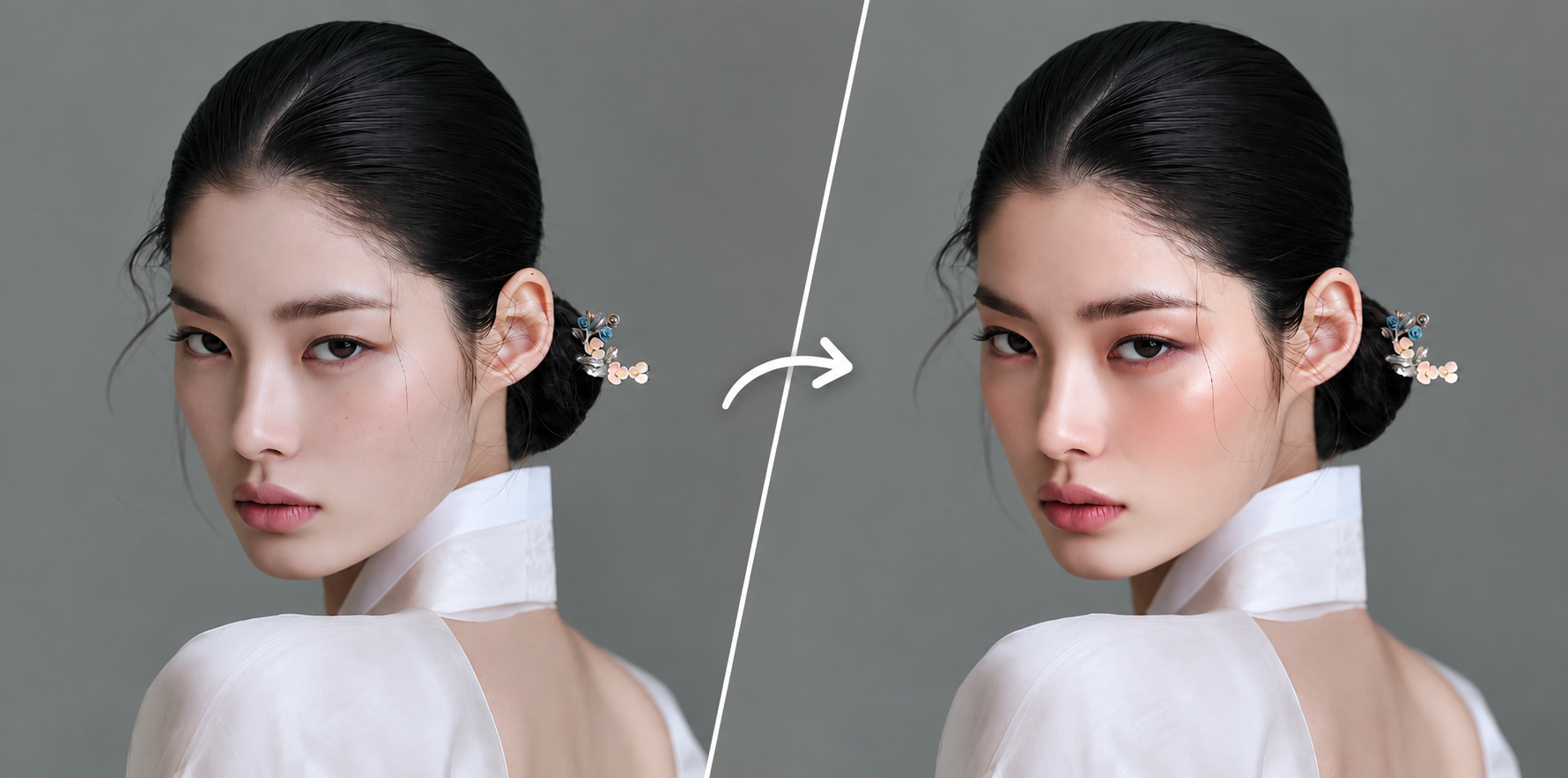
The Makeup AI feature on Foneo uses artificial intelligence to apply or customize makeup styles in photos. You can choose ready-made makeup templates from the library or enter a Prompt to describe your desired look.
This feature is ideal for trying different makeup styles, refreshing portrait photos, or creating makeup looks that match your personal preferences without applying makeup in real life or taking new photos.
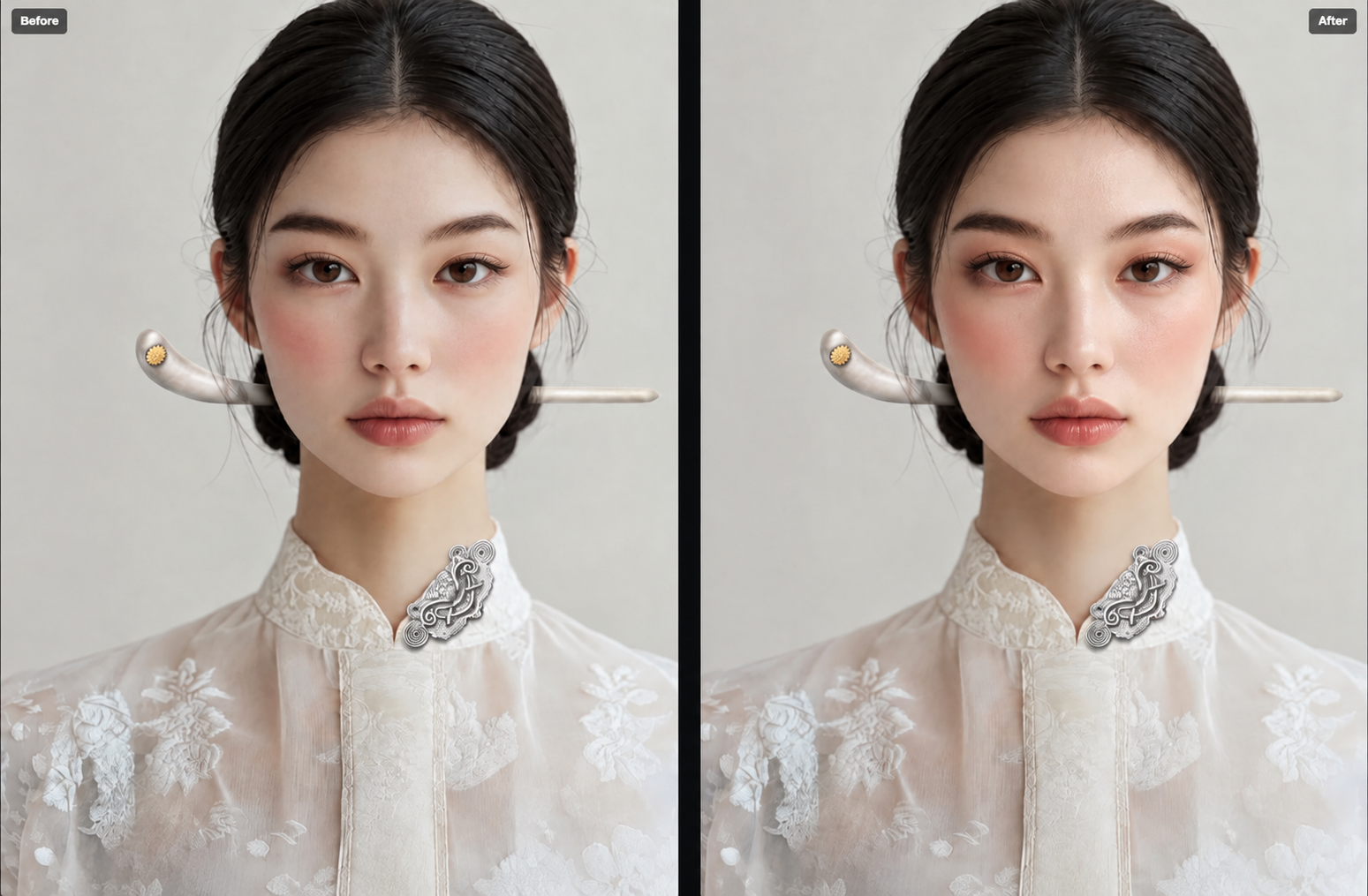
Before & After
See the difference before and after using Makeup AI on Foneo.
How to Use Makeup AI
To get started, upload the portrait you want to edit to Foneo and open the Makeup AI feature.
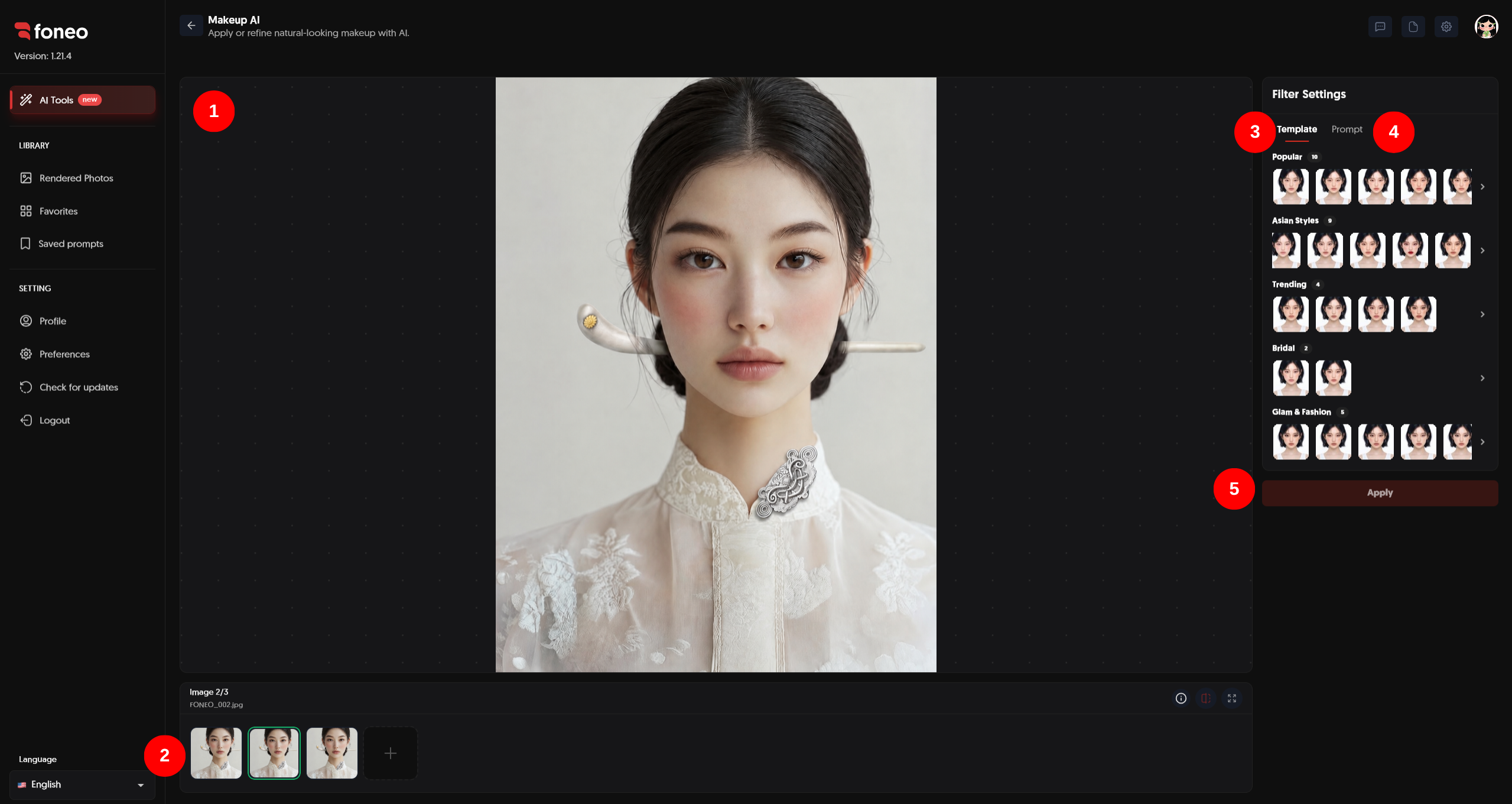
1. Preview the Image
After uploading your photo to Foneo, it will appear in the preview area in the center of the screen.
Check the image before applying makeup, paying attention to the face, lighting, and facial features so you can compare the results after processing.
For the best results, use a well-lit image with a clearly visible face.
2. Select the Image to Edit
Uploaded images appear as thumbnails below the preview area.
- Click a thumbnail to select the image you want to apply makeup to.
- Click + to add another image.
- Check that the correct image is selected before editing.
After selecting an image, go to Filter Settings to choose a makeup template or enter a custom description.
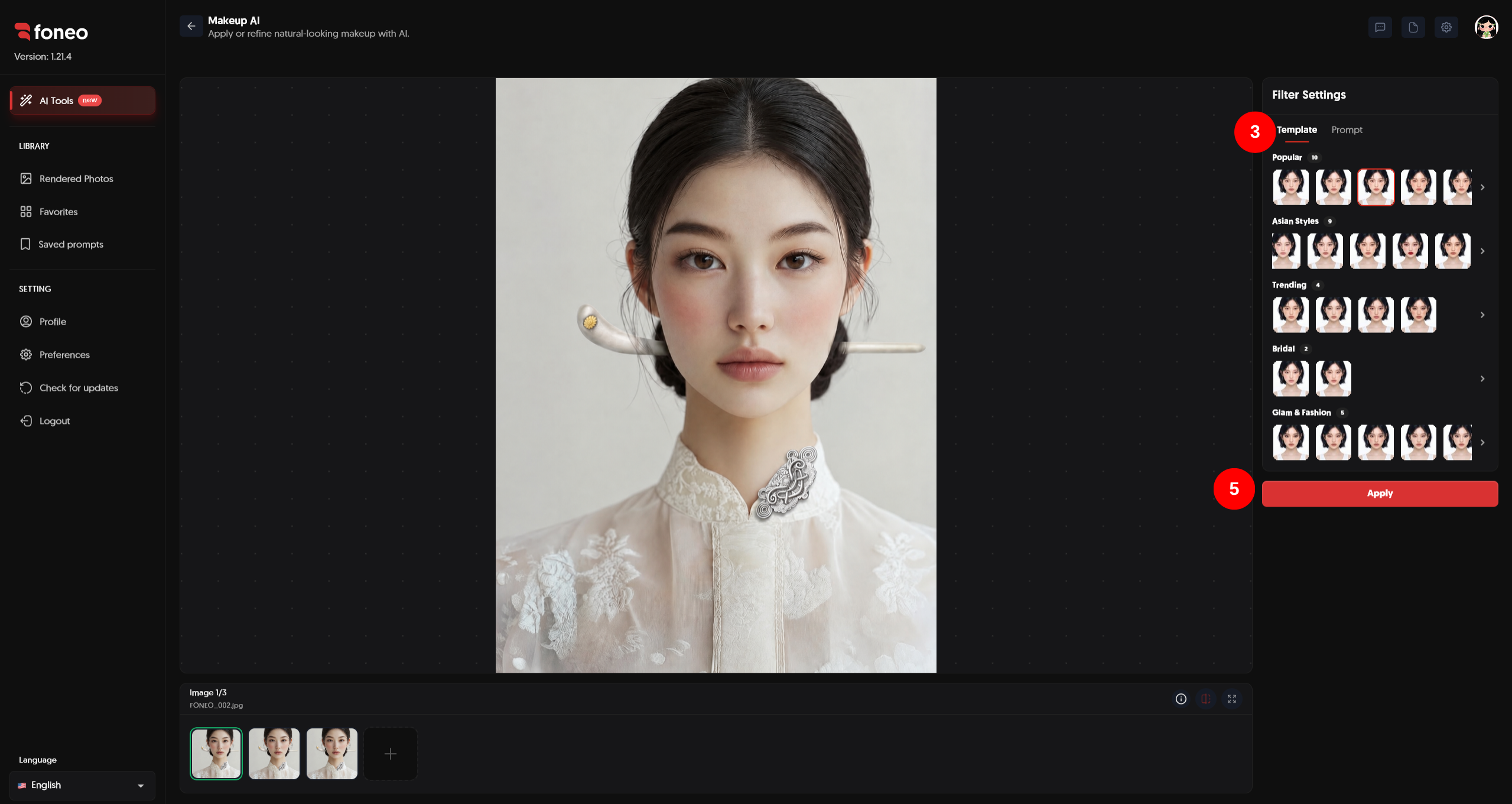
3. Choose a Template
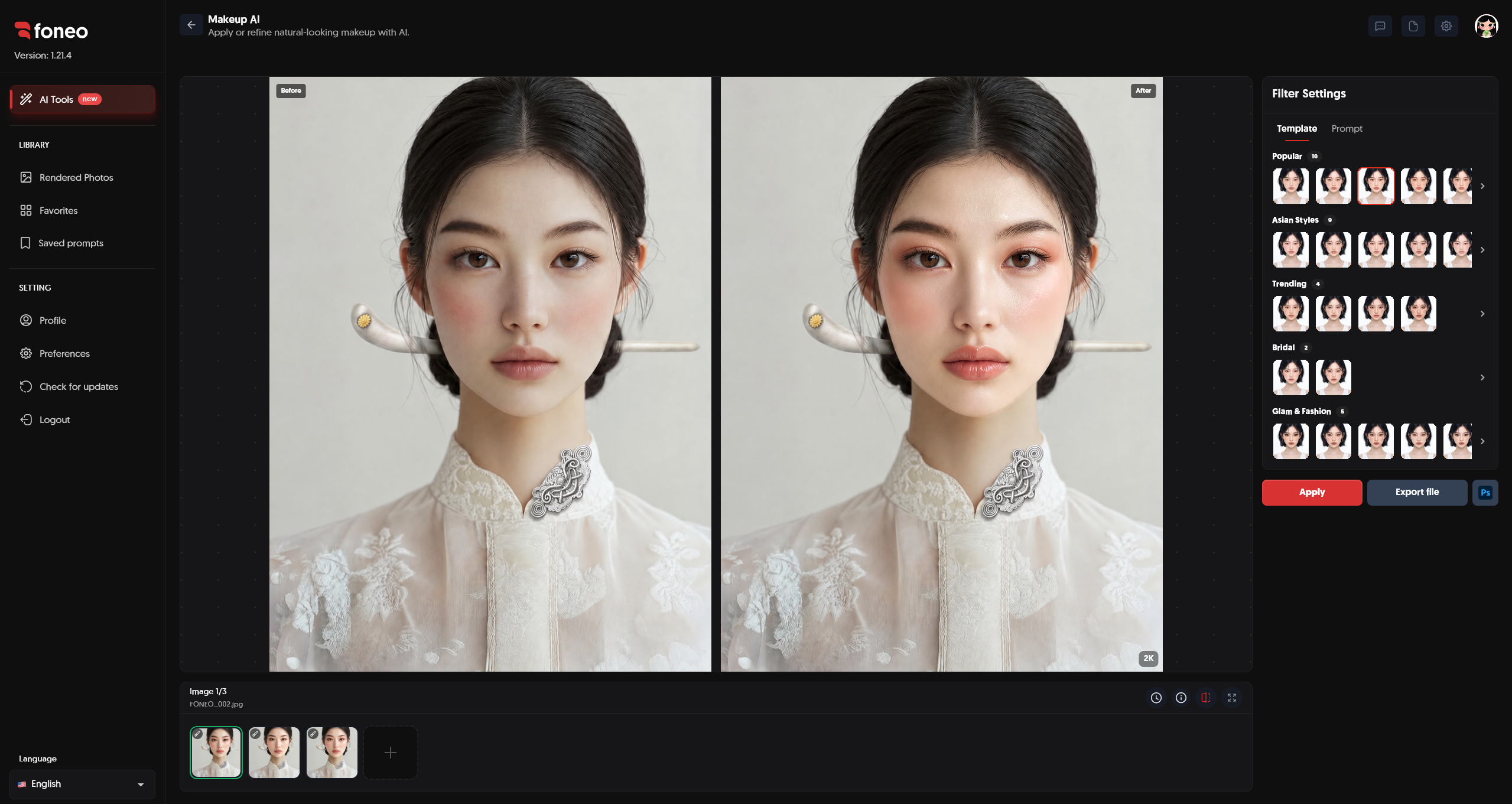
In Filter Settings, open the Template tab to browse the available makeup styles.
The templates are organized into categories, making it easier to find a style that suits your needs.
Follow these steps:
- Open the Template tab.
- Browse the library for a suitable makeup style.
- Click a Template to select it.
- Click Apply to start processing the image.
You only need to select one Template to click Apply. You do not need to select every makeup category, such as eyelashes, eyebrows, eyeliner, eyeshadow, lipstick, and blush.
Templates are ideal when you want to try a ready-made makeup style quickly without writing a Prompt.
4. Enter and Save a Prompt
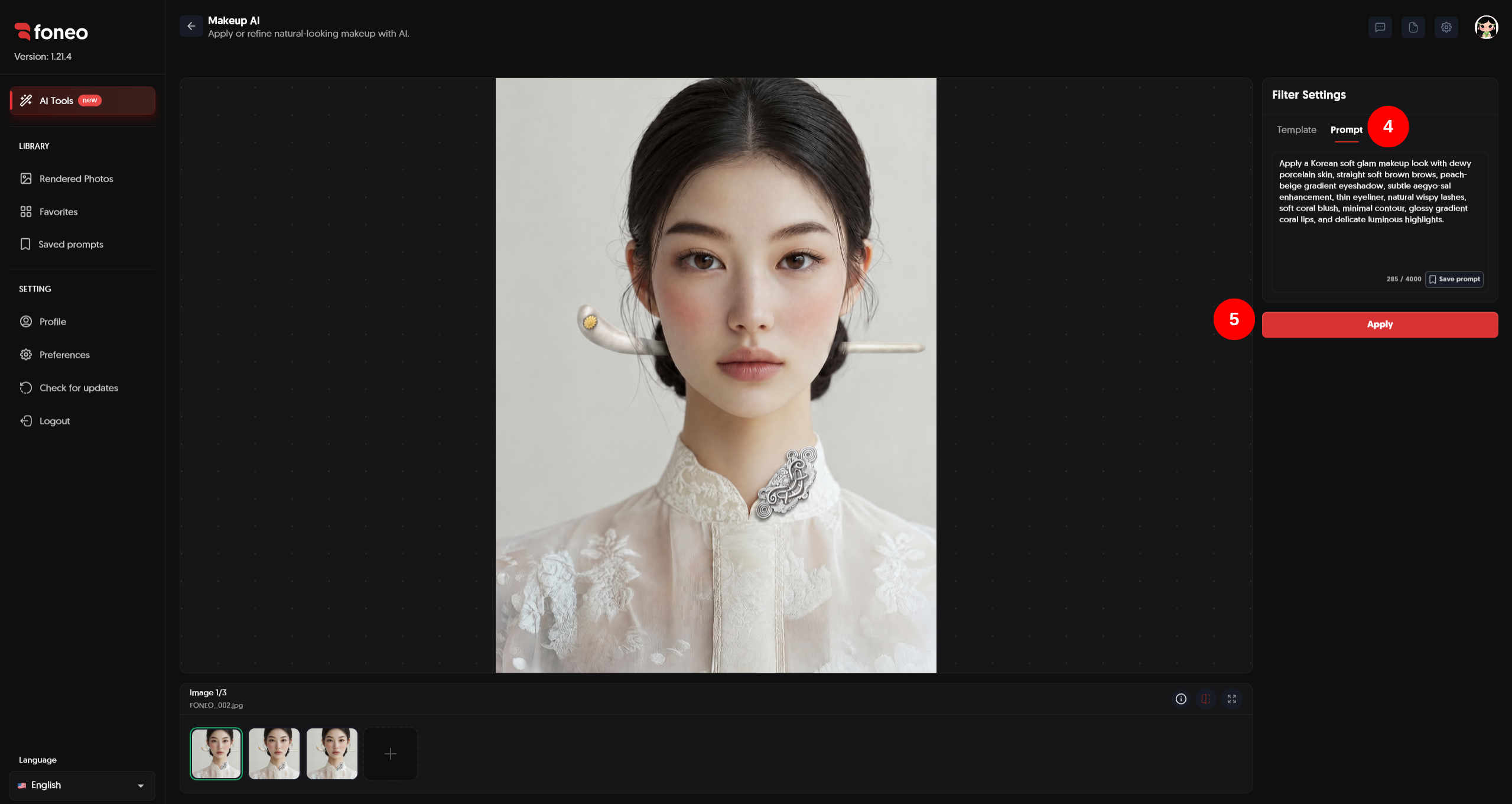
If you want to create a makeup look based on your own ideas, switch to the Prompt tab in Filter Settings and enter your description.
You can describe details such as:
- Makeup style: Natural, Korean, elegant, or glamorous.
- Base makeup: Dewy, matte, or natural-looking skin.
- Eyes: Eyeshadow colors, eyeliner style, and eyelash appearance.
- Eyebrows: Color, shape, and intensity.
- Blush: Color and finish.
- Lips: Lipstick color, glossiness, and overall style.
- Overall look: Makeup intensity, harmony, and the desired aesthetic.
Example Prompt:
Apply a Korean soft glam makeup look with dewy porcelain skin, straight soft brown brows, peach-beige gradient eyeshadow, subtle aegyo-sal enhancement, thin eyeliner, natural wispy lashes, soft coral blush, minimal contour, glossy gradient coral lips, and delicate luminous highlights.
Be specific about the style and details you want so the AI can better understand your requirements.
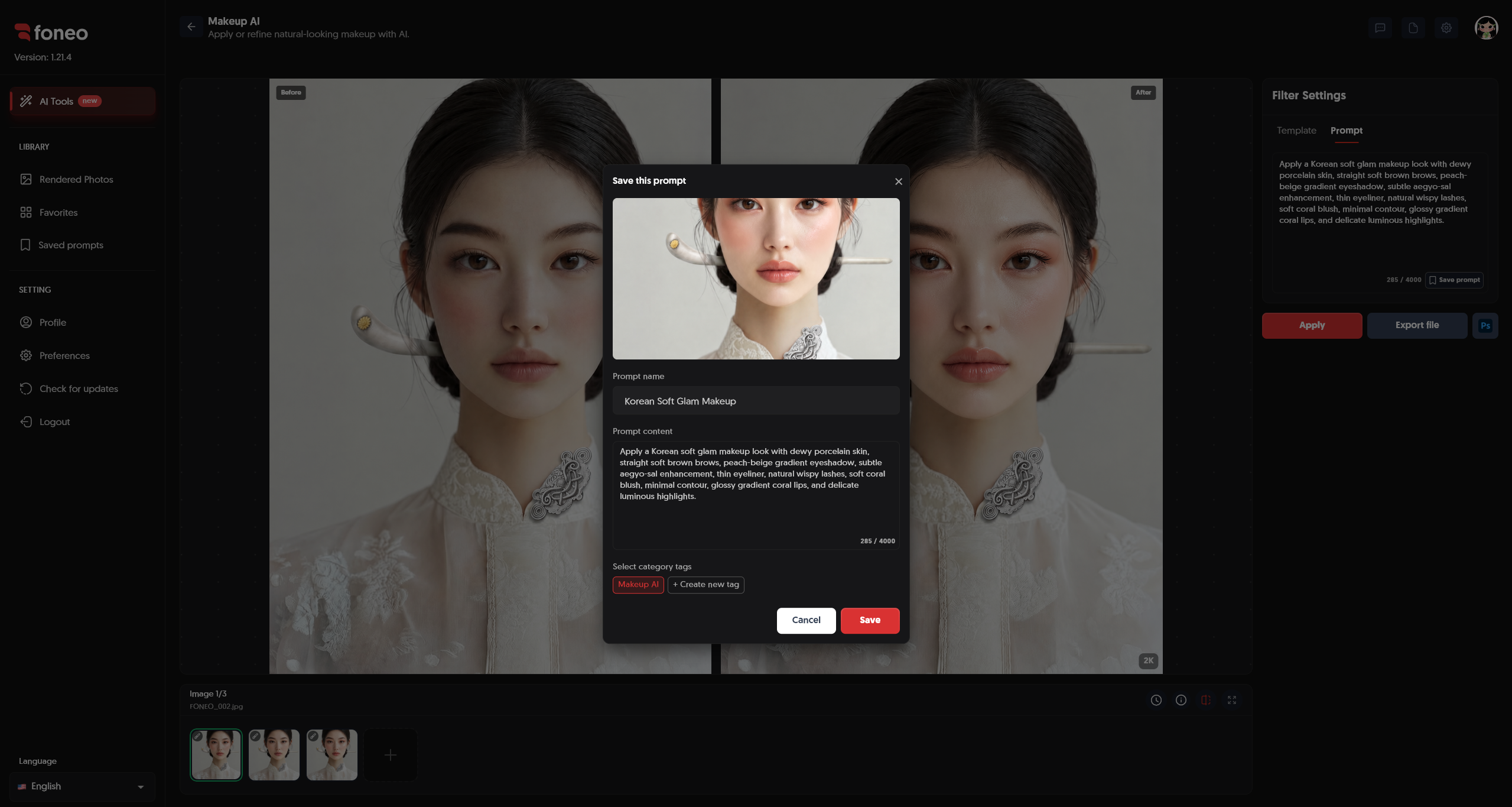
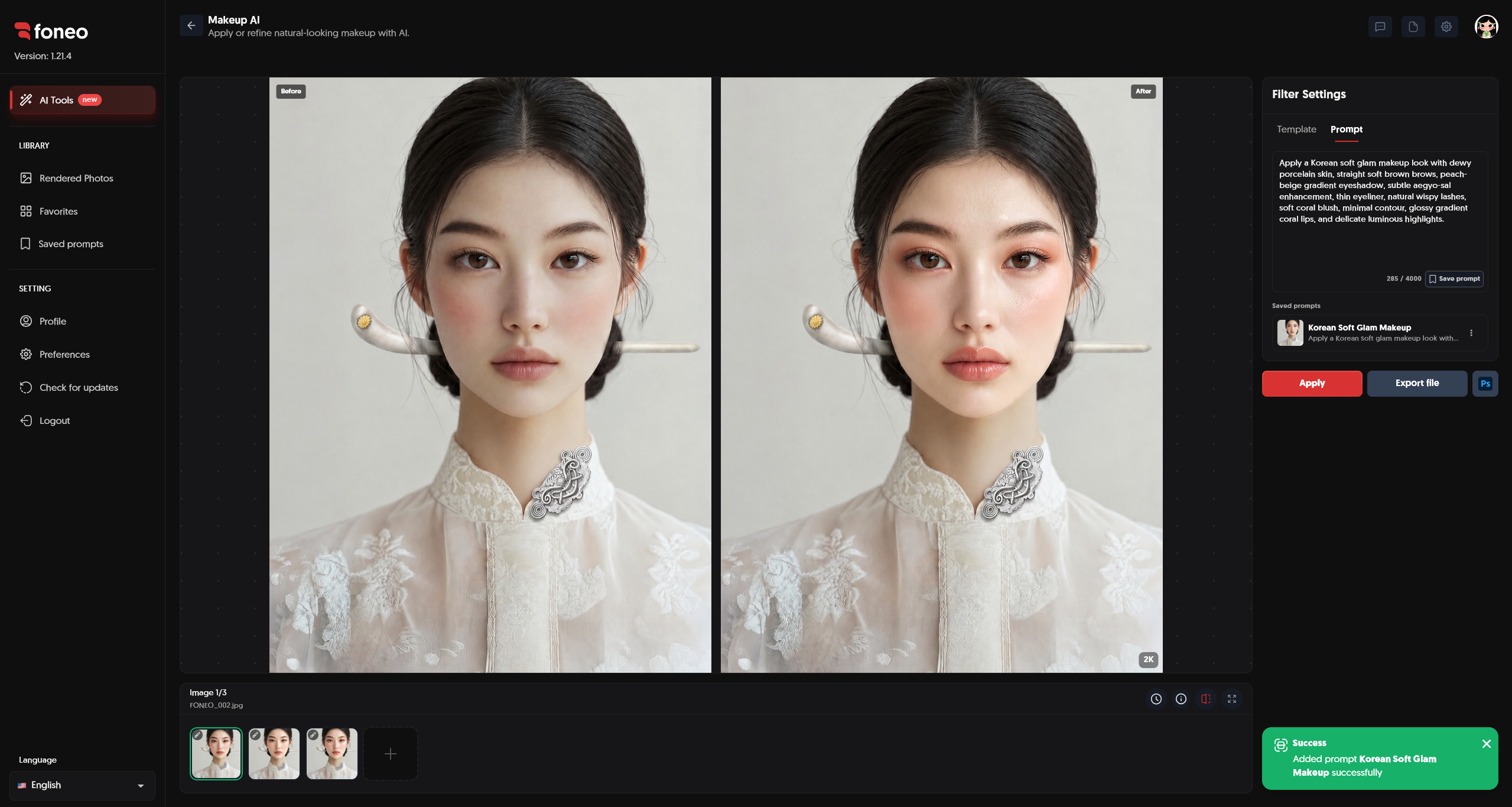
If you want to reuse the Prompt in future edits, click Save prompt. In the save dialog, enter a name in Prompt name, review the text in Prompt content, select a suitable category tag, and click Save.
You can access saved Prompts from Saved prompts.
Note: You only need to choose a Template or enter a Prompt to use Makeup AI. You do not have to do both. If you have selected a suitable Template, you can skip the Prompt step and click Apply.
5. Click Apply
After choosing your makeup method, review your settings in Filter Settings.
Then click Apply to let Foneo process the image using AI.
You can use either of these methods:
- Use a Template: Select any makeup Template and click Apply.
- Use a Prompt: Enter a description of your desired makeup style and click Apply.
You do not need to select multiple Templates or combine a Template with a Prompt. Completing either method is enough to start processing.
The AI will use your original image and selected settings to generate a new makeup look.
6. Review the Makeup Results
Once processing is complete, review the image in the preview area.
Use Before & After to compare the original image with the retouched version.
When evaluating the results, pay attention to the following:
- Base makeup: Does the skin look natural and consistent with the lighting?
- Eyes: Do the eyeshadow, eyeliner, and eyelashes match your desired style?
- Eyebrows: Do the shape and color complement the face?
- Lips and cheeks: Do the lipstick and blush colors balance the overall makeup?
- Overall appearance: Does the makeup style suit the face and the original image?
If the result does not meet your expectations, try another Template or adjust your Prompt, then click Apply again.
7. Export the Image
Once you are satisfied with the result, click Export file to export the edited image to your device.
If you want to continue editing in Photoshop, click Ps to transfer the image through the supported export workflow.
How to Choose the Right Makeup Method
Depending on your needs, you can choose either method in Filter Settings.
Using Templates
Choose Template when you want to try ready-made makeup styles from the library quickly.
This method is useful if you do not have a specific idea yet or want to explore different looks before deciding.
Simply select one suitable Template and click Apply.
Using Prompts
Choose Prompt when you want to describe a makeup style based on your own ideas.
You can specify the base makeup, eyeshadow colors, eyebrow style, lipstick, blush, and finishing effects. If you frequently use the same description, click Save prompt to save and reuse it.
This method is suitable when you want more control over the makeup look you want to create.
Tips for Better Makeup AI Results
1. Use a Clear Source Image
Choose an image with a clearly visible face, sufficient lighting, and minimal obstruction from hair or accessories.
A clear image makes it easier to evaluate the results and compare the changes after applying makeup.
2. Start with One Template
If you are unsure which style to choose, start with a ready-made Template from the library.
You can try different Templates to find a suitable look without entering a Prompt.
3. Write Specific Prompts
Instead of entering only the name of a makeup style, include the desired colors, intensity, and details.
For example, instead of entering Korean makeup, you could write:
Apply a soft Korean natural makeup look with dewy skin, peach-pink blush, subtle brown eyeliner, natural lashes, soft pink lips, and delicate highlights for a fresh and youthful appearance.
4. Keep the Makeup Harmonious
When writing a Prompt, consider how the eyeshadow, lipstick, blush, and base makeup work together to create a balanced look.
For a softer result, use words such as natural, soft, subtle, or light makeup.
5. Save Frequently Used Prompts
If you often create images with the same makeup style, click Save prompt to store the description and reuse it whenever needed.
6. Check Before & After Before Exporting
After processing, review the base makeup, colors, and individual details carefully.
Do not focus on just one feature. Check whether the makeup style looks harmonious with the person's overall appearance.
What Can You Use Makeup AI For?
The Makeup AI feature is suitable for various purposes, including:
- Trying different makeup styles on portrait photos.
- Creating natural everyday makeup looks.
- Exploring Korean makeup or fashion-inspired styles.
- Creating makeup photos for social media.
- Customizing eyeshadow, lipstick, and blush colors using Prompts.
- Creating multiple makeup variations from the same source image.
- Saving Prompts to reuse in future edits.
Frequently Asked Questions
1. What is Makeup AI used for on Foneo?
Makeup AI uses artificial intelligence to apply or customize makeup styles in photos. You can choose a ready-made Template or enter a Prompt to describe your desired look.
2. Do I need to select every makeup Template category?
No. You only need to select one Template to click Apply. You do not need to select every category, including eyelashes, eyebrows, eyeliner, eyeshadow, lipstick, and blush.
3. Can I use Makeup AI without selecting a Template?
Yes. You can switch to the Prompt tab, enter a description of your desired makeup style, and click Apply without selecting a Template.
4. Do I have to select a Template and enter a Prompt together?
No. You only need to select one Template or enter a Prompt. Using both methods at the same time is not required.
5. Can I save a Prompt for future use?
Yes. After entering your Prompt, click Save prompt, enter a Prompt name, select a suitable category tag, and click Save. You can access saved Prompts from Saved prompts.
6. Can I try again if I am not satisfied with the makeup result?
Yes. You can try a different Template or adjust your Prompt, then click Apply to process the image again.
7. How can I make the makeup look more natural?
Use a clear source image and describe your desired style specifically. For Prompts, you can include words such as natural, soft, subtle, or light makeup to guide the AI toward a softer look.
Related Articles
Foneo · AI Photo Editing
Ready to try it on your own photos?
Download the Foneo app to edit photos with AI in just a few taps, or see the plan that fits your needs.