How to Use Product Background on the Foneo AI Photo Editing App
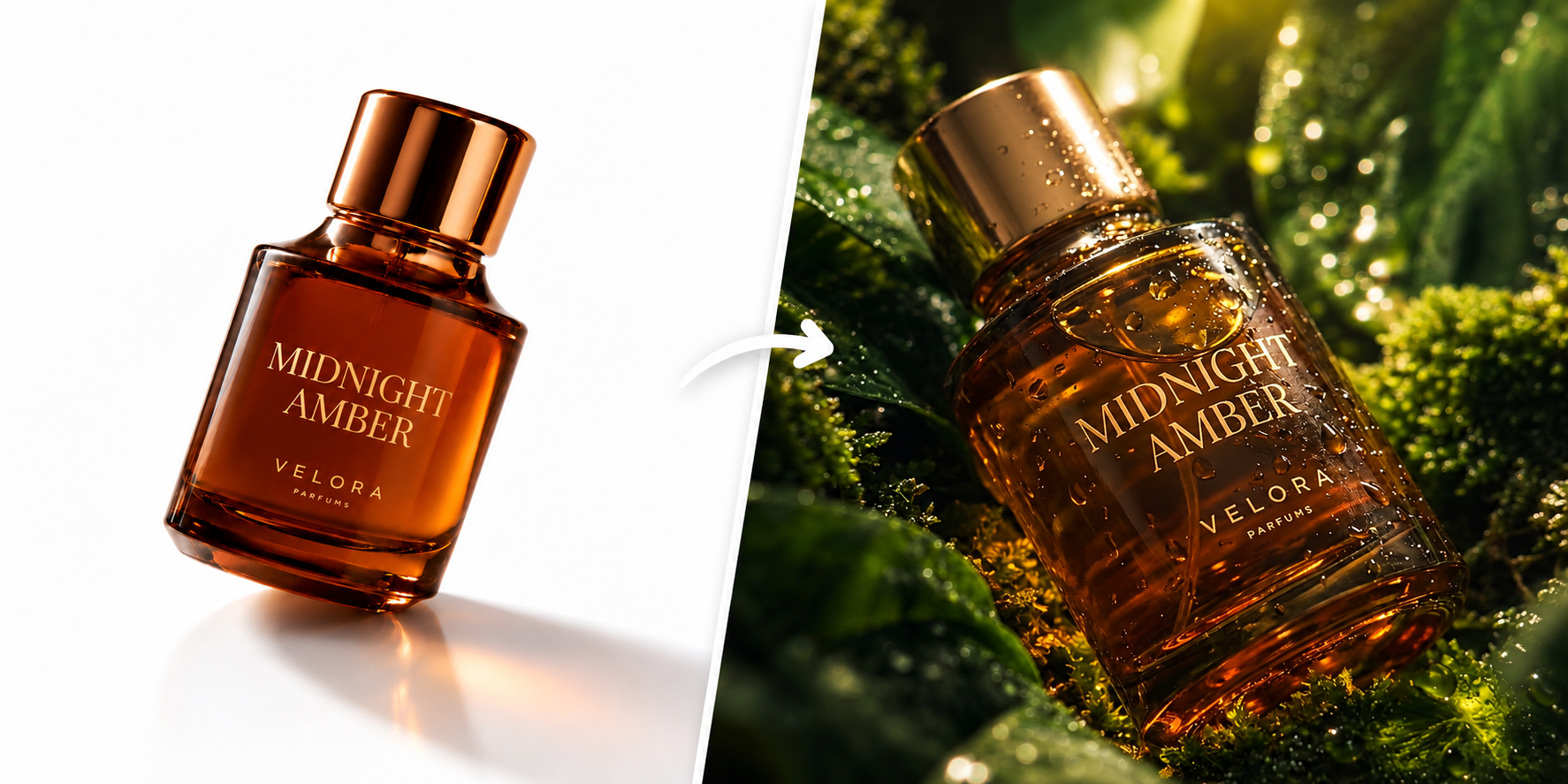
The Product Background feature on Foneo uses AI to create or change the background of product images. You can choose from ready-made backgrounds, add your own image, or enter a Prompt to create a background based on your requirements.
Before & After
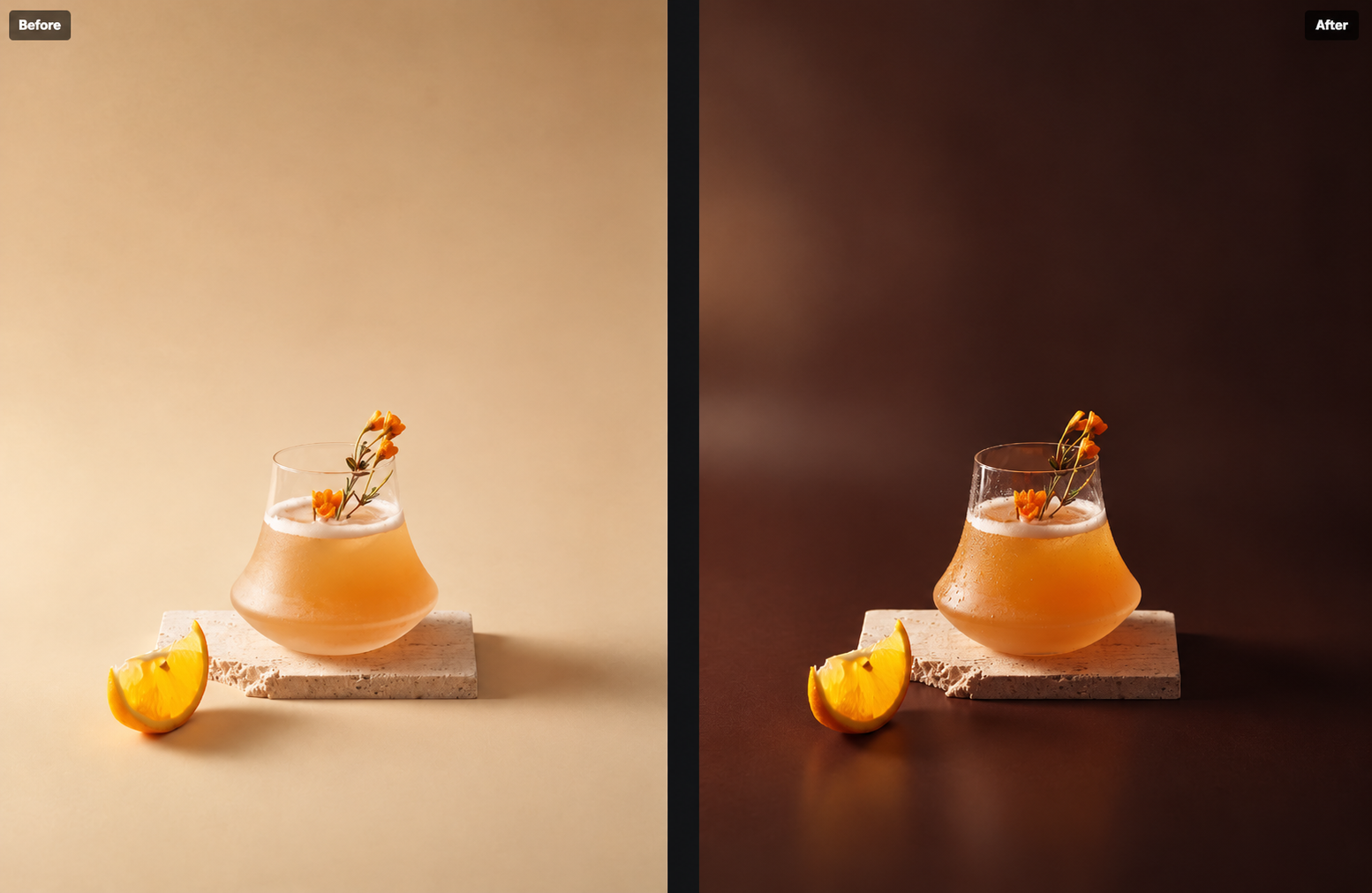
How to Use Product Background
To get started, upload the product image you want to edit to Foneo and open the Product Background feature.
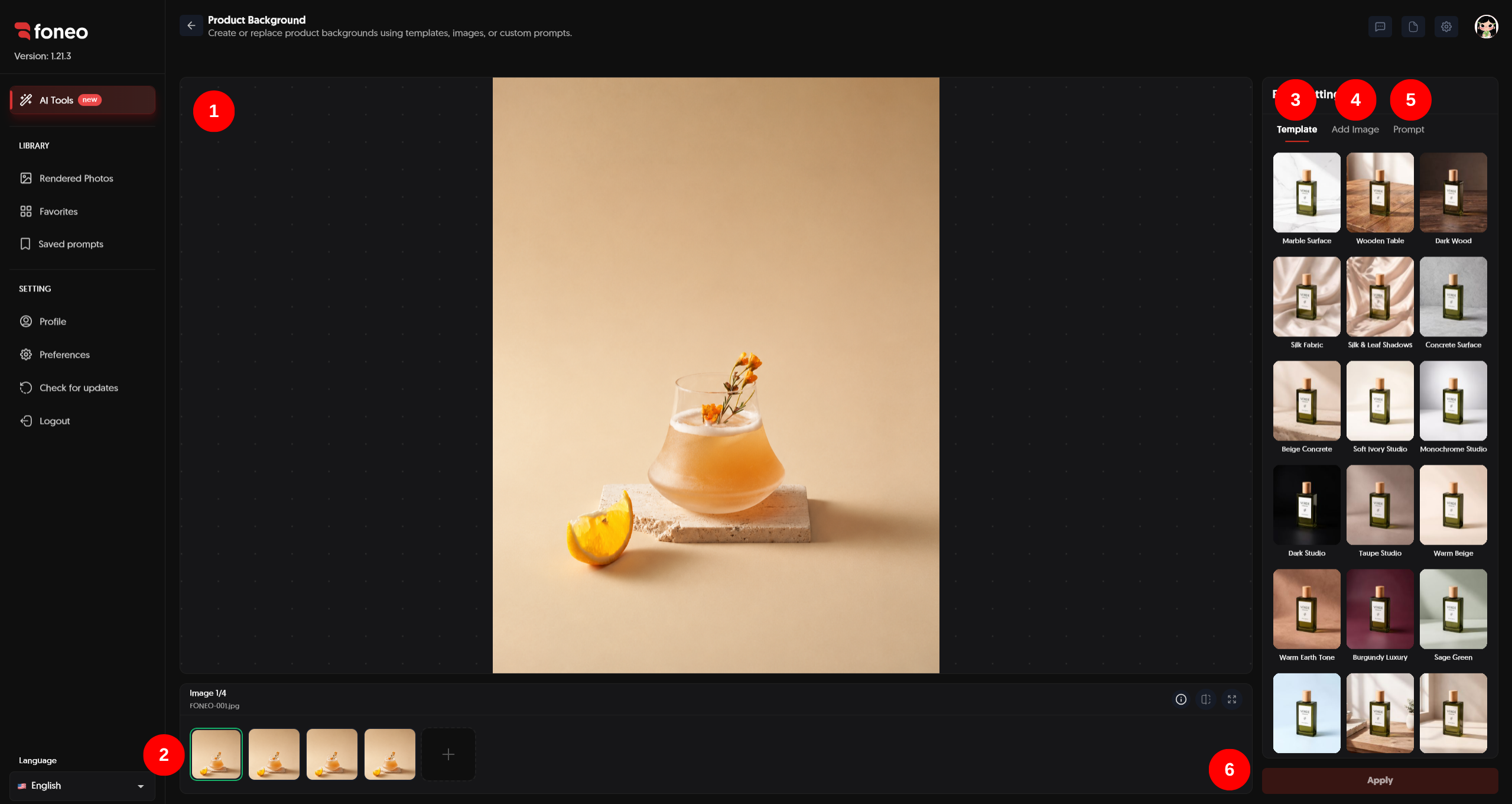
1. Preview the Image
After uploading a product image to Foneo, the image will appear in the preview area in the center of the screen.
Check the image before creating or changing the background to make sure the product is clearly visible.
2. Select the Image to Edit
Uploaded images will be displayed as thumbnails below the preview area.
- Click a thumbnail to select the image you want to create a background for.
- Click + to add a new image.
- Check the selected image before processing.
After selecting an image, go to Filter Settings to configure the background.
3. Choose a Template
In Filter Settings, switch to the Template tab to choose a ready-made background from the library.
Simply click the appropriate Template to preview how the background is applied to the product.
A Template is suitable when you want to create a background quickly without preparing your own image or writing a Prompt.
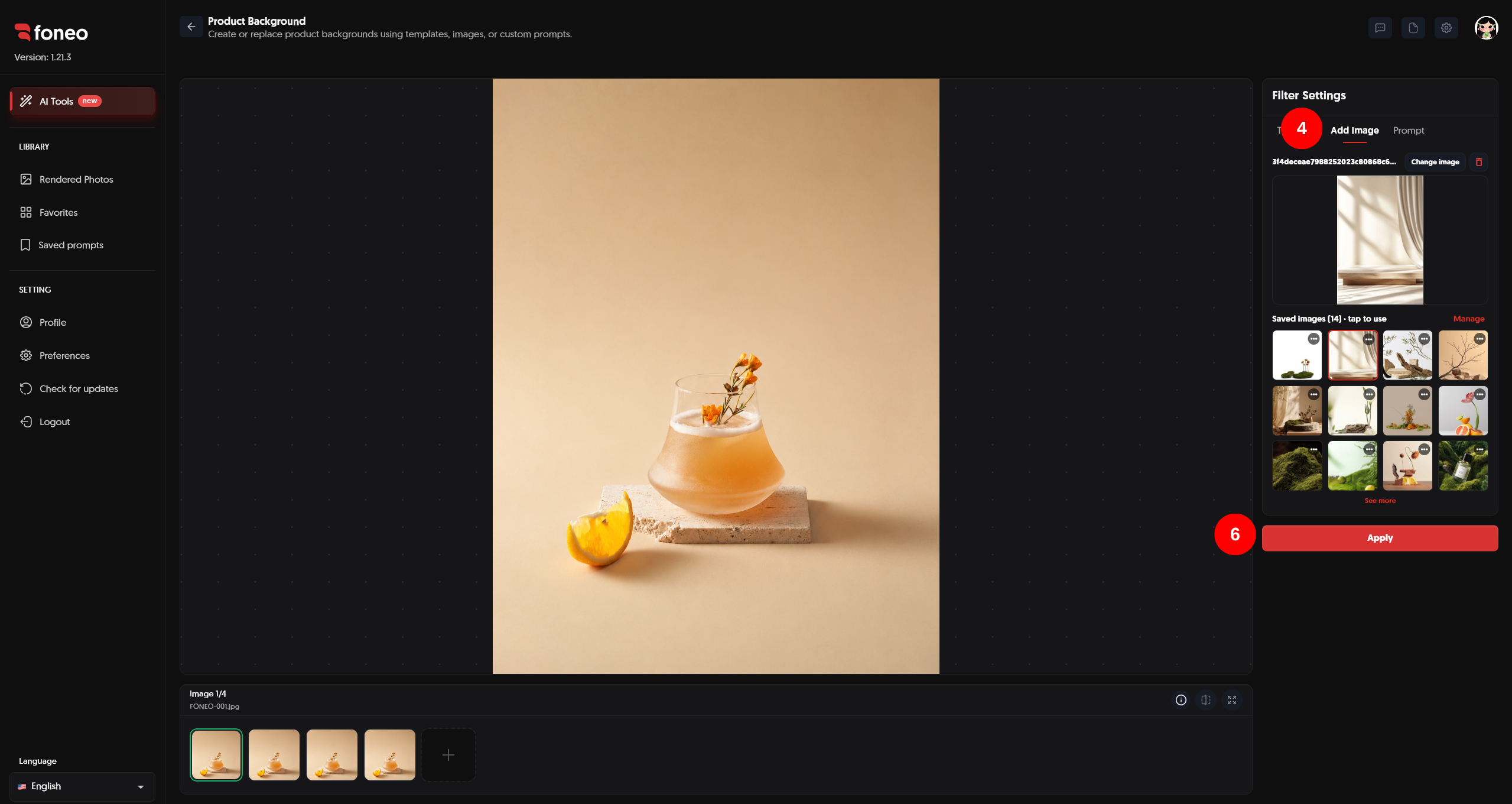
4. Use Add Image to Add a Background
If you already have your own background image, you can use Add Image to add it to Foneo.
Steps:
- Open the Add Image tab.
- Add your background image.
- Check the image used for the product.
- If needed, click Change image to replace the background.
You can also reuse images that have been saved in the Saved images list.
5. Enter a Prompt and Save the Prompt
If you want to create a background based on your own idea, switch to the Prompt tab and enter your desired description.
You can describe elements such as:
- Scene.
- Colors.
- Materials.
- Lighting.
- Shadows.
- Surrounding space.
- Image style.
For example:
A seamless soft ivory studio backdrop with a smooth matte floor, subtle warm tonal gradient, soft diffused lighting, elegant natural grounding shadows, clean negative space, refined minimalist composition, premium commercial product photography.
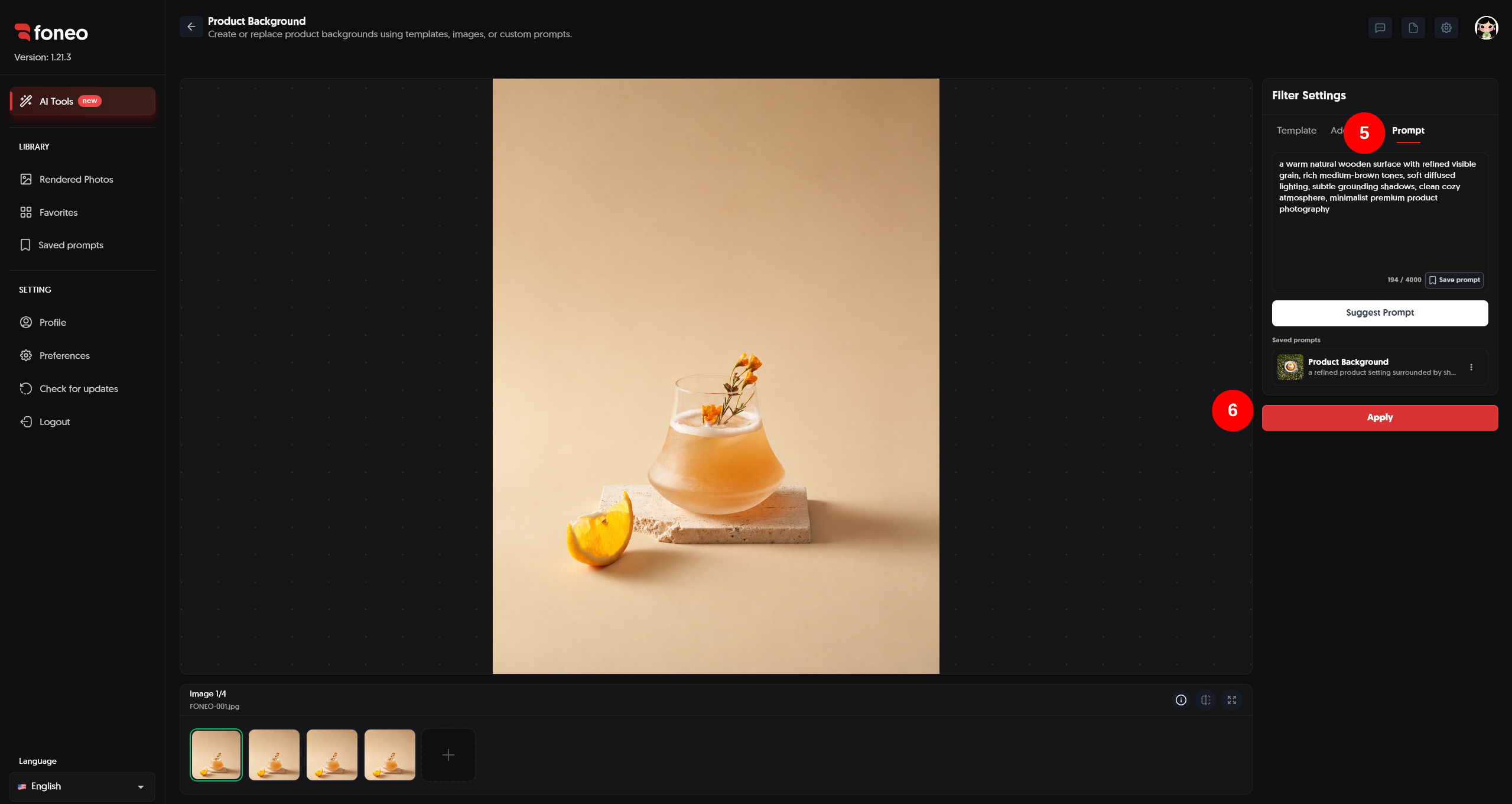
If you have a suitable Prompt and want to reuse it for future edits, click Save prompt to save it.
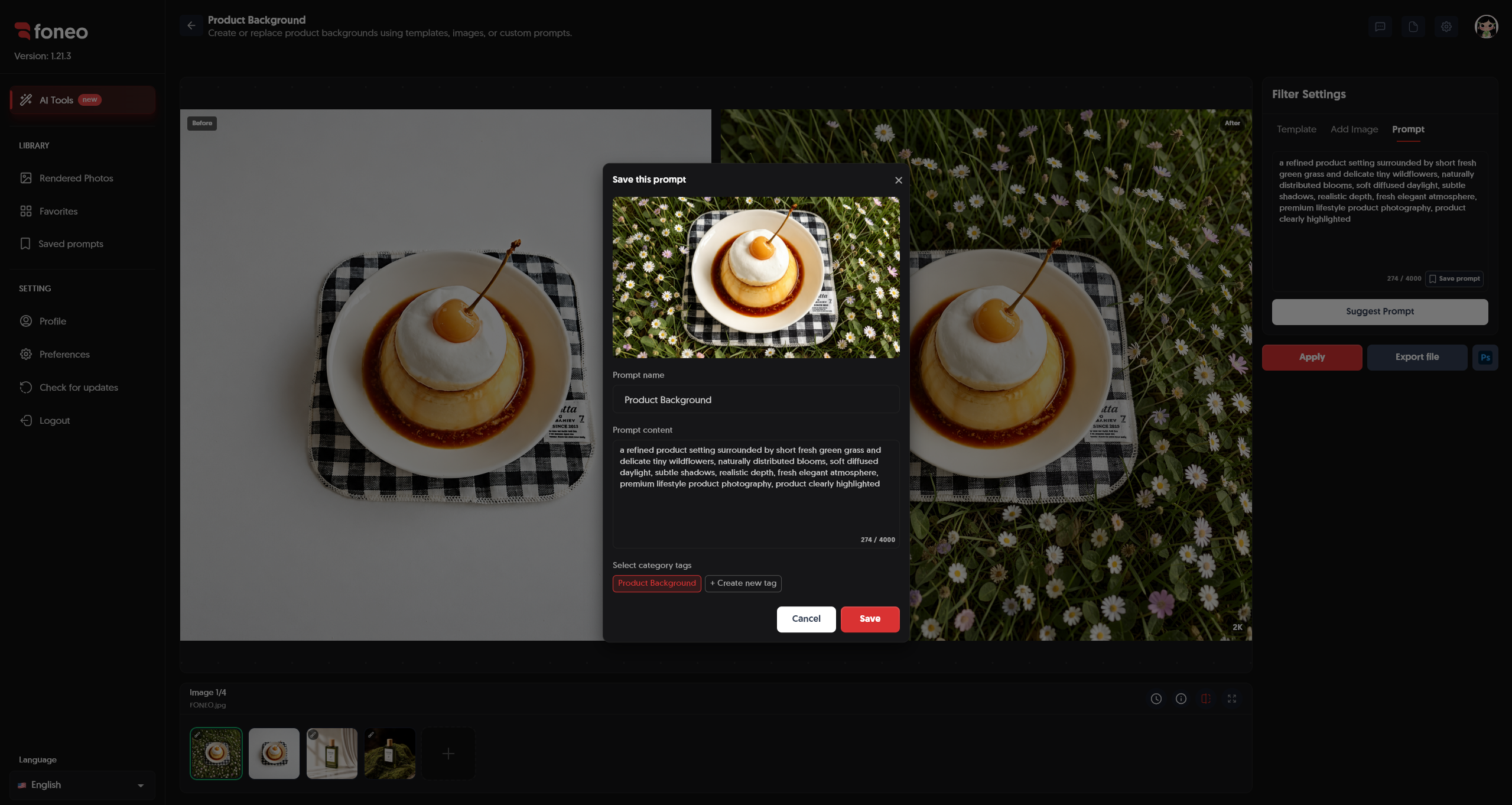
Saved Prompts can be reused when you need to create a similar background for other product images.
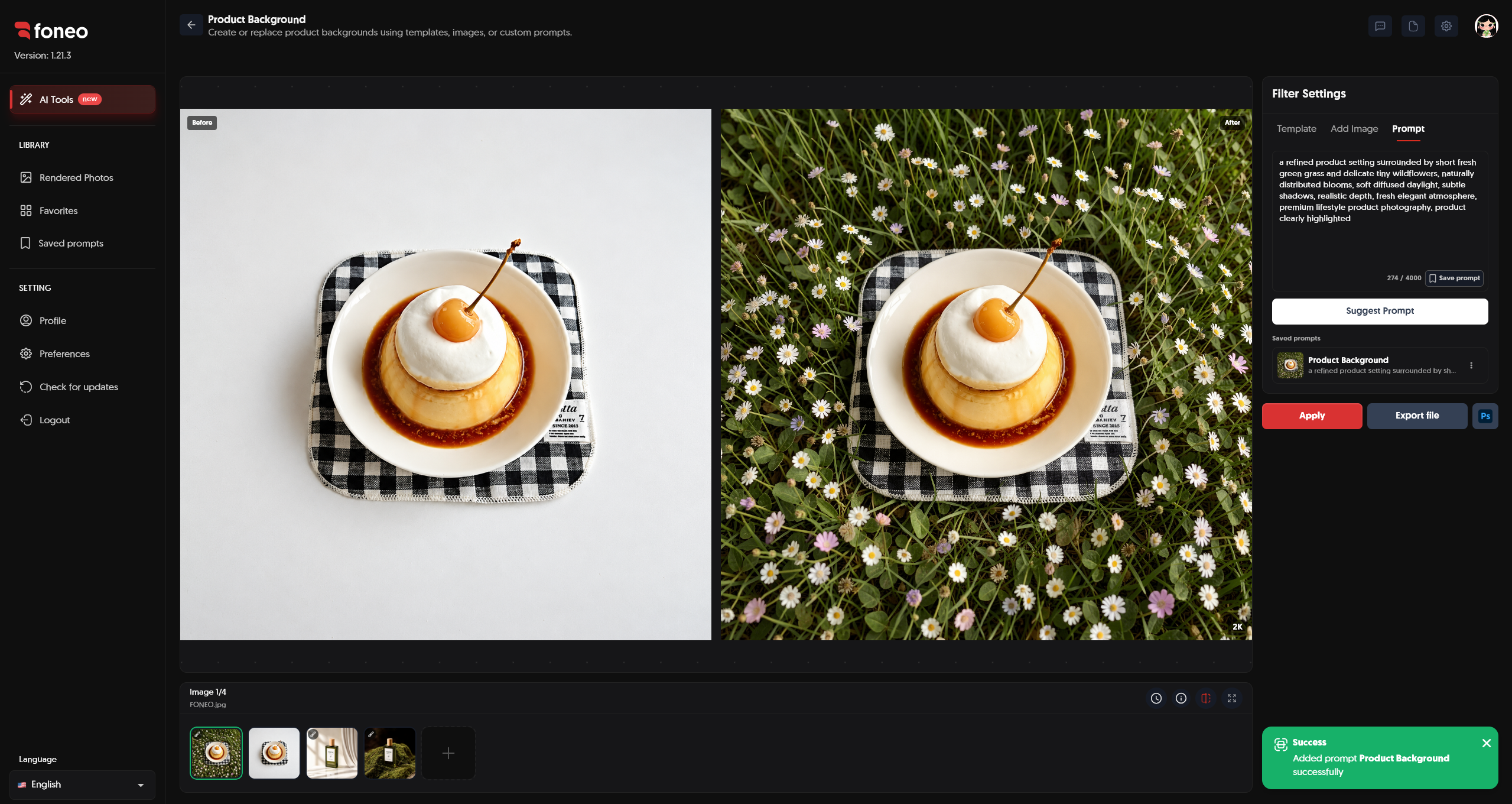
6. Click Apply
After setting up the background using Template, Add Image, or Prompt, review your settings.
Then click Apply to let Foneo start creating the background.
AI will use the product image and the settings you provided to generate the new result.
7. Check the Result
Once processing is complete, the result will be displayed in the preview area.
You can use Before & After to compare the image before and after creating the background.
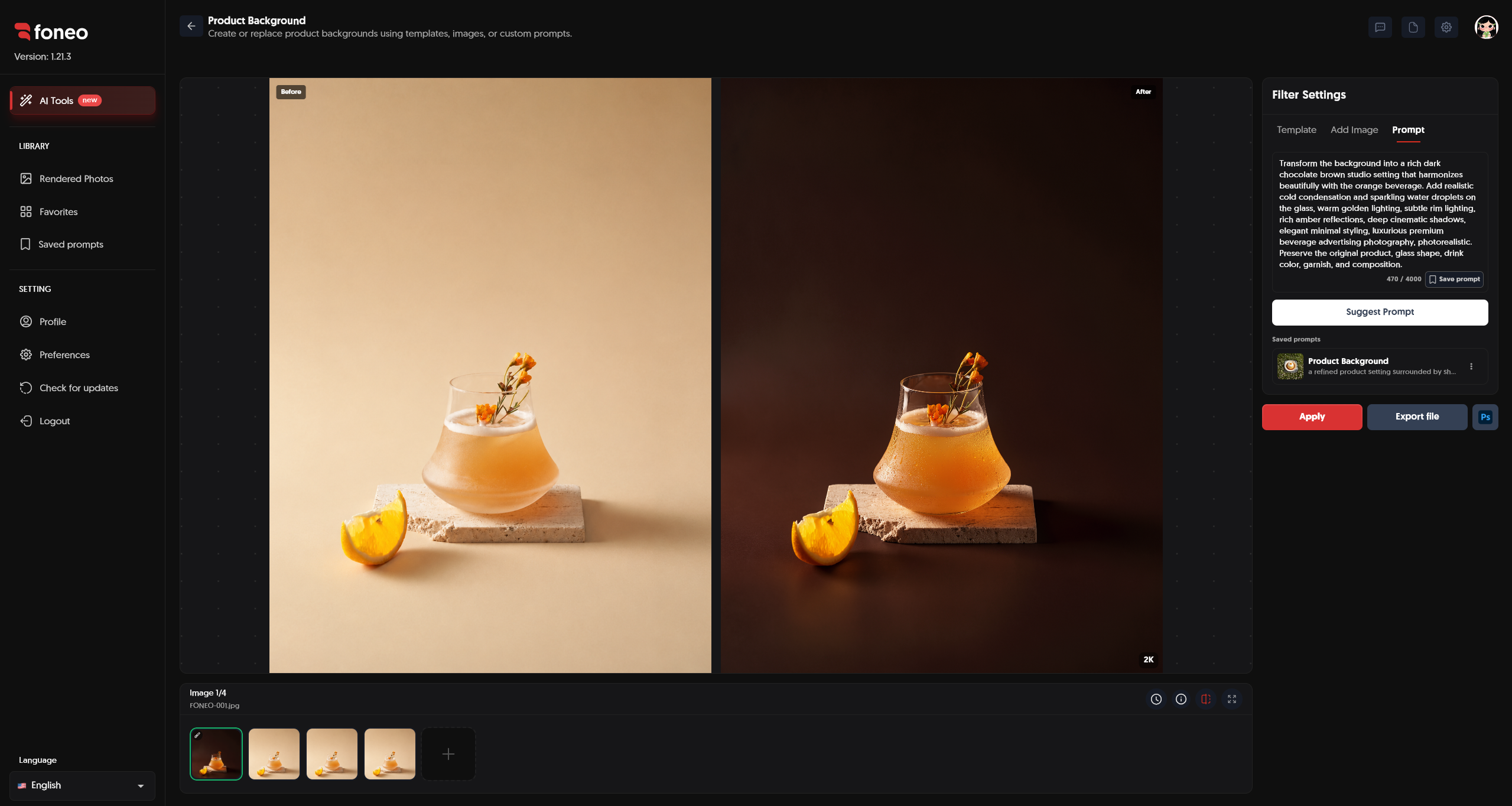
When checking the result, pay attention to:
- Product: Is the product's shape and appearance preserved appropriately?
- Background: Does the background fit the product?
- Lighting: Does the lighting on the product blend naturally with the new background?
- Shadows: Do the shadows look natural and match the scene?
- Overall: Does the image look natural and fit your intended use?
If the result meets your expectations, you can proceed to export the image.
8. Export the Image
Once you are satisfied with the result, click Export file to export the image to your device.
If you want to continue editing in Photoshop, you can use the Ps button to open the image and continue editing.
How to Choose the Right Background Method
Depending on your needs, you can choose one of the available methods in Filter Settings.
Using Template
Choose Template when you want to quickly create a background without preparing your own image or entering a Prompt.
This method is suitable when you want to select a ready-made background and apply it directly to the product.
Using Add Image
Choose Add Image when you already have your own background image.
This method is suitable when you want to have more control over the specific image or scene used for the product.
Using Prompt
Choose Prompt when you want to describe a background based on your own idea.
You can describe the scene, colors, lighting, materials, and desired style in detail.
You can also click Save prompt to save the Prompt and reuse it later.
How to Write an Effective Product Background Prompt
When using Prompt, describe the background clearly and specifically.
You can focus on the following structure:
Background + Material + Lighting + Shadow + Atmosphere + Photography Style
Example 1: Minimalist Studio Background
A clean minimalist studio background with a soft ivory surface, subtle warm lighting, natural soft shadows, clean negative space, premium commercial product photography.
Example 2: Natural Outdoor Background
A natural outdoor background with fresh green grass, small white flowers, soft morning light, gentle shadows, and a clean premium product photography style.
Example 3: Wooden Table Background
A warm wooden table background with soft natural window light, subtle shadows, neutral tones, and a cozy premium commercial photography atmosphere.
Example 4: Garden Background
A fresh garden background with green grass and small flowers, soft natural sunlight, gentle shadows, and an elegant commercial product photography style.
If you frequently use the same type of Prompt, click Save prompt to save it for future edits.
Tips for Creating Better Product Backgrounds
1. Use a Clear Product Image
Use a high-quality image with the product displayed clearly.
The clearer the input image, the more information AI has to analyze and process the product image.
2. Choose a Background That Matches the Product
The background should match the product's colors, materials, and overall style.
For example:
- Premium products → minimalist and sophisticated backgrounds.
- Natural products → greenery or outdoor backgrounds.
- Fashion products → studio or lifestyle backgrounds.
- Food products → backgrounds with suitable colors and materials.
3. Pay Attention to Lighting
When choosing a Template or writing a Prompt, pay attention to the lighting of the background.
A background with lighting that is significantly different from the product may make the final image look unnatural.
4. Use Add Image When You Already Have a Background
If you already have a suitable background, use Add Image to add it to Foneo.
5. Save Frequently Used Prompts
If you often create backgrounds with a similar style, use Save prompt to save the Prompt.
You can reuse saved Prompts for future edits without having to enter them again from scratch.
6. Check Before & After Before Exporting
After AI processing is complete, carefully check the product and background before exporting the image.
Pay particular attention to the product's shape, proportions, lighting, shadows, and how naturally the product blends with the background.
When Should You Use Product Background?
The Product Background feature is suitable for many use cases, including:
- Creating backgrounds for product images.
- Changing the scene of a product image.
- Creating product images for websites.
- Preparing images for e-commerce.
- Creating product images for social media.
- Using custom backgrounds through Add Image.
- Creating backgrounds based on your own ideas using Prompt.
- Saving and reusing Prompts for future edits.
- Creating different background styles for the same product.
Frequently Asked Questions
What is Product Background used for on Foneo?
The Product Background feature uses AI to create or change the background of product images.
What methods can I use to create a product background?
Foneo provides 3 methods:
- Template: Use a ready-made background.
- Add Image: Add your own background image.
- Prompt: Enter a description to create a background based on your requirements.
What is Template used for?
Template provides ready-made backgrounds, allowing you to quickly choose and apply a background to your product.
What is Add Image used for?
Add Image allows you to add your own background image and use it for the product.
Can I use a Prompt to create a product background?
Yes. You can open the Prompt tab and enter a description of the desired background. Foneo will create the background based on your requirements.
Can I save a Prompt?
Yes. After entering a Prompt, you can click Save prompt to save it and reuse it for future edits.
Can I reuse a saved Prompt?
Yes. Saved Prompts can be reused when you need to create a similar background for other product images.
Can I add my own background image to Foneo?
Yes. You can use Add Image to add your own background image and use it for the product.
Can I edit multiple product images?
You can upload images and select the image you want to edit from the thumbnail area below the preview.
Related Articles
- How to Use Portrait Effects on the Foneo AI Photo Editing App
- How to Use Surface Transform on the Foneo AI Photo Editing App
- How to Use Lighting Effects on the Foneo AI Photo Editing App
- How to Use Product Enhancer on the Foneo AI Photo Editing App
- How to Use Prompt Edit on the Foneo AI Photo Editing App
Foneo · AI Photo Editing
Ready to try it on your own photos?
Download the Foneo app to edit photos with AI in just a few taps, or see the plan that fits your needs.