How to Use Style Transfer on the Foneo AI Photo Editing App
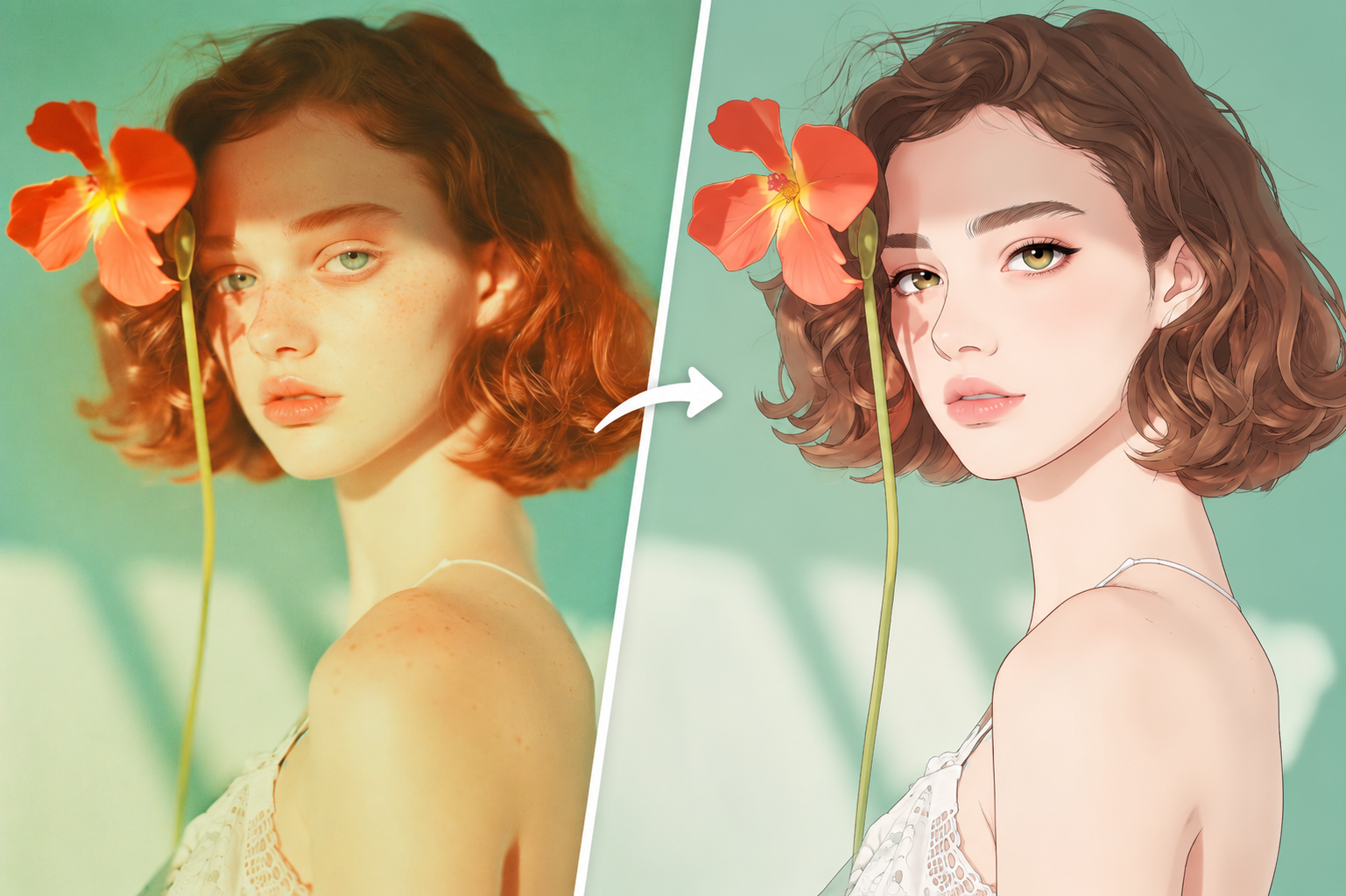
Each image style can create a different mood and visual expression for the same photo. With the Style Transfer feature on Foneo, you can use AI to transform the style of your image and create new visuals in a variety of creative directions.
Foneo provides ready-made Templates and custom Prompts, making it easy to choose or describe your desired style without complicated editing steps.
Before & After
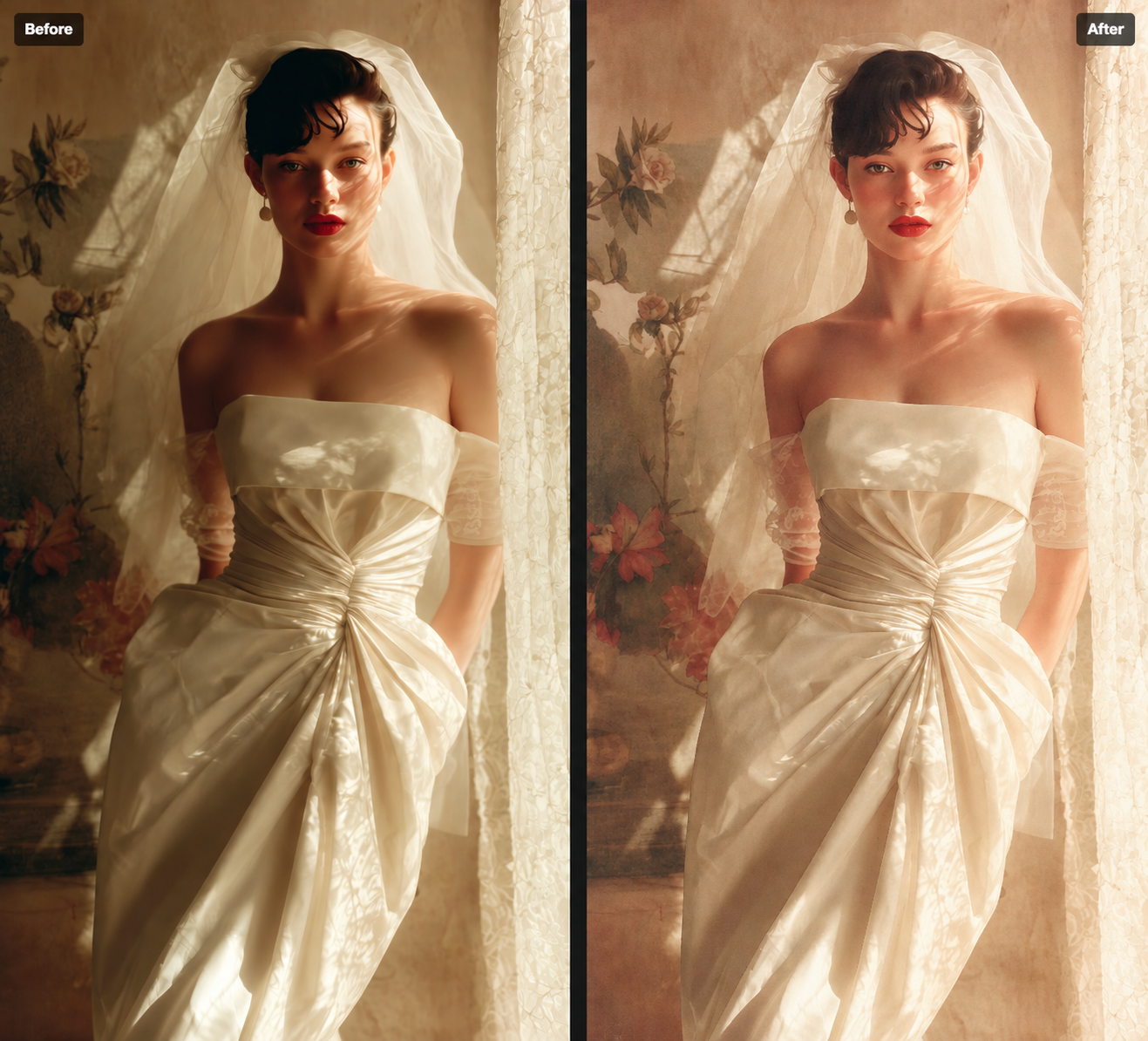
How to Use Style Transfer
To get started, upload the image you want to edit to Foneo and open the Style Transfer feature.
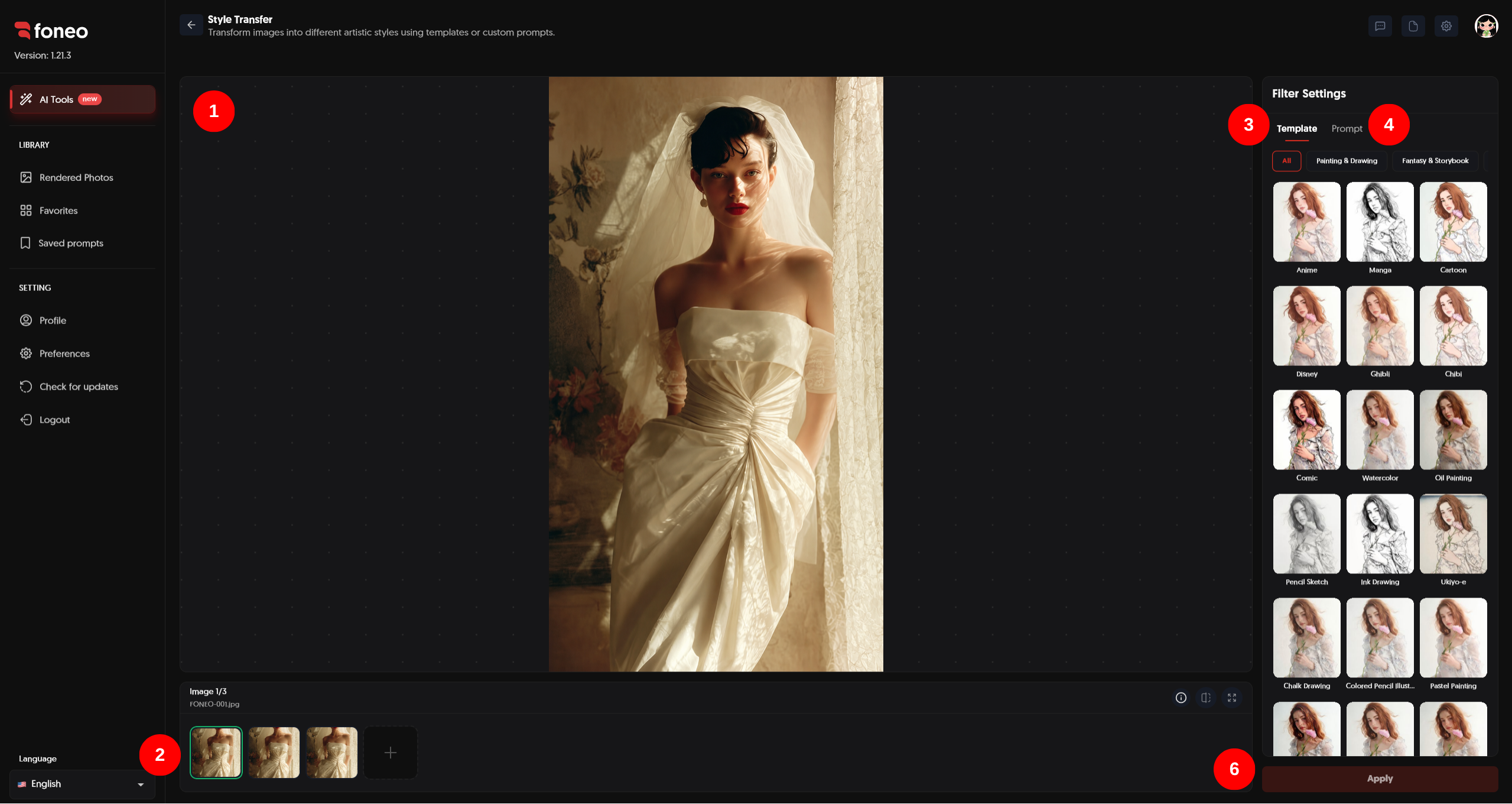
1. Preview Your Image
After uploading an image, it will be displayed in the preview area in the center of the screen.
This is the original image to which you want to apply a new style. You can review the image before choosing a Template or entering a Prompt.
2. Select the Image to Edit
Uploaded images will be displayed as thumbnails below the preview area.
- Click a thumbnail to select the image you want to edit.
- Click + to add a new image.
- Check the selected image before starting the style transformation.
You can select the appropriate image before setting up the desired style.
3. Choose a Template
In Filter Settings, select the Template tab.
Foneo provides a variety of Templates that allow you to quickly apply different image styles.
You can browse through different style categories and select a Template that matches the look you want.
After selecting a Template, the chosen style will be applied when you click Apply.
4. Create a Custom Style with a Prompt
In addition to ready-made Templates, you can switch to the Prompt tab to describe your desired style.
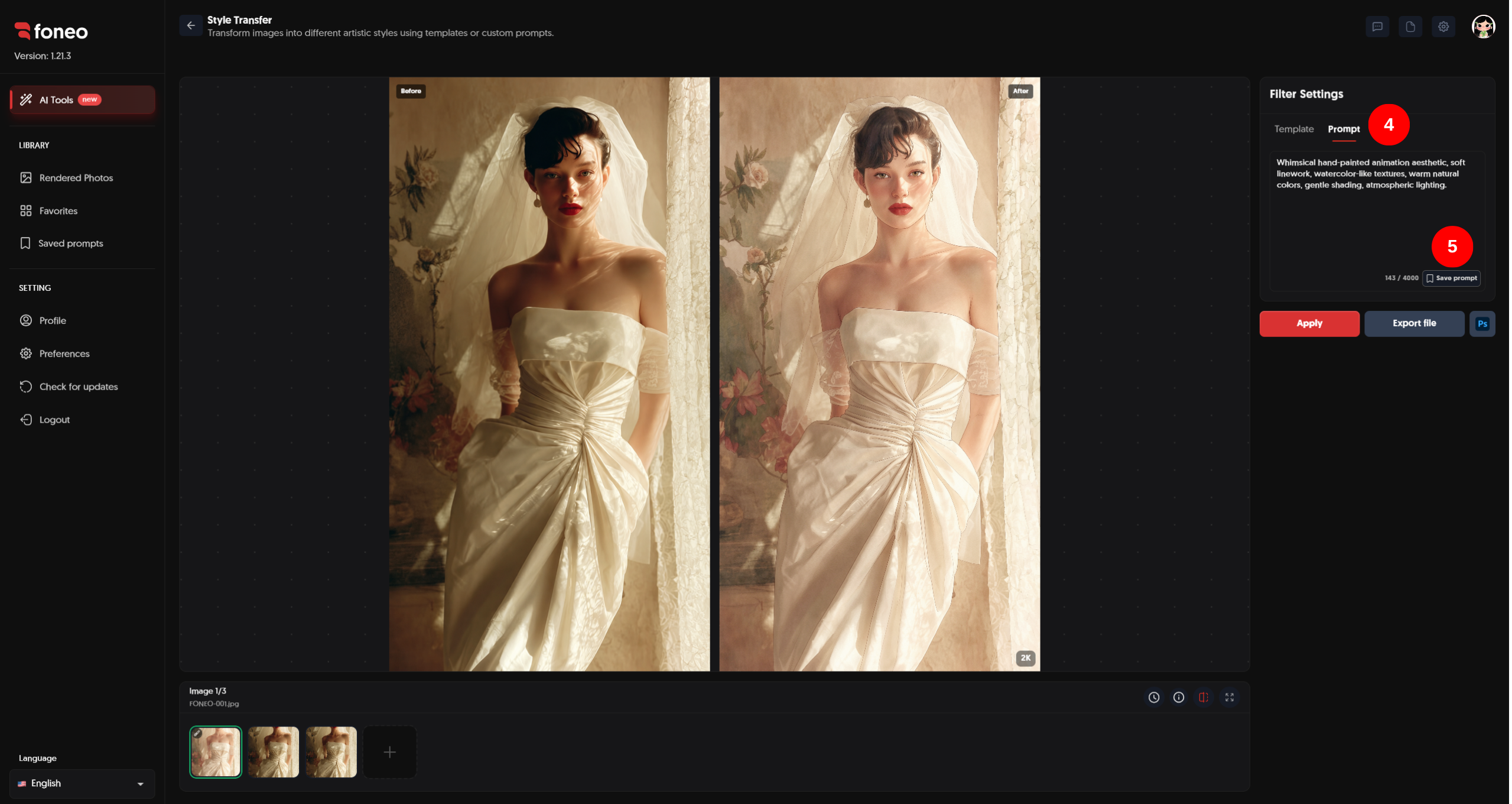
You can describe the specific style you want to apply, for example:
Japanese anime illustration style, clean line art, expressive eyes, smooth cel shading, refined highlights, vibrant yet balanced colors.
The more clearly you describe the desired style, the easier it is to guide the result according to your idea.
5. Save a Prompt for Later Use
If you frequently use a particular Prompt, Foneo allows you to save it for future editing sessions.
After entering your Prompt, click Save prompt.
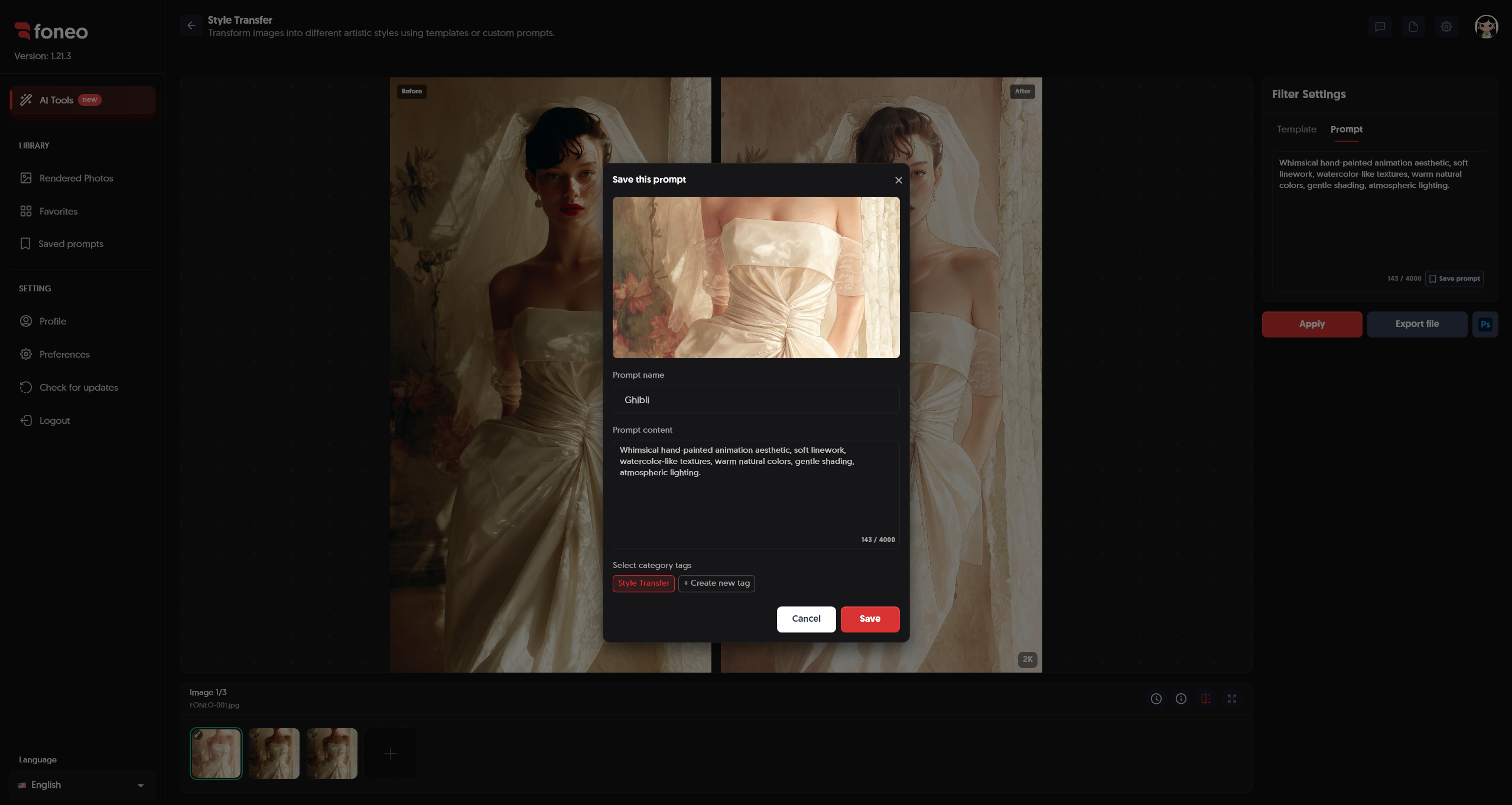
In the Save this prompt window, you can:
- Set a Prompt name for easy identification.
- Review or edit the Prompt content.
- Select a category tag to organize the Prompt.
- Click Save to save the Prompt.
After saving, the Prompt will appear in Saved prompts.
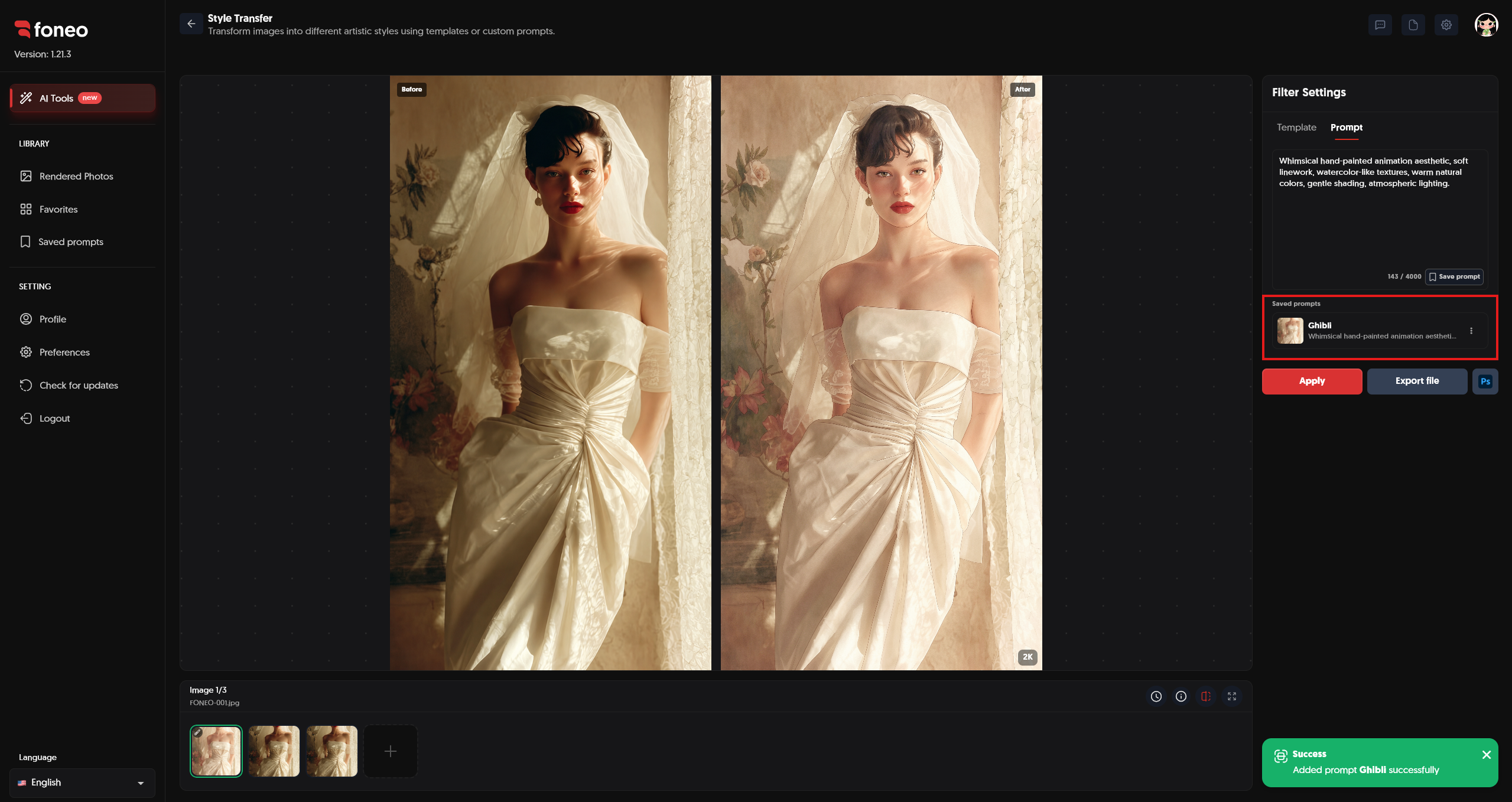
Saving Prompts allows you to quickly reuse frequently applied styles without having to enter the Prompt again.
6. Click Apply to Transform the Style
After:
- Selecting the image you want to edit.
- Choosing a Template or entering a Prompt.
- Checking the style you want to apply.
Click Apply to start processing.
AI will analyze the original image and apply the selected style to create a new version of the image.
Processing time may vary depending on the image and the requested style transformation.
7. Review the Result
Once processing is complete, the result will be displayed in the preview area.
You can use Before & After mode to compare the image before and after the style transformation.
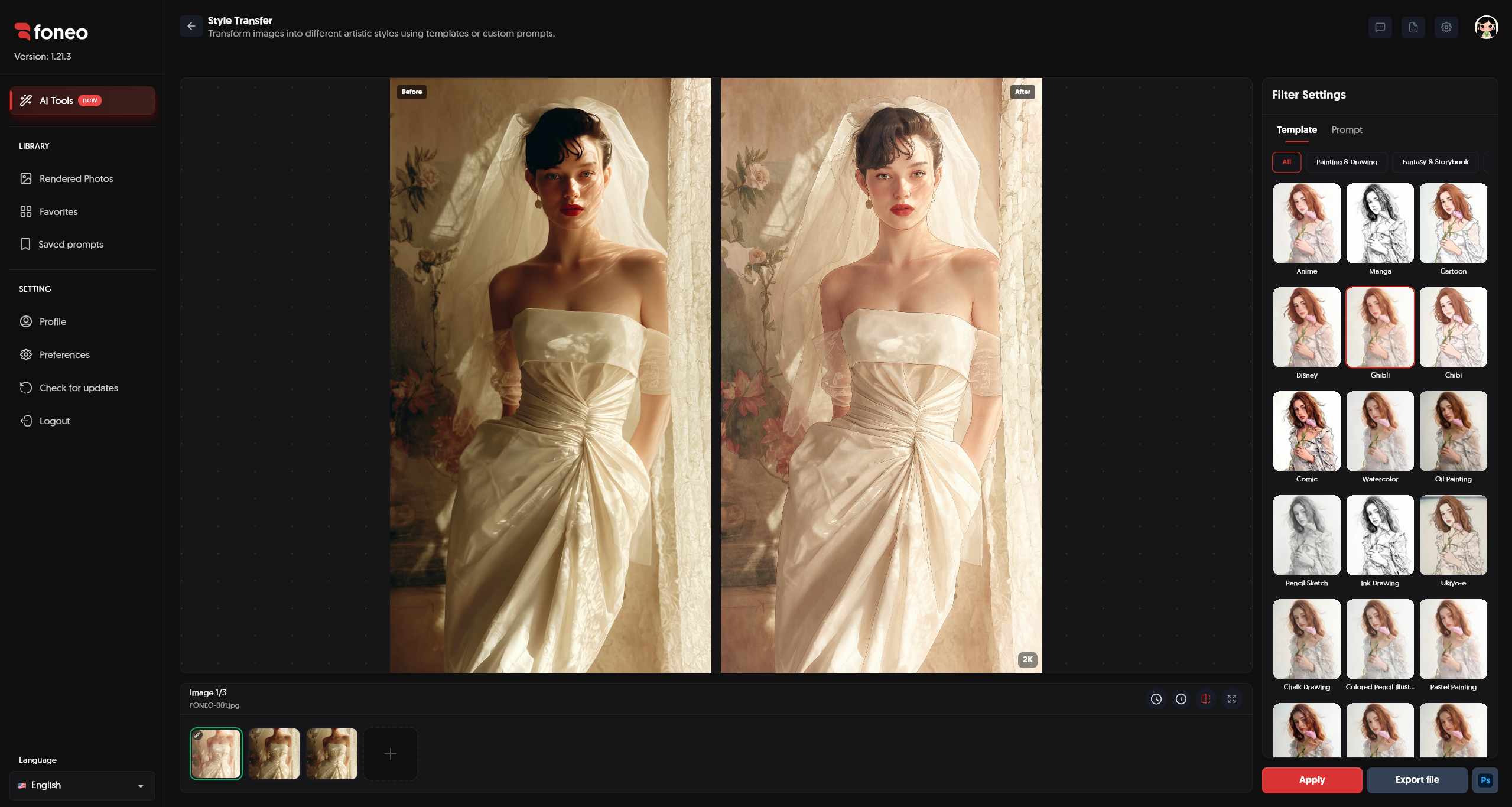
When reviewing the result, pay attention to:
- Style: Is the new style represented as expected?
- Face: Do the main facial features remain natural?
- Colors: Do the colors match the selected style?
- Details: Are important image details preserved appropriately?
- Overall: Does the new image look harmonious and suitable for its intended use?
If the result meets your expectations, you can proceed to export the image.
8. Export the Image
Once you are satisfied with the result, click Export file to save the image to your device.
If you want to continue editing in Photoshop, click Ps to open the image and continue editing.
How to Choose Between Template and Prompt
Foneo provides two ways to define the style you want to apply.
Using a Template
Template is suitable when you want to quickly try an existing style.
Simply:
- Select an image.
- Open the Template tab.
- Choose the desired style.
- Click Apply.
This is the simplest and fastest option when you do not have a specific style requirement.
Using a Prompt
Prompt is suitable when you want to describe the style more specifically.
You can describe elements such as:
- Illustration style.
- Linework.
- Colors.
- Lighting.
- Contrast.
- Detail treatment.
- Overall atmosphere.
For example:
Japanese anime illustration style, clean line art, expressive eyes, smooth cel shading, refined highlights, vibrant yet balanced colors.
After entering the Prompt, click Apply to process the image.
How to Use Prompts Effectively
1. Clearly Describe the Desired Style
Instead of entering only one word such as:
Anime
You can provide a more detailed description:
Japanese anime illustration style, clean line art, expressive eyes, smooth cel shading, refined highlights, vibrant yet balanced colors.
A more detailed description can help better define the visual characteristics you want.
2. Describe the Visual Characteristics
You can add specific characteristics that you want AI to represent, such as:
Soft watercolor painting style with delicate brush strokes, pastel colors, gentle lighting, and a dreamy atmosphere.
3. Keep the Prompt Focused on Style
When using Style Transfer, focus your Prompt on describing the visual style rather than adding too many unrelated requirements.
For example:
Hand-drawn illustration style with soft colors, clean outlines, subtle textures, and a warm artistic atmosphere.
4. Save Frequently Used Prompts
If you have a Prompt that produces a style you like and want to use it repeatedly, click Save prompt to save it.
You can reuse the Prompt from Saved prompts in future editing sessions.
Tips for Better Style Transfer Results
1. Use a High-Quality Image
Use a clear image with an easily recognizable subject and a relatively clear composition.
A high-quality input image gives AI more information to analyze and transform the visual style.
2. Choose a Style That Matches the Image
Consider the content of the image before choosing a Template.
For example, portraits may work well with illustration, cartoon, or painting styles, while images with many environmental details may be better suited to other artistic styles.
3. Make Your Prompt Specific but Easy to Understand
When using a Prompt, describe the most important characteristics of the style instead of making it unnecessarily long or adding too many different requirements.
4. Try Different Styles
Try different Templates or Prompts to find the style that best matches your image.
You can experiment with multiple styles on the same image to find the most suitable result.
5. Check Before & After Before Exporting
After AI finishes processing, review the image in Before & After mode to make sure the new style matches the image and its intended use.
If you are not satisfied, try another Template or adjust the Prompt and click Apply again.
What Can Style Transfer Be Used For?
The Style Transfer feature can be used in many situations, such as:
- Transforming portraits into illustration styles.
- Creating images in cartoon styles.
- Turning photos into paintings.
- Experimenting with different artistic styles.
- Creating unique visuals for social media.
- Creating creative images from existing photos.
- Trying different styles on the same image.
- Using custom Prompts to create a style based on your own ideas.
Frequently Asked Questions
What is Style Transfer used for on Foneo?
The Style Transfer feature uses AI to transform the visual style of an image, allowing you to create a new version using ready-made Templates or custom Prompts.
Can I use a Template for Style Transfer?
Yes. Foneo provides multiple Templates that you can select and apply directly to your image.
Can I create a custom style with a Prompt?
Yes. You can switch to the Prompt tab, enter a description of your desired style, and click Apply.
Do I have to enter a Prompt?
No. You can use a ready-made Template instead of entering a Prompt.
Can I save a Prompt for later use?
Yes. After entering a Prompt, click Save prompt to save it and reuse it in future editing sessions.
What are Saved prompts used for?
Saved prompts allow you to save frequently used Prompts so you can quickly apply them again without having to re-enter the content.
Can I change the style after processing the image?
Yes. You can try a different Template or Prompt and click Apply to create a new result.
Can I compare the image before and after Style Transfer?
Yes. You can use the preview area with Before & After mode to compare the image before and after processing.
Can I continue editing the image after applying Style Transfer?
Yes. After processing, you can click Export file to export the image or use Ps to continue editing in Photoshop.
What should I do if the result is not suitable?
You can try a different Template or adjust the Prompt to describe the desired style more clearly, then click Apply to process the image again.
Related Articles
- How to Use Portrait Effects on the Foneo AI Photo Editing App
- How to Use Lighting Effects on the Foneo AI Photo Editing App
- How to Use Weather Effects on the Foneo AI Photo Editing App
- How to Use Falling Object Effects on the Foneo AI Photo Editing App
- How to Use Product Enhancer on the Foneo AI Photo Editing App
Foneo · AI Photo Editing
Ready to try it on your own photos?
Download the Foneo app to edit photos with AI in just a few taps, or see the plan that fits your needs.